





Key Takeaways
- Control Startup Apps: Startup apps on Windows 11, Windows 10, and Mac can slow sign-in when installers or in-app options set them to open automatically. Disable optional entries in Settings or Task Manager on Windows, or remove them from Login Items on a Mac.
- Try Fixes in Order: For startup apps on Windows 11 or Windows 10, check Settings > Apps > Startup, Task Manager, the startup folder, in-app switches, restartable apps, and Edge Startup boost. On a Mac, remove unwanted Login Items and clear Reopen windows when logging back in.
- Test After Restarting: Keep security and driver helpers enabled when changing startup apps on Windows 11, Windows 10, or a Mac, then test with Restart. For stubborn Windows entries, check in-app switches such as Auto-start Teams or trace the launch with a clean boot or Autoruns.
You sign in and up come Teams, Spotify, and Discord before you’ve clicked a single app. To stop apps from opening on startup, turn them off in Settings or Task Manager on Windows, or remove them from Login Items on your Mac. If an app keeps coming back, switch off its own auto-start option or the feature that reopens apps from your last session.
Here’s the thing. An app that starts on its own and one that brings back the windows you left open can both leave you staring at a crowded desktop. Take a look at what came back. If you see the same windows you were using before you restarted, that gives you a clue about which control to check.
This guide covers Windows 11, Windows 10, and Mac. You’ll see where to check what starts when you sign in, which apps are worth leaving on, and where to look when the usual startup list doesn’t explain why an app keeps opening.
Why Apps Open When You Sign In
Why does an app open before you click it? Its installer or an option inside the app may have set it to start at sign-in. On Windows, startup entries can live in the regular startup list, a Startup folder, or the registry, and some programs run through Task Scheduler or a service. On your Mac, login items can open when you sign in, and background helpers can run without opening a window.
Your computer can also pick up where you left off. Windows can reopen apps that support restarting after sign-in, and your Mac can restore apps and windows from your previous session. If you’ve already turned off an app’s startup entry and the same windows keep coming back, check the session restore control.
Some apps get a head start without putting a window on your screen. Edge’s Startup boost keeps a few browser processes running so Edge can open faster, and Office Startup Boost can preload Word. When several apps use CPU time and disk resources at sign-in, your computer can take longer to get ready. Use the clues below to decide where to look first.
| Why the app opens | How you can tell | Where to switch it off |
|---|---|---|
| The app is set to start at sign-in | You may see a fresh app window even if you closed the app before restarting | On Windows, check Settings > Apps > Startup, Task Manager, or the app’s own auto-start option. On your Mac, check Login Items |
| Your computer restores your previous session | The apps or windows you left open come back | On Windows, check Sign-in options. On your Mac, clear Reopen windows when logging back in when you shut down, restart, or log out |
| Edge or Office preloads in the background | The app can be running before you open its window | In Edge, check Startup boost and the background app control. In Word, check Options > General > Startup Boost |
| A Windows task or service starts the app or a helper | It may keep starting even when you can’t find it in the regular startup list | Check Task Scheduler for tasks and System Configuration for services |
| A Mac background helper starts | The app can sync or check for updates while it’s closed | Check Allow in the Background |
How to Check Which Apps Start With Your Computer
Before you turn anything off, check what’s set to run. On Windows, you can see which apps are enabled and how much work they do at startup. On your Mac, check what opens at login and what can run in the background.
Check Your Startup List on Windows
The Startup page and Task Manager show the same list of registered startup apps. If a slow sign-in sent you here, Task Manager gives you more detail about what each app does at startup.
- On Windows 11 or Windows 10, open Start > Settings > Apps > Startup.
- Press Ctrl + Shift + Esc to open Task Manager. On Windows 11, select Startup apps. On Windows 10, select Startup, choosing More details first if Task Manager opens in compact view. Still on Windows 10? Check whether extended security updates cover your PC.
- Check the Status column to see which entries are enabled. Sort by Startup impact to bring the higher-impact entries together.
What do those ratings measure? Windows looks at CPU time and disk activity during startup. Here’s how to read each rating.
| Startup impact | What it means |
|---|---|
| High | More than 1 second of CPU time or more than 3 MB of disk I/O |
| Medium | 300 ms to 1 second of CPU time or 292 KB to 3 MB of disk I/O |
| Low | Under 300 ms of CPU time and under 292 KB of disk I/O |
| Not measured | The entry is enabled, and Windows has no impact reading yet |
| None | The entry is disabled |
Check Your Login Items on a Mac
Where you find Login Items depends on your macOS version. Use the path below that matches your Mac. You may need to scroll down in General to see the entry.
| macOS version | Where to look |
|---|---|
| Sequoia 15 and later | Apple menu > System Settings > General > Login Items & Extensions |
| Ventura 13 and Sonoma 14 | Apple menu > System Settings > General > Login Items |
| Monterey 12 and earlier | System Preferences > Users & Groups > Login Items |
On versions that show both lists, start with Open at Login to see which items open when you sign in. Then check Allow in the Background for apps that can do work such as syncing files or checking for updates while they’re closed.
Decide What to Keep Running
Which apps should you turn off first? Start with the ones you’d be happy to open yourself. On Windows, a High rating can help you choose where to start among those optional apps.
Here’s the catch. A small utility with an unfamiliar name might handle your touchpad, audio, or security alerts. Check what it does before you switch it off, especially if you rely on it for work or backups.
| App type | Usually safe to turn off | Why |
|---|---|---|
| Music, chat, game launchers, and personal meeting apps | Yes | You can open them manually when you need them |
| Optional app updaters | Usually, if you recognize the app | The helper may handle background update checks |
| Antivirus and the Windows Security icon | Keep enabled | Security agents handle protection. Hiding the Windows Security icon can remove status alerts while Defender keeps running |
| Audio, touchpad, graphics, and other hardware utilities | Keep enabled | They support hardware or controls you may use |
| Cloud sync and backup apps | Keep enabled if you rely on them | Syncing and backups can pause until you launch the app yourself |
| Password managers, VPNs, and company management tools | Keep enabled if you rely on them | You may need them available as soon as you sign in |
How to Stop Apps From Opening on Startup
Work through the methods for your computer in order. Start with the regular startup list, then check the app itself or look at what your computer restores when you sign back in. If the first switch works, you can stop there.
After you make a change, choose Restart and sign back in to test it. On Windows, Fast Startup can save the kernel session when you choose Shut down. Restart bypasses Fast Startup, so it’s the better choice for checking what opens after a fresh start.
1. Use the Startup Switches in Windows Settings
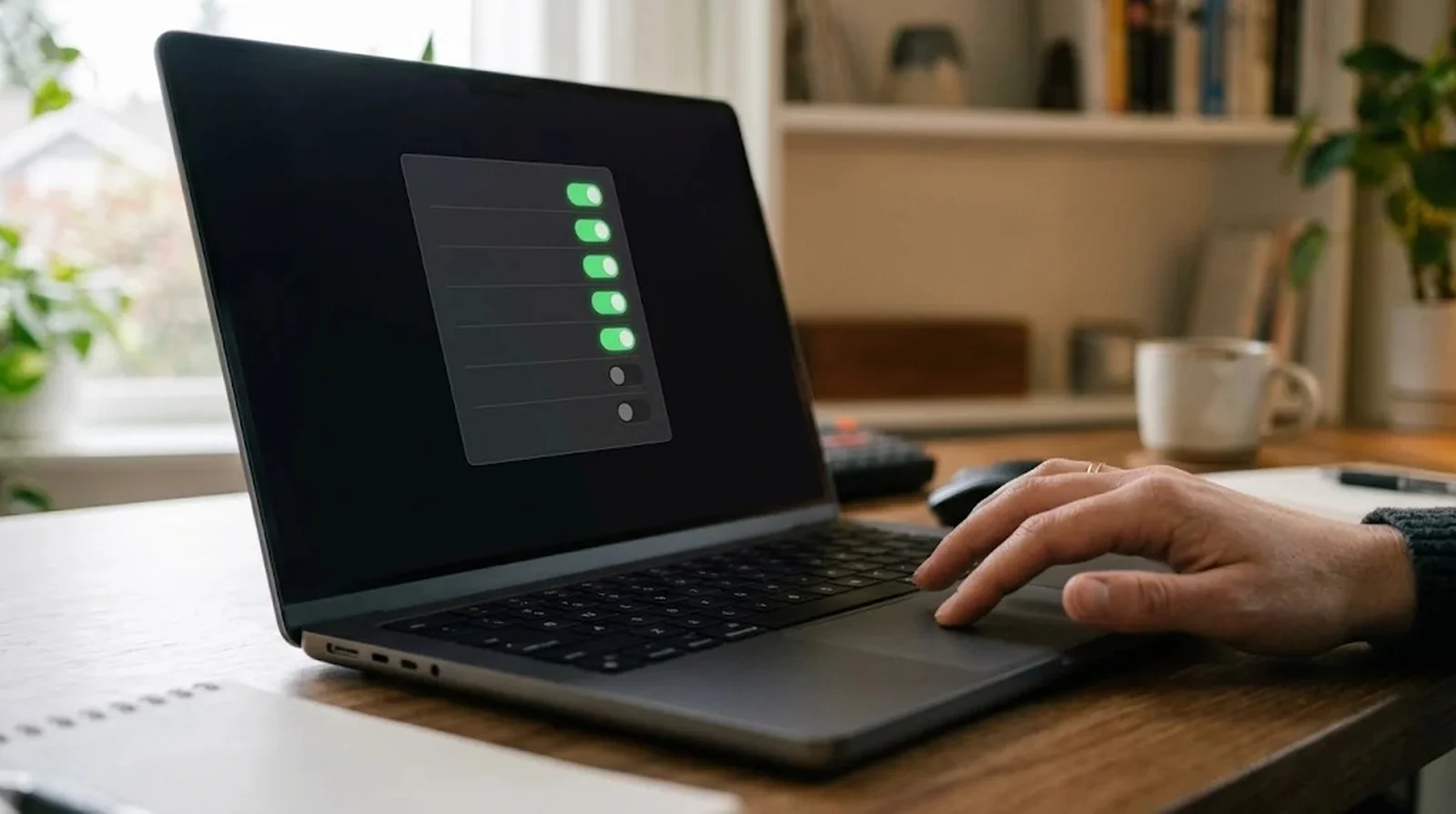
If the app you want to stop is on the Startup page, start there. The same controls work on Windows 11 and on Windows 10 starting with version 1803, the April 2018 Update.
What if you see “We couldn’t find this app” instead of an app name? Windows may still have an entry for a program you uninstalled or a file it can no longer reach. The entry might point to a removable drive, a network drive, or another path that’s no longer available.
How to Do It
- Open Start > Settings > Apps > Startup.
- Find the app and set its switch to Off. To have it start at sign-in again, set the switch back to On.
- If an app has a chevron, select it to see its additional controls. If Windows says it can’t find the app, use the icon beside the switch to see the file or registry location associated with that entry.
2. Disable a Startup Entry in Task Manager
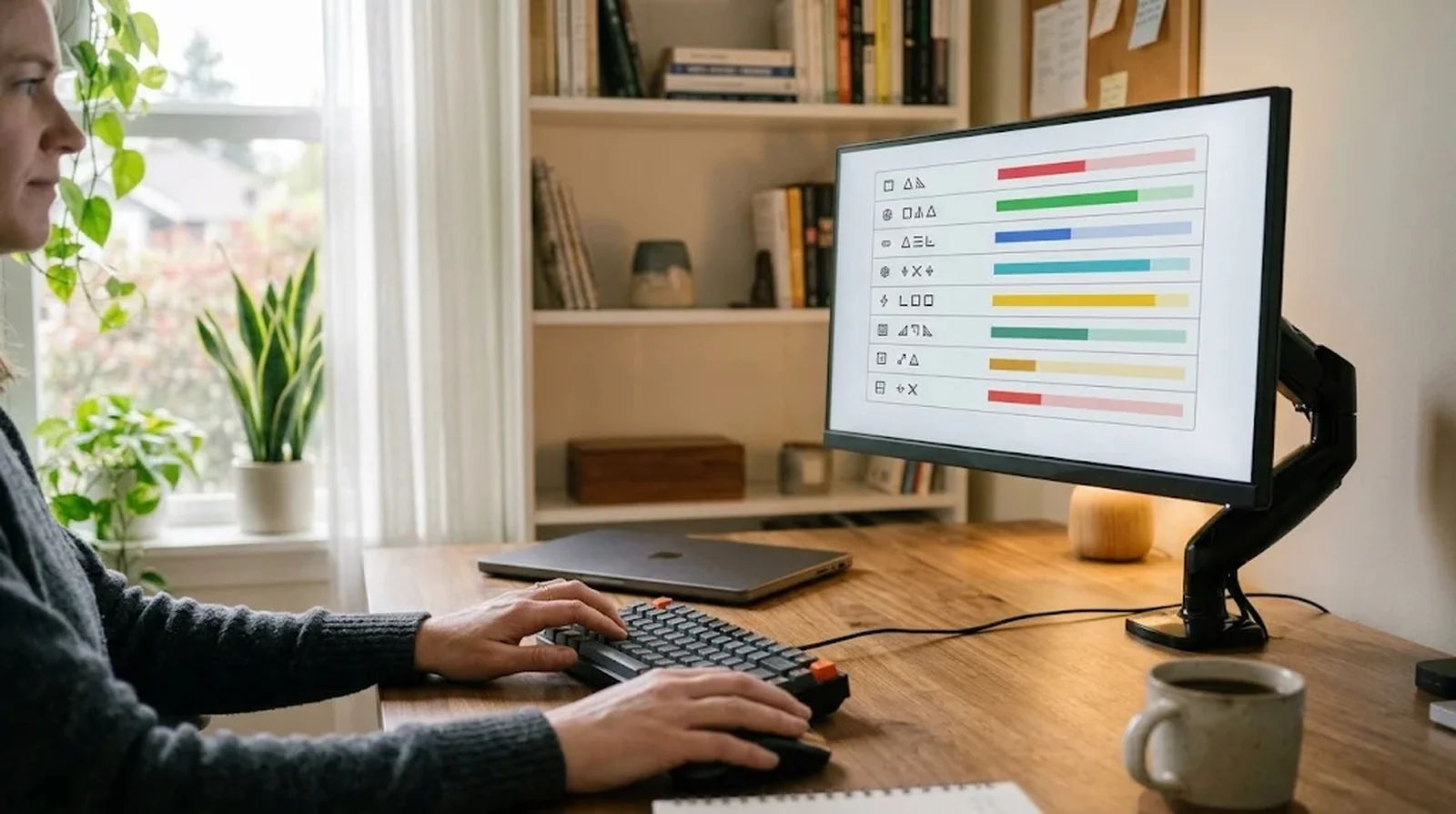
Task Manager helps when you want to see an app’s status and startup impact before deciding what to disable. You can sort the list by Startup impact and start with a high-impact app you’d rather open yourself. If an app freezes instead of closing, the same window lets you force quit it on Windows.
Already see Disabled next to an app that keeps opening? Check the app’s own auto-start switch or whether Windows is restoring it from your last session. Those controls can explain why the app still appears at sign-in.
How to Do It
On Windows 11
- Right-click Start and select Task Manager.
- Open Startup apps and select the app.
- Choose Disable. If you want to restore automatic launch later, select the app again and choose Enable.
On Windows 10
- Right-click Start and select Task Manager. If you see the compact view, choose More details.
- Open the Startup tab and select the app.
- Choose Disable. You can return to the same tab and choose Enable to reverse the change.
3. Delete the Shortcut That Starts the App
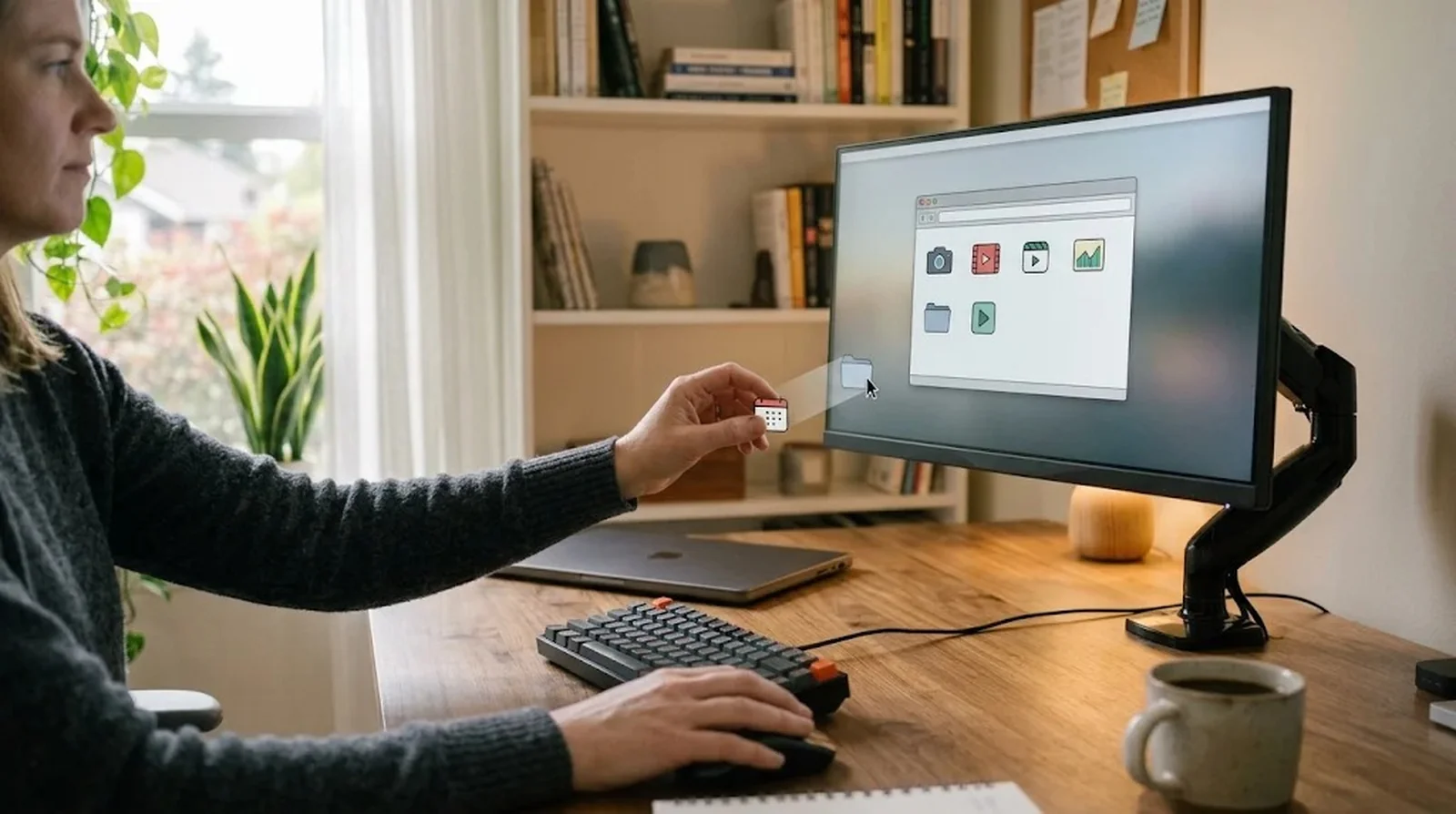
Can’t find the app in the Windows startup list? A shortcut in a Startup folder may be opening it. Windows has one folder for your account and another that applies to everyone who signs in to the PC.
Delete the shortcut from the folder where you find it. The app stays installed, and you can still open it yourself. If you change your mind later, you can add a shortcut back to the same folder.
How to Do It
- Press the Windows key + R to open Run. You can also right-click Start and choose Run.
- Enter shell:startup to check your account’s folder or shell:common startup to check the folder for all accounts. Press Enter.
- Find the app’s shortcut in the folder and delete it. If you don’t see it in the first folder, check the other one.
- To add the shortcut back later, open shell:appsfolder through Run. Keep both windows open and drag the app into the Startup folder you want to use.
4. Turn Off Auto-Start in the App That Keeps Opening
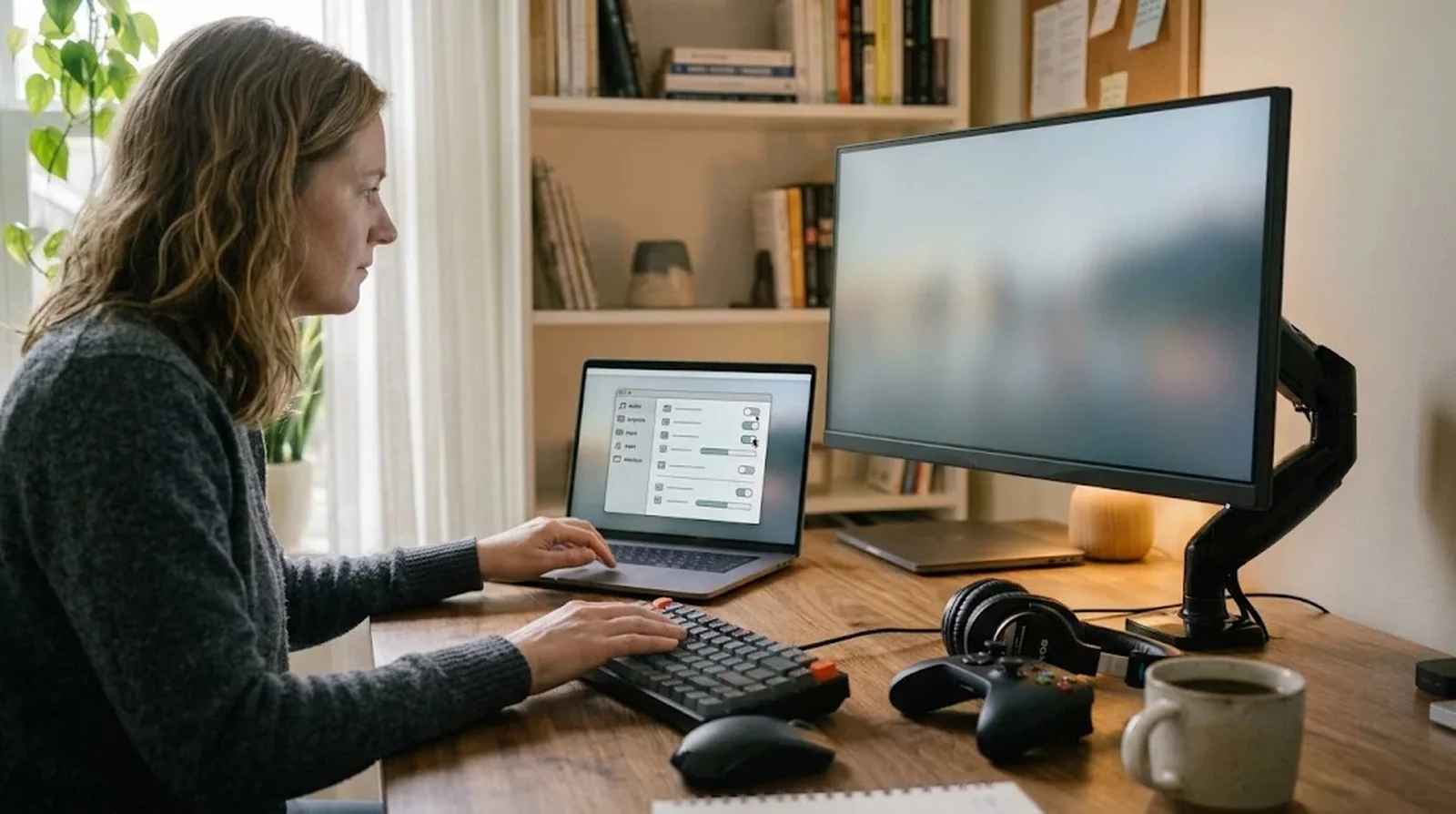
Why would an app open after you disabled it in Task Manager? Some apps have their own auto-start controls and may add themselves back to startup after an update. Teams users have reported seeing the app launch even when its Windows startup entry showed it was disabled.
On a work PC, your organization may require Teams, OneDrive, or Zoom to start when you sign in. If your change keeps getting reversed, check whether your IT team manages that option. And if you turn off OneDrive at sign-in, your files won’t sync until you open it yourself.
How to Do It
Microsoft Teams
- Select Settings and more (…) beside your profile icon, then open Settings > General.
- Under System, clear Auto-start Teams.
If Teams still misbehaves after that, our guide to fixing Microsoft Teams when it stops working covers the next steps.
Discord on Windows
- Select the gear icon to open User Settings, then choose Windows Settings.
- Turn off Open Discord. Once it’s off, Discord can disappear from the Task Manager startup list.
- If Discord stays running after you close its window, check Minimize to Tray in the same menu. That option controls what happens when you close Discord.
Spotify
- Select your profile icon and open Settings.
- Scroll to Startup and window behavior. On older versions, you may need to select Show Advanced Settings.
- Set the option that opens Spotify when you sign in to No. Choosing Minimized still starts Spotify.
Steam
- Open the Steam menu in the upper left and choose Settings.
- Select Interface and turn off the option that runs Steam when your computer starts.
If Steam refuses to open at all later, see what to do when Steam is not opening.
Zoom Workplace on Windows
- Select your profile icon and go to Settings > General.
- Clear Auto-start Zoom Workplace. Some versions may describe it as starting Zoom when you sign in to Windows. If you see Start silently beneath it, use the main auto-start switch to stop Zoom from launching.
OneDrive on Windows
- Select the OneDrive cloud icon, open Help & Settings using the gear, and choose Settings.
- Open Sync and back up and look for the switch that starts OneDrive when you sign in. It may be under Advanced settings. On older clients, check the Settings tab.
- Turn off that switch. If you can’t find it in OneDrive, look for OneDrive in the Windows startup list.
5. Prevent Windows From Restoring Your Open Apps
Do the apps you left running come back when you sign in again? Windows can save apps that support restarting and reopen them at your next sign-in. An app can return this way even after you’ve turned off its regular startup entry.
Use this fix when the apps that return match what you had open before the restart. The feature works with apps that support it, so the change may affect some of the apps you use.
How to Do It
- Open Settings > Accounts > Sign-in options.
- Scroll to Additional settings and look for the option that saves restartable apps and opens them again at sign-in.
- Turn that option off. Restart and check whether the apps you left open still return.
6. Switch Off Background Preloading in Edge and Office
Edge can keep a few browser processes running so it opens faster the next time you use it. It also has a separate control that lets extensions and apps keep running after you close the browser. Edge’s On startup page handles which tabs appear once the browser opens.
Office Startup Boost uses two scheduled tasks to preload Word. They run when about 8 GB of RAM and 5 GB of free disk space are available and stay off in Energy Saver mode. Here’s the catch. Office updates recreate the tasks, so you may need to turn Startup Boost off again after an update.
How to Do It
Microsoft Edge
- Open Settings and more (…) > Settings > System and performance > System.
- Turn off Startup boost.
- On the same page, turn off the option that lets background extensions and apps keep running after Edge closes.
Microsoft Word and Office
- In Word, open Options and select General.
- Under Start up options, turn off Startup Boost.
- If you’re checking Task Scheduler after an Office update, look for Office Startup Boost and Office Startup Boost Logon. Those are the tasks the installer creates.
7. Take an App Out of Your Mac Login List
If an app is listed among the items your Mac opens at login, select it and remove it from that list. You’ll need an administrator account to change the login items. A yellow warning triangle means your Mac can’t open the item because it was moved or deleted.
You may also see a separate list for background activity. An app there can do things like sync files or check for updates while its window is closed. Turn off its background switch if you can do without those tasks.
How to Do It
- Open the login list for your macOS version. On Sequoia 15 and later, go to Apple menu > System Settings > General > Login Items & Extensions. On Ventura 13 or Sonoma 14, go to Apple menu > System Settings > General > Login Items. On Monterey 12 and earlier, go to System Preferences > Users & Groups > Login Items.
- Select the app in your login list and click the minus button. If you want to add it back later, use the plus button.
- If you also want to stop an app from doing background work, look for it under Allow in the Background where available and turn off its switch.
8. Keep Your Mac From Bringing Back the Last Session
If your Mac brings back the windows you had open before you signed out, check the confirmation dialog the next time you restart. Your Mac can reuse the last choice when it restarts without showing that dialog. Holding Option while you choose Shut Down, Restart, or Log Out also skips it.
If just one app keeps opening, check its Dock icon for Open at Login. You can also skip all your login items for one sign-in to see whether one of them is responsible. If the app still opens and you can’t find it in your login list, other installed software may be starting it.
How to Do It
To stop your Mac from restoring the session
- From the Apple menu, choose Shut Down, Restart, or Log Out.
- In the confirmation dialog, clear Reopen windows when logging back in, then continue.
- To stop apps from bringing back old windows after you quit them, open System Settings > Desktop & Dock on Ventura or later. Turn on Close windows when quitting an application. On earlier versions, use System Preferences > General and turn on Close windows when quitting an app.
To check one app
- Control-click the app’s icon in the Dock. For example, use the Zoom icon if Zoom keeps opening.
- Choose Options. If there’s a check beside Open at Login, select it to clear the check.
- If you only want the app to forget its old windows, hold the ⇧ key while opening it.
To skip login items once
- If you see the login window, hold the ⇧ key while clicking Log In. Release it when the Dock appears.
- If your Mac signs you in automatically, restart and hold the ⇧ key when the progress bar appears. Release it when you reach the desktop.
9. Track Down Stubborn Windows Startup Entries
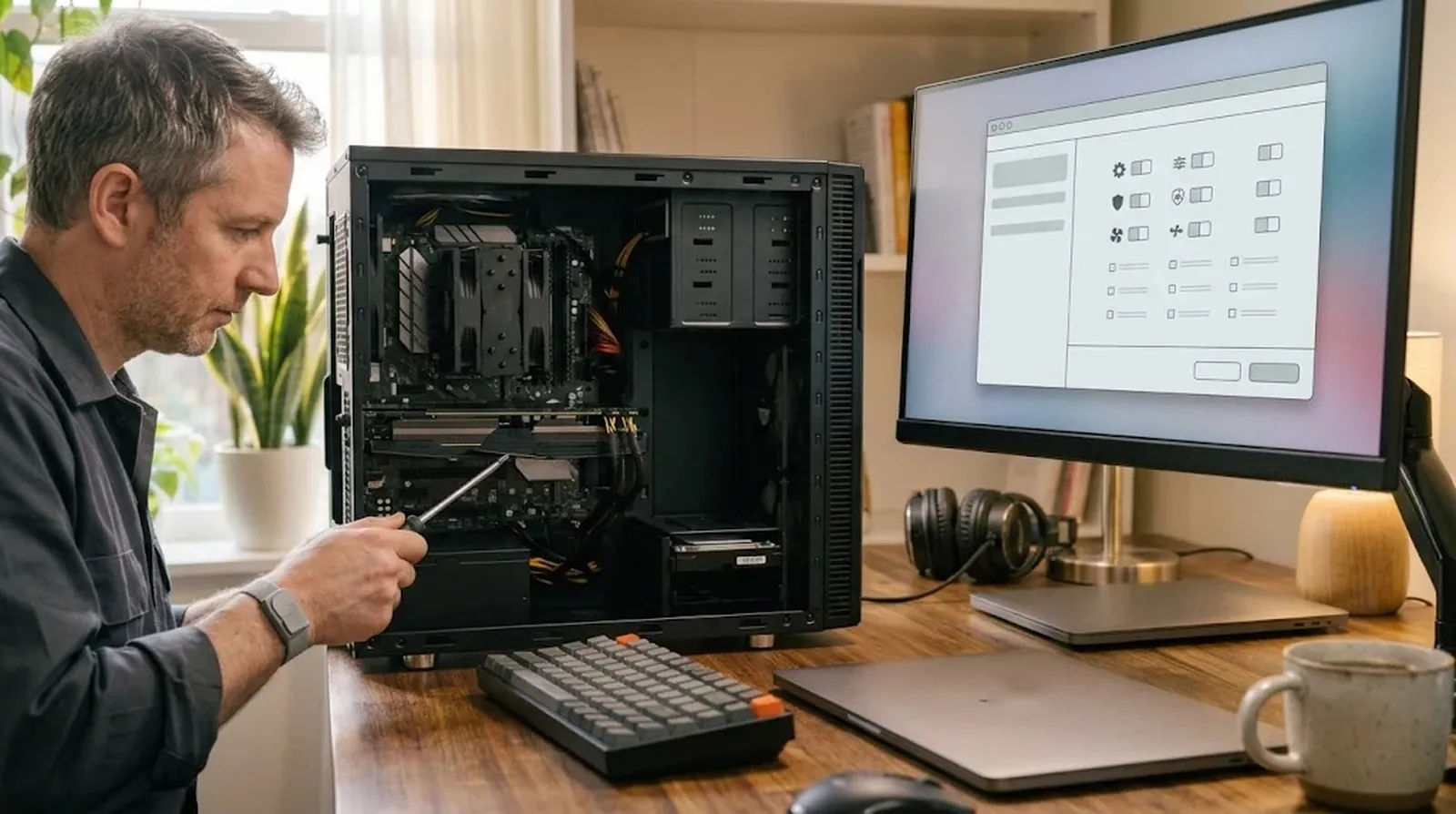
A clean boot can help you test whether a startup item or service is behind an app that keeps opening. Use it as a temporary test. Changing the wrong option in System Configuration can make your PC hard to use, and some features may be unavailable during the test. Leave advanced boot options alone unless a Microsoft support engineer is guiding you.
If you already suspect a specific task, check Task Scheduler for entries that run when Windows starts or when you sign in. Sysinternals Autoruns gives you another place to look, including logon entries, scheduled tasks, services, and drivers. Autoruns v14.3 was published June 17, 2026.
How to Do It
To test with a clean boot
- Sign in as an administrator. Search for msconfig and open System Configuration. Your organization may block access to some of these controls.
- Open Services and select Hide all Microsoft services. Leave Microsoft services and security software enabled. Clear only the boxes for other services you recognize and want to test, record what you changed, then choose Apply.
- Open the Startup tab and choose Open Task Manager. Disable only the startup apps you recognize and want to test, leave security software enabled, and record the changes.
- Return to System Configuration, choose OK, and restart. Check whether the unwanted app still opens.
- After the test, restore the services and startup apps you recorded, then restart again.
To check Task Scheduler
- Search for Task Scheduler and open Task Scheduler Library.
- Check the triggers for the task you suspect. Look for At startup or At log on.
- If you can confirm the task belongs to the app you’re troubleshooting, right-click it and choose Disable. Leave security, Windows Update, drive maintenance, and backup tasks enabled.
To check Autoruns
- Open Sysinternals Autoruns and check the Logon and Scheduled Tasks tabs for the app.
- If you recognize an entry and can link it to the unwanted launch, clear its checkbox. Check the box again if you need to restore it.
- If the entry points to a registry Run location, use the table to check which accounts it affects. Back up the registry before editing it, since changes can have unintended effects.
| Who the entry affects | Registry Run location |
|---|---|
| Your Windows account | HKCU\Software\Microsoft\Windows\CurrentVersion\Run |
| All Windows accounts | HKLM\Software\Microsoft\Windows\CurrentVersion\Run |
| All Windows accounts, additional location | HKLM\Software\Wow6432Node\Microsoft\Windows\CurrentVersion\Run |
Why Apps Keep Coming Back After You Disable Them
You turn off an app, restart, and there it is again. What happened? The app may have added itself back after an update, or your computer may be restoring what you left open. Check when the app comes back and whether it opens the same windows you were using before.
Check the App and Its Updates
Teams users have reported that the app still opened even though Task Manager showed it as disabled. If that happens, check Auto-start Teams inside Teams. Use the same idea for apps like Discord and Spotify, which have their own controls for opening when you sign in. If Windows updates themselves keep failing, our guide to a stuck Windows 11 update can help.
Office has a specific reason for coming back after an update. The Office installer recreates the Office Startup Boost and Office Startup Boost Logon tasks each time it updates Office. If those tasks return, open Options > General in Word and check Startup Boost again.
Want to know when an app adds itself to startup? On Windows 11, go to Settings > System > Notifications and turn on Startup App Notification. It can alert you when an app registers itself to run at sign-in.
Check What Windows Reopens
If the apps you left open are the ones that come back, go to Settings > Accounts > Sign-in options. Under Additional settings, turn off the option that saves and reopens restartable apps. An independent advisor in Microsoft Q&A reported that the option mainly affected Microsoft apps, so check what happens with the app you’re troubleshooting.
Here’s the catch. With Fast Startup enabled, choosing Shut down can leave the Windows kernel session in hibernation. Choose Restart for your test because it bypasses Fast Startup.
Check Mac Session Restore and Background Alerts
If your Mac brings back the same windows, clear Reopen windows when logging back in the next time you see the restart or shutdown dialog. Holding Option skips the dialog and keeps your last choice. On Ventura or later, you can also go to System Settings > Desktop & Dock and turn on Close windows when quitting an application.
Keep seeing Background Items Added? Some Mac users reported that updating or removing older apps and their helpers cleared the notices. In a discussion about macOS 13.1, users also reported that running sfltool resetbtm in Terminal and restarting stopped the alerts. Treat the Terminal command as an unverified workaround.
Where to Look for Startup Apps Missing From Your List
An app can open at sign-in even when you can’t find it in the regular startup list. On Windows, start with the Startup folders, then check for a scheduled task, service, or registry entry. On your Mac, check for a background helper or another app that may be launching it.
Check Startup Folders and Run Keys
Windows has a Startup folder for your account and another that applies to everyone who uses the PC. Open Run and enter shell:startup for your account or shell:common startup for all accounts. If you find the app there, delete its shortcut.
Some startup entries live in the registry. A Run entry under HKCU applies to your account, while one under HKLM applies to all accounts. Back up the registry before making any edits, since changes can have unintended effects. If you can identify the entry in Autoruns, clearing its checkbox gives you a way to reverse the change.
Check Scheduled Tasks and Services
A scheduled task can run when Windows starts or when you sign in. Open Task Scheduler Library and look for At startup or At log on in the task’s triggers. If you can confirm that a task belongs to the unwanted app, choose Disable so you can turn it back on later if needed.
A service can also start a helper. If you suspect one, use the clean boot test from method 9 and select Hide all Microsoft services before changing any entries. Leave security software enabled and restore the items you changed when you finish testing.
Look for Hidden Entries With Autoruns
If the usual lists come up empty, Microsoft’s Sysinternals Autoruns lets you check several startup locations together. Start with Logon and Scheduled Tasks. You can also inspect services, drivers, and Explorer add-ons from their own tabs.
Autoruns can help you spot entries left behind after an uninstall. In one Microsoft Q&A thread, a user reported that stale registry entries for Epson and Signal were still showing up in Task Manager after the apps were removed. If you can link an entry to the app you’re troubleshooting, clear its checkbox. You can select it again to restore it.
Check Mac Background Items
On Ventura or later, look under Allow in the Background in your Mac’s login pane. An app in that list may be checking for updates or syncing files while it’s closed. If you recognize the helper and can do without that work, turn off its switch and see whether the behavior stops.
Other installed software may be launching an app that’s missing from your login list. Check the app’s own controls first. Mac users have also reported finding leftover helper files in /Library/LaunchAgents, ~/Library/LaunchAgents, or /Library/LaunchDaemons. Back up any helper file before removing it.
How Many Startup Apps Are Too Many?
There’s no fixed number that makes startup slow. Look at how much work your apps do when you sign in and which ones you need right away. Then compare how quickly you can use your desktop before and after a change.
Judge Startup Impact and What You Use Daily
On Windows, sort Task Manager’s startup list by Startup impact. A High rating means the app used more than 1 second of CPU time or more than 3 MB of disk I/O at startup. Not measured means the app is enabled and Windows doesn’t have a reading for it yet.
Start with high-impact apps you’d be happy to open yourself, such as a game launcher or a music app. Keep security tools, hardware helpers, and any sync or backup apps you rely on. You may notice a bigger difference on a PC with a hard drive or limited RAM.
Compare How Soon You Can Use Your Desktop
What should you measure? Check how long it takes after sign-in before you can use your desktop. Use Restart for both checks so you’re comparing the same kind of startup.
- Restart, sign in, and note how long it takes before you can start using your desktop.
- Turn off an optional startup app you want to test.
- Restart again, sign in, and compare how soon the desktop is usable.
Task Manager may show Last BIOS time on your PC. That figure covers the firmware stage, so use your desktop timing to judge the change you made to startup apps. If startup still feels slow, Windows community members have suggested checking free disk space, pending updates, and whether your PC uses a hard drive or an SSD.
FAQs
Keep antivirus, driver helpers, and any sync or backup apps you depend on enabled. You can usually turn off automatic launch for music apps, chat apps, and game launchers and open them yourself.
It can help your desktop become usable sooner, especially if you disable optional apps that use a lot of CPU time or disk activity at startup. Restart before and after the change and compare how soon you can use your desktop after signing in.
Keep OneDrive enabled at startup if you count on files syncing as soon as you sign in. If you turn off automatic launch, syncing waits until you open OneDrive yourself.
Windows may launch the app through a Startup folder shortcut, a registry Run entry, a scheduled task, or a service. Check the Startup folders first, then use Autoruns if you need to inspect several startup locations.
A Windows 11 user reported that startup apps seemed to be disabled, but a missed launch alone leaves the cause unclear. Choose Restart to bypass Fast Startup, then check the app’s Status in Task Manager to see whether the entry is still enabled.
Allow in the Background lets an app do work while the app itself isn’t open. That can include syncing files or checking for updates.
Final Word
Start with one app you’d rather open yourself. On Windows, find it under Settings > Apps > Startup. On your Mac, look in Login Items. Keep security software and driver helpers enabled as you make changes.
If the app still opens, check its own auto-start switch. Then choose Restart, sign back in, and see what opens before you move on to the next app.
