





Key Takeaways
- Check the Warning Signs: Slowdowns, redirects, and disabled antivirus can point to a virus on a Windows 11 or Windows 10 PC. A slow PC may be low on disk space, and pop-ups can come from browser notifications, so check Protection history for detections.
- Scan and Quarantine: For a suspected virus on a Windows 11 or Windows 10 PC, disconnect, quarantine threats in Protection history, and run full and Microsoft Defender Offline scans. Check Task Manager and browser notifications, then try Safety Scanner or Safe Mode.
- Scams and Recovery: For a suspected virus on a Windows 11 or Windows 10 PC, treat pop-ups with phone numbers as tech support scams and use Reset this PC only as a last resort. After removing malware, change passwords from a clean device and enable two-step verification.
Your PC ran fine yesterday. Today it’s crawling, a browser tab you never opened keeps coming back, and a pop-up says you’re infected. If you’re wondering how to know if your PC has a virus, treat those warning signs as clues, run a scan in Windows Security, and follow up with a Microsoft Defender Offline scan or a second scanner to see what the scans detect.
What if that pop-up tells you to call a phone number? Leave the number alone and open Windows Security yourself. Check Protection history for anything Defender has already flagged, then run a full scan to check the files and programs on your PC.
This guide covers Windows 11 and Windows 10. Worried about your phone too? See how to know if your phone is hacked, plus our guides to removing a virus from an Android phone and from an iPhone. You’ll see how to read the scan results, what to do when a threat keeps coming back, and when to get help. Once you’ve dealt with the infection, you’ll also know how to secure your accounts and recover your files.
What a PC Virus Actually Is and How It Gets In
What makes a virus different from other malware? A virus makes copies of itself and attaches to programs or services on your PC. Malware is the wider category that includes viruses and other software that can harm you or your computer.
What Other Malware Can Do
Adware can put unwanted ads on the pages you visit. Spyware can collect private information such as passwords.
A trojan can disguise itself as a legitimate program. Ransomware can scramble your files or block access to your PC, then demand payment.
How Malware Reaches Your PC
Here’s the catch. A download can contain more than the app you meant to install. Cracked software and key generators can carry malware, and a fake update can get you to run an unsafe installer.
Malware can also reach your PC through an email attachment, a removable drive, or a site that exploits a flaw in your browser. An Office document can run a malicious macro when you select Enable Content. And that pop-up offering to fix an infection? It can send you to a download that puts malware on your PC.
Warning Signs Your PC May Be Infected
What if your only clue is a slow PC? Start by checking free disk space and whether Windows is waiting for an update or restart. Older hardware or too many apps opening at sign-in can slow things down, too.
A single symptom gives you a reason to check. If several changes show up together, especially if Windows tools stop working or your browser starts taking you to unfamiliar sites, run a scan. Here’s where to start with each clue.
| Sign | What it can mean | What to check first |
|---|---|---|
| Your PC slows down, freezes, crashes, or shows repeated Windows errors | Malware may be using enough processor time or disk activity to slow other tasks | See whether the slowdown happens mainly at sign-in or continues while you use the PC |
| You see pop-ups, tabs that keep reopening, or infection alerts | The browser may be showing ads or letting a site send notifications | Review the sites you’ve allowed to send browser notifications |
| Your homepage or search engine changes, pages redirect, or unfamiliar toolbars or extensions appear | Unwanted software may be controlling part of your browser | Look for browser extensions you don’t recognize |
| An unfamiliar program opens when you sign in | An unwanted app may be set to launch with Windows | Review the startup list in Task Manager |
| Your antivirus turns off or Task Manager won’t open | Malware may be interfering with security or system tools | Check which antivirus is active in Windows Security |
| Contacts receive messages you never sent | Someone may have access to your email or social media account | Use another device to look for messages or posts you didn’t write |
| Your files go missing, have new names, or won’t open | Malware may have damaged the files, or ransomware may have encrypted them | Look for a message demanding payment to get your files back |
| A ransom note appears or you’re locked out of your PC | Ransomware may have blocked access to your files or computer | If you see a ransom demand, turn off Wi-Fi or unplug the Ethernet cable, then get help |
How to Check Your PC for a Virus
Work through these checks in order. Start with what Windows Security has already recorded, then move on to scans and other checks if the problem persists.
See a ransom note? Take the PC off the network and stop there. Get help before you continue with the usual scan sequence.
1. Disconnect From the Internet if Something Looks Wrong
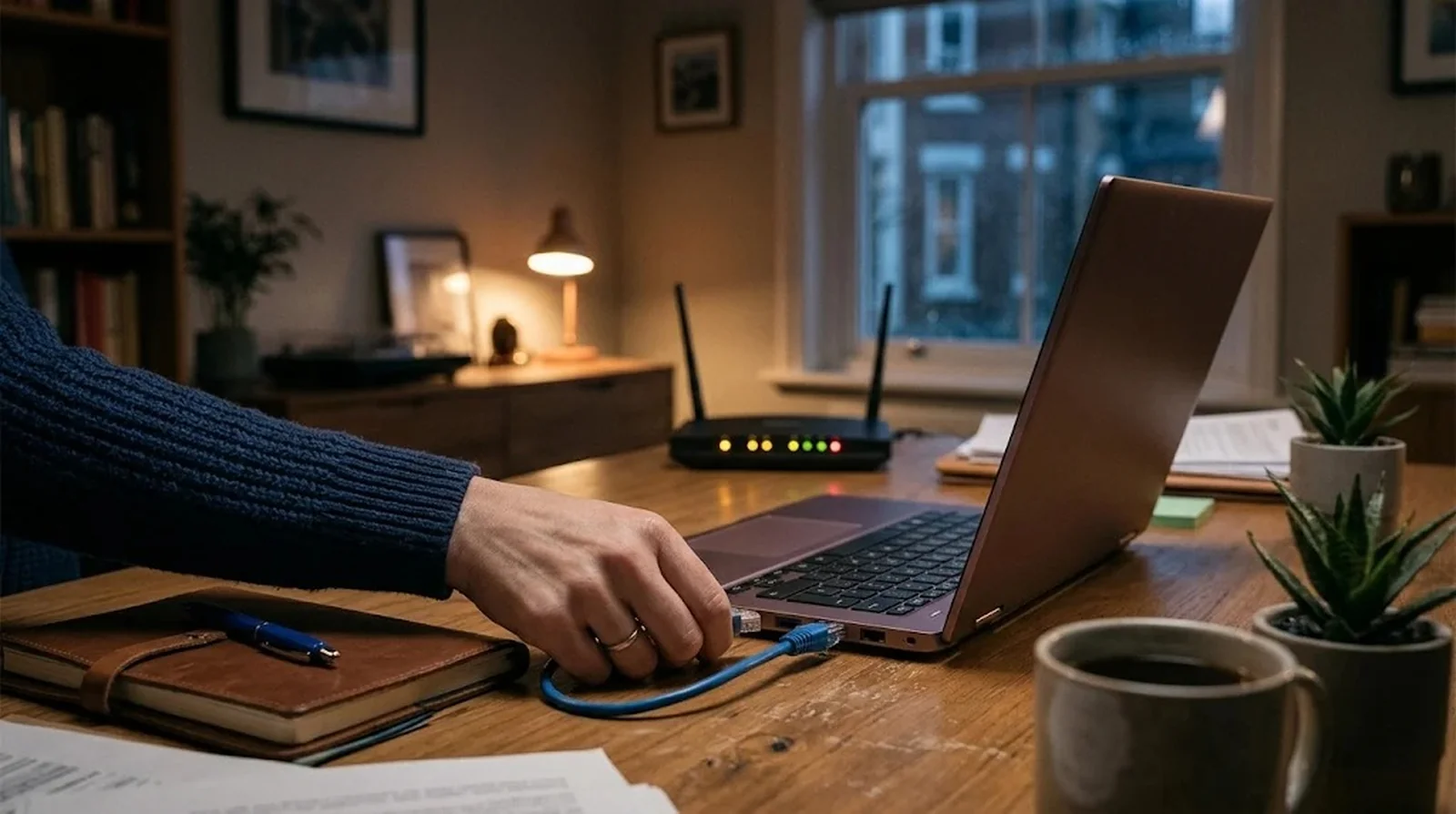
If you suspect an active infection, take your PC offline first. Malware can spread over a network, and disconnecting limits where it can go while you work out what happened.
Keep shopping, banking, and other account sign-ins off the suspect PC for now. If you need to access those accounts, use a clean device.
How to Do It
- Turn off Wi-Fi or unplug the Ethernet cable. If your PC uses both, disconnect both.
- If you see a ransom note, keep the PC powered on once it’s isolated. If you can’t disconnect it, power it down as a last resort because shutting it down can erase evidence.
- Leave the ransom unpaid. Payment gives you no guarantee that you’ll get your files or access to your PC back. If you’ve already sent money, contact your bank and local law enforcement.
2. Check Protection History in Windows Security
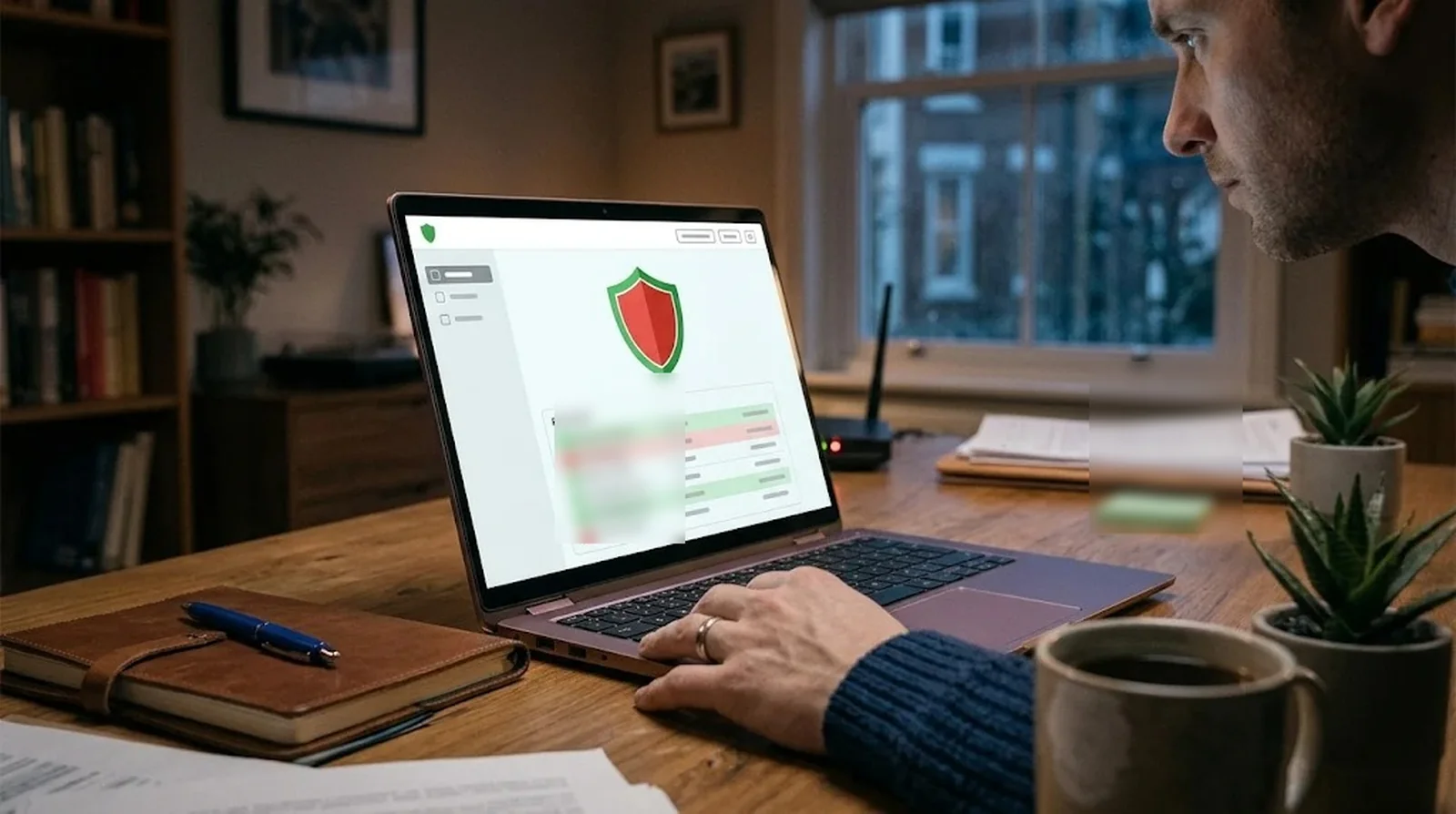
What has Defender already done about the threat? Protection history shows whether Defender blocked something, put it in quarantine, or still needs you to act. You can also see which unwanted apps it removed and whether a security service was turned off.
Here’s the catch. Entries stay there for two weeks, so check while the event is still recent. You’ll need administrator rights to see threat details.
How to Do It
- Open Windows Security, choose Virus & threat protection, and select Protection history.
- Deal with red entries first. Review yellow entries afterward.
- If you see Threat found, action required, choose Quarantine when you’re unsure, or select Remove to delete the item. Use Allow on device only if you’re sure the detection was a mistake.
- If you see Threat quarantined, the item is isolated. Select Remove to delete it. Choose Restore only if you’re sure it’s safe. If you see Threat blocked, Defender has already removed it.
- Open any Remediation incomplete entry for the remaining instructions. For Important service disabled, use Actions to turn the service back on.
- If you accidentally approved an item, select it under Allowed threats and choose Don’t allow.
3. Run a Quick Scan, Then a Full Scan
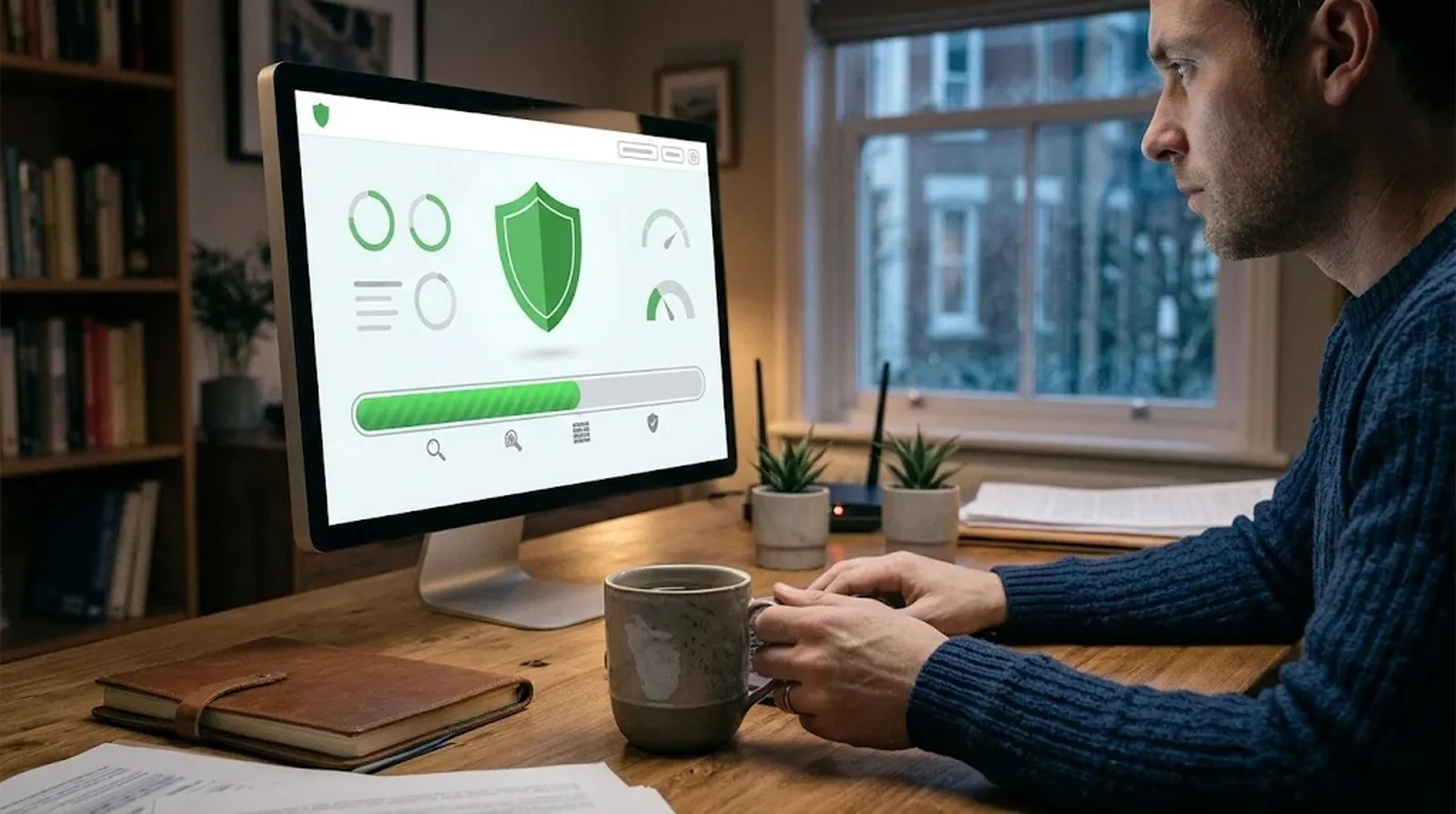
A quick scan gives you an early result without waiting for Defender to go through the entire PC. Windows Security may suggest another scan after the first one finishes.
If you’re still seeing signs of trouble, run a full scan even if the quick check came up clean. A full scan examines every file and program on your PC. If you’re concerned about a particular file or folder, use Custom scan to check just what you select.
How to Do It
- In Windows Security, open Virus & threat protection. Under Current threats, look for the last scan’s time, duration, and file count.
- If it’s safe to go online, open Protection updates and select Check for updates before scanning.
- Select Quick scan and review the result when it finishes.
- Open Scan options, choose Full scan, and select Scan now. If the scan stalls, free up disk space so Defender has room to quarantine what it finds.
4. Run a Microsoft Defender Offline Scan
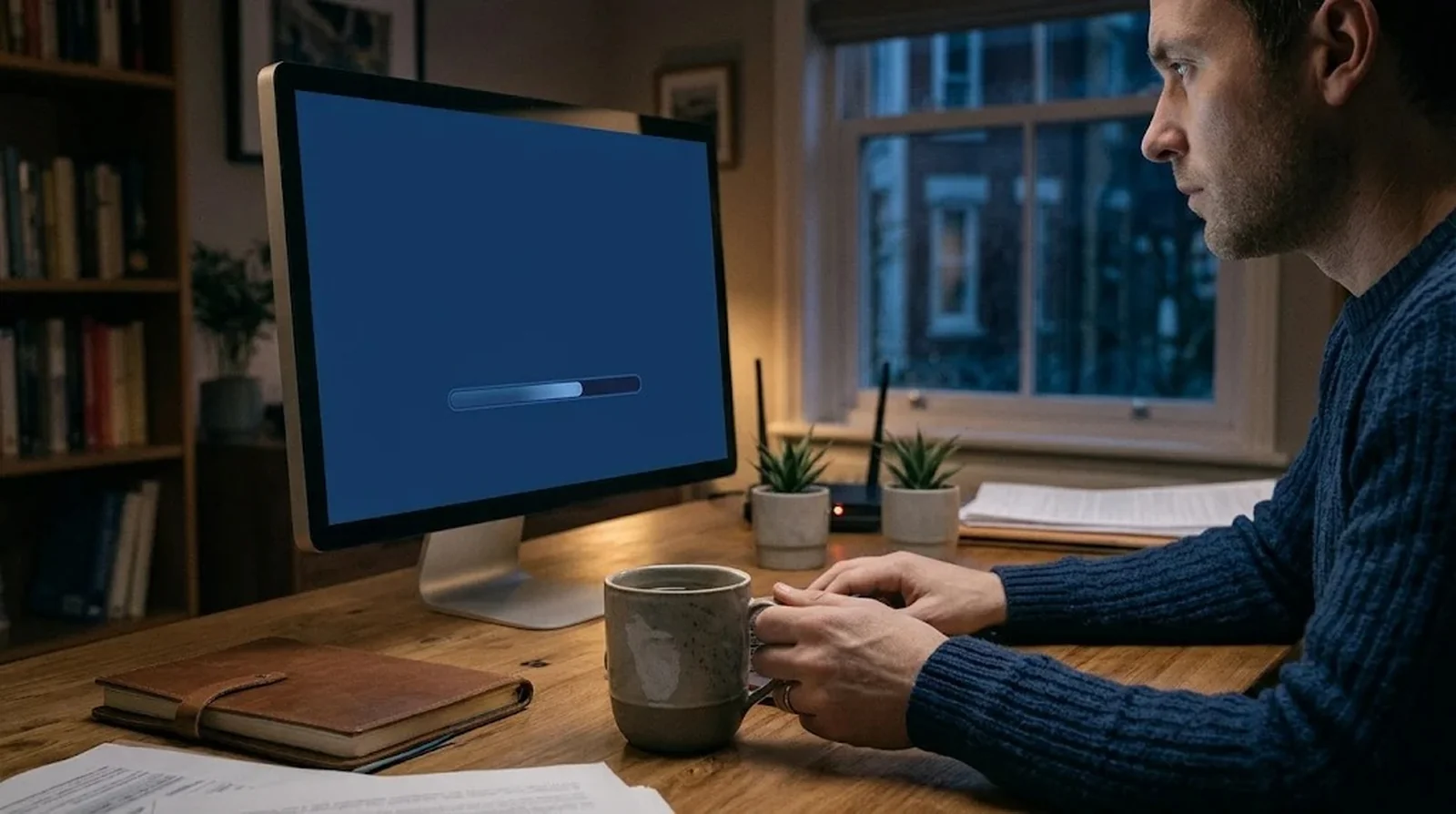
Does the same threat keep coming back? Run an offline scan when that happens or when Defender asks you to. The scan runs before Windows loads, which makes it harder for persistent malware to evade detection. It can check for rootkits and threats that infect the master boot record.
The scan takes about 15 minutes. Your PC restarts to run it and restarts again when it’s finished, so save your work first. If your drive uses BitLocker, have the recovery key handy in case Windows asks for it.
How to Do It
- Make sure Defender is your primary antivirus. The offline scan is unavailable on ARM versions of Windows.
- Run reagentc /info in Command Prompt to check that the Windows Recovery Environment is enabled. If it’s disabled, the scan won’t start or show an error.
- In Windows Security, open Virus & threat protection and choose Scan options. Select Microsoft Defender Antivirus (offline scan), then Scan now. Depending on your version, you may see Microsoft Defender Offline scan or Windows Defender Offline scan.
- After Windows starts again, open Protection history to see what Defender detected, removed, or quarantined.
5. Look for Strange Programs in Task Manager and Startup Apps
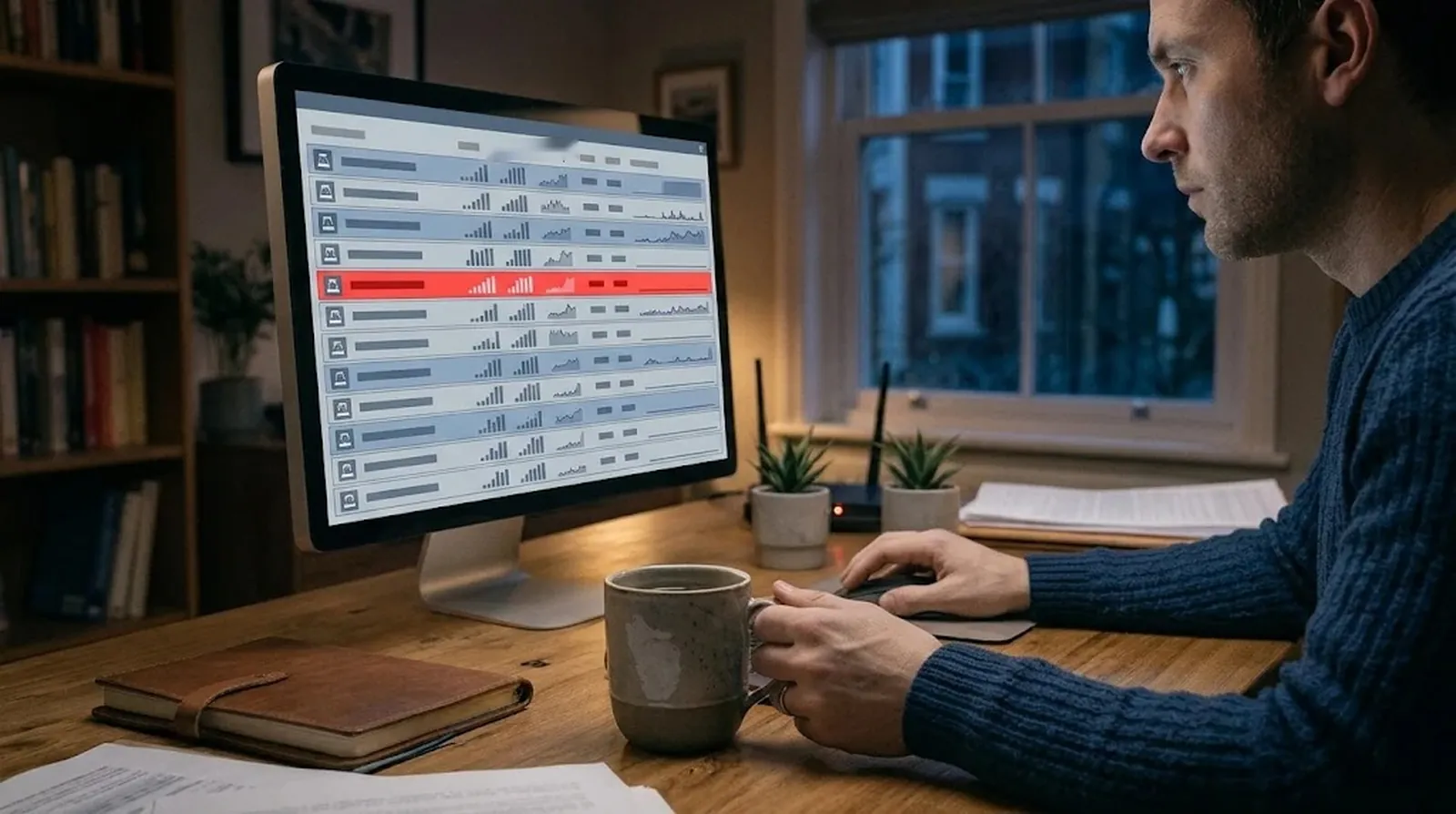
Task Manager gives you two places to look. If an app freezes while you check, you can force quit it on Windows. You can see what’s running now and check which apps Windows opens when you sign in.
What if an app uses a lot of CPU time or disk space while your PC is idle? That’s worth checking, especially if you don’t recognize the app. A busy process or a high startup rating can have an ordinary explanation, so verify the program before you change anything.
How to Do It
- Right-click Start and open Task Manager. In Processes, look at which apps use the most CPU or generate the most disk activity while you’re doing little on the PC.
- Open the list of startup apps in Task Manager. You can also open Settings, choose Apps, and select Startup to see which apps are enabled.
- Check the Startup impact column to see how much work each app adds at sign-in.
| Rating | CPU time and disk use at startup |
| — | — |
| Low | Below 300 ms of CPU time and below 292 KB of disk use |
| Medium | 300 ms to 1 second of CPU time or disk use from 292 KB to 3 MB |
| High | Over 1 second of CPU time or over 3 MB of disk use |
- If you’ve confirmed that an entry is unwanted, select it in Task Manager and choose Disable. You can also turn off its switch on the Startup page in Settings.
6. Check Your Browser for Hijacks, Extensions and Fake Alerts
If tabs keep reopening, your search engine changes, or your browser sends you somewhere unfamiliar, check your extensions and site permissions. A website you’ve allowed to send notifications can make an alert look like it came from your antivirus.
An alert that tells you to call a phone number is a tech support scam signal. Fake security emails work the same way, as our phishing email examples show. Close it without clicking its buttons or calling the number. If unwanted changes keep coming back in Chrome, you can reset the browser and turn back on only the extensions you trust.
How to Do It
In Chrome
- Open More, choose Extensions, then select Manage extensions. Review the list and remove extensions you’ve confirmed are unwanted.
- Open Settings and select Privacy and security. Go to Site Settings, open Notifications, and revoke permission for any site sending fake alerts.
- If unwanted changes return, open Reset settings in Settings. Choose Restore settings to their original defaults, then select Reset settings to confirm. Google began retiring Clean up computer with Chrome 111 in March 2023.
In Microsoft Edge
- Select the puzzle-piece icon and open Manage Extensions. Turn off a suspicious extension or use its menu to select Remove from Microsoft Edge if you’ve confirmed it’s unwanted.
- Look for a briefcase icon if an extension says it’s managed by an organization. If you can’t account for the entry, investigate it and run a full scan.
- Open Settings and select Privacy, search, and services. Under Site permissions, open All sites and select the site sending the alerts. Set its Notifications permission to Block.
7. Get a Second Opinion From Another Scanner
Still seeing trouble after Defender comes up clean? A second scan is worth trying if symptoms continue, if a tech support caller had remote access to your PC, or if you’re deciding whether to reset Windows.
Microsoft Safety Scanner is a free on-demand tool. ESET Online Scanner also offers a free one-time scan and quarantines threats it finds. Malwarebytes can scan on demand after its 14-day Premium trial, which includes real-time protection. Keep one real-time antivirus active, since installing another compatible antivirus can switch Defender off.
How to Do It
- If you’re unsure which antivirus is active, open Virus & threat protection and look for Manage providers.
- Download Safety Scanner from Microsoft’s website. Each copy expires 10 days after you download it, so get a fresh one for each scan.
- Open msert.exe directly and follow the prompts to run the scan. Safety Scanner works when you run it yourself and provides no real-time protection.
- Review the final result. If the scan counter showed items but the final report says it found nothing, check %SYSTEMROOT%\debug\msert.log for details.
8. Scan Again in Safe Mode With Networking

If your scanner won’t run during a normal Windows session, try Safe Mode. Windows loads fewer services and drivers there, which may keep software that normally starts with your PC from running.
Use Safe Mode with Networking if your scanner needs an internet connection and the PC can safely go online. If you already have a scanner you can run offline, regular Safe Mode is enough to try another scan. Windows may ask for your BitLocker recovery key when you use the recovery options.
How to Do It
On Windows 11
- Open Settings, choose System, then open Recovery.
- Under Advanced startup, select Restart now.
On Windows 10
- Open Settings and choose Update & Security, then open Recovery.
- Under Advanced startup, select Restart now.
On either version
- In the recovery menu, select Troubleshoot and open Advanced options.
- Choose Startup Settings, then select Restart.
- Press 5 or F5 for Safe Mode with Networking. For regular Safe Mode, press 4 or F4.
- Open a scanner that works in that mode and run it again.
9. Restore or Reset Your PC as a Last Resort
If the previous checks haven’t solved the problem, see whether you have a restore point from before the trouble started. System Restore rolls back changes to system files, the registry, and installed programs. Your personal files stay where they are.
A reset goes further by reinstalling Windows. Keep my files preserves your personal files and removes apps and preferences. Remove everything erases your personal files along with apps and preferences. Back up your files before you reset and have the BitLocker recovery key ready if you use drive encryption.
How to Do It
To use System Restore
- Open Control Panel, choose Recovery, and select Open System Restore. You can also run rstrui.exe or select System Restore under Advanced options in the recovery menu.
- Choose a restore point from before the problem began. Select Show more restore points if you need more choices, and use Scan for affected programs to see which apps the restore will change.
- Select Next, then Finish.
To reset on Windows 11
- Open Settings and choose System.
- Open Recovery and select Reset PC.
To reset on Windows 10
- Open the Windows recovery menu using the Windows 10 steps above.
- Choose Reset this PC in the recovery menu.
To finish the reset on either version
- Choose whether to keep or erase your files. If you select Remove everything, the optional Clean data choice erases the drive more thoroughly.
- Choose Cloud download to download an updated copy of Windows if you suspect the local files are damaged. Local reinstall uses the files on your PC.
- Let the reset finish on its own. You may see a black screen for 15 minutes or longer. Keep the PC running until the reset finishes.
How to Tell a Virus From an Ordinary Slowdown
Your PC takes longer to start, and apps that used to open right away now make you wait. Where should you look first? Check when the slowdown happens and what else changed around the same time.
The Checks to Run First
If slowness is the only change, start with the things you can check in a few minutes. Low disk space, pending updates, outdated software, and a long gap between restarts can all make your PC feel slow.
Watch for changes that go beyond speed. If your antivirus was turned off without your involvement or your browser starts sending you to unfamiliar pages, move on to the malware scans.
- Check your free disk space and see whether Windows has updates waiting. Restart if you haven’t done so in a while.
- Open Task Manager and look at the apps that start when you sign in. Use Startup impact to see which ones add the most work at startup.
- In Windows Security, check whether Real-time protection and Tamper Protection are on. Look in Protection history for an Important service disabled entry.
Clues That Point Away From Malware
If your PC is slow right after startup or an update and then settles, the timing can explain the slowdown. Older hardware can also explain why familiar tasks take longer than they used to.
What about two entries with the same name in Task Manager? Participants in a February 2025 ElevenForum discussion explained that seeing csrss.exe twice can be normal. If you’re unsure about a process, right-click it, choose Open file location, and scan the file with Defender.
How to Handle Fake Virus Alerts
A website can send an alert that looks like it came from an antivirus app. Open Windows Security yourself and check Protection history to see what Defender has flagged.
Turn Off Website Notifications
Does the alert appear even when your browser is minimized? A site with permission to send notifications may be behind it, especially if the message uses the logo of an antivirus you don’t have.
In November 2025, a Microsoft Q&A user reported repeated McAfee alerts on a PC without McAfee installed. A community reply pointed to ads or browser notifications as likely explanations. Check which sites can send alerts before you act on what the pop-up says.
In Microsoft Edge
- Open Settings and choose Privacy, search, and services.
- Open Site permissions, then choose All sites.
- Select the site sending the alert and set Notifications to Block.
In Chrome
- Open Settings and select Privacy and security.
- Open Site Settings and choose Notifications.
- Find the site sending the alerts and revoke its permission to notify you.
Recognize a Tech Support Scam
Microsoft’s genuine error messages never give you a phone number to call. Microsoft also says it never contacts you out of the blue to offer PC support. If an alert puts a number on the screen, close it and go directly to the company’s website if you need help.
Already called? End the call and think through what you shared. In an April 2026 Microsoft Q&A post, a user reported installing UltraViewer at the direction of a caller who claimed to be from Microsoft. Follow the steps that match what happened.
- If you gave the caller remote access, disconnect the PC from the internet.
- If you shared a password, change it right away from a clean device. If you paid by card, contact your bank or card issuer and ask it to reverse the charge.
- If the caller had you install a remote-access tool, uninstall it. Run a full scan in Windows Security, then run a Microsoft Defender Offline scan.
- Report the scam at ReportFraud.ftc.gov or microsoft.com/reportascam.
Why Your PC Fans Run Loud While It Sits Idle
Your PC is sitting idle, but the fans sound like you’re running a demanding app. One possible explanation is mining malware, which can use your PC’s computing power in the background. The fan noise gives you a reason to check what’s running.
Check for Hidden Activity
Open Task Manager and look at CPU and GPU use while you’re doing little on the PC. High use and heat at idle can be clues. If usage drops as soon as you open Task Manager, note the pattern and check whether your PC behaves differently in Safe Mode.
In July 2018, a Microsoft Community user reported that the fans grew loud and CPU usage dropped as soon as Task Manager opened. The user later reported finding a trojan disguised as igfxupdate.exe. Treat a similar pattern on your PC as a reason to scan.
When to Try Another Scanner
If Defender reports a clean scan and the symptoms keep coming back, run a Microsoft Defender Offline scan. It checks your PC before Windows loads, when persistent malware has fewer opportunities to hide. Save your work first because your PC will restart.
If you want another check after that, try an on-demand tool such as Microsoft Safety Scanner or ESET Online Scanner. A second scanner can also help after a tech support scammer had remote access or before you decide to reset the PC. Keep a single real-time antivirus active while you use another tool for a manual scan.
What Independent Tests Say About Defender
Two independent labs gave Defender their top awards in 2026. Those awards reflect specific test periods, and scores can change when the labs test again.
| Test | Result for Microsoft Defender |
|---|---|
| AV-TEST for Windows 11 home users, March and April 2026, published June 23, 2026 | Defender scored 6 out of 6 for protection, 6 out of 6 for performance, and 18 out of 18 overall, earning the lab’s TOP PRODUCT award |
| AV-Comparatives protection test, February through May 2026, published June 15, 2026 | Defender earned ADVANCED+, the top award |
| AV-Comparatives malware protection test, March 2026 | Defender detected 89.2% of samples offline, compared with 98.6% for several other products. Its online protection was among the stronger results |
So is Defender enough? On an updated Windows 11 PC, Defender with SmartScreen, Tamper Protection, and careful downloads is a reasonable baseline for most home users. The March result measures detection without an internet connection in that test. Microsoft Defender Offline is the scan you run before Windows starts.
What to Do After You Remove a Virus
Once you’ve removed the threat, check what it may have affected while it was running. Start with the accounts you used on the PC, then look for unfamiliar transactions and messages sent in your name.
Secure Your Accounts and Warn Contacts
Change your passwords from a clean device. If the infected PC recorded your keystrokes, it could capture new passwords as you type them. If you’ve lost access to an account, start with the provider’s recovery process.
After you change the password, sign out of the account on every device and turn on two-step verification. Our guide to two-factor and two-step verification explains which sign-in methods hold up best. Check that the recovery email and phone number still belong to you. For email, review forwarding rules and look through your sent and deleted folders. Warn contacts if someone sent messages in your name.
Check for Financial or Identity Theft
Go through your bank and card activity for charges you didn’t authorize. If you find one, contact the bank or card issuer and ask it to reverse the charge.
If someone stole your personal information, go to IdentityTheft.gov. You can file a report and get a recovery plan based on what was taken.
How to Keep Your PC From Getting Infected Again
Once your PC is clean, keep Windows current and make sure your protections are on. A backup kept away from the PC also gives you somewhere to turn if malware damages your files again.
Keep Windows and Defender Updated
On Windows 11, open Settings and select Windows Update. On Windows 10, open Settings, choose Update & Security, and then go to Windows Update. Check for updates and keep the other apps you use up to date too.
Still using Windows 10? Check whether extended security updates cover your PC. Windows security patches and Defender definitions follow separate schedules. Definitions help Defender recognize threats, and your PC can still be more vulnerable when it stops receiving Windows security patches.
| Date | What it means for your Windows 10 PC |
|---|---|
| October 14, 2025 | Regular support ended. Your PC still runs, and Windows security updates require Extended Security Updates enrollment |
| October 12, 2027 | Consumer Extended Security Updates coverage runs through this date. You can enroll by syncing with Windows Backup at no charge, using 1,000 Microsoft Rewards points, or making a one-time payment of $30 plus tax |
| October 2028 | Microsoft will continue providing Defender security intelligence updates through this month |
Keep Your Built-In Protections On
Open Windows Security, choose Virus & threat protection, then open Manage settings. Keep Real-time protection on so Defender can check files and apps as you use them. Leave Tamper Protection on to help keep malicious apps from changing those controls. You’ll see a yellow warning in Windows Security if Tamper Protection is off.
On Windows 11, open App & browser control in Windows Security to find Smart App Control, which can block untrusted apps. With recent updates, you may be able to turn it on without a fresh Windows installation. You’ll still need a reset if optional diagnostic data is off, and you’ll need to exit S mode first if you use it.
Be Careful With Downloads and Keep Backups
Get apps and updates from their publishers. If an unexpected attachment or link turns up, check that you can trust it before opening it. If a pop-up offers a security tool, go to the publisher’s website yourself.
Keep backups outside the PC, such as in OneDrive. If you need to recover files after an infection, use copies saved before the infection began. You can also turn on Controlled folder access under Manage ransomware protection to limit which apps can change files in protected folders.
FAQs
Yes. Persistent malware can evade scans that run while Windows is loaded. If symptoms continue after a full scan, try Microsoft Defender Offline or run a scan with a second tool.
A Windows reset can remove a virus, and malware that infects the boot process may survive. Try the scan and restore options first, and back up your files before resetting. Choosing Remove everything will erase your personal files.
For most home users with an updated Windows 11 PC, Microsoft Defender is a reasonable starting point alongside SmartScreen and Tamper Protection. Defender earned 18 out of 18 in AV-TEST’s March and April 2026 testing. If symptoms continue after a clean result, try an on-demand scan with another tool.
Yes. Microsoft will keep updating Defender’s virus definitions on Windows 10 through October 2028. October 14, 2025 was the last day of regular Windows 10 support. The consumer Extended Security Updates program covers Windows security patches through October 12, 2027.
Yes. You can run a quick scan, a full scan, or Microsoft Defender Offline from Windows Security. For a free second opinion, get a fresh copy of Microsoft Safety Scanner, which expires 10 days after you download it.
Close the pop-up without dialing the number and open Windows Security yourself to see whether Defender flagged anything. Genuine Microsoft error messages never give you a number to dial. If you gave the caller remote access, disconnect the PC, remove the remote-access app, and run a full scan followed by an offline scan.
Final Word
Start with Protection history in Windows Security to see what Defender has already found. Run a full scan, then try a Microsoft Defender Offline scan if the same threat returns or you still have reason to suspect malware.
If the symptoms continue, get a second opinion from an on-demand tool such as Microsoft Safety Scanner. If you see a ransom note at any point, disconnect the PC from the network and get help before continuing.
Once your PC is clean, change any passwords that may have been exposed from a clean device. As you get back to using your PC, keep Windows up to date and leave Real-time protection and Tamper Protection on.
