




Key Takeaways
- Spot the Trick: A fake CAPTCHA scam can copy a hidden command when you click its checkbox and trick you into running malware. Check whether you pressed Enter or saw a download, and treat a paste into Terminal or PowerShell as possible execution.
- Contain the Damage: After running a fake CAPTCHA command, disconnect and use a trusted device to change your email password first, then banking passwords, and end active sessions. Run a full scan and Defender offline scan on Windows, and heed “Possible malware, paste blocked” in Mac Terminal.
- Know When to Reinstall: A clean scan can miss fake CAPTCHA malware, so if malware keeps returning, back up your documents and use Reset PC on Windows or reinstall from macOS Recovery. Reinstalling macOS keeps your apps and files unless you erase the startup disk first.
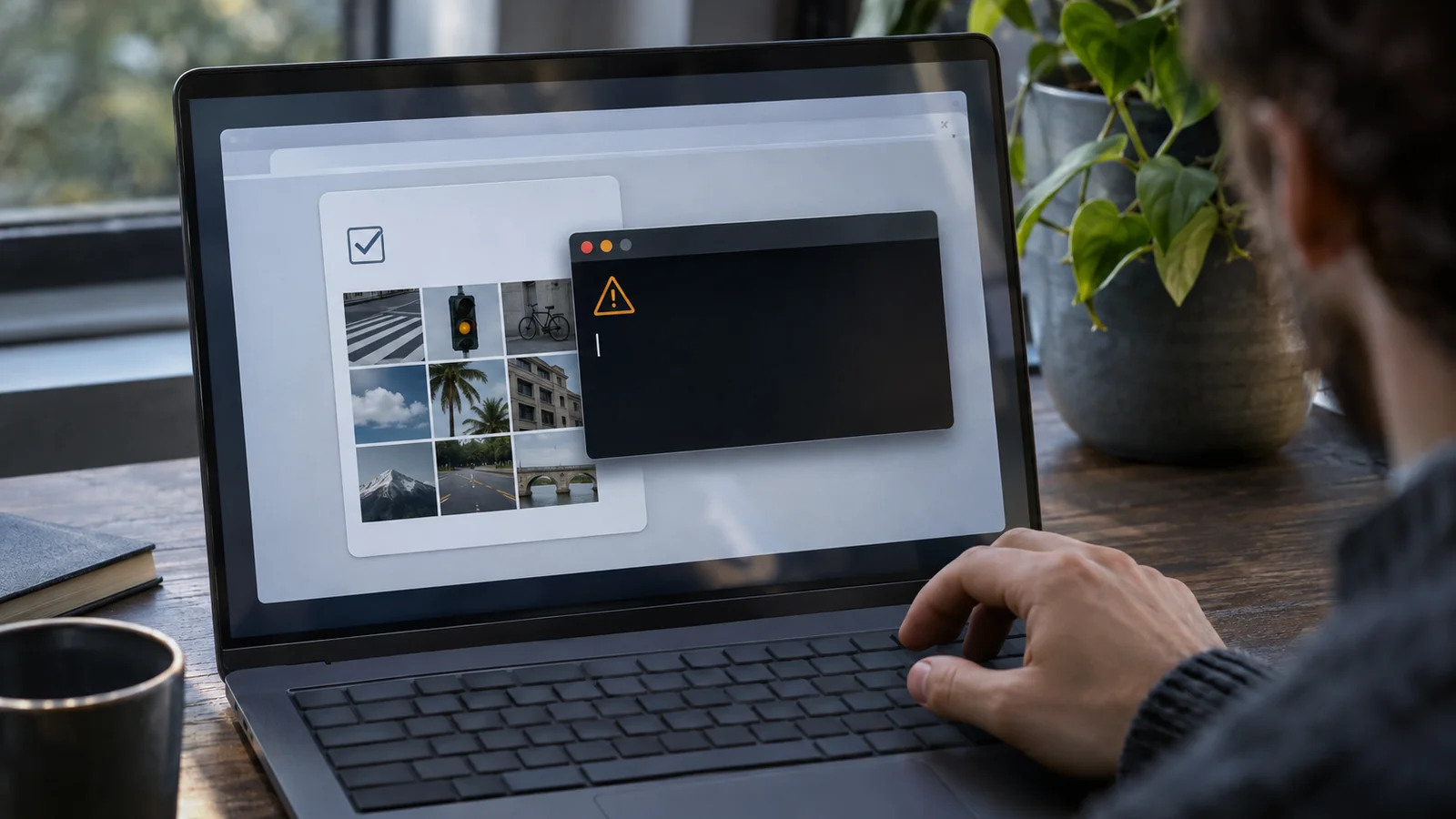
You clicked “Verify you are human,” pasted what the page told you to paste, and realized you’d fallen for a fake captcha scam. If you ran the command, disconnect that computer from the internet now and use your phone or another trusted device to change your main email password. The command may have installed an information stealer that can grab saved logins and reuse active browser sessions.
Maybe you pressed Windows + R, Ctrl + V and Enter. Maybe you opened Terminal on a Mac and pasted what the page had copied. As the FTC warning about CAPTCHA scams explains, a real CAPTCHA never asks you to run a command.
What to Do in the First 10 Minutes
Turn off Wi-Fi or unplug the Ethernet cable on the affected computer. Stop entering passwords on it, even if the computer looks fine. From a trusted phone or another clean device, change your main email password first, then your banking and other financial passwords, and use each service’s option to sign out of all sessions where available. If you stopped partway through the CAPTCHA instructions, use the table to work out what to do next.
| What you did | Risk | What to do next |
|---|---|---|
| Saw the page only | Low | Close the tab and review any unexpected downloads or notifications. |
| Clicked the checkbox | The page may have copied a command | Close the tab, copy harmless text to replace what is on the clipboard, and run a scan. Revoke site notifications if you allowed them. |
| Pasted without pressing Enter | Lower in Run, but a pasted line break in Terminal or PowerShell can execute a command | Close the window without pressing Enter. If you pasted into Terminal or PowerShell, follow the steps for a command that may have run. |
| Pressed Enter or saw a download | Possible malware execution or a malicious file | Disconnect, secure your accounts from another device, and scan the computer. Leave any downloaded file unopened and remove or quarantine it. |
| Typed your Mac password into a prompt | The malware may have gained system access | Disconnect, secure your accounts from another device, and plan to reinstall macOS. |
How the Fake CAPTCHA Scam Works
A fake verification page can set up the attack before you see any code. It starts with what happens when you click the checkbox.
The Page Puts a Hidden Command on Your Clipboard
When you click the box, the page can quietly copy a command to your clipboard. Windows + R opens Run, Ctrl + V pastes the command, and Enter runs it. The command can then use built-in Windows tools such as PowerShell or mshta to fetch and launch malware.
Microsoft calls this technique ClickFix and reports that campaigns hit thousands of devices a day. You might land on one of these pages through a hacked site, a malicious ad, a search result, or a link in an email.
What the Command Installs
An information stealer such as Lumma Stealer or StealC can collect browser passwords, session cookies, and autofill entries. That puts your email and banking logins at risk, even if the page that sent you to the fake CAPTCHA had nothing to do with either account.
Some commands install remote access software. In the TerminalFix campaign Microsoft documented in August 2026, the malware opened a remote tunnel for the attacker and created a scheduled task that runs again every 60 minutes.
Why Your Antivirus May Show Nothing
You see, when you paste and run the command yourself, the browser’s download warning can be bypassed. Some of the malware runs in memory, leaving fewer files for a scan to find. One loader, ResiLoader, can disable security software before installing StealC.
People on Microsoft Q&A in 2026 reported getting clean results from Defender or Malwarebytes after running one of these commands. A scan tells you what the security tool found. If you ran the command, keep going with the account checks even when the scan comes back clean.
Signs the CAPTCHA in Front of You Is Fake
What gives the page away? Start with where it wants you to type, then look at the story it uses to get you there.
It Tells You to Press Windows + R or Open Terminal
A real CAPTCHA gives you a task you can finish on the page, such as picking out objects or typing characters. Close the tab if the page asks you to paste anything into Run, PowerShell, or Command Prompt.
On a Mac, the page may tell you to press Command + Space to find Terminal and Command + V to paste into it. Treat that instruction as a reason to leave, even if you recognize the logo.
It Appears Where You Did Not Expect a Check
Does the page say it’s checking an account on a site you never opened? A check that appears out of nowhere or gives you a long set of instructions deserves the same scrutiny.
The page might imitate Cloudflare’s “Verify you’re human” box or display “Manual Verification Required” under a Google reCAPTCHA logo. Other versions have impersonated Booking.com or claimed you need to fix a Google Meet audio driver.
It Rushes You With Timers or Video Tutorials
A countdown may give you a minute to finish. Some pages add a visitor counter or play a video showing you where to paste the command.
The instructions can look convincing because the page detects whether you’re on Windows or a Mac and copies a command for that system. If the timer is already ticking, close the tab and take your time checking what happened.
Step-by-Step Cleanup on a Windows PC
If you pressed Enter or pasted into a shell that may have run the command, treat the PC as compromised. Start by taking it offline, then handle the accounts from another device before returning to the PC for scans.
Cut the PC Off the Internet
Switch off Wi-Fi. If the PC uses Ethernet, pull the cable. Cutting the connection can interrupt further downloads and break an attacker’s remote connection.
Any data already sent stays in the attacker’s hands. Keep the affected PC away from email, banking, work accounts, and other logins while you handle the next steps.
Write Down What Happened
Record the time, page address, and what you clicked. If the pasted command is still visible, write it down or capture it as shown. Include any administrator prompt you approved and any detection name your security software displayed.
Skip rerunning the command to see what it does. Your bank, workplace IT team, or repair shop can use the details you already have.
Secure Your Email From Another Device
Your inbox can receive password reset links for your other accounts, so secure it first. On your phone or another trusted device, set a new password you haven’t used elsewhere. If someone already locked you out, use the steps to recover Gmail after a password change.
Review recent sign-ins and check that the recovery phone number and email address still belong to you. Look for forwarding rules or connected apps you don’t recognize, then turn on two-factor authentication. Move on to your banking and other financial passwords once your inbox is secure.
Sign Out of Every Session
Here’s the thing. Someone who stole a session cookie can reuse a sign-in that already happened, skipping both the password and the text code. After changing your password, use the service’s session controls to end those sign-ins.
On your Microsoft account security page, go to the additional security options and choose Sign out everywhere. It can take up to 24 hours, and you need to sign out of Xbox consoles separately. If you’ve lost access, follow these steps to recover a hacked Microsoft account.
For Google, go to Security & sign-in > Your devices > Manage all devices. Select each device or session and choose Sign out, including multiple sessions under the same device name. Do the same in banking and shopping apps that offer session controls.
Run a Full Scan and an Offline Scan
Open Windows Security > Virus & threat protection. Under Current threats, go to Scan options and choose Full scan. That checks the files and programs on the PC.
Save open work, then return to Scan options and select Microsoft Defender Antivirus (offline scan). The PC restarts and scans in the Windows Recovery Environment, where malware that normally runs with Windows has fewer places to hide.
After the restart, open Protection history to review the results. Leave detected items quarantined and avoid choosing Allow or adding an exclusion. If you’re still seeing unusual behavior, check for other signs your PC may have a virus.
Check What Ran and What Starts With Windows
If you used Windows + R, the Run history is stored at HKEY_CURRENT_USER\Software\Microsoft\Windows\CurrentVersion\Explorer\RunMRU. An entry with powershell, mshta, or curl that matches what you pasted shows that Run launched the command. A command that failed to launch leaves no entry, and Terminal or PowerShell input entered directly can bypass this history.
In Task Manager, look under Startup apps for entries you don’t recognize. Check Task Scheduler for unfamiliar tasks that launch PowerShell or scripts. Note what you find so IT or a repair shop can check whether it belongs there.
Call Your Bank and Report the Page
Call your bank on the phone number printed on your card. Tell the bank you ran a command that may have exposed your login, and watch your statements over the next few weeks for transactions you don’t recognize.
Report the page to ReportFraud.ftc.gov and ic3.gov. If you ran the command on a work computer, tell your IT team and pass along the page address, time, and any scan results.
If It Happened on a Mac
The first moves are the same on a Mac, even though the page may give you different instructions. What you pasted and whether you entered your Mac password can help you decide how far to take the cleanup.
How the Mac Version Gets In
A page that detects your Mac may direct you to Terminal. Fake guides on blogs or Medium may dress up the same command as a way to free up disk space. Some then show a helper prompt asking for your Mac password.
Commands run in Terminal can bypass the Gatekeeper checks you’d see when opening a downloaded app. Stealers such as AMOS, Macsync, and Shub can target Keychain passwords, browser cookies, and iCloud data.
Cleaning Up a Mac
Disconnect the Mac, then use your phone to change your email and financial passwords and end active sessions. On the Mac, open the system controls from the Apple menu and go to General > Login Items & Extensions. Review what opens at login and remove entries you don’t recognize.
On macOS Tahoe 26.4 or later, Terminal can stop some risky commands with a “Possible malware, paste blocked” warning. Leave the paste blocked and keep macOS updated. If you entered your Mac password into the fake prompt, plan a reinstall.
When a Scan Is Not Enough
If malware keeps returning, security protection stays disabled, or someone keeps accessing your accounts, consider rebuilding the computer. A reset or reinstall is worth considering when you can’t establish what the command ran, too. Before you begin, check what each recovery option keeps.
Reset This PC on Windows
On Windows 11, go to System > Recovery and select Reset PC under Recovery options. The Keep my files option reinstalls Windows and removes apps while preserving personal files. Remove everything clears your files and apps as well. Choose Cloud download if you want the reset to fetch a fresh copy of Windows.
Back up your personal documents first and leave unknown installers or scripts out of the backup. Have your BitLocker recovery key ready if you use BitLocker. Let the reset finish on its own, even if the screen goes black for a while.
Reinstall macOS From Recovery
Back up your files, then start the Mac in macOS Recovery and choose the option to reinstall macOS. If the installer asks for a drive, choose Macintosh HD. Keep the Mac awake and the lid open until the installation finishes.
A reinstall by itself keeps apps and personal data. If you suspect malicious files would survive a reinstall, consider erasing the startup disk with Disk Utility first. Erasing deletes everything on the disk, so check your backup before you begin.
How to Avoid Fake CAPTCHA Pages Next Time
The next fake check might arrive as a search result, an email link, or a pop-up on a site you already know. Start with the instruction the page gives you, then use your browser and account protections to reduce the risk.
Treat Any Copy and Paste Request as a Stop Sign
If a verification page asks you to paste a command, close the tab. If you already clicked its checkbox, copy a harmless bit of text to overwrite whatever the page put on your clipboard.
Apply the same rule when a link arrives through email. If a message asks you to verify an account and sends you to a command prompt, it shares a warning sign with these phishing email examples.
Keep Browser and System Protection Switched On
If you use Edge, keep SmartScreen on so it can flag known malicious pages. On Windows, leave cloud-delivered protection on in Windows Security and keep automatic updates enabled.
On a Mac, keep macOS current and pay attention when Terminal blocks a paste. A browser extension such as Malwarebytes Browser Guard can also tell you when a site tries to write to your clipboard.
Make Stolen Passwords Less Useful
Use a different password for every account and turn on two-factor authentication or a passkey where your email provider and bank offer them. If you’re unsure what a service is asking you to enable, see how two-factor and two-step verification differ.
A stolen session cookie can still get someone past a password or a text code, which is why ending sessions matters after a scam. If you’re working through this now, start with the account you use to recover the others. Every account you secure from a trusted device gives you one less login to worry about while you clean up the computer.
FAQs
Infection is unlikely if you only clicked the checkbox and closed the page. The click may have copied a command to your clipboard. Copy harmless text to replace it and check for unexpected downloads or site notifications. Run a scan if you want to check the computer.
If you pasted into the Windows Run box and closed it before pressing Enter, the command generally won’t have run. If you pasted into Terminal or PowerShell, a line break in the copied text can execute the command for you. Disconnect and follow the cleanup steps if you’re unsure what ran.
A clean scan leaves open the possibility that a command ran or that data was stolen before the scan. Some malware runs in memory, where it can be harder to find. If you ran the command, secure your accounts from another device and end active sessions. On Windows, follow your full scan with the Defender offline scan.
Changing your passwords protects against someone using your old credentials. An attacker with a stolen session cookie may still be signed in. Use each service’s controls to end existing sessions. Check your email recovery details and forwarding rules while you’re there.
If you used Windows + R, check RunMRU for an entry that matches what you pasted. That can show that Run launched the command, even if you don’t know what the command did afterward. If you pasted directly into Terminal or PowerShell, RunMRU can’t tell you what happened. Treat the paste as possible execution if you’re unsure.
On Android, a fake CAPTCHA can lead you to a malicious APK disguised as a required update. Leave that download unopened and remove it if you already downloaded it. On an iPhone or Android phone, close the page if it opens a prefilled text message and leave the message unsent. If you already sent it, ask your carrier about possible charges.
