




Key Takeaways
- Check Matter Compatibility: If your robot vacuum is missing from Add Accessory or shows “Not Supported,” confirm that your exact model has Matter firmware. Check for iOS 18.4 or later, the updated Apple Home version, Bluetooth, and a shared 2.4 GHz Wi-Fi network.
- Pair and Troubleshoot: To pair your robot vacuum in Apple Home, get the Matter code from the maker’s app and enter it in Add Accessory. For “No Response” or “Updating,” restart the vacuum, hub, router and iPhone, then check room names and Siri commands.
- Pair Again or Adapt: If your robot vacuum still fails in Apple Home, choose Remove Accessory and pair again with a fresh Matter code. Named-room cleaning requires Matter 1.4 Service Area support, so use the maker’s app for room cleaning or Siri Shortcuts where available.
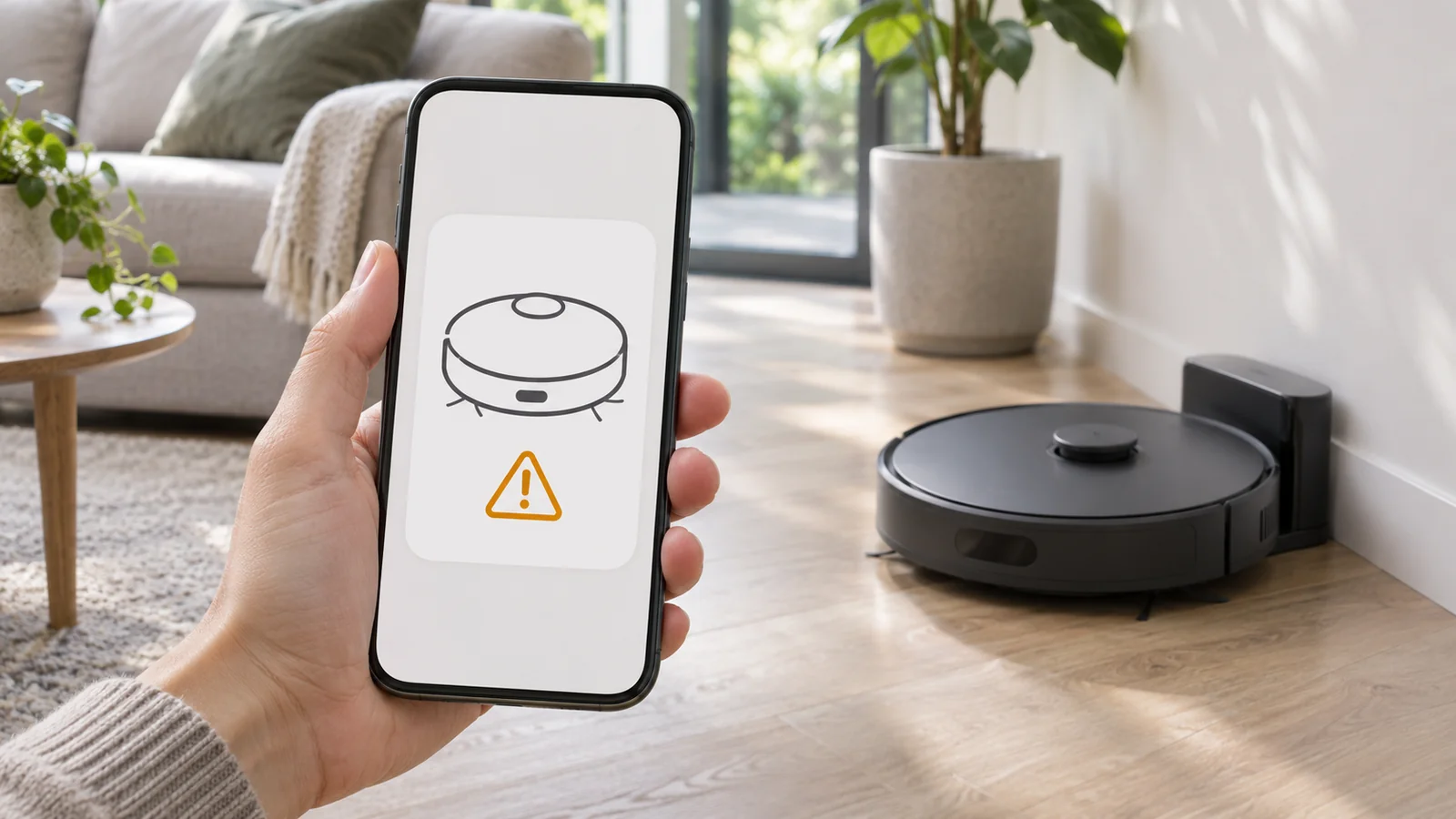
Is your robot vacuum not working in Apple Home? Start by checking that your exact model has Matter firmware, your iPhone runs iOS 18.4 or later, and the vacuum and iPhone are on the same Wi-Fi network. Apple Home gained robot vacuum control through Matter in iOS 18.4, and you need the updated version of Apple Home to use it.
Maybe your vacuum is missing from Add Accessory or shows “Not Supported.” Or you got it paired, but the tile stays on “No Response” or “Updating,” every room shows up as one area, or Siri ignores “vacuum the kitchen.” Those symptoms point to different causes. These nine fixes start with the quickest checks and work up to pairing the vacuum again.
Start With These Three Checks
Check the exact model in your vacuum app. Matter support is available on select Roborock Saros and Qrevo models, the Roomba Plus 500 Combo, Max 700 and Combo 10 Max, and select Ecovacs X2, T50 and X8 models. You’ll also find it on some Dreame models, the eufy E25, E28 and S2, and the SwitchBot S20. The Roomba Combo j7 and j9 lack native Matter pairing.
Next, check that your iPhone runs iOS 18.4 or later and that your home uses the updated version of Apple Home. Support for the previous Apple Home version ended on February 10, 2026.
Finally, turn on Bluetooth and put your iPhone, vacuum and home hub, if you use one, on the same Wi-Fi network. Try the 2.4 GHz band during setup. If all three checks pass, match what you’re seeing in Home to the causes below.
Why Is Your Robot Vacuum Not Working in Apple Home?
A vacuum that never appears in Home needs a different fix from one that starts cleaning but ignores a room command. Start with the symptom you can see.
Your Model or Firmware Lacks Matter
Apple Home has no native HomeKit category for robot vacuums. Direct pairing depends on Matter firmware for your exact model, even if another vacuum from the same brand already works with Apple Home.
The update process varies by brand. Roborock added Matter to supported models through specific 02.xx firmware releases. Compatible Roombas can install their update automatically, but you may need to leave yours idle on the Home Base for up to 24 hours.
Your Home Uses an Old Apple Home Version
Robot vacuum controls require the updated Apple Home version and iOS or iPadOS 18.4 or later. An older iPhone or iPad can show “Not Supported” even if your vacuum has the right firmware.
Check the devices used by anyone you share your home with, too. Devices below Apple’s minimum software versions for the updated home can lose access until they’re updated. That can leave two people in the same home seeing different things.
Your Vacuum and iPhone Are on Different Networks
Your iPhone, vacuum and any home hub need to be on the same Wi-Fi network during pairing. A vacuum on your guest network can be online in its own app and still fail to appear when you try to add it to Home.
Many vacuums need 2.4 GHz Wi-Fi for setup. A hidden network, MAC address filtering or a VPN can interfere, too. If the vacuum pairs but later drops offline, check for the same Matter connection problems before you remove it from Home.
Apple Home Only Sees What Matter Shares
Matter 1.2 gives you basic controls such as starting, pausing, resuming and docking the vacuum, plus the cleaning modes your model shares. Named-room cleaning depends on support for Matter 1.4 Service Area.
You see, a working tile tells you the vacuum paired. If you can start cleaning from Home, you can still use the vacuum’s own app for suction strength, water flow, maps, no-go zones and camera controls.
9 Fixes for a Robot Vacuum Not Working in Apple Home
Start with firmware and software if you see “Not Supported.” If the vacuum already starts from Home, go straight to the fix for its status, room names or Siri commands.
Confirm Your Vacuum Has Matter Firmware
Look up your exact model on the maker’s compatibility list, then compare the firmware with what you see in the vacuum app. Roborock introduced Matter with 02.37.88 for the S8 MaxV Ultra, 02.32.44 for the Saros 10 and 10R, and 02.40.92 for the Saros Z70. The Qrevo Curv and Edge received it with 02.26.02, and the Qrevo Master with 02.27.40.
For a compatible Roomba, leave it idle on the Home Base for up to 24 hours. Open More in the Roomba app and look for About in the robot’s configuration menu to check the version. If your Roborock firmware is current and the Matter option is still missing, reinstalling the Roborock app has helped some owners.
Update iOS and the Apple Home Version
Update your iPhone or iPad to at least iOS or iPadOS 18.4. If someone you share the home with sees “Not Supported,” have them check their version too. Use an iPhone or iPad to add the vacuum, since the Mac Home app can’t add accessories.
In Home, tap More and open the configuration page for your home. Choose Software Update > Update Now if the option appears. If Add Accessory itself is missing, ask the home owner to open your resident profile and turn on Add and Edit Accessories.
Put Everything on the Same 2.4 GHz Network
If Home reports that your network is incompatible, join the 2.4 GHz network on your iPhone and confirm the vacuum and hub use the same Wi-Fi. Turn on Bluetooth and move the vacuum closer to the router while pairing. If you’re setting up a DEEBOT, try turning off 5 GHz temporarily or choosing the 2.4 GHz band.
Use a visible Wi-Fi network that doesn’t require a browser sign-in. Temporarily turn off a VPN or proxy, and check whether the router is filtering devices by MAC address. If the vacuum itself is offline in its app, work through the Roborock Wi-Fi fixes or Roomba Wi-Fi fixes before pairing it with Home.
Get the Matter Code From the Vacuum App
Finish setting up the vacuum in its own app, then generate a Matter code from the vacuum’s device page. Look for Add to Matter Network in Roborock, Apple Home under Connected Services in Roomba, Matter Setup under the SwitchBot gear icon, or Connect to Third-Party Ecosystem under Work with Matter in eufy Clean. The table below gives you the paths by brand.
In Apple Home, tap the plus button > Add Accessory and scan the Matter QR code. If you need to paste a code, choose More options > My Accessory isn’t shown here > Enter Code when those options appear. If the vacuum already belongs to another app, Apple’s guide to pairing and managing Matter accessories shows how to find it under More options.
Add or Restart a HomePod or Apple TV Hub
Apple lets you pair and control Matter accessories locally from an iPhone without a hub, provided the vacuum supports that setup and you meet the iOS 18.4 requirement for vacuums. SwitchBot and Dreame specify a hub in their setup directions. A HomePod, HomePod mini or Apple TV 4K also gives you automations, Home notifications and control when you’re away. You’ll need a HomePod if you want to give Siri commands through one.
If Home says “Unable to add to home,” check that the vacuum is powered on and close to the router. Unplug any third-party bridges and all home hubs, plug them back in and confirm they’re on the same network before trying again.
Clear No Response or a Stuck Updating Status
Power the vacuum off while it’s docked, then restart it and check its firmware in the maker’s app. Restart your home hubs and router, close and reopen Home, then restart your iPhone. If Home still can’t reach the vacuum, check whether a VPN or security app is interfering with local traffic.
For a bridged vacuum stuck on “Updating,” some users got the tile working again by restarting the iPhone or switching hubs. If several accessories are affected, check Apple’s guide for accessories that aren’t responding or work through these HomeKit No Response fixes.
Fix Missing or Wrong Room Names
Check that your model implements Matter 1.4 Service Area. Map your home in the vacuum app first, then give each area the same name as the corresponding room in Apple Home. If Home shows one area for the whole floor, or shows rooms without names, try resyncing them.
In the Roborock app, for example, rename Kitchen to Kitchen1 and wait for Home to show the new name. Then change it back. If names still don’t come through, try remapping in the vacuum app. With a Matter 1.2 model, use room presets in the maker’s app for individual rooms.
Make Siri Understand Your Vacuum Commands
Give the vacuum a short name and say that exact name when Siri has trouble identifying it. Use the same room name you set in the vacuum app. Say “vacuum and mop the kitchen” if you want both jobs, because “vacuum the kitchen” requests vacuuming alone.
Does the same room command work on your iPhone but fail on your HomePod? Restart the HomePod and try the wording that worked on your phone. If Siri can start a full clean but still can’t select a room, check whether your vacuum shares its rooms through Matter.
Remove the Vacuum and Pair It Again
Open the vacuum tile in Home, scroll down and select Remove Accessory. To clear a stale Matter pairing across services, open the iPhone’s configuration app and go to General > Matter Accessories > Edit. Tap Delete next to the vacuum, then choose Remove > Remove From All Services.
Generate a fresh code in the vacuum app and add the vacuum to Home again. Use this fix if the vacuum stops responding after a router swap or Wi-Fi change, or after you factory reset it. If Home tells you to reset the accessory before adding it, the vacuum may still be linked to another home.
Where Each Brand Keeps Its Matter Code
Open the app you used to set up your vacuum and find the pairing option for your model.
| Brand | Matter models (examples) | Where to find the code | Extra notes |
|---|---|---|---|
| Roborock | S8 MaxV Ultra, Saros Z70, Saros 10 and 10R, Qrevo Curv, Edge and Master | Roborock app > Add to Matter Network | The app generates a QR code and offers Add to Apple Home |
| iRobot Roomba | Combo 10 Max, Plus 500 Combo, Max 700 Vac and Combo | Roomba Home > My Home > account icon > Connected Services > Apple Home. In iRobot Home Classic, open the menu > Smart Home > Connected Services > Apple Home | Leave the robot idle on the Home Base for automatic firmware updates |
| Ecovacs | DEEBOT X2 Combo, T50 Max Pro Omni, X8 Pro Omni | Matter or smart-home section of the device page | Try 2.4 GHz during setup if pairing fails on a mixed network |
| Dreame | Matrix10 Ultra, X60 Ultra, X50 Ultra, L60 Ultra, D30 Ultra | Matter or smart-home section of the device page | Complete setup and mapping in the Dreame app first |
| eufy | Omni E25, Omni E28, Robot Vacuum S2 | For E25 and E28, eufy Clean map screen > sidebar > Work with Matter > choose device > Connect to Third-Party Ecosystem | E25 and E28 gained Apple Home compatibility with Matter 1.4 |
| SwitchBot | S20 | SwitchBot app > S20 > gear icon > Matter Setup > How to Set Up Matter | Use SwitchBot app 9.18 or later and copy the code into Home |
Bridged Vacuums Through Home Assistant or Homebridge
If you added an older vacuum through Home Assistant or Homebridge, the bridge can explain why you see a tile but Siri and room controls fail. With Home Assistant Matter Hub, use Server Mode to expose the vacuum as its own Matter device, with only the vacuum on that server. Apple Home needs that standalone setup for Siri and Service Area room selection.
If the tile gets stuck on “Updating” or “No Response,” check that your home hubs run software version 18.4 or later and re-pair after turning on Server Mode. Home Assistant Matter Hub offers Wedge Watchdog and Session Rotation Max Age options for recurring stalls. On one bridged Dreame D10s, Play Sound, which sends the Identify command, restored control temporarily.
When Nothing Gets It Working
If the vacuum also fails in its own app, follow the maker’s factory reset instructions. Set it up again in that app, reconnect it to Wi-Fi and check for firmware updates before generating a new Matter code. If pairing still fails, give the maker’s support team your exact model, firmware version and the message you see in Apple Home.
If voice control is what you wanted, check whether the maker’s app exposes actions to Siri Shortcuts. Ecovacs offers Start Cleaning and Area Cleaning actions you can use without a vacuum tile in Home. If you own a Roomba and its own app won’t connect, the app relies on iRobot’s servers. That’s worth checking as you work through what the Picea sale means for your Roomba.
How to Stop It Breaking Again
Leave automatic firmware updates enabled and update the Apple devices you use to control the vacuum together. Keep the vacuum on 2.4 GHz if that’s the band your model needs, and leave your home hub powered so automations and away control stay available.
Keep room names consistent in the vacuum app and Apple Home. If you replace your router or reset the vacuum, reconnect it in the maker’s app and pair it with Home again if the tile stops responding. Once you have a working tile, try a single-room clean with Siri. It’s a quick way to check that your next “vacuum the kitchen” sends the robot where you want it.
FAQs
You can pair and control supported vacuums locally from an iPhone running iOS 18.4 or later without a hub, though some makers specify one for setup. Use a HomePod, HomePod mini or Apple TV 4K for automations, Home notifications and control when you’re away.
“Not Supported” can mean your Apple device needs a software update or your vacuum needs firmware that works with Apple Home. Check for iOS or iPadOS 18.4 or later and the updated version of Apple Home. Then confirm that the firmware on your exact vacuum model supports Apple Home.
Yes, if your vacuum shares named rooms through Matter 1.4 Service Area. Map and name the rooms in the maker’s app first. If your vacuum only offers basic Matter controls, use the maker’s app to send it to a specific room.
Apple Home doesn’t expose suction strength or water flow for robot vacuums. Open the maker’s app to adjust those controls. You can still use Home to start, pause or dock the vacuum and select the cleaning modes your model shares.
Your older Roomba or Roborock can pair directly only if its exact model gets compatible Matter firmware. Check the maker’s list for your model. Roomba Combo j7 and j9 lack native Matter support, while models such as the Combo 10 Max and Roborock S8 MaxV Ultra support it.
Re-add the vacuum if Apple Home stops responding after the router change and the vacuum is back online in its own app. Remove the old vacuum tile, generate a fresh Matter code in the maker’s app and pair it again with your iPhone on the same Wi-Fi.
