




Key Takeaways
- Check Your Output: If your Apple TV plays video in silence, it may be sending audio to the wrong speaker, using a format your gear can’t play, or losing the HDMI signal. Unmute, raise the volume, then hold the TV button to check Audio in Control Center.
- Test the Audio Chain: Set your Apple TV’s default Audio Output, reseat HDMI, restart, and test a direct TV connection. Try Stereo Only or Convert to Dolby Digital 5.1, then 16 bit, disable TV audio processing, and check HomePod pairing if you see “unable to connect.”
- Isolate Persistent Silence: Update your Apple TV and any silent app, then test through AirPods or TV speakers. tvOS 27.2 has no confirmed audio fix, so if silence persists across apps and outputs, save Reset and Update for last and contact Apple Support if needed.
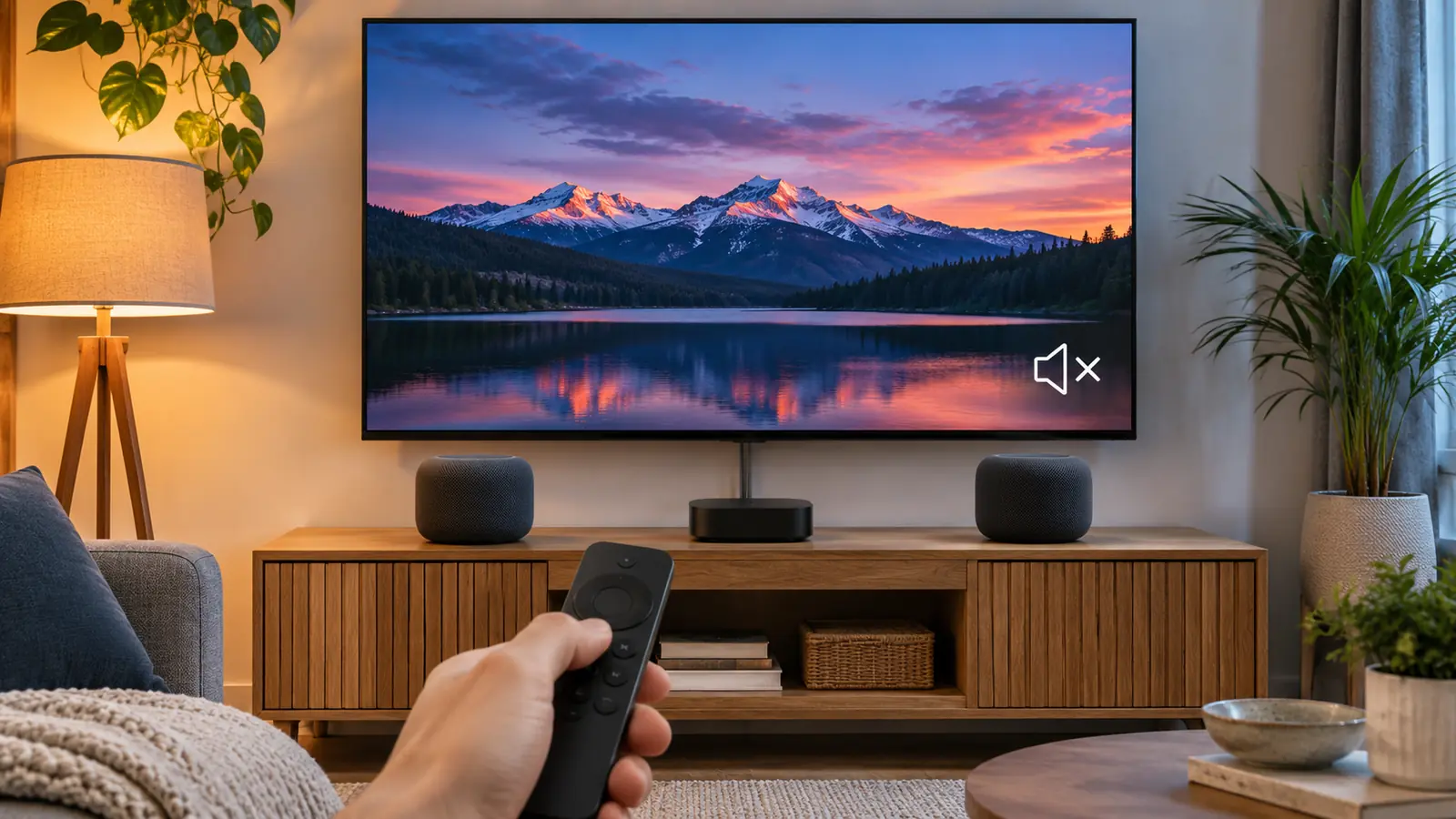
An Apple TV no sound problem can interrupt a show even when the video plays normally. Hold the TV button to open Control Center, then select Audio and check that it’s sending sound where you expect. If your TV speakers, soundbar, receiver, or HomePod still stay quiet, open Video and Audio > Audio Format and try Stereo Only for stereo speakers or Convert to Dolby Digital 5.1 for older surround gear.
Apple released tvOS 27 on September 14 and tvOS 27.2 on October 26. The fourth-generation Apple TV 4K reaches stores today, November 13, 2026, so you may be sorting out your speakers after a software update or a new setup. Some menu names depend on your tvOS version, which explains why you may see different labels on Apple’s own no-sound troubleshooting page.
Why Your Apple TV Has No Sound
In most cases, the silence comes from a mismatch between your Apple TV, the equipment connected by HDMI, and the speaker you expect to hear. Start by working out where your Apple TV is sending sound and whether that equipment can play the signal it receives.
The Audio Is Going to the Wrong Speaker
You see, your Apple TV can send sound to a HomePod, another AirPlay speaker, or a pair of headphones. If your selected speaker is off or your headphones are out of range, the TV can keep playing video while the speakers you expect to hear stay quiet.
Did the sound work before your Apple TV went to sleep? A temporary choice in Control Center resets when the box sleeps, so check where your default output points. You can also hear system alerts and game sounds through the TV even when you’ve selected an AirPlay speaker other than HomePod for playback.
Your Soundbar or Receiver Can’t Decode the Format
With Audio Format set to Auto, your Apple TV 4K picks the best format your equipment and content support. That can include Dolby Atmos or multichannel PCM. If you have an older soundbar or receiver that can’t handle the signal, try a format it supports.
Here’s the thing. Continuous Audio Connection keeps a Dolby MAT connection open as formats change, and an older receiver can show its Atmos light even when the original audio uses another format. Your HomePod mini has a different limitation. It plays Dolby surround content in mono or stereo.
Something in the HDMI Chain Is Dropping the Signal
A loose or older HDMI cable can be worth checking even if you still see video. If you run your Apple TV through an HDMI switch or a receiver, you have another connection to check before the signal reaches your TV.
Apple recommends an Ultra High Speed cable for HDMI 2.1 or a Premium High Speed cable for HDMI 2.0. If your setup uses ARC or eARC, check whether the TV has that feature and HDMI-CEC turned on. More on that later.
An App Bug Since tvOS 27
If your sound works in most apps, pay attention to what you were watching when it went out. In September and October, YouTube users reported garbled sound on tvOS 27, especially at faster playback speeds. Spotify users on a tvOS 27 beta reported silent song videos even though audio-only tracks played.
Other reports describe apps sending sound only to the TV speakers and Apple TV repeatedly showing an “unable to connect” message with HomePod. Apple’s release notes for tvOS 27 and 27.2 name no audio fixes, so a report that matches your symptoms can help narrow down where to look.
10 Fixes for Apple TV No Sound
Work through these fixes in order and play the same clip after each change so you can tell when the sound comes back. If the clip goes quiet again after your Apple TV sleeps, check the default output before you move on to the HDMI cable.
Fix 1. Unmute and Check the Speaker in Control Center
Start with the remote. Press Mute if the sound is muted, then raise the volume while a video plays. If you use a soundbar or receiver, check that it’s powered on and raise the volume there too.
Hold the TV button until Control Center opens, then select Audio and choose the speaker or headphones you want. If headphones are already connected, you’ll see a headphones icon in place of the Audio button.
Fix 2. Set the Default Audio Output
Open Video and Audio > Audio Output on your Apple TV. Choose Apple TV if your TV speakers, soundbar, or receiver handle the sound. If you use HomePod for home theater audio, choose the room that contains your HomePod under Default Audio Output.
Put your Apple TV to sleep and try playing something again after you wake it. Control Center can change the speaker for the current session, but once the box sleeps, playback returns to the speaker you chose in Audio Output.
Fix 3. Reseat or Replace the HDMI Cable
Pull the HDMI cable out at both ends, then push each connector back in firmly. If the sound stays off, swap in another cable rated for your HDMI version. Use Ultra High Speed for HDMI 2.1 or Premium High Speed for HDMI 2.0.
Open Video and Audio > Check HDMI Connection and run the check. Your Apple TV tests whether the HDMI link can support your current configuration. Play your clip again after the check to see whether sound has returned.
Fix 4. Power Cycle Your Apple TV, TV, and Receiver
Turn off your TV and unplug your Apple TV from power. Reconnect the Apple TV power cable, and only then switch the TV back on. If you use a receiver, disconnect its power and reconnect it as well.
To restart your Apple TV on its own, open System > Restart or unplug the box for five seconds before reconnecting it. If your HomePod keeps dropping the connection, try leaving your Apple TV unplugged for 30 seconds before you test it again.
Fix 5. Connect Your Apple TV Straight to the TV
Check the selected input on your soundbar or receiver first. Then, if your Apple TV runs through a receiver or HDMI switch, take that equipment out of the signal path. Connect the Apple TV directly to your TV and play the same clip through the TV speakers.
If you get sound with the direct connection, the switch or receiver is where to investigate next. You can contact its maker with the result of that test and, for a receiver, check whether there’s a firmware update.
Fix 6. Change the Audio Format
Open Video and Audio > Audio Format. Try Convert to Dolby Digital 5.1 if your older surround equipment can’t handle Atmos or multichannel PCM, or pick Stereo Only if you use a stereo setup. Apple’s support page refers to the format control as Change Format, so look for that label if the menu differs from the tvOS 27 guide.
Turn off Dolby Atmos if the toggle appears, then try switching off Continuous Audio Connection, which Apple’s support page calls Continuous Audio. Test playback after each change. Return to Auto when you use equipment that can play the formats your Apple TV selects.
Fix 7. Switch Audio Mode to 16 Bit
Open Video and Audio > Audio Mode and select 16 bit. Some TVs require that mode, so try the same clip again after making the change. If your TV works with Audio Mode set to Auto, your Apple TV can select the mode on its own.
What if shows and movies sound fine, but the menus are quiet? Head back to Video and Audio and switch Sound Effects and Music on. Move through a few menus to check whether you can hear the interface again.
Fix 8. Turn Off TV Audio Processing and Update the Receiver
Turn off volume leveling and similar audio processing on your TV or receiver, then test playback. If you use a Samsung TV with a soundbar, you can also review the controls for audio processing on your Samsung TV and soundbar.
Check your receiver for a firmware update. In one Apple Community case, updating an Onkyo receiver brought the sound back. If your receiver has an HDMI audio output menu with Amp only and TV + Amp, you can also test Amp only when you want sound through the receiver.
Fix 9. Repair Your HomePod and eARC Setup
Put your Apple TV and HomePod in the same room in the Home app and connect them to the same network. If the connection keeps dropping, try putting both on the same Wi-Fi band. If the Home app shows your HomePod as offline, work through the Home app No Response checks before trying to select it again.
On your Apple TV, go to Video and Audio > Audio Output and choose the HomePod room as the default. Connect your Apple TV to the TV port labeled ARC or eARC and enable the corresponding feature and HDMI-CEC on your TV. Then select Audio Return Channel > Play Television Audio and check for On (ARC) or On (eARC). Apple lists the hardware you need for using HDMI ARC or eARC with HomePod.
Fix 10. Update tvOS and the App With No Sound
On your Apple TV, open System > Software Updates > Update Software. If an update is available, select Download and Install and leave your Apple TV connected while it finishes. You can also turn on Automatically Update in the Software Updates menu.
If one app is silent, update it and force close it from the App Switcher. Open the app again, reselect your speaker in Control Center, and replay the clip that went quiet. If the app still has no sound, try reinstalling it.
Model and Speaker Notes
Check your Apple TV generation before you troubleshoot a speaker feature that may require newer hardware. If you’re adding speakers, check what you can do with the HomePod mini 2 and how the four-speaker setup differs on the fourth-generation Apple TV 4K.
| Device | Runs tvOS 27 | Speaker options | What to know |
|---|---|---|---|
| Apple TV HD and Apple TV 4K (1st gen) | No | TV speakers or HDMI audio equipment | Each stays on its last supported tvOS version |
| Apple TV 4K (2nd and 3rd gen) | Yes | One HomePod or a stereo pair | Supports ARC and eARC with HomePod |
| Apple TV 4K (4th gen, 2026) | Yes, tvOS 27.2 | Up to four HomePod mini 2 speakers or a setup with matching front and rear pairs that can include HomePod (2nd gen) | Automatically calibrates speaker timing and levels. Available November 13 for $299 in the US |
| HomePod mini and HomePod mini 2 | N/A | Mono or stereo playback | Dolby surround formats play in mono or stereo |
| HomePod (2nd gen) stereo pair | N/A | Dolby Atmos, Dolby Digital 7.1, and Dolby Digital 5.1 | The pair can serve as the default home theater output |
If Sound Still Won’t Play
Play the same clip through your TV speakers or connect your AirPods and try it there. If sound returns on either output, use that result to narrow the problem to the speaker or HDMI route you were using. For garbled YouTube audio, some users report that skipping forward a few seconds and then back restores playback temporarily.
If your Apple TV is still silent across apps and outputs, try System > Reset > Reset and Update as your last troubleshooting step. That restores the box to its factory defaults, erases your accounts and saved configuration, and installs the latest tvOS your model supports. You’ll need to set up your Apple TV again afterward.
If the silence follows one app across different outputs, tell the developer which clip failed and what tvOS version you use. Contact the TV, soundbar, or receiver maker if the sound cuts out only through its equipment. If you still get silence across apps and speakers after a reset, contact Apple Support with the results of your tests.
How to Keep Your Apple TV Sound Working
Once playback is back, check the software and speaker choices that your Apple TV will use next time. Start with automatic updates, then keep track of the audio format and Home app room that work for your setup.
Leave Automatic Updates On
Open System > Software Updates and turn on Automatically Update. If you had trouble in one app, keep that app current too, since its developer can release changes between tvOS updates.
Check for updates on your receiver, soundbar, and HomePod as well. When an HDMI receiver or a HomePod is part of your setup, its software can affect the sound even when your Apple TV is already up to date.
Keep Audio Format on Auto Unless Your Gear Needs Otherwise
Auto lets your Apple TV choose the best format that your equipment and the content support. Keep it selected when your sound plays reliably, especially if your system supports Dolby Atmos or multichannel PCM.
If an older receiver needs Convert to Dolby Digital 5.1, or your stereo setup works with Stereo Only, write down the option you used. You’ll have the exact menu choice handy if you reconnect your equipment or reset your Apple TV.
Keep Your Apple TV and HomePods in One Room in the Home App
Give your Apple TV and HomePods the same room assignment in the Home app and keep them on the same network. If they disconnect repeatedly, try the same Wi-Fi band for both and see whether the connection holds.
If you move a HomePod to another room in the app, check Default Audio Output before your next show. Putting your Apple TV and HomePod back in the same room lets you select the speaker for home theater audio again.
When you’ve got sound back, play a clip you know well and try your usual speaker setup once more. If the sound drops on another night, you’ll know which output to check and have a clip ready to test before you settle in.
FAQs
Your Apple TV may be sending sound to the wrong speaker, using a format your equipment can’t play, or losing the signal somewhere along the HDMI connection. Hold the TV button and check Audio in Control Center first. If the selected output is correct, try Stereo Only for stereo equipment or Convert to Dolby Digital 5.1 for an older surround system.
If other apps sound fine, your YouTube or Spotify app may have a playback or audio routing problem. In YouTube, some users heard garbled sound at faster playback speeds, while Spotify beta users reported silence on song videos. Update the app, force close it, and select your speaker again in Control Center after reopening it.
Your soundbar may be on the wrong input, your Apple TV may be sending sound elsewhere, or the soundbar may have trouble with the audio format. Check the input, then choose Apple TV in Video and Audio > Audio Output. If the soundbar stays quiet, test a compatible format and reseat the HDMI cable.
Set your HomePod as the default speaker on an Apple TV 4K from the second generation onward, then enable Play Television Audio under Audio Return Channel. Your TV needs an ARC or eARC port and may require you to turn on HDMI-CEC. When the connection is active, your Apple TV shows On (ARC) or On (eARC).
Your Siri Remote may need a restart or a different volume control option. Hold the TV button and Volume Down together for about five seconds, then press a button after the remote disconnects to reconnect it. If volume still fails, open Remotes and Devices > Volume Control and try TV via IR. HDMI-CEC volume control requires HDMI, so try an IR option if your soundbar uses an optical cable.
Apple’s notes name no specific audio fixes in tvOS 27.2 or tvOS 27. Both releases include general bug fixes and security updates. If the silence affects one app, update that app and compare playback through your TV speakers and your usual audio output.
