




Key Takeaways
- Why Your Eyes Hurt: The OLED MacBook Pro uses pulse-width modulation to dim the screen, which may explain your eye strain, headaches, or dizziness. The 14-inch model tested flickered at 240 Hz at 99% brightness and below, and macOS has no PWM switch.
- Try Full Brightness: Set your OLED MacBook Pro to 100% brightness, turn off automatic brightness, and brighten the room. Full brightness stopped the measured PWM on the 14-inch model, and an external monitor lets you compare how your eyes feel doing the same work.
- Check Your Return Window: If your OLED MacBook Pro still bothers you, consider swapping to mini-LED. Apple normally gives you 14 days, and eligible U.S. Apple Store Online orders delivered November 6 through December 25, 2026 can go back through January 8, 2027.
You paid $2,899 or more for Apple’s top laptop display, and an hour into reading, your eyes start to hurt. If you’re dealing with OLED MacBook Pro eye strain, the likely culprit is pulse-width modulation, or PWM, which the screen uses to dim. Notebookcheck measured 240 Hz flicker on the 14-inch PROLED XDR at 99% brightness and below. macOS has no switch to disable PWM.
So what can you try today? Start with full brightness in a well-lit room and see how it feels, or spend a couple of days doing the same work on an external monitor. Full brightness stopped the measured PWM on the test unit, but you’ll have to see whether it helps you read comfortably. If you decide to send the laptop back, eligible U.S. holiday orders can be returned through January 8, 2027 under Apple’s return policy.
| Item | Detail |
|---|---|
| Models covered | 14-inch and 16-inch MacBook Pro with PROLED XDR, Apple’s tandem OLED display |
| U.S. starting prices | $2,899 for the 14-inch M5 Pro and $3,399 for the 16-inch M5 Pro |
| Release dates | Announced Oct 28, 2026, with store availability and deliveries starting Nov 6, 2026 |
| Measured OLED flicker | 240 Hz at 99% brightness and below, with 56% amplitude measured at 99% on the 14-inch model |
| Older mini-LED model | 14,880 Hz on the 14-inch M4 Pro in Notebookcheck’s test |
| macOS PWM switch | None as of Nov 17, 2026 |
| Apple statement | No public response to the reports as of Nov 17, 2026 |
| U.S. return window | Normally 14 calendar days from receipt. Eligible Apple Store Online orders received Nov 6 through Dec 25, 2026 can go back by Jan 8, 2027. Confirm holiday eligibility for in-store purchases. |
What OLED MacBook Pro Eye Strain Feels Like
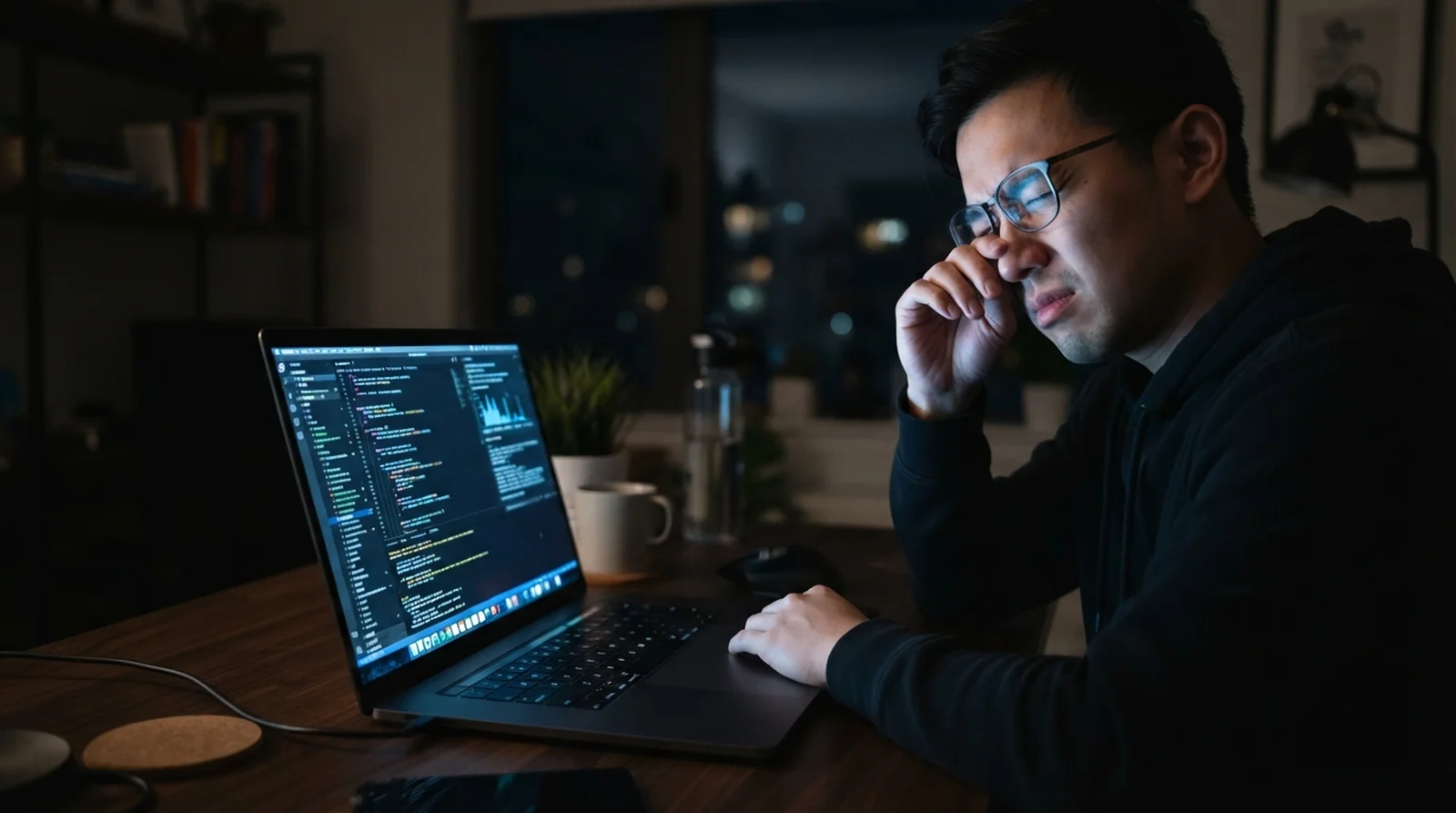
You might expect a screen problem to look like a visible flicker. For some owners posting on Reddit, X, and the MacRumors forums since launch, the first clue was how they felt after reading or working on the laptop. Here’s what they’ve reported.
- Tired or strained eyes after using the screen
- Headaches, including after a short session in an Apple Store
- Dizziness while reading
- Nausea that sometimes accompanied a headache or dizziness
One person on X reported a severe headache after about 30 minutes with the laptop in an Apple Store. A Reddit user felt dizzy and nauseated while reading, especially with white text on black, even though they could use an OLED iPad Pro comfortably. A 16-inch owner on the MacRumors forums said their headache and mild nausea eased after they switched back to a mini-LED MacBook Pro. Some buyers reported returning their laptops.
Roughly one in three respondents to a voluntary MacRumors forum poll reported some discomfort, a figure that applies to the people who chose to respond. Many owners say their screens feel fine, and Notebookcheck gave the 14-inch laptop a 92% overall rating and called its display the best available on a laptop. You can see why people like the panel and still find that it feels different after an hour of reading.
How Flicker Dimming Works on the PROLED XDR Screen
When you drag the brightness slider down, the screen uses rapid pulses that alternate between brighter and darker levels. The less time it spends at the brighter level in each cycle, the dimmer the screen looks to you. How often those pulses repeat and how deep the dips go help explain why two OLED screens can feel different.
Why 240 Hz Is Slow for a Laptop
At 240 Hz, the brightness cycle repeats 240 times a second. The 120 Hz ProMotion figure refers to how often the screen can refresh the image, while PWM frequency tells you how often the light pulses. You may feel discomfort even if you can’t see the pulses.
Notebookcheck says frequencies over 500 Hz generally cause fewer issues, and many sensitive users struggle below 250 Hz. The 56% amplitude measured at 99% brightness on the 14-inch PROLED XDR indicates a deep dip during each pulse. Notebookcheck also observed DC dimming, which adjusts brightness through voltage, alongside those 240 Hz pulses.
How It Compares With Other Apple Screens
Your iPhone and MacBook can pulse at nearly the same rate and still feel different to use. The iPhone 16 Pro’s measured dips were much shallower than the 14-inch PROLED XDR’s, and you may spend hours at a time reading on your laptop. Here’s how the three tested screens compare.
| Apple display | Measured PWM frequency | Measured amplitude |
|---|---|---|
| 14-inch MacBook Pro with PROLED XDR, M5 Pro | 240 Hz | 56% at 99% brightness |
| 14-inch mini-LED MacBook Pro, M4 Pro | 14,880 Hz | |
| iPhone 16 Pro | 239 Hz | 15% |
The OLED laptop figures come from the 14-inch test unit. The 16-inch PROLED XDR and the current mini-LED M5 Pro and M6 models lack measurements in this comparison.
What to Try on Your MacBook Today
Start by seeing whether the same task feels different at full brightness. Read something you’d normally work on, then adjust the room lighting or try another screen so you can compare how you feel. Work through these steps one at a time.
- Set brightness to 100%. Open System Settings > Displays and move the Brightness slider all the way up, or use the keyboard brightness controls. Notebookcheck detected no PWM at full brightness on its 14-inch unit, though that measurement alone can’t tell you whether your eyes will feel better. A brighter screen can feel harsh in a dark room and use more battery when you’re already dealing with macOS 27 battery drain.
- Turn off automatic brightness. Open System Settings > Displays and turn off Automatically adjust brightness. That keeps macOS from lowering the brightness in response to the room while you’re testing.
- Bring up the room lighting. Aim a lamp at the wall so the light around your Mac is closer to the brightness of the screen. The American Academy of Ophthalmology recommends adjusting room lighting to help with eye strain.
- Compare Light and Dark appearances. Some owners felt worse reading white text on a black background. If that sounds familiar, try the Light appearance at full brightness for a day if it feels comfortable, then compare how you feel doing the same work.
- Try warmer colors. Go to System Settings > Displays > Night Shift if you prefer a warmer screen, or try True Tone in Displays to adapt colors to the room. Apple says warmer colors may feel easier on your eyes in low light, and both controls adjust screen color.
- Adjust contrast or text size. Open System Settings > Accessibility > Display. If you’ve raised Display contrast and text looks harsh, move the slider down a little, or try a larger Text size to make reading easier.
- Use an external monitor for a couple of days. Pick a display without PWM if you have access to one, and use it for the same reading and work you’d do on the MacBook screen. If the external screen visibly flashes, check for other causes of monitor flickering.
- Take breaks and blink. About every 20 minutes, spend 20 seconds looking at something 20 feet away. You tend to blink less while looking at a screen, so make a point of blinking during long stretches of reading.
What Won’t Fix PWM
- Color and appearance controls. True Tone, Dark Mode, and the warm color control under System Settings > Displays > Night Shift can change how the screen looks. PWM still runs at the affected brightness levels.
- Reduce White Point. Apple offers this control on the iPhone to tone down bright colors. The Mac’s Display accessibility menu has contrast and text size controls.
Why Apple Hasn’t Added a Flicker Switch on Mac
If you have an iPhone 17, iPhone 17 Pro, iPhone 17 Pro Max, or iPhone Air, you can go to Settings > Accessibility > Display & Text Size and turn on Display Pulse Smoothing. It gives the phone another way to dim the OLED screen at low brightness. Apple says disabling PWM can affect how the display performs when it’s dim.
As of November 17, 2026, macOS has no equivalent control, and Apple has yet to publicly address the complaints or say whether a switch is coming. If you want Apple to add one, send feedback with your MacBook model, the brightness you usually use, and what you feel when you read or work.
How to Tell If the Screen Is Really the Cause
Does the same page feel easier to read on your old Mac? Comparing the same task across screens can help you spot a pattern. Look for how soon the discomfort starts and whether it changes with brightness.
- Do your eyes tire or does a headache start within an hour or two on the OLED screen?
- Does the discomfort build faster when you turn the brightness down?
- Does the same task feel easier at full brightness in a well-lit room?
- Do you feel better doing that work on your old Mac or an external monitor?
Dry eyes can also come from blinking less during long stretches of screen time. Stop using the laptop if it makes you feel ill. Use these checks to compare displays, and see an eye doctor for medical advice if symptoms persist.
Your Return and Swap Options Before January 8
Check when you received the MacBook before you spend another week trying to get comfortable with it. If you bought directly from Apple in the U.S., your purchase may qualify for a longer holiday return window. Here’s how the dates apply.
| Purchase or policy | What to check |
|---|---|
| Standard Apple return | You have 14 calendar days from the day you receive the Mac. |
| Apple Store Online holiday return | Eligible orders that arrived from November 6 through December 25, 2026 can go back by January 8, 2027. |
| Apple Retail Store purchase | Check your receipt or ask the store to confirm your holiday deadline. |
| Third-party purchase | Check the seller’s return window and conditions. |
| What to pack | Return the Mac in its original condition with the packaging, cords, adapters, and documentation. |
If you want to keep your screen size and chip, iThinkDifferent lists each equivalent mini-LED M5 Pro and M5 Max model at $400 less than the OLED version. You can also compare the M6 and M5 Pro MacBook Pro models if the 14-inch M6 fits your budget.
| Mini-LED MacBook Pro | Reported U.S. starting price |
|---|---|
| 14-inch M5 Pro | $2,499 |
| 16-inch M5 Pro | $2,999 |
| 14-inch M5 Max | $4,099 |
| 16-inch M5 Max | $4,399 |
| 14-inch M6 | $1,999 |
- Find your deadline. Check your delivery confirmation or store receipt and write down the last day you can return the Mac.
- Start the return. Contact Apple if you bought directly, or go through the retailer that sold you the laptop. Gather the original packaging and everything that came with it.
- Ask about a swap. If you’d prefer a mini-LED model, ask Apple about exchanging your MacBook. Bring a short record of when your symptoms started and whether another screen felt better.
Should You Still Buy One?
If you’ve used OLED screens comfortably, the PROLED XDR can still be a good fit. Many owners report no discomfort, and Notebookcheck rated the 14-inch display highly. You can compare what you get for the extra $400 in our guide to the OLED MacBook Pro price.
- OLED screens have felt comfortable during long reading sessions.
- You’ve spent time with the PROLED XDR at the brightness you’d normally use and felt fine.
Give yourself more time with the display if OLED has bothered you before. An OLED phone or tablet that feels fine gives you limited information about how you’ll feel reading on this MacBook.
- OLED phones or other screens that use PWM have given you headaches or tired eyes.
- You spend hours reading at lower brightness, or the seller gives you little time to try the Mac at home.
Bring something you’d normally read and give yourself time with the laptop in the store. If it feels good, buy somewhere with a return window that lets you try it during a normal workday. If reading feels better on mini-LED, start there and choose the size and chip that fit your work.
FAQs
Notebookcheck detected PWM on the 14-inch OLED MacBook Pro at brightness levels up to 99%. At 100%, the test detected no PWM. The 16-inch model lacks comparable measurements.
macOS has no control for switching off PWM as of November 17, 2026. You can experiment with full brightness, which was the one level where Notebookcheck detected no PWM on its 14-inch test unit.
Turning brightness up all the way stopped the measured PWM on the 14-inch unit Notebookcheck tested. Whether that helps your eyes is a separate question, especially if a bright display already feels harsh in your room.
Warmer colors may feel easier on your eyes in low light, and Dark Mode can feel worse if white text on black bothers you. To try warmer colors, open System Settings > Displays > Night Shift. PWM continues at the brightness levels where it usually occurs with either option.
A mini-LED MacBook Pro may feel more comfortable if you’re sensitive to slower flicker. Notebookcheck measured 14,880 Hz on the older 14-inch M4 Pro mini-LED model. Try the specific Mac you’re considering, since that figure applies to the M4 Pro test unit.
Yes, if your purchase qualifies for Apple’s U.S. holiday extension. Eligible Apple Store Online orders that arrived from November 6 through December 25, 2026 have until January 8, 2027. For an in-store purchase, ask the store to confirm the date.
