




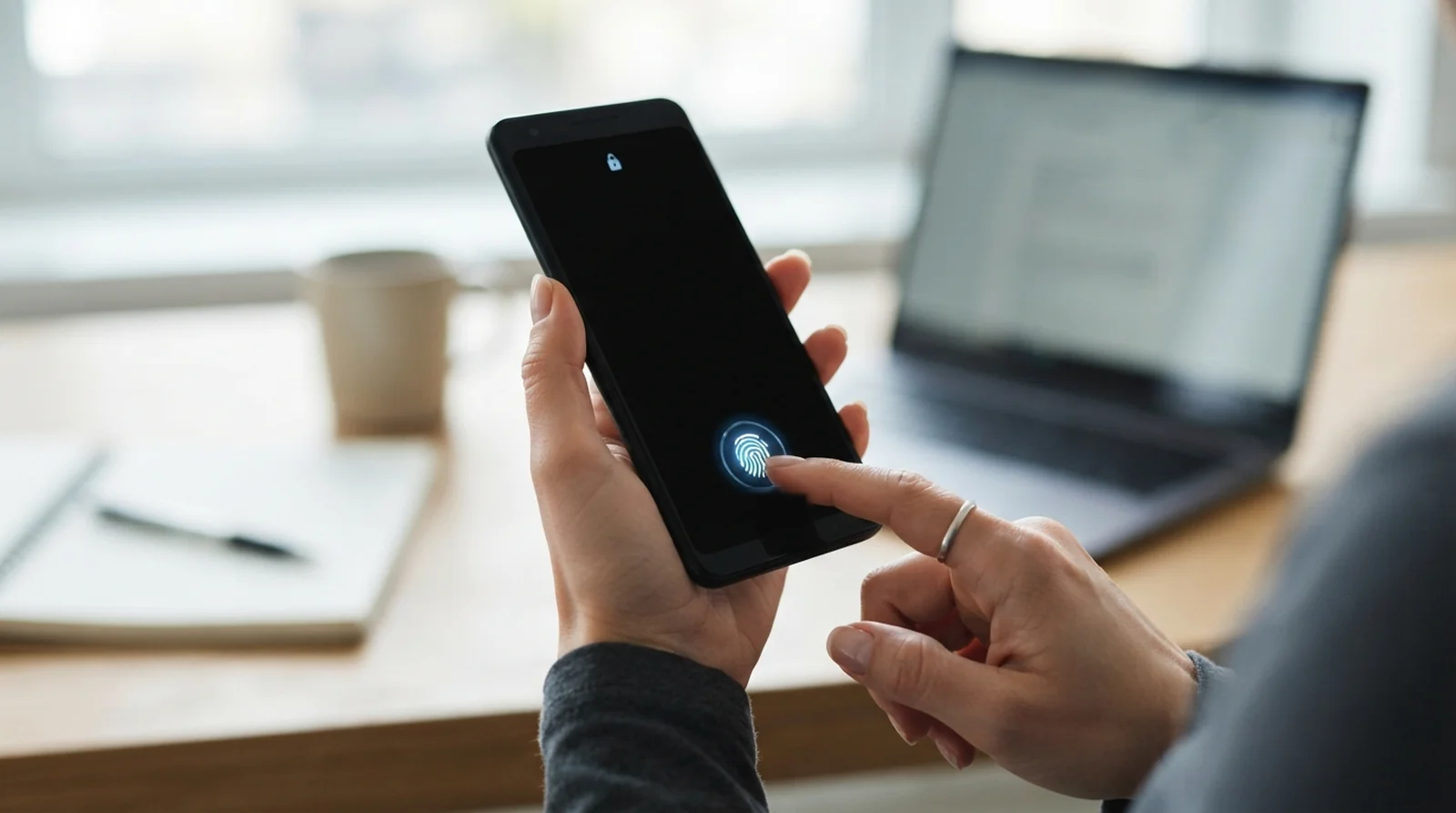
Key Takeaways
- First Fingerprint Checks: If fingerprint recognition fails on your Pixel or Galaxy after an Android update, the sensor firmware or lock screen may be at fault. Enter your PIN, power off for one minute, then enter your PIN again before testing your print.
- Patch and Rescan: To restore fingerprint recognition on your Pixel or Galaxy after an Android update, install any follow-up patch, clean the reader, then re-enroll your print or use Improve accuracy on a Galaxy S26. If you use a screen protector, try your phone’s touch sensitivity control.
- Diagnostics and Repair: If fingerprint recognition still fails on your Pixel or Galaxy after an Android update, use your PIN and run diagnostics before considering a factory reset, which erases your data. Wait for the next monthly patch if the sensor passes, or book a repair if it fails.
If you’re dealing with your fingerprint not working after an update, enter your PIN and turn your Android phone all the way off for a minute. After you turn it back on, enter your PIN once, then lock the screen and try your fingerprint again.
Pixel owners on Android 17 have had two relevant fixes. QPR1 Beta 8 corrected a lock screen bug, and the November 2026 update addressed fingerprint stability. Some Galaxy owners report that saved prints stopped working after One UI 8. If you’re seeing the same symptoms on One UI 9, you can start with the Galaxy checks below. You can read what else changed in the November Pixel update.
Work through the fixes in order, from a full shutdown to built-in diagnostics. The results can help you decide when to wait for a patch and when to get the sensor checked.
How to Get Your Fingerprint Working Again Right Now
Get into your phone with your PIN and choose Power off. Leave the phone off for a full minute before turning it back on. The first time you open your phone after any restart, enter your PIN or the pattern or password you use in its place. Then lock the screen and try your saved finger.
If the sensor still rejects your print, add it again or try Improve accuracy if your Galaxy offers it. Check for a follow-up update while you have access to your phone.
Why Fingerprint Recognition Breaks After an Update
Sensor Firmware That Didn’t Reload
An under-display reader has its own firmware. After the March 2025 update, some Pixel 9 owners reported that the reader stopped responding and the fingerprint menu disappeared. GrapheneOS estimated the glitch affected around one in 1,000 phones.
One explanation was that the reader stayed on its old firmware until the phone was fully powered off. That would explain why some owners recovered the fingerprint menu after a shutdown and why a few had to try more than once.
Lock Screen Bugs in the New Build
The Android 17 QPR1 beta bug occurred before your phone could even compare your thumb with the saved print. The lock screen could fail to call the routine that starts the reader. Some fingerprint checks in banking and other security-sensitive apps were affected too.
The November 2026 Pixel update covered both fingerprint recognition and the transition away from the lock screen. If your phone sees your finger and then stalls as you try to get in, that second change is relevant too.
Calibration and Screen Protector Changes
When your fingerprint fails after an update, think back to when you last fitted a screen protector. On the Galaxy S26, Samsung says a protector can change the area where the reader picks up your print, which can make a previously saved scan less reliable.
A thick or textured protector can also make a new print hard to register. If you replaced the protector around the same time you updated, refresh or register your print with the new protector in place.
Security Rules That Can Interrupt Fingerprint Recognition
Your Pixel may ask for your PIN if several scans fail, you switch users, or you go over 72 hours without using your backup method. You’ll also see the PIN prompt after a restart.
Your Android phone can automatically restart after sitting locked for three days. If you pick it up after leaving it idle and it asks for your PIN, enter it, then try your fingerprint the next time you open the phone.
Before You Start, Check for the Pixel Lock Screen Bug
After the September 2026 Android 17 QPR1 update, some Pixel owners reported that even the correct screen lock failed. On the Pixel 10 Pro XL, a pattern could reset at the second dot. Pixel 8a and Pixel 8 Pro owners reported PIN problems. If your PIN works, continue with the sensor fixes below.
If your Pixel rejects a PIN or pattern you know is correct, stop guessing. You can try a hard reboot by holding Power + Volume Down, or let the lockout timer expire if one appears. Some owners report getting back in with those steps. Pixel system updates can’t be rolled back, so if you still can’t get in, a factory reset may be your remaining option.
10 Fixes for a Fingerprint Sensor That Stopped Working
Power the Phone Off Completely
On a Pixel, hold Power + Volume Up and tap Power off. On a Galaxy, hold Side + Volume Down and tap Power off. Wait a minute, turn the phone back on, and enter your PIN. Lock the screen and try the sensor.
A full shutdown gives the sensor a chance to load its firmware again. If the fingerprint option is still missing from your phone’s menus, try the full shutdown two or three times before moving on.
Install the Follow-Up Update
On your Pixel, open Settings > System > Software updates and check for a system update. The November 2026 release with the fingerprint stability fix uses build CP4A.261105.040.A1 on most eligible devices and CP4A.261105.040.D1 on US Pixel 11 models.
On your Galaxy, open Settings > Software update > Download and install. If you want to check what you already have, open Settings > About phone > Software information. Run the fingerprint test again after the update finishes and you’ve entered your PIN.
Clean the Sensor Area and Fix Dry Fingers
Wipe the part of the screen over the reader, or clean the power button if that’s where your sensor sits. Dry your finger if it’s damp. If your fingertip is very dry, try a little moisturizer before scanning again.
Hold the phone as you did when you registered your print. Cover the whole reader, press firmly, and give it time to respond before lifting your finger. If you’re outside in bright sunlight, shade the sensor with your other hand and try again.
Delete and Re-Enroll Your Fingerprints
On a Pixel, open Settings > Security & privacy, find Fingerprint in the device security controls, and delete the print that keeps failing. On a Galaxy, open Settings > Security and privacy or Lock screen and AOD, then choose Screen lock and biometrics > Fingerprints. Remove the old print and tap Add fingerprint.
Scan the center of your finger, then its edges and tip. If you have a slot to spare, try registering the same finger twice. Keep your banking and password manager credentials handy, since some apps ask you to sign in and turn fingerprint access back on after you add a print.
Use Improve Accuracy on a Galaxy Phone
On a Galaxy S26, go to Settings > Security and privacy > Screen lock and biometrics. Enter your PIN, open Fingerprints, select a saved print, and tap Improve accuracy. Follow the prompts to scan the same finger 10 times.
This refreshes the existing print and keeps the fingerprint access you’ve already set up in apps that rely on it. Check the Fingerprints menu on other Galaxy models to see whether the option is available.
Turn On Screen Protector Mode or Touch Sensitivity
Try the display control for your phone if taps or scans have become less reliable with a protector fitted. The name and location differ between Pixel and Galaxy.
| Phone | Setting name | Where to find it | When to use it |
|---|---|---|---|
| Pixel | Screen protector mode | Settings > Display & touch > Touch Sensitivity | With a screen protector fitted |
| Galaxy | Touch sensitivity | Settings > Display | When a protector makes the screen less responsive |
If thick glass or a textured protector keeps the reader from picking up your finger, try one certified for your model. Register your prints with the replacement already fitted so each scan reflects how you’ll use the phone.
Take It Off the Wireless Charger and Exit One-Handed Mode
Lift your Galaxy off the wireless charger and try your print again. Samsung says wireless charging can interfere with recognition. If your case touches the reader, remove it for the test as well.
If the fingerprint icon has disappeared while you’re using One-Handed mode or Smart View, turn that feature off. Both can change the display area and hide the spot where you normally place your finger.
Boot Into Safe Mode to Check for an App Problem
On your Pixel, hold Power + Volume Up, touch and hold Power off, then tap OK. Airplane mode turns on automatically. On a Galaxy, hold Side + Volume Down, touch and hold Power off, then tap Safe mode.
Enter your PIN, lock the screen, and try your saved print if the fingerprint prompt appears. If it works in Safe mode, restart normally and remove apps you installed or updated around the time the trouble began, one at a time. A launcher, screen lock app, or app that draws over your screen is a place to start. If the sensor still fails in Safe mode, move on to the device checks.
Wipe the Cache Partition on a Galaxy Phone
If your Galaxy has Side and volume buttons, power it off and hold Volume Up + Side, releasing both buttons once you feel a vibration and see the Samsung logo. In recovery, use the volume buttons to highlight Wipe cache partition and the Side button to confirm. Select Yes, then Reboot device.
This clears temporary system files and keeps your personal data. Some Samsung Members users report that fingerprint recognition returned for a while after clearing the cache. If yours fails again, run diagnostics. If your Galaxy has other trouble since the update, check our list of other One UI 9 problems.
Run the Built-In Diagnostics
On a Galaxy, open Samsung Members > Phone diagnostics > Fingerprint recognition. A pass tells you the reader responded during the test. If it fails during normal use after passing, include both results when you report the issue. A failed test gives you a reason to get the sensor checked. If touches fail across the whole display too, see how to fix an unresponsive touch screen.
On a Pixel, open the Phone app while online and enter ##7287## on the dial pad. Follow the prompts and tap Confirm to open Pixel Repair Diagnostics. Open Google Pixel Update and Software Repair, then select Connect your Pixel to adjust the reader under your screen.
What to Do If the Sensor Still Won’t Read
Set Up Face Recognition or a Stronger Backup While You Wait
If your Pixel supports opening the phone with your face, set that up while you can still get in with your PIN. On a Galaxy, look for Face recognition under Screen lock and biometrics.
Keep a PIN you can remember. You’ll still need it after a restart and whenever your phone requires your backup method. Enter it once to make sure you have it right before you try any further repairs.
Factory Reset as the Last Software Step
Back up before you reset. A factory reset erases your personal data and apps. Make sure you can restore what you need before you go ahead, especially if clearing the cache left the problem as it was.
Consider a reset if you’ve tried the other software fixes and the reader passed diagnostics. Some Galaxy owners report that fingerprint problems continued after a reset, so if yours started with a build that’s causing trouble for other owners, a follow-up patch may be worth waiting for.
Report It and Get the Sensor Checked
Report your Pixel issue in the Pixel Community or your Galaxy issue in Samsung Members. Include the model, software build, and what happens when you scan a saved finger or try to add a new one. Mention if the fingerprint menu disappears entirely.
If the sensor fails diagnostics or the screen over the reader is cracked, arrange a service check. Have your model and test result ready so the repair provider can assess the fault and check your warranty coverage.
How to Avoid Fingerprint Problems After the Next Update
Enroll Two Fingers and Keep a Backup
Register a finger from each hand. That gives you another print to try if one fingertip is too dry or you’re holding the phone at an awkward angle.
Keep a PIN or other backup you can enter from memory. If you use face recognition as well, remember that a restart will still ask for your screen lock code before you can use it.
Wait a Few Days Before Installing Big Updates
If your phone is working and you’re about to install a big Android release, give yourself a few days to see how it goes for owners of your model. In one reader poll, 68% of respondents reported problems with Android 17 QPR1 across a range of features.
Back up your phone before you install the update. Pixel system updates can’t be rolled back, and a backup gives you a way to recover your saved data if you have to erase the phone to get back in.
FAQs
Your phone asks for your PIN when Android requires your backup method, such as after a restart or several unsuccessful scans. On a Pixel, you can also see that prompt after 72 hours without using your backup. If the phone was locked and idle for three days, an automatic restart can explain the prompt.
A software update can disrupt the code that runs the fingerprint reader. The problems described here involved recognition or the lock screen. Run the available diagnostics if the reader continues to fail. If the glass over the sensor is cracked, have the phone inspected.
Deleting and adding your prints can make some banking apps ask for your password and require you to turn fingerprint login back on. If your Galaxy has Improve accuracy, you can refresh a saved print and keep the existing fingerprint login in those apps.
Yes. Register your fingerprints with the new protector fitted so the reader can capture your print through it. On a Galaxy with Improve accuracy, you can use that feature to update the print you already saved.
Yes, you can keep using your phone with your PIN. It’s your primary screen lock and the method the phone already relies on after restarting. Keep your phone backed up and check for software updates while you use the PIN.
If the sensor passes diagnostics and the trouble began right after an update, give the next monthly patch a chance to fix it. If the sensor fails its test or the sensor area is cracked, book a service check now.
