




Key Takeaways
- Check Card Compatibility: If your Switch 2 won’t read your card, look for the microSD EX logo and install the latest system update, since Express support starts at 20.1.0. Turn the console fully off and reseat the card label-side out to rule out a loose fit.
- Test Before Formatting: Clean your Switch 2 microSD Express card’s contacts, test a second card, check for card firmware and back up your files on Windows. If you see error 2002-0002, run Scan for Corrupted Data and redownload any game that still won’t open.
- Recover Your Storage: Format your Switch 2 microSD Express card after backing up, replace it if it still fails and contact Nintendo if two compatible cards fail. Formatting erases card files, while your saves stay in system memory and you can redownload games to the 256GB internal storage.
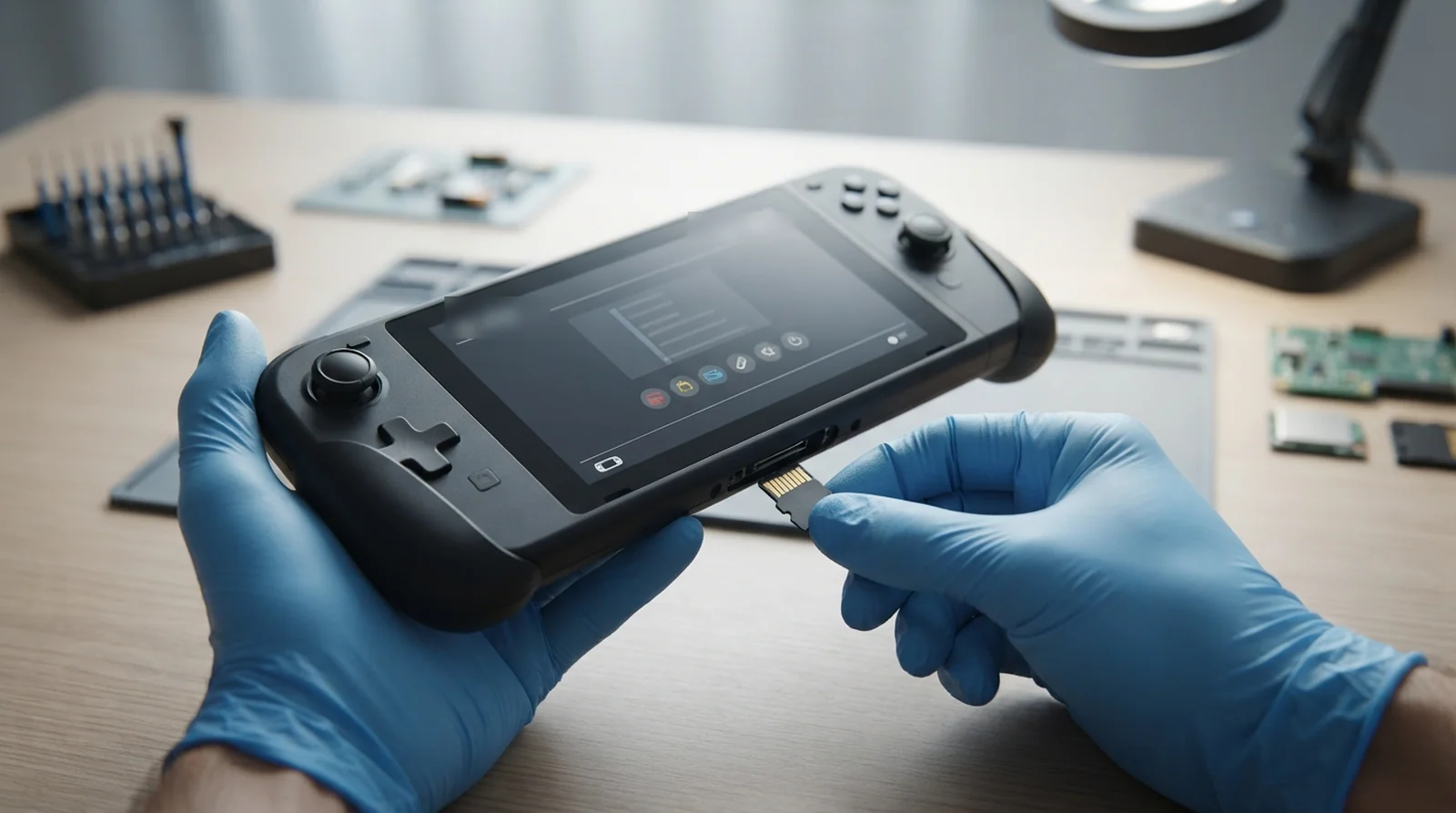
Is your Switch 2 microSD Express card not recognized? Make sure your card carries the EX symbol, shut down your Switch 2 completely and put the card back in with its label pointing outward. Then connect to the internet and install the latest system update so your Switch 2 can use Express storage.
If your card worked until a system update, check for card firmware before you consider formatting it. If the console sees the card but your games won’t start, scan the game files first. Two compatible cards failing in the same Switch 2 can point to a slot that needs Nintendo service. Your saves live in system memory, so even formatting the card leaves them in place.
Quick Check Before You Start
| What you see | Most likely cause | Try this fix first | Data at risk? |
|---|---|---|---|
| No card inserted after fitting a new card | Loose fit, wrong card type or missing update | Check the logo in Fix 1 | None |
| Card flagged as incompatible | Standard microSD card or a firmware conflict | Check the logo in Fix 1 | None |
| Card worked, then stopped after an update | Possible card firmware conflict | Check for card firmware in Fix 6 | Back up before updating the card |
| Card appears but games show 2002-0002 or Unable to access microSD card | Damaged game data or a card read error | Scan the game in Fix 8 | The scan leaves data in place |
| Old Switch card only offers screenshot import | The card uses the older standard | Confirm compatibility in Fix 1 | None |
| Two different Express cards fail | Possible console slot fault | Request Nintendo service in Fix 10 | Back up readable media before sending a card |
Go to the fix number that matches your symptom. If you’re unsure, start with the logo and system update.
Why Is Your Switch 2 microSD Express Card Not Recognized?
Does your card disappear from storage, or does the console see it and fail to open a game? What you see, and when it started, can help narrow down the cause.
It Is Not a microSD Express Card
Standard microSD, microSDHC and microSDXC cards could store games on your original Switch. On Switch 2, game storage requires a microSD Express card with the EX logo.
Extreme is a SanDisk product line, and XC tells you the card’s capacity class. If you insert an old standard card, the import option lets you bring over screenshots and videos from your original Switch.
The Console Is Missing a System Update
Switch 2 needs system version 20.1.0 or later for Express storage. Nintendo says to go online for the update required when you first use an Express card.
Did you set up your console offline or skip the update? Install the update and check the card again before buying another one.
A Firmware Change Clashed With Some Cards
Some owners reported that their 1TB PNY cards showed up as incompatible after system version 22.0.0 arrived on March 16, 2026. Games wouldn’t launch from the affected cards, and owners reported similar trouble with a 1TB Integral card.
PNY later released a Windows tool for updating the firmware on its Express cards. If your PNY card stopped working after a console update, check for that tool before formatting.
Dirt, a Loose Fit or a Faulty Slot
Dirt on the contacts or a loose fit can make your card unreadable. If it works in a second Switch 2, the slot in your own console may be the cause.
One owner said a SanDisk Express card worked again after Nintendo repaired their console. Another reported that a 512GB Onn Express card appeared missing in one Switch 2 and showed up in a second console.
Corrupted Data on the Card
Does the card appear in storage, then give you an error when you open a game? The console can detect the card even when it has trouble reading the game files.
Error 2002-0002 can appear when you start, delete or archive a game. Codes 2002-2000 through 2002-2499 can come with the message “Unable to access microSD card.”
10 Fixes for a Switch 2 That Won’t Read Your microSD Express Card
Work through the fixes in order, starting with the free checks that leave your files in place.
Fix 1. Check for the EX Logo on the Card
Look for the microSD EX symbol on the card itself and check that the packaging says microSD Express. The Switch 2 supports Express cards up to 2TB.
Use the EX symbol to verify compatibility when you see labels like Extreme or XC. If you’ve pulled a standard card from an original Switch, you can still use the import option for screenshots and videos.
Fix 2. Install the Latest System Update
Connect your Switch 2 to the internet and open System Settings > System > System Update. Install the latest version your console offers, with 20.1.0 as the minimum for Express support.
If a card error interrupts the update, power off and remove the card. Turn the console on to run the update, then shut it down again before reinserting the card.
Fix 3. Power Off Completely and Reseat the Card
Hold POWER for at least three seconds, then choose Power Options > Power Off. After you shut down your Switch 2, lift the kickstand, push the card inward to release it with a click and pull it free.
Reinsert the card with the label facing away from the console and push it in until it clicks. Turn on your Switch 2 and look for the card under System Settings > Data Management.
Fix 4. Clean the Card Contacts and Inspect the Slot
With the console off and the card out, gently wipe the gold contacts with a soft, dry cloth. Shine a flashlight into the slot to look for debris or damage.
Keep liquids and tools out of the slot. If you see debris or damage inside the console, arrange service.
Fix 5. Test the Card Elsewhere and Try a Second Card
See whether a PC card reader can detect your card, or try it in another Switch 2. On the other console, check whether the card appears in storage. Games downloaded to the card on your console won’t run there.
Then test a second Express card from a reputable brand in your own Switch 2. If the first card works in another Switch 2 or both cards fail in yours, suspect the slot. If the second card works and the original keeps failing, the original card is the likelier cause.
Fix 6. Update the Card’s Own Firmware
PNY offers a Windows firmware updater for its microSD Express cards from 128GB to 1TB. Back up the card using Fix 7 before running the tool. You’ll need a card reader, and PNY recommends its Performance Prime model.
If you use another brand, check the maker’s support page for your exact card model. You can reach PNY support at 800-234-4597 if you need help with its updater.
Fix 7. Back Up the Card on a Windows PC
Use a card reader and Windows Explorer to copy the card’s entire folder to your desktop. Leave the files and their names intact, including any files you don’t recognize.
An Express card can usually fall back to UHS-I speed in a standard reader, so allow more time for the copy. Nintendo warns that backups made on a Mac may transfer incorrectly.
Fix 8. Scan Games for Corrupted Data
If the card appears but a game won’t start or shows error 2002-0002, open System Settings > Data Management > Manage Software. Choose the affected game and select Scan for Corrupted Data.
If the scan finds a problem or the game still fails to open, delete the software. Then open Virtual Game Cards from the HOME Menu and download the game again.
Fix 9. Format the Card on Your Switch 2
Back up what you can read, then open System Settings > System > Formatting Options. Enter your Parental Controls PIN if asked, then select Format microSD Card, which may be worded differently on your version. Choose Continue, read the warning and select Format. The console restarts.
Formatting erases the games, screenshots and videos stored on the card. Your saves stay in system memory, and you can download purchases again with the Nintendo Account that bought them. Copy back the backed-up folder only if Nintendo’s transfer process applies to your card and console. Otherwise, redownload your games.
Fix 10. Replace the Card or Send the Switch 2 for Service
If one card still fails after formatting, return it to the seller or ask the card maker about a replacement. If two or more compatible cards fail, send your console with a card it can’t read by following Nintendo’s service instructions.
Check your warranty coverage when you book the repair. One owner said Nintendo took the console apart and reassembled it, which got the card working again. The repair took about three weeks, and the owner reported keeping their data.
When Games Install but Still Won’t Load From the Card
Want to play while you check the card? Power off, take out the card and download the game to your Switch 2’s 256GB of internal storage. If the game runs there, you can keep playing while you test the card.
Games already downloaded to a card from another Switch 2 are tied to that console. Download them again on the Switch 2 you use now.
Still stuck after trying the storage and software fixes? As a last resort, Nintendo lets you initialize the console without deleting save data.
Moving to a New or Bigger Card Without Losing Games
Format the new card on your Switch 2 first, and power off each time you swap cards. Use Windows Explorer to save a copy of the old card’s full folder on your desktop and transfer that copy to the replacement card. Insert the new card with the label facing away from the console and verify that your games open before clearing the old card.
Use one card per console and redownload any games that need it. If your games are spread across several cards, Nintendo’s transfer process can’t merge those cards into one.
How to Keep Your Card Working
Once your games open again, a few habits can save you time the next time you swap cards or update the console. Start with what you buy and how you handle it.
Buy From Reputable Sellers
Buy a name-brand microSD Express card from a retailer you know. Check both the card and the box for the EX logo.
Shopping a holiday sale? Check the exact model, since a listing that says “for Switch” can still be for a plain microSDXC card.
Always Power Off Before Removing the Card
Sleep mode leaves the console on. Hold POWER for at least three seconds and select Power Options > Power Off before you open the stand.
Press the card’s top edge until it clicks, then slide it out. Follow the same power-off routine when you put it back.
Read Update Notes and Check Card Firmware
After a big system update, check the release notes and the card maker’s support page if the card starts acting up. Look for firmware that lists your exact model and capacity.
Keep one card paired with your console. When you need more space, move to a bigger card and check that your games open before you clear the old one.
Getting Your Storage Back
Check the EX logo, update the system and shut down to reseat the card. If it still gives you trouble, try a second card, check for card firmware and back up your files before scanning or formatting. If two compatible cards fail, contact Nintendo about the slot.
Once your games load, you can get back to playing. For other console trouble, see what to do when your Switch 2 Wi-Fi keeps disconnecting, your Switch 2 won’t connect to the TV or your Joy-Con starts drifting. If you’re comparing systems, see our game console guide.
FAQs
Yes, you can use your old standard microSD card to import screenshots and videos. Choose Import from a Nintendo Switch microSD Card to bring them over. For Switch 2 games, you’ll need a microSD Express card. Look for the EX logo when you buy one.
You can use it for Switch 2 storage only if it carries the microSD EX logo. The Extreme name identifies a SanDisk product line. Check the card itself for the symbol. A standard SanDisk Extreme microSDXC card won’t store your Switch 2 games.
No, formatting the card leaves your saves in system memory. The format erases games and media held on the card. Copy any screenshots and videos you want to keep to a computer first. You can redownload purchases using the Nintendo Account that bought them.
A firmware conflict may be the cause, especially if you have a 1TB PNY card that stopped working after version 22.0.0. Some owners reported similar trouble with a 1TB Integral card. Install the latest system version your console offers. Then check your card maker’s support page for a firmware updater for that model.
Moving the card to another Switch 2 won’t let you play the games already on it. Download them on the console where you’ll play. Nintendo recommends one card per console. You can use the Windows transfer process to move to a bigger card on the same system.
Your Switch 2 supports microSD Express cards up to 2TB. Smaller Express cards work, too. Check for the EX logo before buying a 2TB card. A standard microSDXC card of the same capacity won’t work as Switch 2 game storage.
