




Key Takeaways
- Why Calls Sound Muffled: Your Bluetooth headphones switch from A2DP stereo to lower-quality HFP mono when an app uses their microphone. Check which microphone Teams, Discord or Zoom selects, and check microphone activity if playback stays muffled after you finish a call.
- Restore Stereo Playback: Keep Bluetooth headphones as output, select another microphone in Windows and your calling app, then close apps holding the headset mic open. On supported Windows 11 24H2 PCs, enable LE Audio and select Stereo (2 channels) under Format when microphone is active.
- Try Connection Alternatives: If your Bluetooth headphones still distort, update or roll back the Bluetooth driver and pair again. Disabling Handsfree Telephony removes your headset microphone, so use another microphone, a supplied USB receiver or a wired headset for calls.
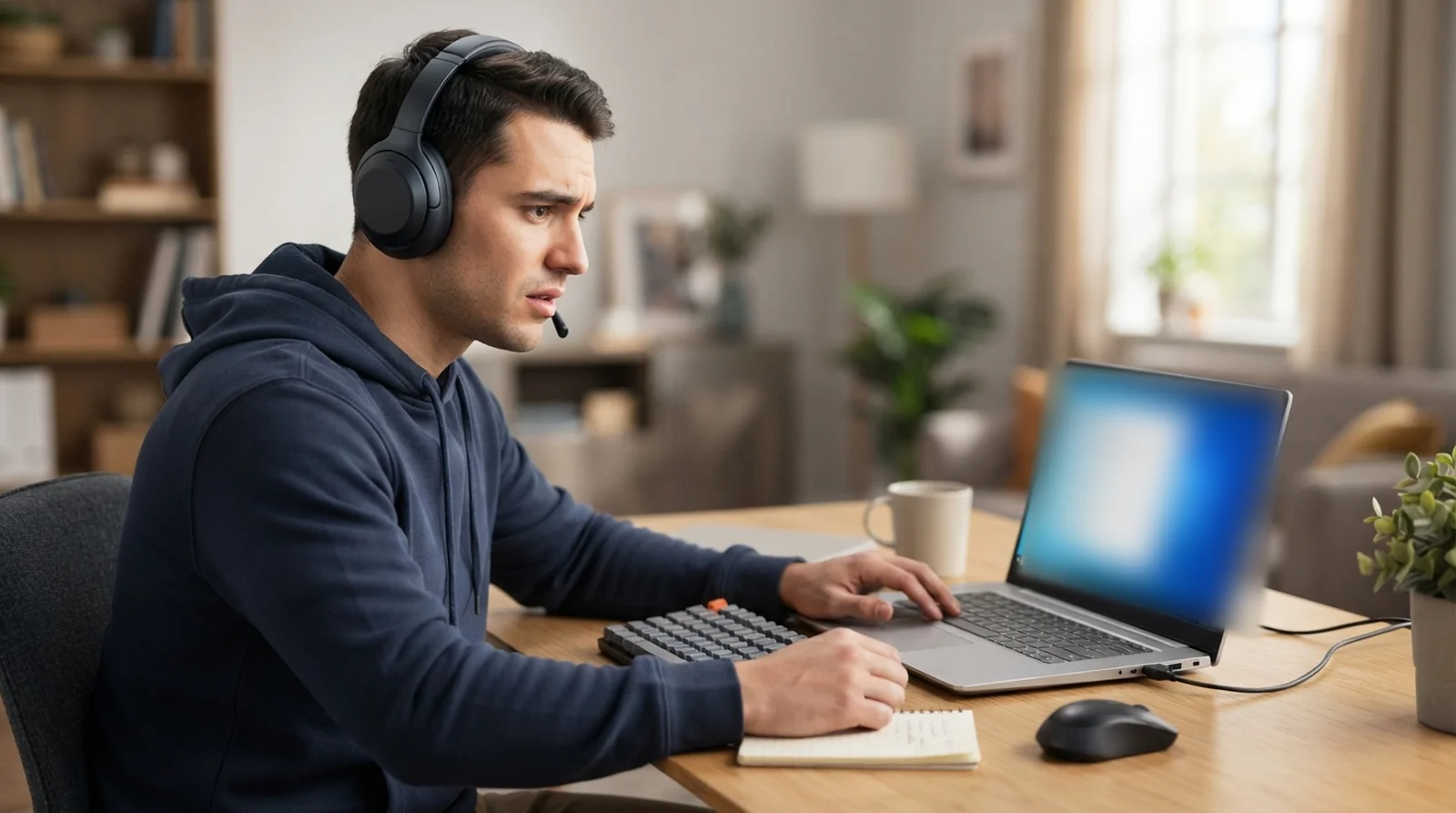
Your music sounds great. Then you join Teams or Discord, and everything sounds like an old radio. If your Bluetooth headphones sound bad when mic is on, Windows usually switches from A2DP stereo playback to HFP hands-free audio, which gives the microphone room by reducing playback to lower-quality mono.
Your headphones probably aren’t broken. You see, classic Bluetooth makes you trade listening quality for microphone access.
You have two useful routes. Keep the headset microphone out of the call, or use compatible Bluetooth LE Audio equipment that supports stereo during microphone use. On November 20, 2026, Microsoft started testing a 48 kHz stereo option for eligible LE Audio devices. These ten fixes cover both routes, plus driver faults that can make calls sound worse.
Why Your Bluetooth Headphones Sound Bad When Mic Is On
Before changing anything, identify which audio mode your headphones use. The differences below explain why opening a microphone changes what you hear.
| Mode | What it is for | Mic? | What you hear |
|---|---|---|---|
| A2DP | Classic Bluetooth music playback | No | Stereo using codecs such as SBC, AAC, aptX or LDAC |
| HFP hands-free | Calls and voice chat | Yes | Lower-quality mono, compared by Microsoft to AM radio |
| LE Audio TMAP | Media playback and voice | Yes | Stereo on supported PCs, with 32 kHz super wideband and 48 kHz in testing |
Two Bluetooth Modes Share One Narrow Link
Classic Bluetooth cannot deliver its high-quality stereo playback while carrying your headset microphone input. When you speak through that microphone, Windows changes to HFP.
Your music codecs and spatial effects then become unavailable. Microsoft compares even wideband HFP with AM radio, which explains that sudden thin sound.
Apps That Grab the Headset Mic Without Asking
Teams, Discord, Zoom and games with voice chat can activate your headset microphone. Voice typing and Copilot voice can do the same.
Windows treats headphones containing a microphone as a headset. If a background app keeps that microphone active after your call, playback can stay muffled.
PCs and Headphones That Cannot Run LE Audio
Basic LE Audio support starts with Windows 11 22H2. Stereo during microphone use requires Windows 11 24H2 build 26100.4484 or newer, compatible hardware and maker drivers.
Your headphones must support LE Audio too. A Bluetooth LE label alone proves nothing about audio support, and Windows 10 cannot use LE Audio.
A Buggy Bluetooth Driver Adding Static or Robot Voices
Muffled mono usually points to the profile change. Harsh crackling or robotic speech, especially after an update, can indicate a separate driver fault.
Dell and Lenovo owners described Teams call distortion with Intel Bluetooth drivers 24.20.03 and 24.30.01. These are owner findings, without a confirmed permanent fix.
10 Fixes for Bad Bluetooth Sound During Calls
Fixes 1 to 3 suit any headphones, fixes 4 to 6 require LE Audio, and fixes 7 to 10 address drivers and connections. Start with your microphone choice.
1. Use a Different Microphone for Your Voice
Keep your headphones selected for output. Open Settings > System > Sound > Input and choose your laptop, webcam or USB microphone instead.
This lets classic headphones remain in A2DP stereo. Your separate microphone may collect more room noise, but this is the most reliable workaround for classic headsets.
2. Pick the Right Speaker and Mic Inside Teams, Discord and Zoom
Apps can ignore your Windows default. Check Teams under Settings > Devices, Discord under User Settings > Voice & Video, and Zoom under Audio settings.
Select your headphones as the speaker and your separate microphone as input. If Microsoft Teams still misbehaves, check its device choices again.
In Windows, open More sound settings and make the separate microphone your Default Communications Device. Under Communications, choose Do nothing to prevent other audio being lowered during calls.
3. Close Apps That Keep the Mic Open
Does your music still sound muffled after hanging up? Check the taskbar microphone indicator or Settings > Privacy & security > Microphone for recent microphone activity.
Quit the relevant calling or voice app, then reconnect your headphones. Apple recommends a similar check on Macs, covered below.
4. Turn On LE Audio in Windows 11
Open Settings > Bluetooth & devices > Devices > Device settings. Turn on Use LE Audio when available.
A missing switch means your PC currently lacks the required hardware or driver support. Some PCs gain support through driver updates, while Snapdragon X2 Surface Pro and Surface Laptop models include it natively.
5. Switch the Mic-Active Format to Stereo
Open Settings > System > Sound, select the arrow beside your headphones under Output, then expand Output settings > Format. Set Format when microphone is active to Stereo (2 channels).
Microsoft’s LE Audio stereo controls require compatible hardware and drivers. Eligible devices on the November 20 Experimental build can offer 2 channels, 16 bit, 48000Hz.
If stereo causes distortion or silence, return to Mono (1 channel). Also turn off Mono audio under Settings > Accessibility > Audio.
6. Put Your Headphones in LE Audio Mode
LE Audio capability does not mean your headphones are already using it. Check their companion app and specifications for LE Audio or TMAP.
For Sony WH-1000XM6, update the firmware and select LE Audio Priority or Low Latency in Sony Sound Connect, then remove and pair again. SoundGuys found that LDAC, Spatial Sound, head tracking and Auto Switch became unavailable in LE Audio mode.
7. Update the Bluetooth Driver From Your PC Maker
Open Device Manager > Bluetooth, right-click your adapter and choose Update driver > Search automatically. Also check Windows Update for optional driver updates.
If nothing appears, download the driver from your PC maker and use Browse my computer for drivers. Stereo during microphone use depends on maker support, so Windows updates alone may leave you waiting.
8. Roll Back a Faulty Intel Bluetooth Driver
For distortion that started after an update, open Device Manager > Bluetooth > Intel(R) Wireless Bluetooth(R) > Properties > Driver > Roll Back Driver. Restart afterward.
Owners reported trouble with 24.20.03 and 24.30.01, while some found 23.160.0.9 or 24.10.04 worked. Treat those versions as owner experiences, and contact IT if your work laptop blocks rollback.
9. Remove and Pair the Headphones Again
Update your headset firmware through its companion app first. Then open Settings > Bluetooth & devices > Devices > More options > Remove device and pair again.
Fresh pairing is particularly relevant after enabling LE Audio on your headphones. You can also run Bluetooth under Settings > System > Troubleshoot > Other troubleshooters.
10. Turn Off the Hands-Free Device as a Last Resort
With a separate microphone ready, press Windows + R and enter control printers. Open your headset’s Properties > Services and clear Handsfree Telephony.
Alternatively, open mmsys.cpl and disable the Hands-Free playback and recording entries. This removes your headset microphone entirely, and Windows may restore those entries after reconnection.
What the New 48 kHz Option Means for Your Headset
The November change improves an existing LE Audio feature. Check its release status and hardware requirements before expecting it on your PC.
Who Gets It and When
Microsoft began gradually distributing the feature in Experimental build 26340.10032, based on Windows 11 26H2, on November 20, 2026. The same-day Beta build does not include it, and no stable release date has been announced.
Supported PCs already gained 32 kHz super wideband stereo through 24H2 build 26100.4484 or newer. The 48 kHz test does nothing for headphones limited to classic HFP.
How to Check If Your PC and Headphones Qualify
Your Windows version is only one requirement. Use these checks to see which part of your setup supports the feature.
| Requirement | How to check |
|---|---|
| Windows version | Open Settings > System > About or run winver |
| PC LE Audio support | Look for Use LE Audio when available |
| Compatible maker driver | Check your PC maker’s support page |
| Headset LE Audio or TMAP | Read its specifications or companion app |
| 48 kHz playback | Check the headset maker’s specifications |
| Stereo during microphone use | Look for Format when microphone is active |
A missing control gives you a useful clue about compatibility. LE Audio support alone does not guarantee access to the new 48 kHz option.
Notes for Windows 10, Mac, Phones and Consoles
The same headphone can behave differently across platforms. Match your workaround to the device handling the call.
Windows 10 and Older Windows 11 Versions
Windows 10 and Windows 11 21H2 lack LE Audio support. Use fixes 1 to 3 and 7 to 10 instead.
Windows 10 may list Headphones and Headset separately. Choose the stereo Headphones entry for playback and another microphone for your voice.
Mac Laptops
Your Mac can make the same quality trade when an app activates your headphone microphone. Use the Mac’s built-in microphone for calls, then quit microphone-using apps and close System Settings if Sound is open.
Open Control Centre > Sound, choose the internal speakers, then reselect your headphones. If you move between platforms, see our guide to AirPods Pro 3 on Windows 11 for Windows-specific help.
Phones and Discord on Mobile
Discord describes this call-quality drop as a Bluetooth limitation affecting voice-calling apps. LE Audio requires support from both your phone and headphones.
Discord’s help page lists its LE Audio support as coming soon, without confirming availability here. If your connection also drops, see our Android Bluetooth disconnection guide.
PS5, Xbox and Handhelds
PS5 and Xbox do not provide Bluetooth audio directly. Use a compatible USB receiver or controller jack, with our PS5 Bluetooth headphones guide covering connection options.
Our PlayStation Pulse headset guide covers that alternative. For handhelds, capable hardware alone does not establish support for the required gaming audio profile.
What to Do If Nothing Works
You may need another connection method while compatibility problems remain unresolved. These options give you somewhere practical to go next.
Use the USB Dongle That Came With Your Headset
If your gaming headset includes a dedicated 2.4 GHz USB receiver, try it. That connection bypasses Windows’ Bluetooth audio profiles.
One Teams discussion included an owner whose Jabra dongle worked when built-in Bluetooth did not. That is an individual result, but a useful reason to test your supplied receiver.
Switch to a Wired or USB Headset for Work Calls
A wired or USB headset avoids the classic Bluetooth microphone trade. It can give you stereo playback and a clearer microphone for long meetings.
If Windows rejects the USB audio device, follow our USB Audio Code 10 guide. Fixing that connection gives you another route for calls.
Report It Through Feedback Hub
For LE Audio compatibility trouble, open Feedback Hub > Devices and Drivers > Bluetooth. Include your Windows build, Bluetooth driver version and headset model.
Microsoft asks Insiders to submit compatibility problems through Feedback Hub. On managed work PCs, your IT team can also raise the matter through the Microsoft 365 admin center.
How to Keep Call Audio Clear From Now On
A dependable call setup starts with compatible equipment and a consistent microphone choice. Use these habits before your next meeting.
Buy LE Audio Gear on Both Ends
When replacing your laptop or headphones, verify LE Audio or TMAP support on both. Microsoft anticipated that most new mobile PCs released from late 2025 onward would support LE Audio.
Check individual models rather than relying on Bluetooth version numbers. When comparing noise cancelling earbuds, include microphone-active stereo support among your buying checks.
Make a Second Mic Your Default for Calls
Set your separate microphone as the Default Communications Device. That gives new calling apps a consistent input to use.
Still check each app’s microphone selection. An app choosing the headset microphone can bring back HFP audio despite your Windows default.
Keep Drivers and Headset Firmware Current
Check your PC maker’s driver tools and your headset companion app monthly. Both sides matter for LE Audio compatibility.
If a driver version causes confirmed trouble in your workplace, have IT manage its rollout. Keep track of the working version so you can identify what changed.
FAQs
Your classic Bluetooth headphones change from A2DP stereo to HFP when a call uses their microphone. HFP reduces playback quality to carry your voice. That explains why joining a call can affect music too. A separate microphone lets your headphones stay in their music mode.
Your headphones probably aren’t broken if they sound clear until Discord activates their microphone. Discord documents this Bluetooth limitation. Try another microphone while keeping the headphones for playback. Compatible LE Audio equipment offers another way to retain stereo.
Your setup may lack the required LE Audio hardware or drivers, or run an older Windows build. Stereo during microphone use requires 24H2 build 26100.4484 or newer. Check your PC maker’s drivers and your headset’s LE Audio support. Updating Windows cannot supply missing hardware capability.
No, aptX and LDAC cannot prevent the classic Bluetooth call-quality drop. Those music codecs are unavailable when HFP takes over. Choosing another music codec will therefore leave the microphone trade unchanged. Use a separate microphone or compatible LE Audio equipment.
Yes, disabling Handsfree Telephony removes access to your Bluetooth headset microphone. You need another microphone for calls. Select that replacement input before disabling the service. Windows may enable the hands-free entries again after reconnection.
An app may still have your headset microphone open after you hang up. That can keep classic Bluetooth playback in HFP. Check microphone activity and quit the app using it. Reconnect your headphones afterward to restore their listening connection.
Microsoft has not announced a stable Windows 11 release date for the 48 kHz option. It is being distributed gradually in the Experimental channel. Even eligible preview PCs may receive it at different times. Your PC and headset must meet its LE Audio requirements before you can use it.
