




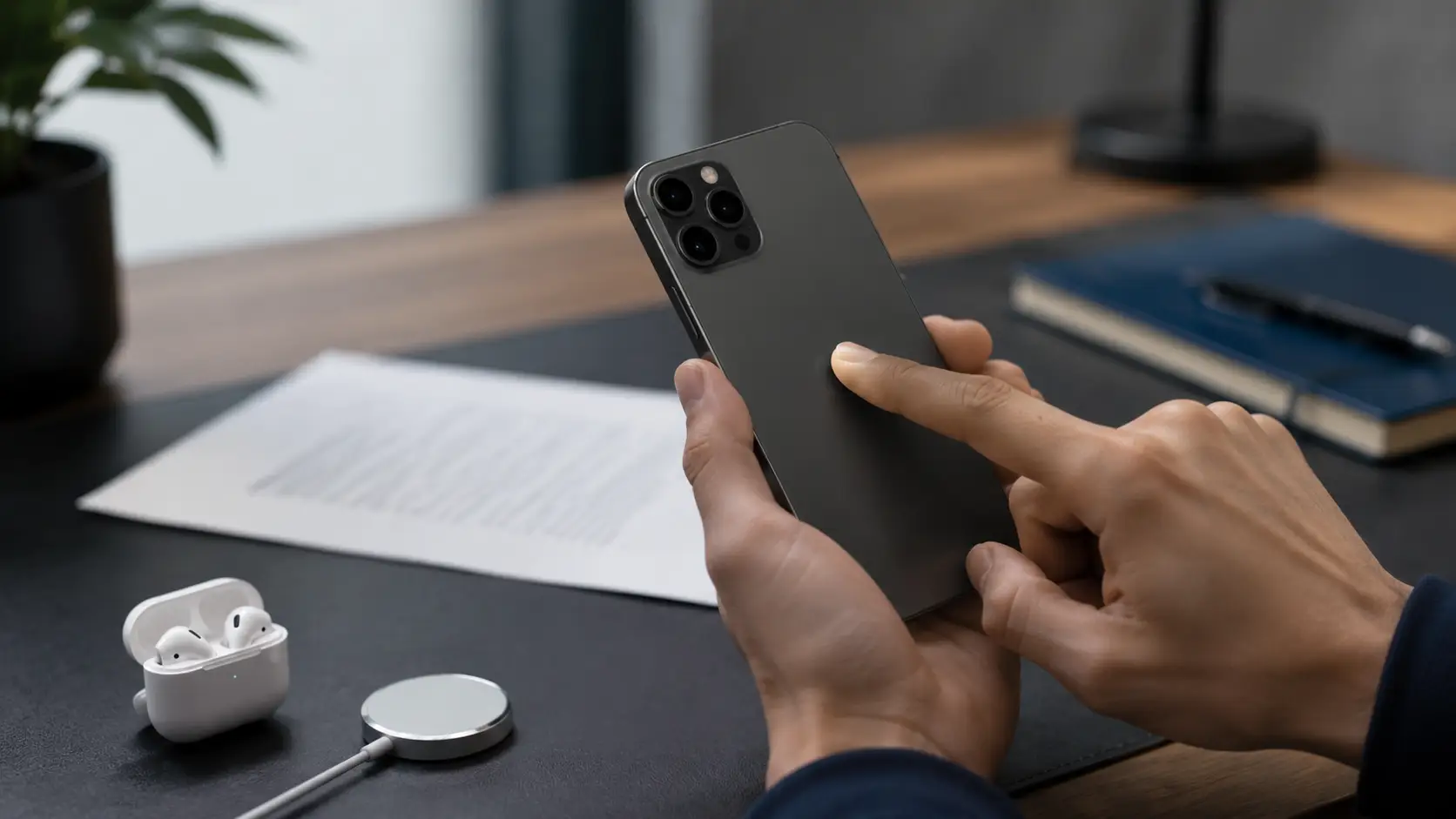
Most people use their smartphones for basic communication, social media, and photos without realizing they carry a high-powered computer in their pocket. This device contains advanced processing power that often goes ignored because many users stay within the basic interface. You might feel like you know your phone well, but there is a high probability that you are using only a small fraction of its actual utility.
Many of the most helpful tools are not visible on the home screen because they are buried within deep system menus or tied to physical movements. Apple hides these capabilities to keep the interface simple for casual users, but finding them can change how you interact with technology. Often, a specific gesture or a visit to the accessibility preferences can turn a standard handheld device into a specialized piece of equipment.
By learning these hidden methods, you can use your phone as a high-quality document scanner, a precise measuring device, and a system built for maximum output. These tools eliminate the need for many third-party applications that clutter your storage and track your data. You will gain the ability to handle professional tasks with the hardware you already own, making your daily routines much faster.
This guide organizes these features into clear areas so you can find exactly what you need to improve your experience. We will cover physical gestures that save time, tools that help with daily tasks, and ways to keep your data private. There are also sections on automating your routine and maintaining your hardware to ensure it lasts for years.
Mastering Hidden Hardware Shortcuts and Gestures
Your phone has several physical attributes and hidden touch zones that act as shortcuts for common actions. Below are the best ways to use gestures and buttons to move through your device with more speed.
Transforming the Back of Your Phone into a Button
The glass on the rear of your device can actually detect taps even through a protective case. By visiting the accessibility section in your system options, you can enable a feature that responds to a double or triple tap on the back of the device. This allows you to perform actions like taking a screenshot or turning on the flashlight without ever touching the screen.
To set this up, you must go to the touch menu within your system preferences and look for the option at the bottom of the list. You can assign different actions to both the double tap and the triple tap, giving you two new physical buttons. This is particularly useful for people who find it difficult to press multiple side buttons at the same time for certain functions.
Many users find that assigning the camera or the control center to these taps makes one-handed use much easier. If you often find yourself fumbling to reach the top of the screen, this shortcut provides a quick way to bring down your notifications or toggle your brightness. It is a simple way to use the physical build of the phone to your advantage.
The Hidden Trackpad for Precision Editing
Moving the cursor to a specific letter in a long text message or email used to be a frustrating experience involving magnifying bubbles. There is a much better way to handle this that turns the entire keyboard area into a sensitive trackpad. This method allows for pixel-perfect placement of the cursor without your finger blocking the view of the words you are trying to edit.
To activate this mode, you simply press and hold the spacebar while the keyboard is visible. Once the letters on the keys disappear, you can slide your thumb in any direction to move the cursor through the text. This gives you the same level of control as a mouse on a desktop computer, making it easy to fix typos or insert words in the middle of a paragraph.
If you need to select text while in this mode, you can use a second finger to tap the trackpad area while moving your first thumb. This highlights sentences or words quickly, which is much faster than trying to drag the small blue handles on the screen. It is one of the most effective ways to improve your typing speed and accuracy.
Quick Corrections with Shake to Undo
Errors are common when you are typing quickly or organizing files on your device. Instead of manually deleting a long mistake or trying to find a file you accidentally moved, you can use a physical movement to revert the change. A quick shake of the phone triggers a prompt that asks if you would like to undo your last action.
This gesture works across many different applications, including the mail app, notes, and messages. If you accidentally delete a paragraph of text, you can shake the phone and the words will reappear instantly. It also works for “redo” if you decide that the original change was actually correct after all.
While some people find this movement a bit unusual in public, it is often the fastest way to fix a mistake. It saves you from having to look for an undo button that might not be present in every interface. If you find that you trigger this by accident too often, you can toggle it off in the touch options of your system preferences.
The Physical Shutter Button
Taking a steady photo while holding a large phone can be difficult if you have to tap a button on the screen. The movement of your thumb often causes the device to shake, resulting in a blurry image. Fortunately, you can use the volume up or volume down buttons on the side of the device as a physical shutter.
This feels much more like using a traditional camera and allows you to keep a firm grip on the phone with both hands. It is especially helpful for taking selfies or group shots where reaching the screen is physically awkward. Since the buttons have a tactile click, you get immediate feedback that the photo has been taken successfully.
This feature also works for burst mode and video. If you hold the volume button down, the camera will continue to take rapid-fire photos or begin recording a clip. This versatility makes it much easier to capture fast-moving subjects without having to look at the screen to find the recording icon.
The One-Tap Scroll to Top
When you are scrolling through a long social media feed or a very long news article, getting back to the beginning can take a lot of swiping. There is a hidden shortcut that handles this movement instantly with a single touch. This saves time and prevents physical fatigue in your thumb when dealing with deep pages.
Tapping the very top of the screen, specifically near the clock or the battery icon, will jump the page back to the top. This works in almost every application, including web browsers and the photo library. It is a universal shortcut that makes it easy to refresh a feed or return to the main header of a website.
This small interaction is a favorite for power users who consume a lot of digital content. It allows you to move through information without worrying about how much effort it will take to get back to the start. Once you get used to this tap, you will find it hard to go back to manual scrolling.
Leveling Up Your Daily Productivity
Your device can handle many tasks that previously required specialized hardware or third-party subscriptions. Below are the methods you can use to turn your phone into a high-powered tool for work and organization.
Turning Photos into Actionable Text
The camera on your device is now capable of recognizing text in the physical environment. This means you can point your lens at a document, a sign, or a business card and interact with the words on the screen. You can copy the text to your clipboard, call a phone number, or visit a website directly from the camera view.
This utility is perfect for grabbing long WiFi passwords from routers or copying notes from a whiteboard. It also works for translating foreign languages in real-time, which is incredibly helpful when traveling. You no longer have to type out information manually; you can simply capture it and move it to where it needs to go.
This feature also works on photos you have already taken. If you open an image in your gallery that contains text, a small icon will appear in the corner. Tapping it allows you to highlight and copy any text within that image. This is a great way to search through your photo history for specific information like receipts or addresses.
Identifying the World with Visual Look Up
The software inside your phone can analyze images to tell you more about what you are seeing. If you take a picture of a plant, a dog, or a famous landmark, the device can identify the specific species or location. This uses advanced machine learning to provide context for the things in your photo gallery.
To use this, look for a small “i” icon with stars around it at the bottom of a photo. Tapping it will show you details about the subject of the picture. It can tell you the breed of a cat you saw on the street or explain the history behind a statue in a park. It is like having a digital encyclopedia that responds to your visual environment.
This tool is also helpful for understanding laundry symbols on clothing tags. If you are unsure how to wash a specific garment, a photo of the tag can provide clear instructions. It turns your phone into a guide for daily life, helping you understand the environment around you with more clarity.
Pro-Level Document Scanning in Notes
You do not need to download a separate application to create high-quality PDF scans of your paper documents. The notes application that comes with your device has a built-in scanner that is better than most paid alternatives. It uses the camera to detect the edges of a page and automatically adjusts the perspective to make it look flat and professional.
When you open a new note, you can tap the camera icon and select the scan option. The software will wait for you to line up the page and then take the photo automatically when the document is in view. It even removes shadows and cleans up the text to make it easy to read. Once you are finished, you can save the document as a PDF and share it via email.
This is a much better way to handle business receipts, contracts, or school assignments. Since it is built into the system, your scans are synced across all your devices and are protected by your standard security. It is a clean and simple way to go paperless without extra costs.
Text Replacement for Lightning-Fast Typing
If you find yourself typing the same things over and over, such as your email address or a specific phrase, you can automate that process. The system allows you to create short triggers that expand into longer strings of text. This can save you hours of repetitive typing over the course of a year.
You can set this up in the keyboard preferences within your system menu. For example, you could set “@@” to expand into your full email address. Whenever you type those two symbols, the phone will suggest your email, and tapping space will fill it in for you. This works for home addresses, common responses, and even complex emojis.
This tool is especially helpful for maintaining professional communication while on the go. You can create shortcuts for your business title, your meeting link, or a standard “thank you” message. It allows you to send detailed responses in seconds using only a few keystrokes.
Navigating Without Data via Offline Maps
Relying on a constant cellular connection for directions can be risky if you are traveling to remote areas. You can prepare for these situations by downloading specific regions of a map directly to your device storage. This allows you to get turn-by-turn directions and search for local businesses even when you have no signal at all.
To do this, you tap your profile icon in the maps application and look for the offline maps option. You can select a specific city or a large area of a state to keep on your phone. The system will even update these maps automatically when you are on WiFi to ensure the information stays current.
This is a vital tool for hikers, international travelers, and people with limited data plans. It ensures that you will never be lost because of a poor connection or an expensive roaming fee. Having the map stored locally also makes the application feel much faster since it doesn’t have to wait for data to load.
Essential iPhone Built-in Utility Tools
Your device is equipped with sensors and software that can replace many common household tools. Here are the ways you can use your phone to handle physical tasks and maintain your environment.
The AR Tape Measure in Your Pocket
The measure application uses the camera and movement sensors to calculate the dimensions of objects in your surroundings. It is surprisingly accurate for measuring furniture, boxes, or the length of a wall. You can simply draw lines on your screen that correspond to the real-world objects you are looking at.
When you open the app, it will ask you to move the phone around to get a sense of the room. Once it calibrates, a dot appears that you can use to set start and end points. The software calculates the distance between these points and displays the measurement in real-time. It can even calculate the area of a rectangle automatically.
This tool is perfect for quick checks when you are out at a store and don’t have a physical tape measure. While it shouldn’t be used for high-precision construction, it provides a very close estimate for most daily needs. It is one of the best examples of how digital technology can interact with the physical environment.
Scientific Calculator Secrets
The standard calculator on your phone might look basic at first, but it hides a full suite of scientific functions. Many people struggle with the simple interface without realizing they have access to advanced math tools. All it takes to change the interface is a single physical movement.
If you rotate your phone to a horizontal position, the calculator will expand to show options for square roots, logarithms, and trigonometry. This transformation happens instantly as long as you have the orientation lock turned off. It turns a simple tool into a device capable of handling complex engineering or physics problems.
You can also correct typing errors on the calculator without clearing the whole number. If you type a wrong digit, just swipe left or right across the numbers at the top of the screen. This will delete the last digit you entered, allowing you to fix mistakes without starting the entire calculation over again.
Leveling Your Home Decor
Hanging a picture frame perfectly straight is much easier when you use the level tool hidden within your device. This utility uses the internal gyroscope to detect the exact angle of the phone. You can use it by either laying the phone flat on a surface or leaning the side against an object.
This feature is found within the measure application, usually on a second tab at the bottom of the screen. When the object you are measuring is perfectly level, the screen will turn green and the numbers will hit zero. It provides a clear visual and haptic signal so you can get things straight even in low light.
This is useful for more than just pictures; you can use it to check if a table is flat or if a shelf is installed correctly. Since your phone is almost always with you, it replaces the need to find a bulky physical level in the garage. It is a simple utility that ensures your living space looks professional and organized.
Built-in White Noise for Focus
If you need to block out background noise to study or sleep, you don’t need a separate app or a dedicated machine. There is a feature called background sounds that is built into the system options. It can play a variety of soothing sounds like rain, ocean waves, or static noise to help you stay calm.
You can find this in the audio section of the accessibility menu. Once enabled, the sounds can play even when you are using other applications or when your screen is locked. You can even set it to turn off automatically after a certain amount of time using a timer in the clock app.
This is a great alternative to streaming music which might be distracting or consume data. The sounds are high quality and loop seamlessly, providing a consistent environment for your concentration. It is a hidden gem for anyone who works in a loud office or lives in a busy city.
Visual Search for Laundry and Dashboard Icons
Modern software allows your camera to act as a translator for the mysterious icons found on clothing tags and car dashboards. If you see a symbol you don’t understand, you can take a photo of it and let the device explain what it means. This helps prevent mistakes like shrinking a sweater or ignoring a critical engine warning.
After you take the photo, open it in your gallery and look for the lookup icon. If the system recognizes the symbols, it will provide a link to a description of exactly what each one indicates. This is much faster than searching through a manual or looking for a website that explains laundry care.
This feature is part of a growing effort to make information more accessible through visual cues. It takes the guesswork out of daily tasks and provides peace of mind when you encounter something unfamiliar. It is a small but powerful way to use the intelligence built into your handheld device.
Advanced Privacy and Security Settings
Keeping your personal information safe is a major part of the smartphone experience. Below are the steps you can take to secure your identity and control who has access to your data.
Guarding Your Identity with Hide My Email
When you sign up for a new website or newsletter, you often have to give away your real email address, which can lead to spam and tracking. A feature called Hide My Email allows you to generate a unique, random address that forwards messages to your main inbox. If the website starts sending too much junk, you can simply delete that specific address.
This keeps your primary contact information private and makes it harder for companies to build a profile on you. You can create as many of these addresses as you want and manage them in your account preferences. It is one of the most effective ways to maintain a clean and secure inbox.
Because the system handles the forwarding, you still get all the important information you need. You can even reply to messages using the random address, so the recipient never sees your real identity. This provides a layer of protection that is essential for modern web browsing.
Locking Down Your Most Sensitive Photos
Everyone has photos that they would rather keep private, such as pictures of documents, medical information, or personal moments. Your device allows you to move these images into a hidden folder that is completely separate from your main gallery. This folder is locked behind your face ID or passcode, ensuring that only you can see what is inside.
To hide a photo, you select it and choose the option to move it to the hidden album. Once it is there, it will not show up in your main grid or in your recent photos. You can also do this for the “recently deleted” folder, preventing someone from seeing photos you have just removed.
This adds a layer of security if you ever have to hand your phone to someone else to show them a specific picture. You can rest easy knowing that your most sensitive images are protected by biometric security. It is a simple way to maintain your privacy in a world where we share our devices often.
Taking Control of App Tracking
Many applications try to follow your activity across other websites and apps to build a profile for advertising. You have the power to stop this behavior with a single choice. The system preferences menu contains a section for tracking where you can see which apps have asked for permission and turn them off.
When you download a new app, you will often see a prompt asking if it can track you. By choosing “Ask App Not to Track,” you are signaling to the developer that you do not want your data shared with third parties. You can also go into your privacy options and toggle this off globally for all applications.
This significantly reduces the amount of personal data that is floating around the internet. It also helps reduce the number of targeted ads that follow you from one platform to another. Taking five minutes to review these permissions is a great way to reclaim your digital privacy.
The Safety Check Emergency Protocol
If you are ever in a situation where your personal safety is at risk, there is a way to quickly revoke access to your information. This feature is designed to stop sharing your location, your photo library, and other sensitive data with people or apps you previously trusted. It is a centralized way to go into “lockdown” mode for your personal data.
You can find this in the privacy and security section of your system preferences. It offers two levels: an “Emergency Reset” for immediate action and a “Manage Sharing” option for a more detailed review. This ensures that you are in total control of who can see where you are or what you are doing.
This tool was created to help people who may be experiencing harassment or domestic issues, but it is useful for anyone who wants a clean slate. It simplifies the process of checking your security settings, which can often be confusing when spread across many menus. It is a vital safety feature that every user should know about.
Passkey Adoption for Passwordless Login
Traditional passwords are often weak and easy for hackers to steal through phishing or data leaks. A newer technology called passkeys allows you to sign in to websites and apps using your face or fingerprint instead of a typed word. This is much more secure because the “password” never actually leaves your device.
When you create an account on a supported website, you will be given the option to use a passkey. This creates a digital credential that is stored in your secure keychain and synced across your devices. To log in, you simply look at your phone or touch the sensor, and the system handles the rest.
This eliminates the need to remember long strings of characters or use a separate password manager for every site. It is a faster and safer way to move through the digital world without the constant risk of account takeover. As more websites adopt this standard, the era of the traditional password will slowly come to an end.
Customizing the iOS User Experience
Your device does not have to look or act the same way as everyone else’s. Below are the ways you can change the interface and behavior of your phone to fit your specific lifestyle.
Designing Your Vibe with Concentration Profiles
The standard “Do Not Disturb” mode is helpful, but you can go much further by creating custom profiles for different parts of your day. You can have a profile for the gym, one for work, and one for sleep. Each profile can change which apps are allowed to send notifications and even which home screen you see.
For example, when you are at work, you can hide social media apps and only show your email and calendar. When you get home, the phone can switch back to a more casual layout with your entertainment apps front and center. This helps you stay on task and reduces the temptation to check your phone for non-essential updates.
These profiles can be triggered by time, location, or even when you open a specific application. This automation means your phone adapts to your needs without you having to manually change settings throughout the day. it is a powerful way to manage your time and attention in a busy environment.
Transforming Your Nightstand with StandBy Mode
When your phone is charging and placed on its side, it can act as a smart display for your room. This mode shows large, glanceable information like a clock, a calendar, or a rotating frame of your favorite photos. It turns a sitting device into a useful piece of home decor.
You can customize the widgets that appear in this mode to show the weather, your upcoming appointments, or even your home security cameras. If you use it at night, the screen will dim and use a red tint to protect your sleep quality. It is a great way to make use of your phone even when you are not actively holding it.
To use this, simply plug your phone in and prop it up horizontally. It works best with a magnetic stand, but any stable surface will do. It is a simple addition that adds value to your charging routine and makes your space feel more modern.
The Power of the iPhone 15 Pro Action Button
If you have one of the newer pro models, you have a physical button on the side that replaces the old silent switch. This button can be programmed to do almost anything you want. You can set it to open the camera, turn on the flashlight, or even run a complex sequence of actions.
The real strength of this button is its integration with custom shortcuts. You could set it to start a voice memo, toggle your smart lights at home, or even order your favorite coffee. It provides a tactile way to interact with your digital life without even looking at the screen.
You can find the options for this button in the main preference menu, where a visual interface lets you choose the function. It is a small change to the hardware that offers a massive amount of flexibility for power users. It allows you to access your most used features with a single press.
Personalizing Lock Screen Widgets
Your lock screen is the first thing you see dozens of times a day, and you can make it much more useful than just a clock. You can add small widgets that show your fitness progress, the battery level of your headphones, or the current temperature. This allows you to get the information you need without even getting into your phone.
To customize this, you simply press and hold on your lock screen and choose the customize option. You can pick from a variety of fonts and colors for the time and select which widgets fit your needs. You can even create multiple lock screens and link them to different concentration profiles.
This small level of organization makes your device feel more personal and efficient. It reduces the number of times you have to navigate through menus just to check a simple piece of data. It is a great way to keep your most important information always in view.
Organizing with App Library and Hidden Pages
If you have hundreds of applications, your home screen can quickly become a cluttered mess. You can clean this up by hiding entire pages of apps that you don’t use often. The apps aren’t deleted; they are simply stored in the app library at the end of your screens.
To hide a page, you press and hold on a blank area of the home screen and then tap the dots at the bottom. You can uncheck the pages you don’t want to see, leaving only your most important icons visible. This makes your phone feel much more organized and less distracting.
The app library automatically categorizes your applications into folders like “Social,” “Productivity,” and “Games.” You can also use the search bar at the top to find anything instantly. This allows you to have a minimal home screen while still having easy access to all your tools.
Unleashing Automation with Siri Shortcuts
You can make your phone perform complex tasks automatically based on certain triggers. Below are the ways you can use the shortcuts application to save time and add new functionality to your device.
Creating “If This, Then That” Routines
The shortcuts application allows you to build simple rules that the phone follows without your intervention. For example, you can tell the phone to turn on low power mode automatically whenever the battery hits 30%. This prevents you from having to remember to do it manually and helps your device last longer.
You can also set routines for when you arrive at a certain location. Your phone could automatically text your partner when you leave work or turn on your home lights when you pull into the driveway. These small automations add up to a much more seamless experience.
Starting with these simple routines is the best way to understand how automation works. You don’t need to be a programmer to create these rules; the app uses simple blocks that you can drag and drop into place. It is a way to make your technology work for you instead of the other way around.
Safety Automations for Real-World Scenarios
Shortcuts can also be used for your personal protection in dangerous situations. You can create a command that, when triggered, dims your screen, starts a video recording, and sends your current location to an emergency contact. This can be activated by a voice command or a quick tap on the back of the phone.
These types of automations provide peace of mind for people who walk alone at night or find themselves in uncertain environments. Because the phone handles all the steps at once, you don’t have to fumble with different apps during a crisis. It is a professional-grade safety tool that is built into your device for free.
You can find many of these safety shortcuts pre-made online, or you can build your own to fit your specific needs. Sharing these with friends and family is a great way to ensure everyone has a plan in case of an emergency. It is a practical use of technology that can have a real impact on your life.
Custom App Icons and Themes
If you want to change the visual style of your phone beyond what Apple allows, you can use shortcuts to create custom app icons. This involves creating a shortcut that opens a specific app and then giving that shortcut a custom image and name on your home screen. This allows for a completely unique aesthetic that matches your personality.
Many people use this to create minimalist themes or to match their icons to a specific wallpaper. While it takes a bit of time to set up for every app, the results can be stunning. It is the best way to truly make your phone look like no one else’s.
You can find icon packs online or use your own photos to create a one-of-a-kind interface. This doesn’t change the underlying app, but it does change how you interact with it every day. It is a fun way to experiment with the look and feel of your digital environment.
Smart Home Integration via Voice
Your phone can act as a central hub for all the smart devices in your home. By creating shortcuts, you can control your lights, locks, and thermostats using simple voice commands. You can even group these actions together into a “Goodnight” routine that locks the doors and turns off all the lights at once.
This works even if your devices aren’t from the same brand, as long as they are compatible with the system. It saves you from having to open multiple different apps just to manage your home. You can simply ask your phone to handle it, and the automation takes care of the rest.
Setting this up makes your home feel much more modern and easier to manage. You can even set triggers based on the time of day, so your coffee maker starts before you wake up or your porch light turns on at sunset. It is a level of convenience that was once only possible in science fiction.
Batch Processing Images and Videos
Performing the same action on dozens of photos can be a tedious task if you do it one by one. Shortcuts allows you to process a large group of images at the same time, such as resizing them for a website or converting them to a different file format. This is a massive time-saver for anyone who works with digital media.
You can create a shortcut that takes a group of photos, strips out the location data for privacy, and then zips them into a single file for sharing. This would take several minutes to do manually, but a shortcut can handle it in seconds. It brings the power of desktop-style batch processing to your handheld device.
This utility is also helpful for video editing, such as extracting audio from a clip or creating a GIF from a live photo. Once you build these tools, they stay in your sharing menu for whenever you need them. It is a great way to handle professional media tasks without expensive software.
Hidden Audio and Communication Features
Communication is the primary purpose of a phone, but there are many ways to improve the quality of your calls and media. Here are the hidden audio tools that can make your interactions much better.
Enhancing Call Quality with Voice Isolation
If you are trying to have a conversation in a loud environment like a busy street or a windy park, the person on the other end might struggle to hear you. There is a feature called voice isolation that uses the microphone to filter out background noise and amplify your voice. It makes you sound like you are in a quiet room even when you are in a crowd.
To turn this on, you must be in an active call. Swipe down from the top right to open the control center, tap on the “Mic Mode” button, and select voice isolation. The change is immediate and usually results in much clearer communication for everyone involved.
This works for standard cellular calls as well as apps like FaceTime and third-party messaging services. It is a simple way to maintain a professional tone during business calls while you are on the move. Once you turn it on, the phone will remember your choice for future calls.
Announce Notifications with Siri
When you are wearing headphones, you don’t always want to reach for your phone to see who just sent you a text. You can enable a feature that has the system read out incoming messages and notifications directly into your ears. It will tell you the name of the sender and the content of the message as it arrives.
You can even reply to the message immediately by speaking, without ever having to touch your device. This is incredibly helpful when you are working out, driving, or doing household chores. You stay connected without having to break your physical activity.
This feature can be customized so it only reads notifications from specific people or apps, preventing you from being interrupted by junk mail. It is a clean way to stay informed while keeping your hands free for other tasks. It makes using wireless headphones feel like a much more integrated experience.
Identifying Songs Instantly via Control Center
If you hear a song playing in a store or a movie and want to know the title, you don’t have to look for a separate application. There is a built-in music recognition tool that you can add to your control center for instant access. It can identify a song in a few seconds, even in loud environments.
To add this, go to the control center preferences in your system menu and look for the music recognition icon. Once it is added, you can simply swipe down and tap the button whenever a song is playing. The name of the artist and the track will appear at the top of your screen.
This tool also keeps a history of the songs you have identified, so you can go back and add them to your music library later. It is a fast and simple way to find new music as you go about your day. Since it is built into the system, it works much faster than opening a third-party app.
Custom Vibrations for Specific Contacts
You can know who is calling or texting you without even looking at your screen by setting up custom vibration patterns. Just like assigning a unique ringtone to a person, you can create a unique “feel” for their notifications. This is perfect for situations where your phone is in your pocket and on silent.
To set this up, go to a contact’s profile and choose the option to change their vibration pattern. You can pick from a list of pre-made pulses or create your own by tapping a pattern on the screen. You could set a long pulse for your boss and a series of short taps for your best friend.
This allows you to decide if a notification is worth your attention without having to pull your phone out during a meeting or a dinner. It is a discreet way to stay connected to the people who matter most while ignoring the noise of daily alerts. It adds a physical layer to your digital communication.
Shared Playback with Multiple AirPods
If you are traveling with a friend and want to watch a movie or listen to music together, you don’t have to share a single earbud. Your device allows two sets of wireless headphones to connect at the same time, with each person having their own volume control. This provides a much more comfortable and high-quality shared experience.
To use this, open the airplay menu in your control center while your headphones are connected. There is an option to “Share Audio,” which will prompt the second pair of headphones to connect. Both people will hear the same perfectly synced audio from the device.
This is a great feature for long flights, train rides, or just relaxing at home. It allows you to have a shared moment without being tied together by a physical wire. It is one of those small touches that makes the ecosystem feel truly designed for the user.
Tips for Maintaining iPhone Longevity
A high-end phone is a major investment, and you want it to last as long as possible. Below are the steps you can take to keep your hardware and software running like new for several years.
Optimizing Battery Charging Habits
The lithium-ion battery in your device is a consumable part that wears out over time, but you can slow this process down with smart charging. The system has a built-in feature that learns your daily routine and waits to finish charging past 80% until you actually need to use the phone. This reduces the time the battery spends at a full charge, which is better for its long-term health.
On newer models, you can even set a hard limit of 80% to ensure the battery never gets pushed to its maximum capacity. While this means you have slightly less charge for the day, it can add a year or more to the total lifespan of the hardware. You can find these options in the battery section of your system preferences.
Keeping your phone away from extreme heat is also vital for battery health. If you leave your device on a hot car dashboard, the battery can be permanently damaged in a short time. By following these simple habits, you ensure that your phone stays fast and reliable for as long as possible.
Offloading Unused Apps to Save Space
As you download more applications, your storage can start to fill up, which can slow down the device and prevent updates. Instead of deleting apps and losing your data, you can use a feature called “Offload Unused Apps.” This removes the application itself but keeps all your personal data and documents on the device.
If you ever need the app again, you simply tap the icon and it downloads instantly with all your information exactly where you left it. This is a great way to reclaim gigabytes of space from apps you only use once or twice a year. You can enable this to happen automatically in the storage section of your preferences.
This keeps your home screen organized while ensuring that you always have room for new photos and system updates. It is a much more intelligent way to manage storage than manual deletion. It allows your phone to feel light and fast even after years of use.
Managing System Data and Cache
Sometimes your phone can feel slow even if you have plenty of storage space. This is often caused by a buildup of temporary files and “system data” that accumulates over time. While the system is supposed to manage this automatically, it can sometimes get bloated and affect performance.
One of the easiest ways to clear this out is to occasionally clear the cache in your web browser. In the preferences for your browser app, you can choose to remove history and website data. This removes old files that are no longer needed and can make web browsing feel much snappier.
Restarting your phone once a week is also a good habit to clear out temporary system errors and refresh the memory. This simple action can solve many small glitches and keeps the software running smoothly. It is a quick maintenance task that prevents larger problems from developing.
Routine Software Updates and Security Patches
Many people ignore update notifications because they don’t want to wait for the download, but this is a mistake. Software updates often contain critical security fixes that protect you from new threats and vulnerabilities. They also include optimizations that can make your phone run faster and improve battery life.
Apple is known for supporting older devices with updates for many years, which is one of the best reasons to own an iPhone. By staying current, you ensure that you have access to the latest features and that your apps continue to work correctly. You can set updates to install automatically overnight so you never have to think about it.
Updating also ensures that you have the latest modem firmware, which can improve your cellular and WiFi connections. It is the single most important thing you can do to keep your device secure and functional. Think of it as a free tune-up for your digital life.
Checking Hardware Health and Parts History
If you ever buy a used phone or have yours repaired, you should know how to verify the health of the hardware. The system provides a detailed report on the battery’s maximum capacity compared to when it was new. It also shows a “Parts and Service History” if any major components like the screen or battery have been replaced.
This information is found in the “About” section of the general preferences menu. It will tell you if the replacement parts are genuine Apple components or if they are third-party alternatives. This transparency helps you understand the true value and condition of your device.
Knowing your battery health can help you decide when it is time for a professional replacement. If the capacity drops below 80%, you will likely notice shorter battery life and slower performance. Being informed about your hardware allows you to make the best decisions for its continued use.
Conclusion: Becoming an iPhone Power User
The features we have discussed transform your handheld device from a simple gadget into a professional-grade tool for daily life. By moving beyond the surface of the interface, you can find a level of utility that most users never experience. These hidden tools are designed to make your life easier, your data safer, and your work more efficient.
It is best to try out one or two of these new features each day so you don’t feel like you are learning too much at once. Start with the hardware gestures or the productivity tools and see how they fit into your normal routine. Over time, these actions will become second nature, and you will find yourself moving through your tasks with much more speed.
Apple is constantly adding new “secrets” with every software update, meaning your phone is a device that improves over time. What you bought a year ago might have entirely new capabilities today that you haven’t found yet. Staying curious about your technology is the best way to get the most value out of your investment.
If you found a specific tip helpful or if you have a favorite hidden feature that we didn’t mention, feel free to share your thoughts. Engaging with these tools is the first step toward mastering your digital environment. Subscribe for more insights on how to make your technology work better for you.
