




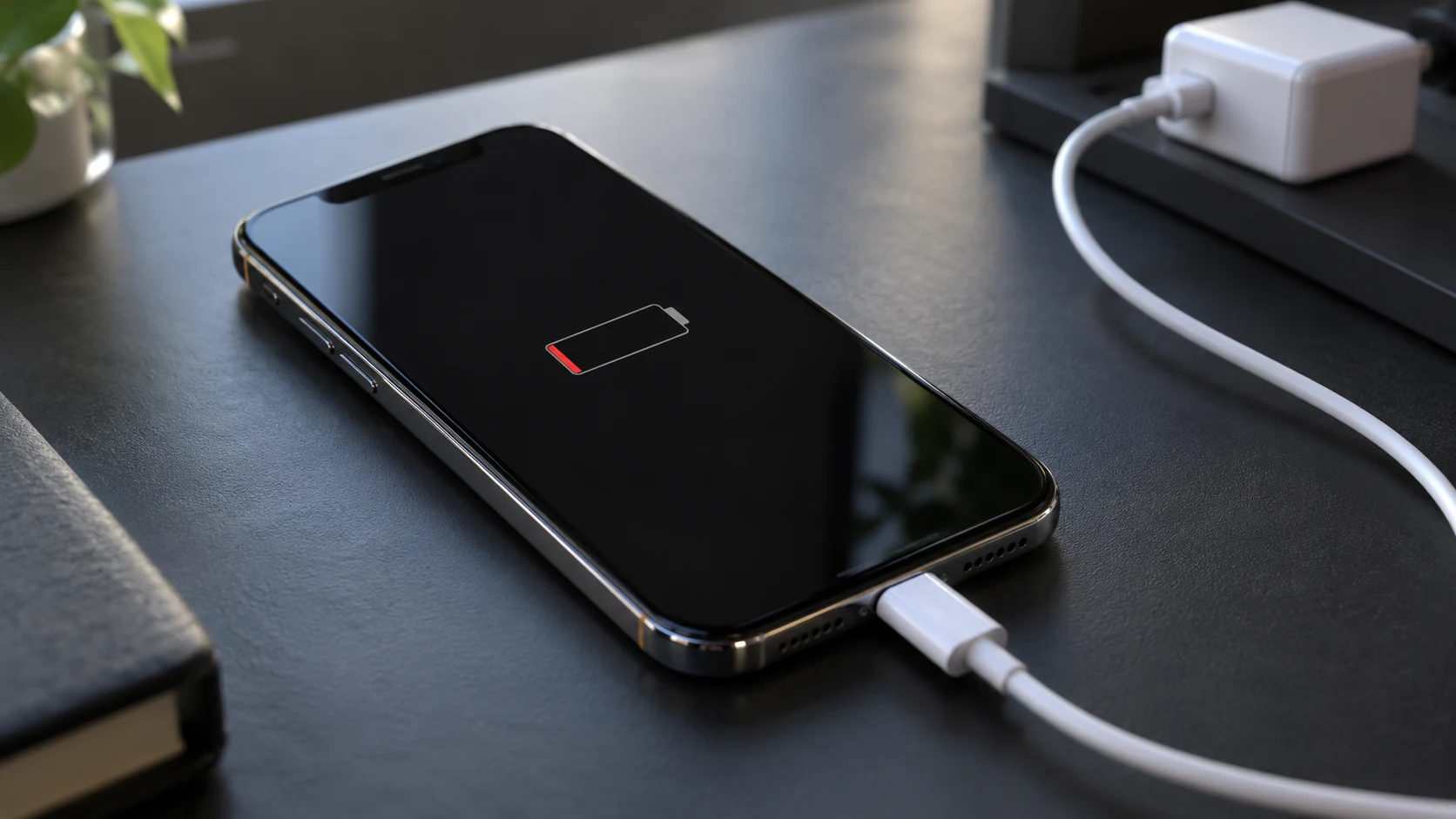
You plug in your iPhone, leave it for a while, and come back expecting more battery. The percentage hasn’t moved. You check the connection, try again, and still nothing. It’s frustrating, especially when you’ve got somewhere to be.
You might assume your battery needs replacing. But the problem could be a worn cable, a faulty adapter, or lint stopping the connector from fitting properly. Sometimes, a software glitch is enough to interrupt charging. You have a few things to check before booking a repair.
In this guide, you’ll learn why your iPhone might not be charging and find 11 fixes to try. You’ll also get practical tips to prevent repeat problems and know when it’s time to seek professional help.
Why Isn’t My iPhone Charging?
When your iPhone won’t charge, you might suspect the battery straight away. But your phone depends on a working cable, a reliable power source, and a secure connection to receive power, so the battery isn’t always to blame. Before you spend money on a replacement, check these possible reasons for the problem.
- A damaged cable or adapter: Your charging cable can wear out from repeated bending, even when you can’t see damage on the outside. A faulty adapter can also stop power from reaching your phone, leaving you with no charge despite everything being plugged in.
- A power source that isn’t working: Your wall socket or computer’s USB port might not be supplying power. If you’re charging through a computer, a sleeping or switched-off machine could explain why your battery percentage hasn’t moved.
- Debris inside the charging port: Lint from your pockets can collect inside your iPhone’s port and stop the cable from making proper contact. You may notice that the connector doesn’t fit securely or that charging cuts in and out.
- A temporary software problem: Your iPhone’s software can occasionally become unresponsive or interfere with charging. A restart may resolve a temporary glitch, so a charging failure doesn’t necessarily mean you have broken hardware.
- A worn or failing battery: As your battery ages, you may notice that it runs out sooner than it used to. If it develops a fault, you could also experience charging trouble or unexpected shutdowns.
- Liquid exposure or physical damage: A drop or contact with liquid can damage your charging port or components inside the phone. You might still be able to use your iPhone while having trouble getting it to charge reliably.
- Heat or an intentional charging pause: Your iPhone may delay charging beyond 80% because it is too warm or because Optimized Battery Charging is active. On supported models, you may also have a selected charge limit, meaning your phone is stopping where you asked it to.
iPhone Won’t Charge Even When Plugged In
You’ve connected your iPhone to the charger, so you’d expect the battery percentage to go up. But having the cable plugged in doesn’t guarantee that power is reaching your phone. To work out where the connection is failing, check these parts one at a time.
- A loose connection: Your cable might look connected without being fully inserted into your phone or adapter. Check that each connection fits securely, but don’t force a connector that won’t go in.
- An outlet or USB port without power: You could be using a wall socket that isn’t working or a computer port that isn’t supplying power. Try another wall outlet with a working adapter to see whether your phone responds.
- A faulty cable or adapter: Your charging accessories can stop working even without visible cracks or frayed wires. Swap the cable and adapter separately with compatible ones you know work, so you can identify which accessory is causing trouble.
- A blocked or damaged charging port: Lint inside your phone’s port can keep the connector from reaching the contacts properly. If your cable feels loose or only works at certain angles, the port or connector may need attention.
- A software glitch: Your iPhone may fail to respond to the charger because of a temporary software problem. If your phone still has power, restart it and reconnect the charger to check whether charging resumes.
iPhone Won’t Display the Charging Icon When Dead
When your iPhone’s battery runs out, you expect at least a charging symbol after plugging it in. A screen that stays black can make you think your phone has stopped working altogether, but a fully drained battery may need time before anything appears. Here’s what could explain the blank screen and what you can try.
- Your battery needs more time: If your battery is completely depleted, your iPhone may not display a charging icon immediately. Connect it to a working charger and leave it for 30 minutes before checking again.
- Your charger isn’t delivering power: A faulty cable, adapter, or outlet could leave your phone without power despite being plugged in. Test with a compatible cable and adapter you know work, using another wall socket.
- Your charging port has a poor connection: Debris inside the port can stop your cable from connecting properly, leaving your drained battery unable to charge. Check for visible obstructions and make sure the connector fits securely without forcing it.
- Your phone needs a force restart: If your iPhone remains unresponsive after 30 minutes of charging, try the force-restart sequence for your model. Then leave it connected for another 30 minutes to see whether it starts up.
- Your phone may need a repair: If you still see no response after these checks, a battery, charging port, or other hardware fault could be responsible. Contact Apple Support or an Apple Authorized Service Provider to have your phone examined.
What Should You Do if Your Device Stops Charging at 80 Percent?
Your iPhone charges without trouble, then stops at 80% even though you’ve left it plugged in. You might think something is wrong, but this can be your phone managing battery wear or responding to heat. Before you replace your charger, check these three possible explanations.
- Give Optimized Battery Charging time: Your iPhone learns when you usually charge it and may postpone charging beyond 80% to reduce the time your battery spends fully charged. If you don’t need a full battery immediately, leave it connected so it can finish closer to when you normally unplug it.
- Let your iPhone cool down: If your battery gets too warm, your iPhone may temporarily restrict charging above 80% to protect it. Move your phone and charger somewhere cooler, away from direct sunlight, and allow the temperature to drop before checking again.
- Check your selected charge limit: On iPhone 15 models and later, you can choose a maximum charge level, which may explain why your battery repeatedly stops at 80%. If you need more charge for the day, raise that limit through your phone’s battery controls.
Why Does Your iPhone Say the Charging Accessory Isn’t Supported or Certified?
You connect your charger and get a warning instead of a charging symbol. That message doesn’t automatically mean you’ve bought the wrong cable, especially if you’ve used it successfully before. To work out what’s causing it, check your accessories, connection, and software.
- A damaged or incompatible accessory: Your cable or charger may be faulty or unsuitable for charging your iPhone. Try another compatible cable and adapter you know work, replacing one at a time to identify the problem.
- Dirt or damage inside the port: Debris or damaged contacts in your charging port can interfere with the connection and trigger an accessory warning. Inspect the port for visible obstructions or damage, and get professional help if the connector won’t fit securely.
- Extra equipment between your phone and charger: An intermediary adapter or other connected accessory could be interfering with charging. Remove any unnecessary equipment and connect your iPhone directly to a compatible charger to see whether the warning disappears.
- A temporary software issue: Your iPhone may display the warning because of a software problem rather than a faulty accessory. Restart your phone and, if the message returns, check for an available iOS update once you have enough battery power.
11 Simple Ways to Fix Your iPhone Charging
You don’t need to replace your battery the moment your iPhone stops charging. A different cable, a restart, or a little more time on the charger may be enough to get it working again. Test one thing at a time so you know what made the difference, and stop wired charging if you notice moisture or damaged accessories.
Start with these eleven checks to find out what your phone needs.
1. Inspect and Test the Charging Cable and Adapter
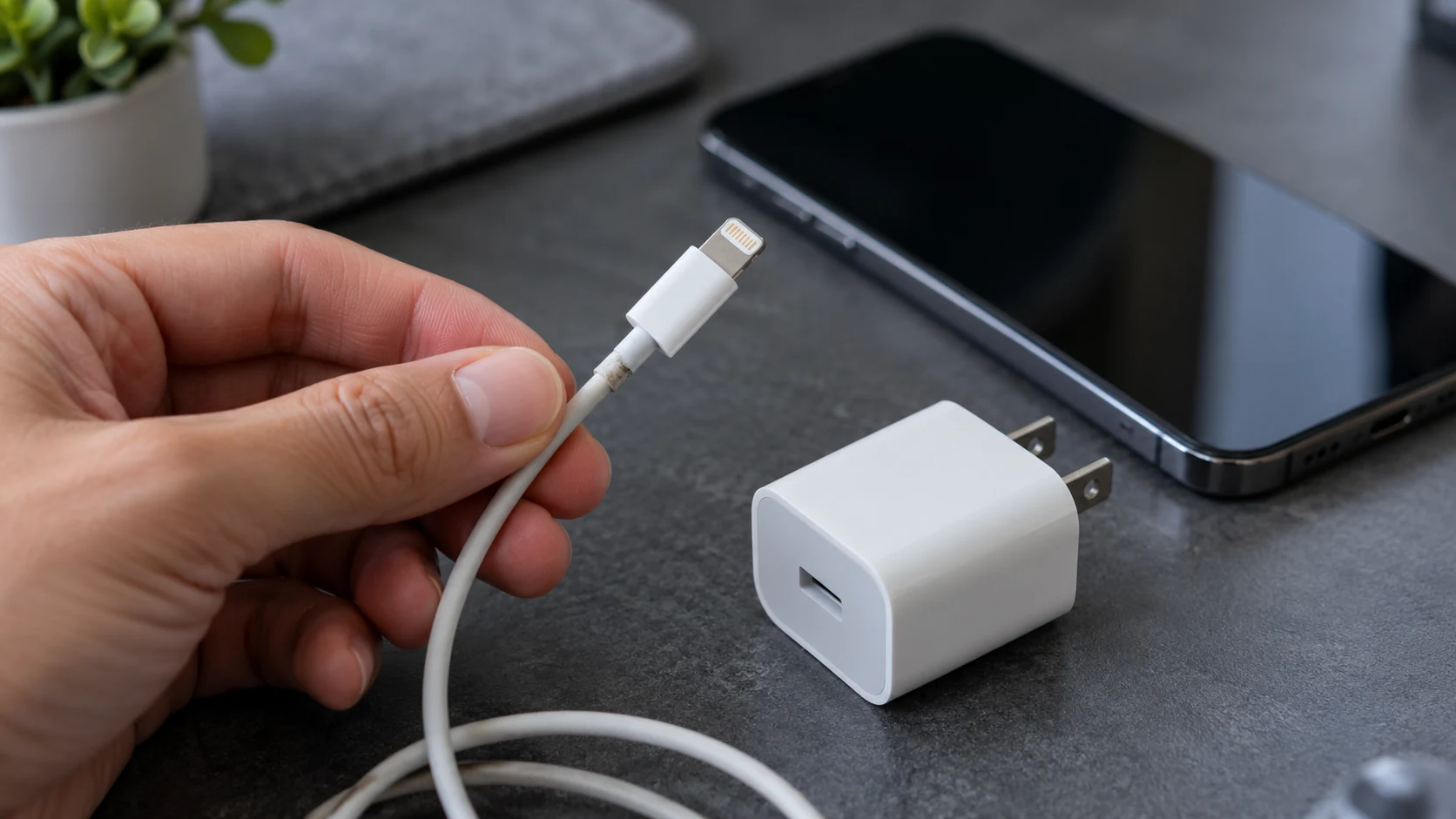
Your charging cable goes through plenty of bending, pulling, and packing away. Over time, that wear can damage the wires inside, even when the outside looks fine. Your adapter can fail too, so testing both separately helps you avoid replacing the wrong accessory.
How to Fix It
- Unplug your accessories and examine them for exposed wires, cracked connectors, or bent prongs.
- Replace the cable with a compatible one you know works, keeping the adapter the same if it appears undamaged.
- If charging still fails, test another compatible adapter and stop using any accessory with visible damage.
2. Try a Different Power Source
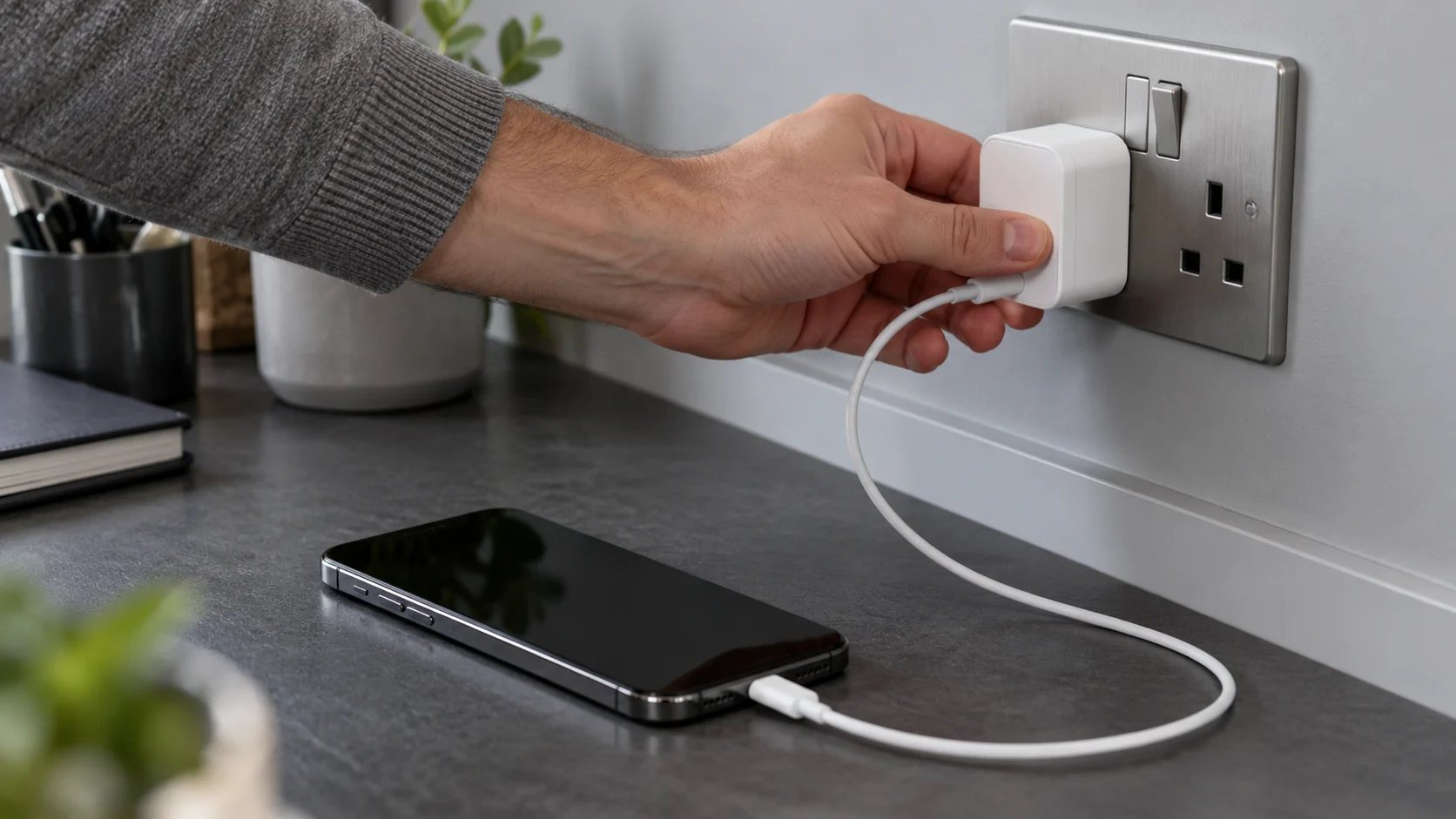
You might spend time checking your phone when the socket is the problem. A wall outlet without power or a computer that has gone to sleep can leave your iPhone connected without charging.
Testing another power source gives you a useful answer before you move on to the phone itself.
How to Fix It
- Plug your charger into a different wall outlet and check that it fits securely.
- If you’re using a computer, make sure it is switched on and awake.
- Connect directly to another USB port on the computer, or try a wall adapter instead of a hub or keyboard port.
3. Check the Charging Port for Obstructions
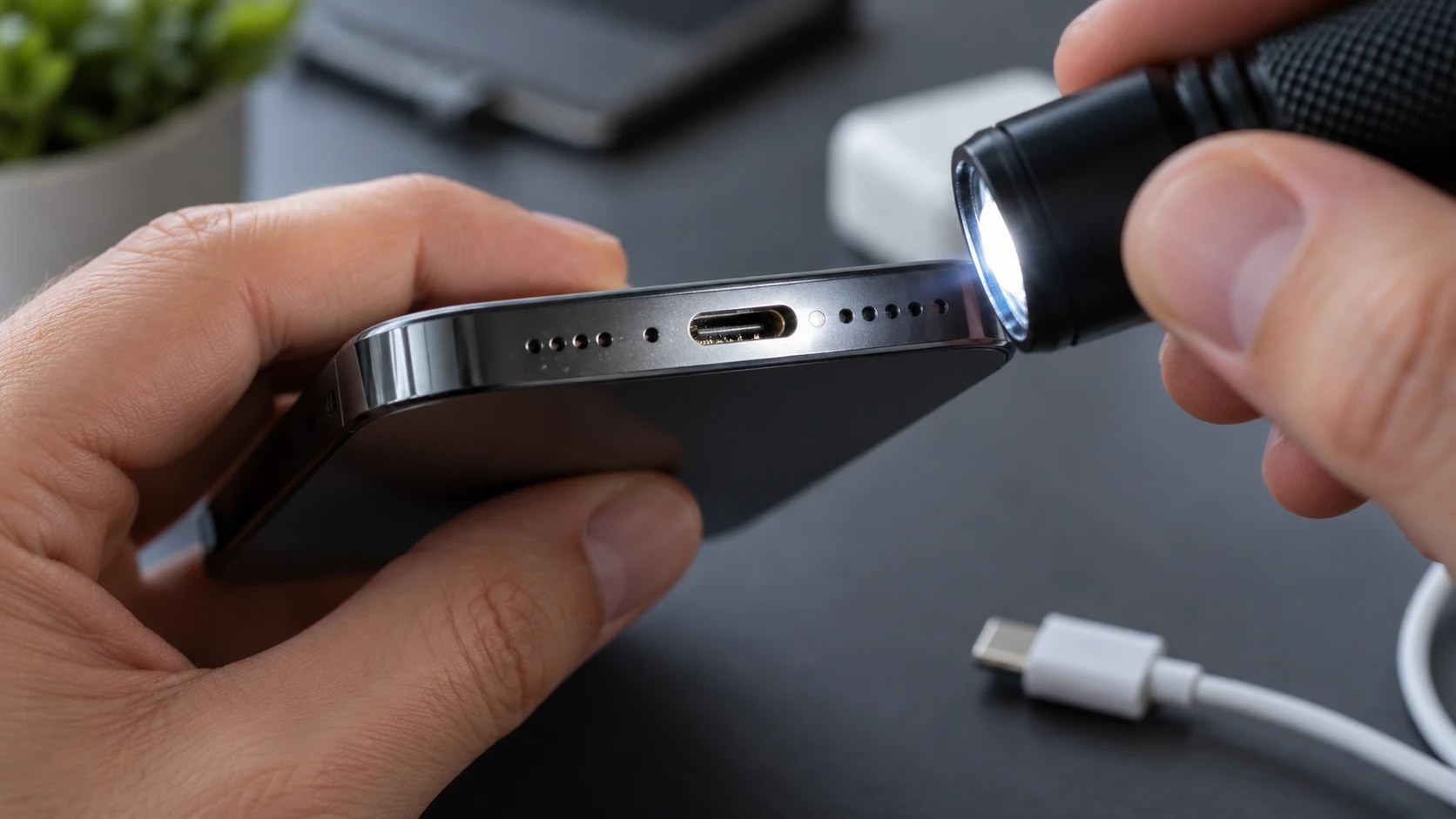
Your pockets can leave more than fingerprints on your phone. Small pieces of lint can collect inside the charging port and prevent the connector from fitting properly.
Inspect the port before attempting to clean it. Avoid compressed air, liquids, or poking inside with tools, and have packed debris removed professionally rather than risk damaging the contacts. Apple advises against using compressed air to clean your iPhone.
How to Fix It
- Disconnect the charger and switch off your iPhone if it responds.
- Use a light to look for visible debris, bent contacts, or damage inside the port.
- If you spot an obstruction or the connector won’t fit securely, arrange a professional inspection instead of forcing the cable.
4. Give a Completely Drained Battery Time to Charge
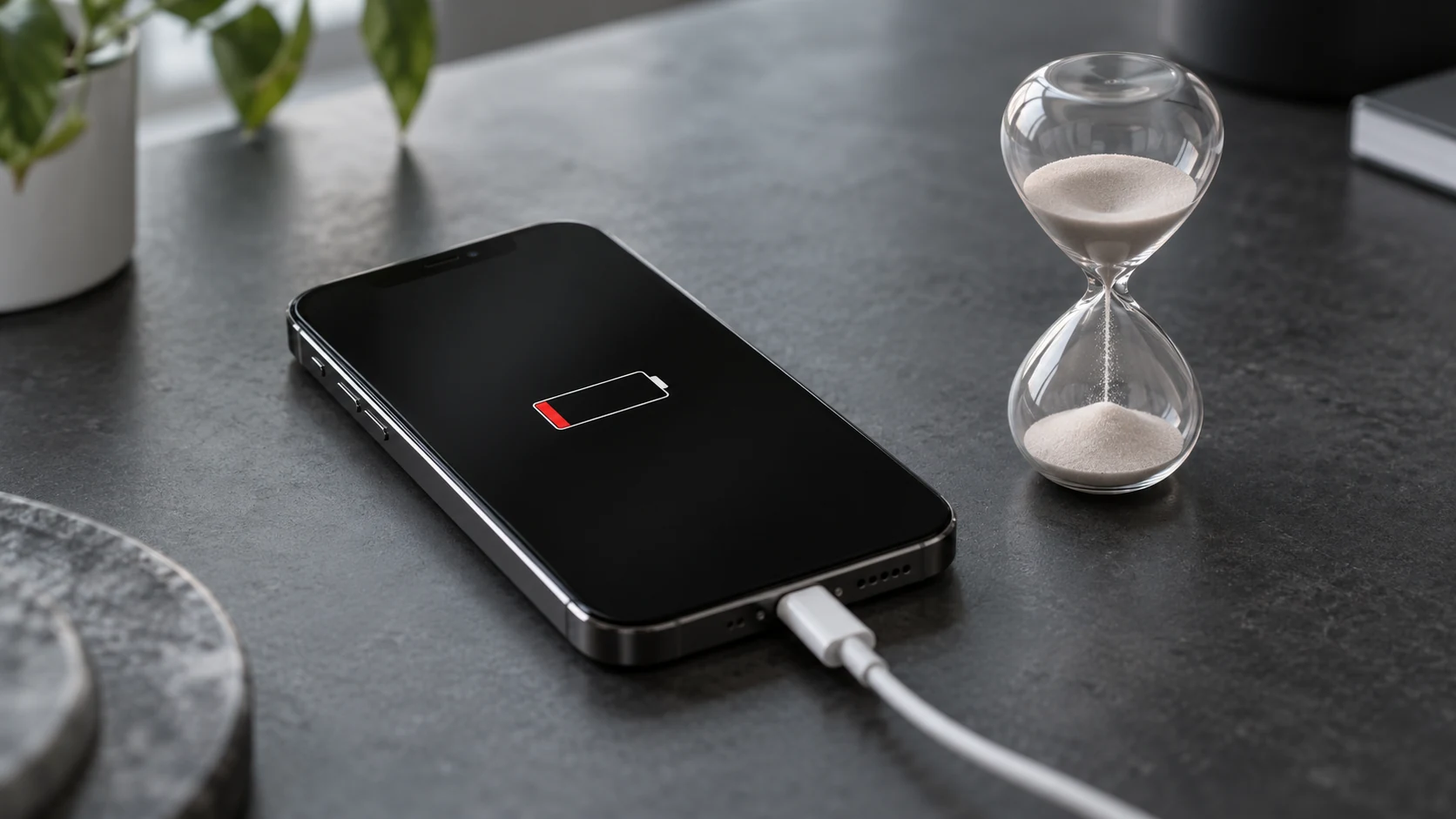
A fully depleted iPhone may need a little patience. You might not see a charging symbol immediately, even after connecting a working charger.
Give your phone an uninterrupted charging period before deciding it has failed. Repeatedly unplugging it makes this check harder to complete.
How to Fix It
- Connect your iPhone to a working cable, adapter, and wall outlet.
- Leave it connected for 30 minutes, then try a force restart if it remains unresponsive.
- Keep it on the charger for another 30 minutes and seek service if it still won’t start or charge.
5. Restart or Force Restart Your iPhone
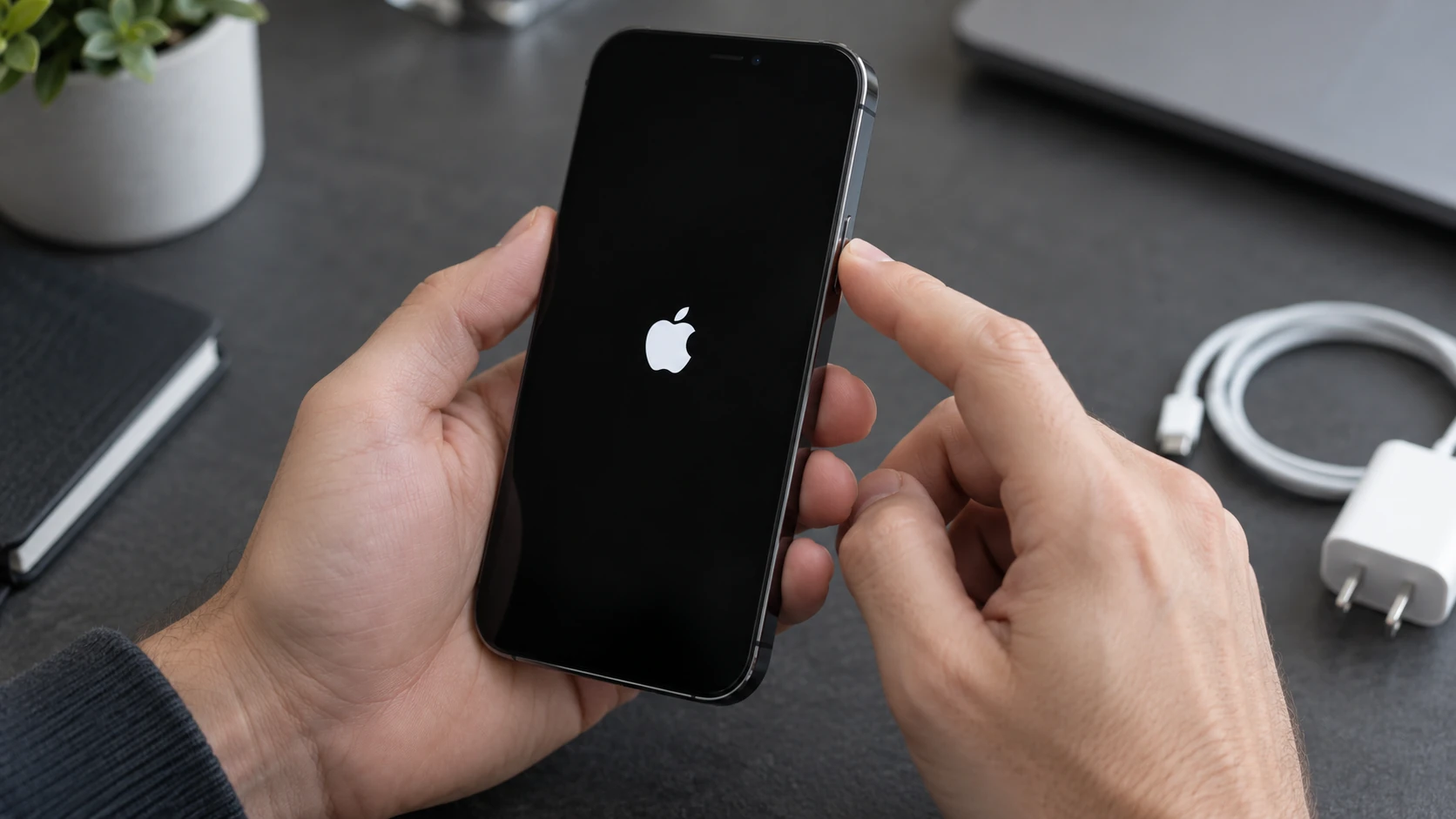
A restart can clear a temporary software problem that is interfering with charging. If your phone responds, turn it off and back on normally, then reconnect the charger.
If it is frozen or remains unresponsive after the initial charging period, use the force-restart method for your model. Follow only the matching instruction below.
How to Fix It
- iPhone 8 and later, including iPhone SE second generation and later – Quickly press and release Volume Up, repeat with Volume Down, then hold the side button until you see the Apple logo.
- iPhone 7 and 7 Plus – Hold the side button and Volume Down together until the Apple logo appears.
- iPhone 6s and earlier, including the original iPhone SE – Hold the Home button with the side or top button until the Apple logo appears.
6. Check for an iOS Update
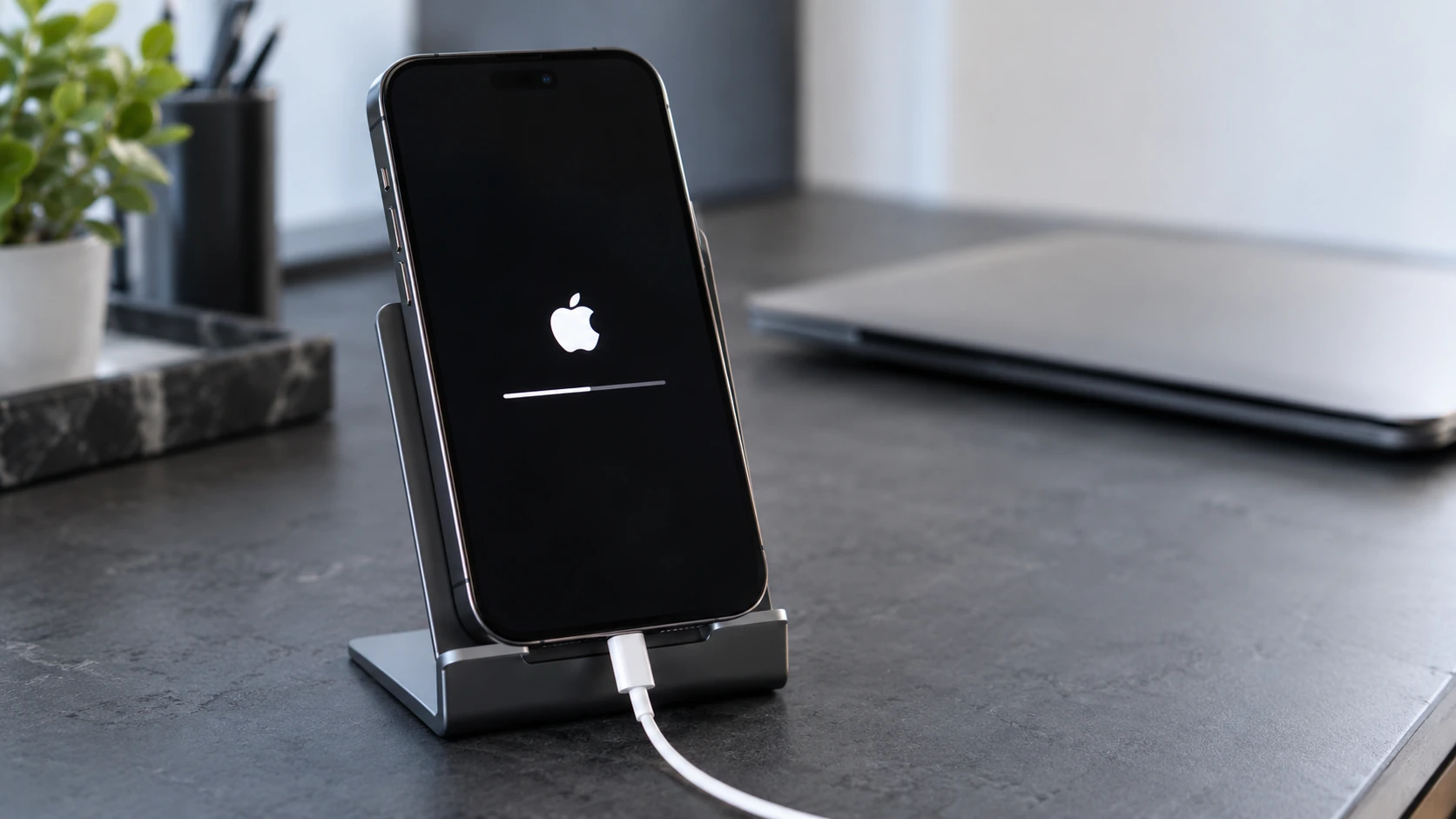
If your iPhone still turns on, checking for an update is worth doing. Software releases can contain bug fixes, although an update won’t repair a broken port or damaged cable.
Wait until you have enough battery power and a reliable charging connection before installing. Back up your phone first so your data is protected during the process. Our guide to moving pictures from your iPhone to a Mac is a quick way to keep your photos safe.
How to Fix It
- Back up your iPhone, connect to Wi-Fi, and use a working charging method.
- Open the app with the gear icon, select General, then choose Software Update.
- If an update is available, follow the installation instructions and test charging again once it finishes.
7. Let an Overheated iPhone Cool Down
If you’ve been gaming, recording video, or leaving your phone in the sun, heat may explain the charging pause. Your iPhone can slow or stop charging when its temperature gets too high.
Give it time to cool instead of repeatedly reconnecting the cable. If you see a temperature warning, turn the phone off while you wait. If your phone runs hot often, our guide on why your phone gets so hot explains the usual causes.
How to Fix It
- Stop demanding activities, such as gaming or recording video.
- Move your phone and charger to a cooler place away from direct sunlight.
- Allow the phone to cool naturally, then check whether charging resumes.
8. Review Charging Optimization and Limits
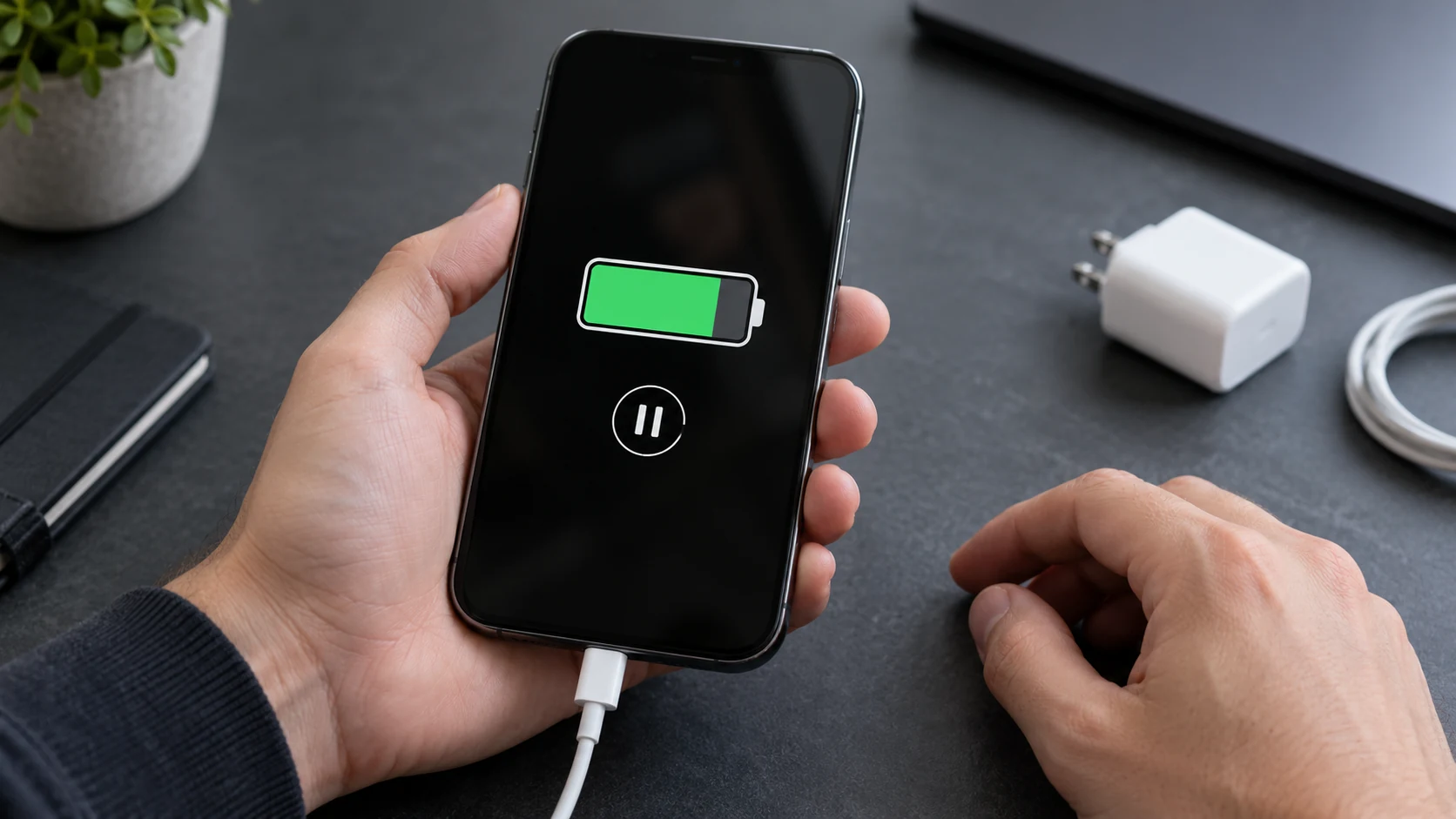
If your iPhone charges normally but pauses around 80%, you may not have a fault at all. Optimized Battery Charging can delay the final part of a charge, while a selected charge limit can stop it near a chosen percentage.
You don’t need to disable battery protection permanently just to get more charge for a busy day. Check which feature is responsible before making a change.
How to Fix It
- Look for an Optimized Battery Charging notification on your Lock Screen and check the expected completion time.
- If you need a full charge sooner, press and hold that notification and select Charge Now.
- On iPhone 15 models and later, open the gear-icon app, select Battery, then Charging, and raise the charge limit if needed.
9. Test Another Charging Method
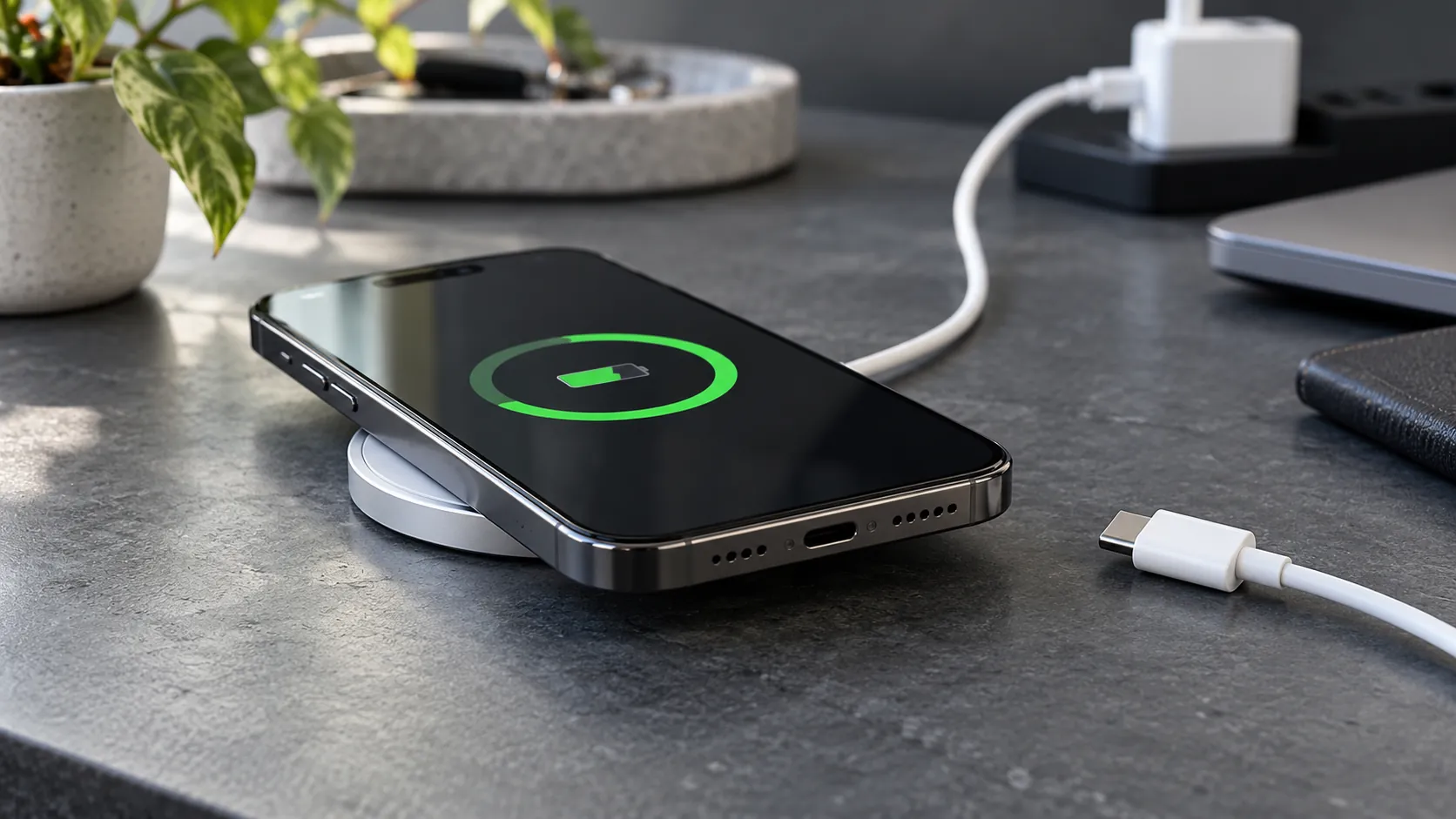
Trying another charging method can help narrow down the problem. If your iPhone charges wirelessly but won’t charge through a cable, that suggests checking the wired accessories and port more closely, though it doesn’t prove the port is faulty.
If wireless charging is the problem, test a cable instead. Use a Qi-certified charger if your iPhone supports wireless charging.
How to Fix It
- Disconnect the charging cable and remove any thick or metal case, attached wallet, or objects between your phone and the wireless charger.
- Power the charging pad with its recommended adapter and place your iPhone face up in the correct position.
- Check for a charging response, then compare it with a known-working wired charger if needed.
10. Review Battery Health
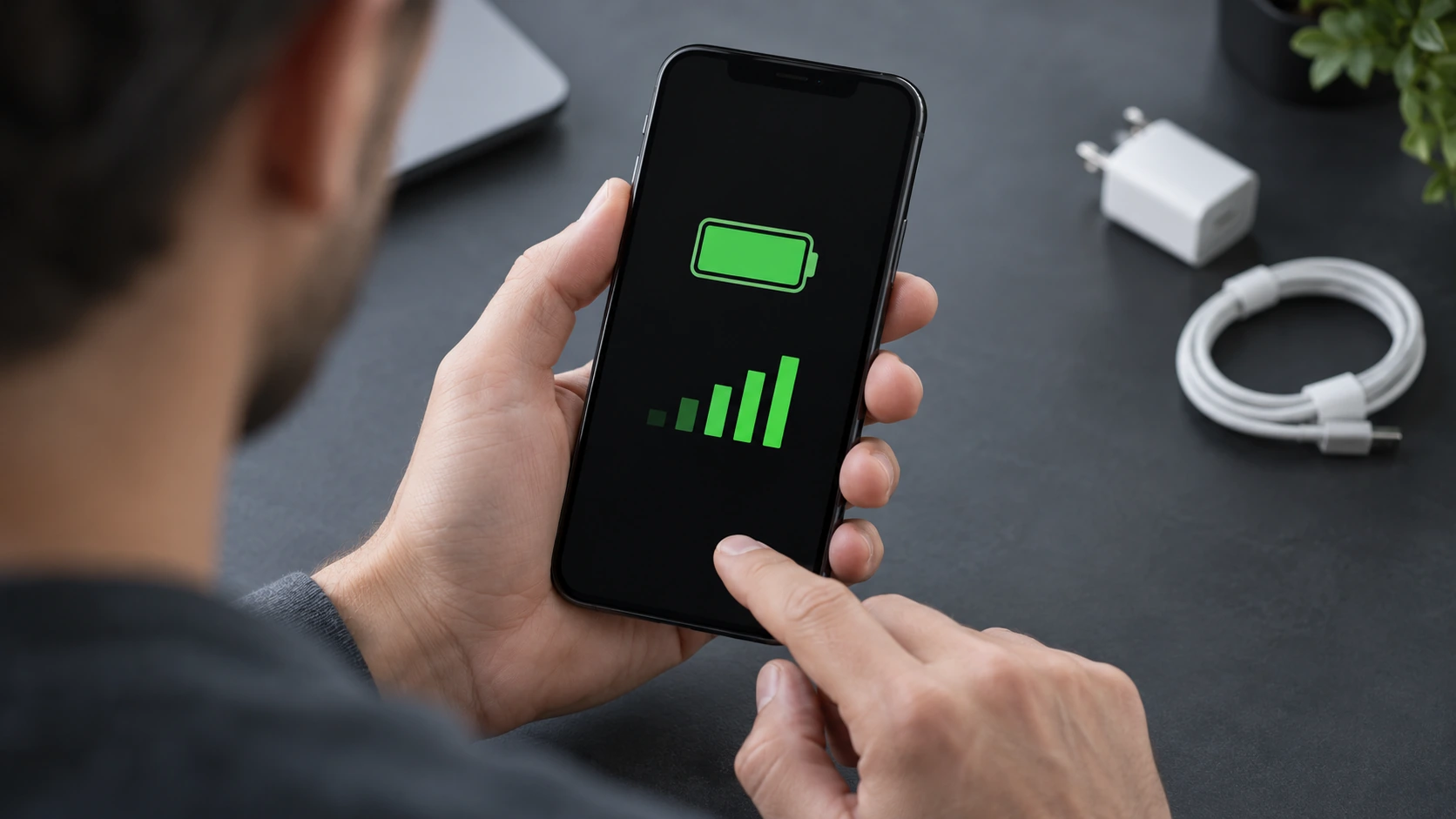
Your battery loses capacity as it ages, so you may find yourself charging more often. Unexpected shutdowns or a battery-service message can give you further reason to have it checked.
The capacity percentage alone doesn’t tell you why charging has failed. Use it alongside your phone’s symptoms, rather than treating one number as proof that a replacement will fix everything.
How to Fix It
- Open the gear-icon app and select Battery.
- Choose Battery Health or Battery Health & Charging, depending on your model and iOS version.
- Review the capacity reading and any service recommendation, then arrange an assessment if your battery is degraded or your phone keeps shutting down.
11. Check for Moisture in the Charging Port
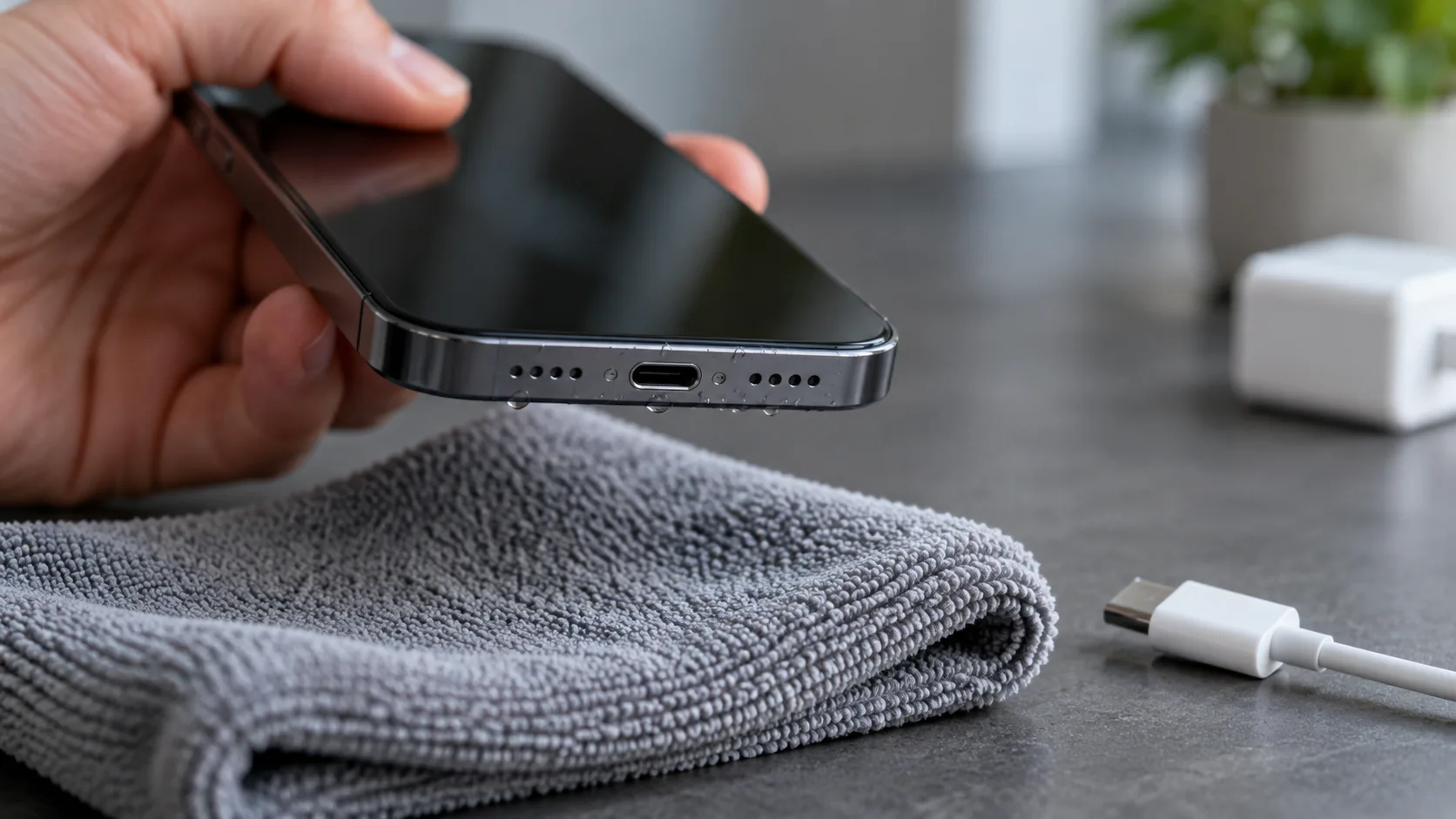
If your iPhone displays a liquid-detection warning, stop trying to charge it through the cable. Moisture can damage the connector contacts, so allowing everything to dry matters more than getting a quick charge.
Don’t use a hairdryer, compressed air, rice, or objects pushed into the port. If the warning continues after the phone and cable are dry, you may need another cable or professional service.
How to Fix It
- Disconnect the cable from your iPhone and adapter, then gently tap your phone against your hand with the port pointing down.
- Leave it somewhere dry with airflow, allowing the port and cable ends to dry completely before reconnecting.
- If the alert returns, allow more drying time, which can take up to 24 hours, and contact Apple Support if it persists after drying.
Why Does Your iPhone Charge So Slowly?
You can see the charging icon, but your battery percentage barely moves. Sometimes, it even drops while your phone is plugged in. That doesn’t necessarily mean charging has stopped, because the power coming in may be too little to keep up with what your phone is using. Check these possible causes before replacing your battery.
Your Adapter Doesn’t Support Fast Charging
If you’re still using an old 5W adapter, your iPhone will take longer to charge than it would with a suitable USB-C Power Delivery adapter. Check the wattage printed on the charger rather than assuming that every adapter delivers the same amount of power.
A compatible 20W USB-C PD adapter is a useful starting point for many iPhones, but the fastest supported speed depends on your model. For example, Apple lists about 30 minutes to reach 50% for iPhone Air with a 20W adapter, while iPhone 17, 17 Pro, and 17 Pro Max support faster charging with 40W or more.
Your Power Source Is Too Weak
Your car’s USB port, a keyboard port, or a shared USB hub may supply less power than a dedicated wall charger. A multiport adapter can also divide its available power between connected devices. When you’re away from a wall socket altogether, these ways to charge your phone without a charger can help.
Try the same cable with a suitable wall adapter and compare the result. If charging improves, the original power source was probably limiting the speed.
You’re Using More Power Than the Charger Supplies
Gaming, streaming video, using maps, or running a hotspot keeps your phone busy while it charges. High screen brightness adds to that demand, leaving less incoming power available to replenish the battery.
If your phone uses more power than it receives, the percentage can fall despite the charging icon. Pause those activities, lower the brightness, and leave the screen off for a while to see whether the percentage starts climbing.
Heat Is Slowing the Charge
Your iPhone may reduce charging speed when its battery gets too warm. A hot room, direct sunlight, or a case that traps heat can make the problem worse, especially while you’re using demanding apps.
Keep your phone uncovered on a firm surface instead of charging it under a pillow or blanket. If it feels unusually warm, follow fix #7, Let an Overheated iPhone Cool Down, before testing the charging speed again.
A Charging Feature Is Delaying Completion
If your battery climbs normally and then pauses around 80%, check Optimized Battery Charging or your selected charge limit. Follow fix #8, Review Charging Optimization and Limits, to tell an intentional pause from a charging fault.
If you’re in the United States, Clean Energy Charging can also delay charging until electricity with lower carbon emissions is expected to be available. When its notification appears, you can press and hold it and select Charge Now if you need to finish sooner.
Make a Few Changes for a Faster Top-Up
Use a compatible USB-C PD wall charger and the correct cable, then give your phone a break from demanding apps. Remove a heat-trapping case if necessary and let the phone charge somewhere cool.
You can also try Low Power Mode to reduce background activity. If you don’t need calls or a mobile connection during the top-up, Airplane Mode may reduce power use further, though neither option makes a weak charger deliver more power.
Why Won’t Your iPhone Charge Wirelessly?
You place your iPhone on the charging pad and wait, but nothing happens. Or it starts charging and stops a few minutes later, even though a cable works without trouble. Wireless charging depends on compatibility, positioning, and the power feeding the pad, so check those details before assuming your phone needs a repair.
Confirm Your iPhone Supports the Charger
Qi wireless charging is available on iPhone 8 and later models, including the second- and third-generation iPhone SE. MagSafe is different, so wireless charging support alone doesn’t guarantee magnetic attachment or MagSafe charging speeds.
MagSafe began with the iPhone 12 range, but you should still check your exact model. The iPhone 16e, for example, supports Qi charging without built-in MagSafe, so you shouldn’t expect it to attach or charge like a MagSafe-equipped model.
Your Case or Attached Accessories Are Interfering
A thick case, metal plate, attached grip, or wallet can get between your phone and the charger. Remove these accessories before testing the pad.
If charging works with the case removed, check the case’s compatibility before using it again. Keep cards and metal objects away from the space between your phone and charger.
Your Charging Pad Isn’t Getting Enough Power
Wireless charging still needs a wired power supply for the pad. Connecting it to an unsuitable adapter can limit charging or prevent it from working as intended.
Use the power adapter recommended for your exact charger. Older Apple MagSafe chargers commonly use a 20W USB-C adapter for faster charging, while newer versions may require 30W or more, depending on the phone and charging speed.
Your Phone Is Out of Position
Your phone needs to sit correctly over the charging coil. On a flat Qi pad, start with the screen facing up and the phone centred over the charging area.
If charging stops after a notification, check whether vibration moved your phone. Reposition it and keep the pad on a stable surface.
Your Phone Is Also Connected to Wired Power
Connecting both charging methods won’t make your battery fill faster. When your iPhone is connected to a wireless charger and powered through its charging port, it uses the wired connection.
Unplug the charging cable before testing wireless charging on its own. That helps you confirm whether the pad is actually supplying power.
Your iPhone Is Getting Too Warm
Your phone can become warmer during wireless charging, and charging may slow or pause if the battery temperature rises too far. You might notice this after using demanding apps while the phone sits on the pad.
Move both devices away from heat and stop using the phone while it cools. Follow fix #7 for the temperature checks, then try the pad again once your iPhone returns to a normal temperature.
The Charger Needs Cleaning or Your Phone Needs a Restart
Check for debris or anything preventing your phone from sitting flat against the charger. Unplug the pad and wipe its surface and your phone’s back with a soft, dry cloth, following the accessory maker’s cleaning instructions.
If the surfaces are clear and positioning looks correct, restart your iPhone and reconnect the pad to power. Use the force-restart instructions in fix #5 if your phone is unresponsive, and check for an iOS update when you have sufficient charge.
Wireless Charging Still Fails With Other Chargers
If your phone charges through a cable but fails on several compatible, working wireless chargers, you’ve narrowed down the problem. Test without the case and with each pad’s recommended adapter before drawing a conclusion.
At that point, arrange a professional assessment and explain which chargers you tried. Those results suggest the phone’s wireless charging components need checking, but they don’t confirm a particular hardware fault.
Did Your iPhone Stop Charging After an Update?
Your iPhone charged normally before an update, so it’s understandable to suspect the software when charging suddenly fails. The timing is useful information, but it doesn’t prove the update caused the problem. Start by checking for a known issue affecting your model, then work through the software checks without skipping the cable and power-source tests. You can also see what Apple has planned next in our iOS 27.2 guide.
Software Can Affect Charging Behaviour
Your iPhone uses software to manage charging, including temperature protection and planned charging pauses. A software fault can therefore interrupt charging even when your cable and adapter are working.
Before replacing hardware, check whether Apple has released a fix for your model and iOS version. Describe the exact symptom when looking for help, such as no response after the battery drains or charging that returns after a restart.
A Known Low-Battery Bug Affected iPhone Air and iPhone 17 Models
Apple confirmed that iOS 26.5.1 addressed a fault that could prevent wired charging on some iPhone Air and iPhone 17 models when the battery was nearly empty. If you use one of those phones with older software, install the latest compatible iOS release once you can power it on. If you own one of the newer models, our iPhone 17 Pro Max tips can help you get more from it once charging is back to normal.
If a working cable produces no response, you can try a compatible wireless charger to see whether your phone gains enough power to start and update. Treat that as a troubleshooting option rather than a guaranteed fix, and seek service if neither charging method works.
Charging Returns Only After a Force Restart
If a force restart restores charging, you have a useful clue that software may be involved. It still doesn’t prove the update is responsible, and repeatedly restarting your phone shouldn’t become part of your normal charging routine.
Follow fix #5 for the correct button sequence, then check for an available iOS update. If the problem returns, note your phone model, software version, and whether it happens with more than one charger before contacting Apple Support.
A Temperature Message Can Look Like a New Fault
A Charging On Hold message means your iPhone is temporarily too hot or too cold to charge. You may first notice it after an update, but the message itself describes temperature protection rather than confirming a software bug.
Move your phone somewhere with a moderate room temperature and let it adjust naturally. Charging should resume once the battery returns to its normal temperature range, without using a heater, refrigerator, or other extreme cooling method.
Consider a Computer Restore Only After Simpler Checks
If charging trouble continues after restarting, updating, and testing working accessories, ask Apple Support whether a computer-based software repair is appropriate. Recovery mode lets your computer communicate with an iPhone that cannot start normally, while a restore reinstalls iOS and erases the phone, so back up first whenever possible.
Try the Update option before Restore when offered, and proceed only with a reliable connection. If charging still fails after a fresh installation, hardware becomes a stronger possibility, but you’ll still need a diagnosis rather than assuming which part has failed.
How Can You Avoid iPhone Charging Issues in the Future?
Once your iPhone starts charging again, you probably don’t want to repeat the same checks next week. You can’t prevent every hardware fault, but how you handle your phone and charging accessories can help reduce avoidable problems. Start with these everyday habits to keep your charging routine more reliable.
Use Compatible, Reliable Charging Accessories
Choose a cable and adapter that meet your iPhone’s charging requirements. A connector that fits doesn’t tell you everything about an accessory’s quality, so buy from a reputable supplier and check compatibility before purchasing.
Replace accessories with exposed wires, loose connectors, or damaged plugs. If you have to bend a cable into a particular position to make it work, take that as a reason to replace it rather than keep adjusting it.
Handle Cables Carefully
Pulling your phone away while it’s still plugged in puts strain on both the cable and the port. When you disconnect it, hold the connector instead of tugging on the wire.
Give your cable enough room to rest without a sharp bend near either end. When packing it away, coil it loosely rather than wrapping it tightly around your adapter.
Keep the Charging Port Clean and Dry
Before putting your phone in a pocket or bag, check for loose lint or debris that could collect inside the port. An occasional visual inspection can help you notice a blockage before the cable stops fitting properly.
If your phone gets wet, disconnect the charging cable and let the port and connector dry completely before using them again. Don’t force a plug into an obstructed port or scrape inside it to remove packed debris.
Avoid Excessive Heat While Charging
Choose a charging spot away from direct sunlight and other sources of heat. Leaving your iPhone on a hot car dashboard can make charging problems more likely and contribute to battery wear.
If your phone gets unusually warm while you’re gaming or recording video, pause the activity and let it cool. Repeatedly reconnecting the charger won’t resolve a temperature-related charging pause.
Keep Software Updated and Monitor Battery Condition
Check for iOS updates regularly so your phone receives available bug fixes. You should also pay attention to changes such as repeated charging interruptions, unexpected shutdowns, or much shorter battery life. If a recent update left your battery draining faster than usual, our iOS 27 battery drain guide covers what to check.
Review your battery-health information if those symptoms develop, and take any service recommendation seriously. Getting a recurring problem checked gives you a better chance of resolving it before your phone becomes unreliable.
When Should You Seek Professional Help?
You can rule out several charging problems at home, but there comes a point when trying another cable won’t tell you much more. If your iPhone still refuses to charge or shows signs of damage, you may need a repair rather than another restart. Here are the situations where you should contact Apple Support or an Apple Authorized Service Provider.
Your iPhone Still Won’t Respond After Troubleshooting
If you’ve tested working cables, adapters, and outlets without success, you’ve already ruled out several possible causes. When your phone also remains unresponsive after the charging and force-restart sequence, arrange a professional assessment.
Explain which checks you’ve completed and whether you ever saw a charging symbol or the Apple logo. Those details can help the technician investigate the fault.
Your Phone Only Charges at Certain Angles
You shouldn’t have to hold your cable in place to keep your battery charging. If the problem continues with another working cable, your charging port may have worn contacts, damage, or an obstruction.
Avoid bending the connector or pushing it harder into the port. Have the connection inspected so you can find out what needs attention.
You Notice Physical Damage or Suspect Liquid Damage
If charging problems began after a drop or contact with liquid, mention that when you arrange a repair. Your phone may still turn on even when the port or an internal component has been affected.
Visible damage or a liquid warning that persists after everything has dried deserves further inspection. Stop testing damaged accessories or reconnecting a cable to a wet port.
Your Battery Shows a Service Message or Repeatedly Shuts Down
Shorter battery life can develop as your iPhone ages, but repeated shutdowns or a battery-service recommendation are reasons to get it checked. You may need a battery replacement, although those symptoms alone don’t confirm the cause of a charging failure.
Ask for a diagnosis before paying for a replacement part. That gives you a clearer explanation of the problem and which repair is needed.
FAQs
Look for a lightning bolt on your battery icon, then check whether your battery percentage rises after a few minutes with the screen off. You see, your phone can receive power without gaining much charge if you’re using demanding apps. If the battery is fully drained, give it 30 minutes on a working charger before checking again.
You may notice much shorter battery life, unexpected shutdowns, or a service recommendation in your battery-health information. Having to charge more often is a clue, but it doesn’t prove your battery is behind every charging problem. If these symptoms keep happening, have your phone checked before paying for a replacement.
You can have lint removed safely, but digging inside your charging port yourself risks damaging the contacts. Unplug your phone, turn it off, and use a light to check for a blockage. Skip toothpicks, liquids, and compressed air, and leave tightly packed lint to a repair professional.
Connect your iPhone to a wall outlet using a compatible cable and adapter you know work, then leave it alone for 30 minutes. If you still get no response, try the force-restart sequence for your model and give it another 30 minutes on the charger. Still nothing? Your next step is a professional assessment.
Your iPhone may fail to charge in the car because the USB port supplies too little power, your cable is faulty, or your phone is too hot. Running maps with the screen on can also use power faster than a weak charger replaces it. Try a compatible car charger and a working cable, and keep your phone out of direct sunlight.
When one charger works and another fails, the unsuccessful charger or its cable may be damaged, incompatible, or poorly connected. Test both using the same working outlet, swapping only the cable or adapter each time. That way, you can narrow down which accessory needs replacing without guessing.
Final Word
When your iPhone won’t charge, you don’t have to assume an expensive repair is next. Start with your cable, adapter, and power source, then work through the other checks one at a time. You may find that a restart or a different charger solves the problem. And if charging stops at 80%, check whether heat or a charging limit explains the pause before replacing anything.
If your phone still won’t respond, you’ve done enough troubleshooting to justify getting it checked. Contact Apple Support or an Apple Authorized Service Provider, and explain what you’ve already tried. Once charging is restored, handling your cables carefully and keeping your phone’s port dry can help you avoid repeating the same problem.
