




Key Takeaways
- Test Before Changing: Compare wired and wireless CarPlay, swap the data cable and try another phone or compatible car. Your results help identify whether to check your iPhone or stereo next, starting with a restart and the correct USB port.
- Restore Your Connection: Check Bluetooth, Wi-Fi, Auto-Join, Siri and Screen Time, then rebuild the pairing before considering a network reset. If your new iPhone 18 is undetected, remove your old phone’s car profile and try another data cable.
- Updates And Feature Limits: Keep iOS and stereo firmware current, but iOS 27.0.1 lists no CarPlay fix. Missing features may require carmaker support or a supported iPhone, while persistent connection failures warrant contacting Apple Support or your dealer with test results.
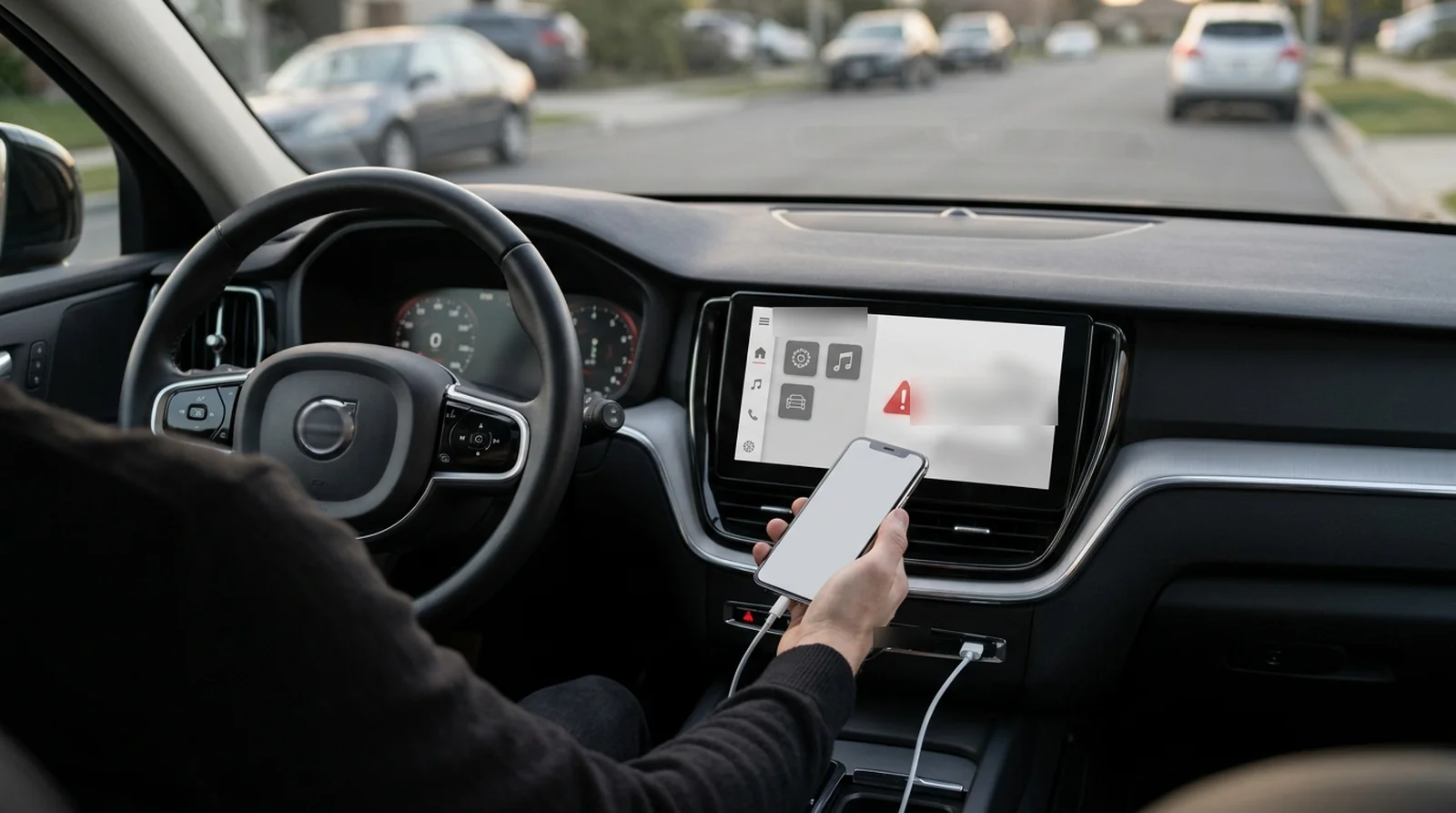
You start the car, connect your iPhone and wait, but iOS 27 CarPlay never appears, or it connects and drops halfway through your drive. A phone preference, an old pairing or a cable problem can often be resolved with a restart, a fresh pairing or a different cable. Apple has not acknowledged an iOS 27 CarPlay bug, and the fixes listed for iOS 27.0.1 do not include CarPlay.
So, where do you start? You’ll work through a few tests to separate a phone problem from a cable or car problem, then try seven fixes in order. If you’ve just moved to an iPhone 18, you’ll also know where an older phone’s saved car profile fits into the checks.
What Changed With CarPlay in iOS 27
Your iPhone received iOS 27 on September 14, 2026, with Apple claiming a steadier wireless CarPlay connection, better GPS accuracy and improved heading detection. Those improvements come from your phone and do not require new car hardware. Yet after updating, you may encounter one of these reported problems.
- Wireless disconnections. You connect successfully, then lose CarPlay during your drive.
- Phone detection failures. Your car cannot find your iPhone, including reports involving a new iPhone 18 replacing an older model.
- Unresponsive media controls. You cannot control playback normally through CarPlay.
- Missing calls and messages. Your calls or messages no longer reach the car.
- Maps problems. You experience slow responses or the app crashes.
- A black display. You see nothing after connecting, sometimes while audio continues playing.
If this feels familiar, you may remember similar CarPlay complaints after iOS 18.4. Earlier update-related problems were generally resolved through a later software update, although that does not establish the cause of your current fault.
Find Out Whether Your iPhone, Cable or Car Is the Problem
Before you start deleting pairings, find out which connection actually fails. You see, a phone that works over USB but disconnects wirelessly gives you a different starting point from one that fails in two cars. Use these comparisons to decide where to spend your time.
| Test | What it tells you | Where to look next |
|---|---|---|
| Connect by cable after wireless CarPlay drops | Your wireless connection is the more likely source if USB works | Check Bluetooth, Wi-Fi and Auto-Join |
| Try wired CarPlay and find it fails too | Your cable, USB port or phone controls could be involved | Check the cable, Siri and Screen Time restrictions |
| Swap the cable or USB port and connect successfully | Your original cable or port is implicated | Use a data cable and the USB port intended for CarPlay |
| Connect another iPhone to your car successfully | Your own iPhone is more likely to need attention | Check its iOS version, Siri and CarPlay permissions |
| Try your iPhone in a second compatible car and get the same failure | Your iPhone becomes the more likely source | Work through the phone checks below |
| Connect your iPhone successfully in another car | Your own car’s stereo or saved phone profile may be responsible | Remove the saved profile, check stereo firmware or contact your dealer |
| Connect a new iPhone 18 to a car previously used with an older iPhone | Your cable or an old car profile may be involved, according to owner reports | Delete the older phone’s profile from the car and try another data cable |
Keep a note of whether you lose the connection at the same location or after roughly the same amount of time. Record which cable, phone and car tests succeed, too. You can give those details to Apple Support or your dealer if the fixes below do not help.
How to Fix iOS 27 CarPlay Step by Step
Try these steps in order, checking whether CarPlay works after each one. You’ll find the connection, Siri, restriction and pairing checks in Apple’s CarPlay troubleshooting guide. Start with a restart, then work through the remaining checks if you still cannot connect.
1. Restart your iPhone and your car
Restart your iPhone, then switch your car off and start it again. Reconnect your phone and check whether CarPlay opens.
Still looking at the car’s usual screen? Select the CarPlay logo on its display to launch it manually. Apple includes this check for cases where CarPlay does not start automatically.
2. Check the cable and the USB port
Use a USB cable that carries data, since a charge-only cable cannot provide the connection CarPlay needs. Try another cable and, where available, another suitable USB port. Look for a CarPlay or smartphone symbol, because your car may support CarPlay through only one port.
If your USB-C iPhone connects through a Lightning adapter, try a direct cable instead. Apple recommends a USB-A to USB-C cable when the adapter causes trouble or your car supports wired CarPlay only. If you also have an iPhone not charging over the cable, follow those charging checks alongside your CarPlay tests.
3. Check Bluetooth, Wi-Fi and Auto-Join for wireless CarPlay
If your cable connection works but wireless CarPlay keeps dropping, check the wireless controls next. You need Bluetooth and Wi-Fi enabled, along with Auto-Join for your car’s CarPlay network.
- Open the Settings app > Bluetooth and turn Bluetooth on.
- Open the Settings app > Wi-Fi and turn Wi-Fi on.
- Select the information button beside your CarPlay network and enable Auto-Join.
- Turn Airplane Mode on for about 30 seconds, then turn it off and try connecting again.
Have you also noticed AirDrop not working? AirDrop uses Bluetooth and Wi-Fi too, so these checks are relevant to that problem as well.
4. Make sure Siri is on
Siri needs to be enabled for CarPlay to work. Sony notes that an iOS update can leave Siri voice recognition switched off, so check it even if you had it enabled before updating.
Open the Settings app > Siri and make sure Siri is enabled, then launch CarPlay again. If you still cannot connect, restart your iPhone and retry after turning Siri back on.
5. Check Screen Time restrictions
If your car does not detect your iPhone, check whether Screen Time is blocking CarPlay. Apple includes this check specifically for phone detection problems.
Open the Settings app > Screen Time > Content & Privacy Restrictions. If restrictions are enabled, select Allowed Apps and make sure CarPlay is allowed. Reconnect your phone and test again.
6. Forget the car and pair it again
If you still cannot connect, remove the saved connection from both your phone and your car, then pair them again. If you replaced an older iPhone with an iPhone 18, check for the older phone’s profile in the car too. Owners have reported that removing it helps, although Apple has not confirmed an old profile as the cause.
- Open the Settings app > General > CarPlay, select your car and tap Forget This Car.
- Open your car’s paired-phone list and delete your iPhone, along with the older iPhone profile if applicable.
- Set up CarPlay again using the method your car supports.
- If your car supports wired and wireless CarPlay, connect by cable first and follow the offer to use wireless CarPlay on future drives.
7. Reset your network as a last resort
Save this step until you have tried the earlier checks. A network reset removes your saved Wi-Fi passwords, VPN preferences and Bluetooth pairings, so you will need to reconnect afterwards. Your photos, apps and messages stay on your iPhone.
Open the Settings app > General > Transfer or Reset iPhone > Reset > Reset Network Settings. Once the reset finishes, pair your iPhone with the car again and test CarPlay.
When a New iPhone 18 Won’t Connect to CarPlay
Your old iPhone worked in the car, so why does your new iPhone 18 go undetected? Owners have reported this mainly with wired CarPlay in cars previously paired with an older iPhone. One suggested explanation is that your stereo keeps trying to use the previous phone’s profile instead of creating a new one, but that remains an unconfirmed explanation.
- Remove the previous phone’s profile. Delete the older iPhone from your car’s infotainment menu before connecting your iPhone 18 again.
- Test another USB cable. Owners report different results with different cables, so try another USB-C data cable or a direct USB-A to USB-C cable where suitable.
- Consider a wireless adapter only after the other checks. Your car must already support CarPlay, and an adapter cannot repair an iOS fault or a stereo software bug.
Apple has not commented on these reports or identified an update that resolves them. Once you have removed the old profile, you can follow Apple’s instructions for connecting your iPhone to CarPlay to set up your new phone.
Update Your Car’s Stereo Firmware
Your iPhone receives software updates, and your CarPlay stereo may need them too. Apple includes installing the stereo manufacturer’s latest firmware among its troubleshooting checks. For a factory-fitted system, use your carmaker’s instructions or dealer, while an aftermarket unit needs the support page for its own brand and model.
- Hyundai Gen5W example. Download the update through Hyundai’s computer update tool and copy the files to a USB drive. With your car’s system running, insert the drive and select All Menus > Setup > General > SW Info/Update, then USB Update.
- Hyundai update precautions. Keep your vehicle on and leave the USB drive connected until the process finishes. Hyundai warns that losing battery power during installation can damage the system, and some car functions are unavailable while it updates.
- Alpine example. For the iLX-F905D, Alpine provides a ZIP download that you unpack onto a freshly formatted FAT32 USB drive. Check the model’s instructions and installed version before proceeding, since the example update is unnecessary on certain later versions.
- Other aftermarket stereos. If you have a Pioneer, Kenwood, Sony or another Alpine unit, search the brand’s support site using your exact model number. Follow the instructions supplied for that unit.
Your menus may differ, even within the same car brand, so check your owner’s manual before starting. Ford also has a support page specifically addressing CarPlay failures after an iOS update.
New iOS 27 CarPlay Features That Aren’t Bugs
You may get CarPlay connected again and still find a feature missing. That does not automatically mean your connection needs another repair, because some additions depend on your carmaker or iPhone model. Check which requirements apply before spending more time troubleshooting.
- Widgets, playback controls and wallpapers. You can use dashboard widgets, the persistent mini-player, the playback progress bar and new wallpaper colours in any CarPlay-compatible car running with iOS 27.
- Parked video. Your carmaker must support the required AirPlay video certification before you can use video apps. Playback is limited to when you are parked and changes to audio while driving, and no carmaker had announced support as of September 17, 2026.
- Route sharing. Sending route information to your car’s own displays requires support from the carmaker. Updating your iPhone alone does not provide that support.
- Siri AI. You need an iPhone 15 Pro, an iPhone 16 or a later supported model, plus access through a waitlist. You cannot use this feature in the EU, and an iPhone 14 does not qualify for it.
What iOS 27.0.1 and Later Updates Mean for CarPlay
Released on September 28, iOS 27.0.1 addressed iPhone 18 Pro and Pro Max restarts after failed Face ID attempts, along with a touchscreen freeze involving Notification Center and Control Center. Its published fixes did not identify a CarPlay repair. As of October 19, 2026, Apple had not confirmed the release or contents of iOS 27.1, so you should not count on a CarPlay fix in that version.
Check the Settings app > General > Software Update for the latest available release, read its notes and keep automatic updates enabled. If your connection still fails, give Apple Support or your dealer the results of your phone, cable and car tests. If you also noticed shorter battery life after updating, see our guide to iOS 27 battery drain for that separate problem.
How to Keep CarPlay Working After Future Updates
Once you have a working connection, keep track of the cable and connection method that succeeded. After your next major update, use the following checks to catch familiar causes early.
- Keep software current. Install available iPhone updates and check your carmaker or stereo brand for firmware releases.
- Keep a reliable data cable. Use the cable that works consistently with your phone and car, and avoid adding unnecessary adapters.
- Recheck Siri. Confirm it remains enabled after a major iOS update.
- Remove unused phone profiles. Keep your car’s paired-phone list tidy, particularly when replacing your iPhone.
- Record recurring disconnections. Note the location and elapsed connection time if CarPlay starts dropping again.
If your phone also gets hot while charging in the car, read our guide to why your phone gets so hot. Keep that symptom in your notes alongside any connection failures.
Wrapping Up
You do not have to keep repeating the same fixes without learning anything from them. If CarPlay still refuses to cooperate, take your test results and stereo model details to Apple Support or your dealer. That gives your next conversation a useful starting point and helps you move towards the right repair.
FAQs
Your CarPlay failure could involve a disabled Siri option, a blocked permission, the saved pairing or your USB connection. The timing alone does not tell you which one is responsible. Start by restarting your phone and car, then compare wired and wireless connections before changing anything else.
Your results point towards the Bluetooth and Wi-Fi connection rather than the wired connection. Check that both are enabled and that your CarPlay network has Auto-Join turned on. If disconnects continue, try the Airplane Mode toggle before removing and rebuilding the pairing.
Your photos, apps and messages remain on your iPhone after a network reset. What you lose includes saved Wi-Fi passwords, Bluetooth pairings and VPN preferences. You will need to reconnect your car and other previously paired devices afterwards.
Your car may be holding onto the previous iPhone’s profile, or your USB cable may be involved. Owners have reported both patterns, but Apple has not confirmed the cause. Remove the older phone from your car’s device list, then test a different data cable if the new phone remains undetected.
You only need to replace your cable if it cannot carry data or does not work reliably with your phone and car. If you are using a Lightning adapter and cannot connect, Apple recommends trying a direct USB-A to USB-C cable. Test that connection before assuming your stereo needs replacing.
You may be missing a feature because your car or iPhone does not meet its requirements. Parked video and route sharing need carmaker support, while Siri AI requires an iPhone 15 Pro, an iPhone 16 or a later supported model. Siri AI also requires waitlist access and is unavailable in the EU.
