




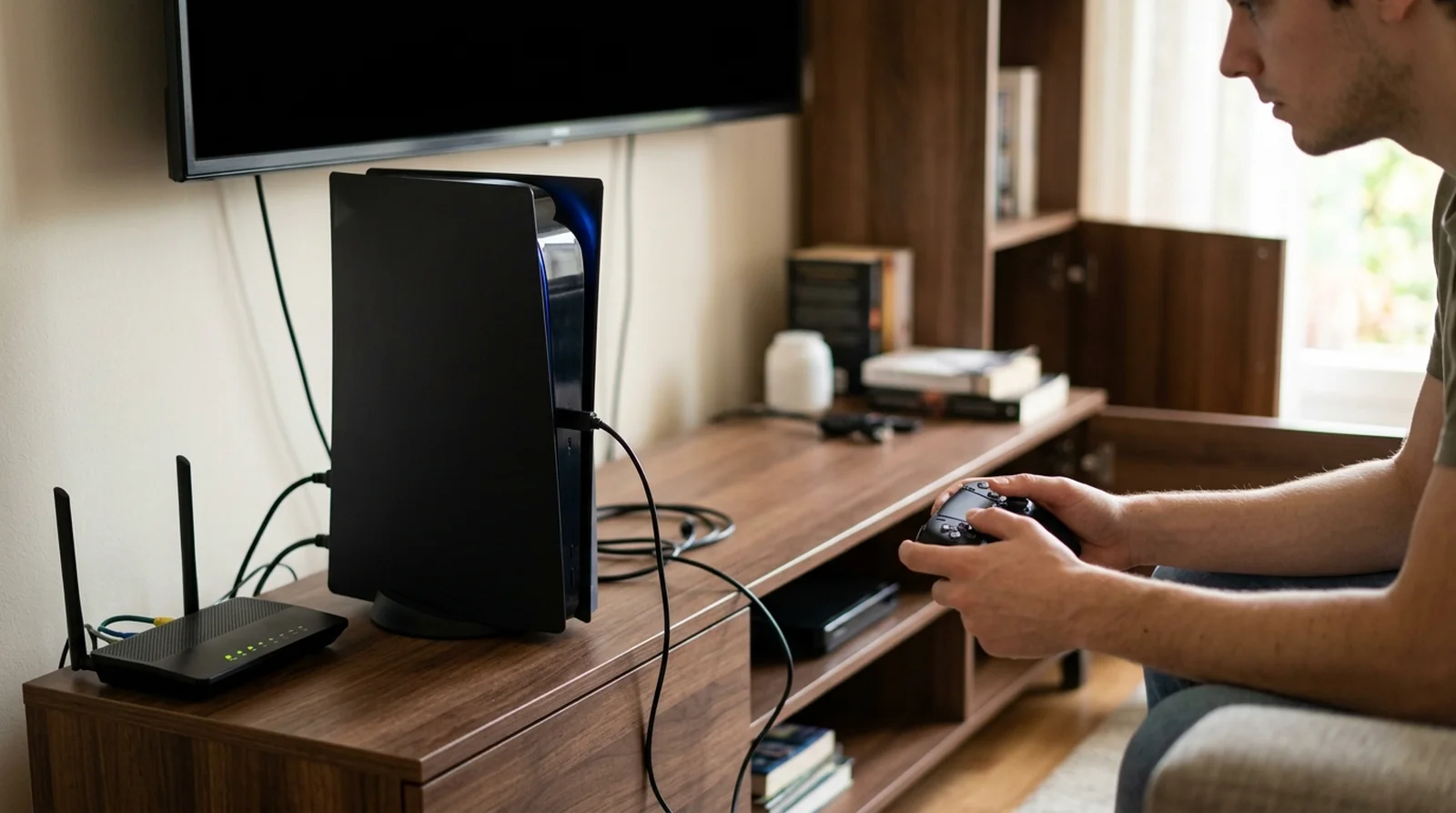
Your phone is online. Your laptop is too. So why is your PS5 not connecting to WiFi? Usually, you should check the router side first, but start by checking PlayStation Network status to rule out a service outage.
If there’s no outage, restart your console and leave your router and modem off for at least 5 minutes before powering them up again. Re-entering your network details, choosing one Wi-Fi band, or changing the router’s security mode or IPv6-only configuration can help. Your other devices being online doesn’t rule out a connection problem specific to your PS5.
| What you see | Most likely cause | Try this first |
|---|---|---|
| Your network isn’t listed | Weak signal or a hidden network | Move closer, then enter the network manually if needed |
| Your password is rejected or you can’t join | Incorrect credentials or a security-mode issue | Check your password and the router’s security mode |
| Wi-Fi connects, but internet access or PSN fails | A service outage or network communication problem | Check PlayStation Network status |
| Your connection keeps dropping | Signal interference or a Wi-Fi band issue | Clear obstructions and select one band |
| Your PS5 Pro has connection trouble | A possible issue with its multi-link feature | Try connecting with the feature enabled and disabled |
Why Your PS5 Won’t Connect to WiFi When Everything Else Does
You see, your phone connecting successfully tells you that it can use your network. It doesn’t confirm that your PS5 can use the same wireless configuration or reach PlayStation’s services. Sony’s troubleshooting guidance covers several separate causes, so check which one fits what you’re seeing.
- PlayStation Network outages. Your console may have internet access while PlayStation services are unavailable. Check for maintenance or an outage before changing your home network.
- Weak signal or crowded 2.4 GHz airwaves. Objects between your router and console can interfere with reception. Other devices sharing the 2.4 GHz range can reduce speed, shorten range or cause disconnections.
- Two bands sharing one network name. Band steering lets your router assign devices to 2.4 GHz or 5 GHz automatically. Separating those bands or selecting one on your console gives you another option to test.
- WPA3-only security. Your PS5 supports WPA3, so this isn’t a blanket compatibility problem. If authentication fails, check your router’s security mode and try WPA2 or a WPA2/WPA3 transition mode where available.
- An IPv6-only network. Your PS5 supports IPv6 connections, but it cannot use a network that offers IPv6 alone. Follow your router maker’s instructions to enable IPv4.
- Multiple NAT routers or port filtering. Sony advises removing additional NAT routers and asking your internet provider about port filtering when connection problems continue.
- Older router firmware or console software. Sony includes updates for both in its troubleshooting guidance. Check whether either device needs an update.
- PS5 Pro multi-link compatibility. The Pro adds a multi-link connection option. Sony recommends testing the connection with it both enabled and disabled when you have trouble.
An online phone doesn’t prove that your console is faulty. Start by identifying whether the failure involves joining your network, reaching the internet or accessing PlayStation services.
Run a Quick Test First
Before changing anything else, run the console’s connection test. It helps you identify where the connection stops, giving you a better starting point than trying every fix at once.
- Open Settings > Network > Connection Status > Test Internet Connection.
- Read the results and note whether the failure happens while getting an IP address, accessing the internet or signing into PlayStation Network.
- Check PlayStation Network status for an outage or maintenance. If services are unavailable, wait and try again later.
Let the failed stage guide your next fix.
12 Fixes for a PS5 Not Connecting to WiFi
You don’t need to try all twelve fixes at once. Start with the service check and restart, then work through the wireless and router changes if your console still won’t connect. Here’s what to try, beginning with the checks that require the least work.
1. Rule out a PlayStation Network outage.
Check status.playstation.com for maintenance or service trouble before changing your network. Your console can reach the internet while PlayStation services remain unavailable. If there’s an outage, wait and try again later.
2. Restart the PS5 and leave the router off for 5 minutes.
Restart your PS5, then turn off your router and modem. Leave both off for at least 5 minutes before switching them back on. Sony repeats this step across several connection-error guides, so give it the full wait.
“Find where the connection stops before deciding what to change.”
3. Move the console closer and clear the path.
Move your PS5 nearer to your router and remove objects blocking the signal. If your console sits behind furniture or inside a cabinet, clear that obstruction before testing again. Other devices sharing the 2.4 GHz range can also reduce speed or range and interrupt connections. If distance is the real problem, our WiFi booster vs WiFi extender guide explains which one fixes dead zones.
4. Forget the network and set it up again.
Remove the saved network and enter its details again. Check the network name, password and security method rather than assuming your previous entry is correct. Your router’s label usually carries the password. Sony’s internet setup guide shows the same menus.
- Open Settings > Network > Settings > Set Up Internet Connection.
- Select your network and enter its password again.
- For a hidden network, use Settings > Network > Settings > Set Up Internet Connection > Set Up Manually.
If your access point supports WPS, you have another setup option. Follow the prompts under Settings > Network > Settings > Set Up Internet Connection > Set Up Using WPS Button.
5. Lock the PS5 to one Wi-Fi band.
Try choosing one band instead of leaving selection automatic. The 5 GHz band offers more speed, while 2.4 GHz reaches farther and passes through walls better. Pick the band that suits the distance between your console and router.
- Open Settings > Network > Settings > Set Up Internet Connection and let the scan finish.
- Press your controller’s options button, then use Options > Wi-Fi Frequency Bands > 5 GHz or 2.4 GHz.
This choice applies to every Wi-Fi connection on your console. Allow a couple of minutes for it to take effect, then restart or reconnect if needed.
6. Split your router’s bands.
If your router gives both bands the same name, try separating them. Band steering assigns devices automatically, and TP-Link notes that some devices struggle with a shared network name. Separate names let you choose which band to join. The same band trick helps other gadgets too, as our smart plug WiFi fixes show.
- On a compatible TP-Link router, open tplinkwifi.net and go to Advanced > Wireless > Wireless Settings.
- Turn off the feature that groups the bands under one name.
- In the Tether app, use More > Wi-Fi Settings > 2.4GHz & 5GHz Network.
7. Switch the router’s security mode.
Your PS5 supports WPA3, so don’t assume that standard is incompatible. If you still cannot join, try WPA2 or a WPA2/WPA3 transition mode where your router offers it. The transition option allows compatible devices to use WPA3 while older ones use WPA2.
- On an Xfinity gateway, use WiFi tab > WiFi details > Edit WiFi settings.
- Choose the security mode, then tap Save.
You may need to reconnect your devices after changing the security mode. Test your PS5 again once you’ve done that.
8. Turn off IPv6-only mode.
Your PS5 can use IPv6, but an IPv6-only network is unsupported. If your router operates that way, follow its maker’s instructions to switch to IPv4. Check this distinction before disabling IPv6 simply because you see it mentioned.
9. Try a static IP address and public DNS.
Sony suggests a manually assigned IP address for some connection errors. Its guidance also allows a temporary test with a free public DNS provider, but gives no specific server addresses. Ask your internet provider or network administrator for help if you’re unsure which values to enter.
- Open Settings > Network > Settings > Set Up Internet Connection.
- Select your connection, then use Set Up Internet Connection > Advanced Settings.
- Enter the required IP address and DNS values.
10. Open the right ports and remove a second router.
If connection errors continue, ask your internet provider about port filtering. Sony lists the following ports in several error guides. Get help applying these changes if you’re unfamiliar with your router’s controls.
- TCP. 80, 443, 3478, 3479, 3480.
- UDP. 3478, 3479, 49152-65535.
If your setup uses multiple routers performing NAT, Sony advises removing the additional NAT routers. That advice applies to the network arrangement, so check how your devices are connected before changing it.
11. Update the router firmware and the PS5 system software.
Check your router maker’s instructions for a firmware update. Update your console software too, using Settings > System > System Software > System Software Update and Settings > Update System Software.
If your console cannot download the update, use a computer and USB drive. You need about 1.1 GB free for the update file.
- Format the USB drive as FAT32 or exFAT.
- Create a folder named PS5, then create UPDATE inside it.
- Download the update file from PlayStation.com and save it as PS5UPDATE.PUP inside UPDATE.
- Keep those folder and file names uppercase.
- Turn off your console, insert the drive, then hold the power button until the second beep.
- Use Safe Mode > Update System Software > Update from USB Storage Device > OK.
12. Clear the cache in Safe Mode.
Save this step for later in your troubleshooting. Sony describes clearing the system cache as a tool for system-feature problems or reduced performance. Back up your data before using Safe Mode because some options erase it. Sony’s Safe Mode guide lists every option.
- Hold the power button for 3 seconds to turn off your PS5.
- Hold it again, releasing after the second beep, about 7 seconds later.
- Attach your controller by USB and press its PS button.
- Use Safe Mode > Clear Cache and Rebuild Database > Clear System Software Cache.
The cache and database entry is option 6. Safe Mode > Restore Default Settings is option 5 and keeps your games and saved data. Avoid Safe Mode > Reset PS5 and Safe Mode > Reset PS5 (Reinstall System Software), which erase all user data.
PS5 Network Error Codes and What They Mean
Your error code gives you a starting point. Match it below, then try the suggested check before working through other fixes.
| Error code | What it means | What to try |
|---|---|---|
| NW-102216-2 | Your connection to PlayStation failed | Check service status, then power-cycle your router |
| NW-102307-3 | Communication with PlayStation failed | Restart, reconnect and check port filtering |
| NW-102265-6 | Your console couldn’t reach the server | Check service status, then try a manual IP or public DNS |
| WV-109145-0 | Internet access failed | Restart your network and check router firmware |
| NW-102468-1 | Your console had trouble joining the network | Move closer and check for multiple NAT routers |
| NW-102655-9 | An application error may involve your network | Test your connection and update the console and app |
| WS-116414-7 | A network connection failed | Check service status, restart and try again later |
CE-108262-9 concerns reading system software or application data, rather than a Wi-Fi connection failure.
PS5, PS5 Slim and PS5 Pro WiFi Differences
Your model matters when checking wireless compatibility. Standard PS5 and Slim consoles use Wi-Fi 6, while the Pro supports Wi-Fi 7 in territories where it is permitted.
| Model | Wi-Fi standard | Extra network option | What to know |
|---|---|---|---|
| PS5 | Wi-Fi 6 | Manual IP and DNS configuration | Supports 2.4 GHz and 5 GHz |
| PS5 Slim | Wi-Fi 6 | Manual IP and DNS configuration | Supports Ethernet, but includes no LAN cable |
| PS5 Pro | Wi-Fi 7 where permitted | Multi-link connections | Compatible with Wi-Fi 6 or Wi-Fi 5 routers |
PS5 Pro Owners – Toggle Multi-Link Operation
If you own a CFI-7000 model, test its multi-link feature enabled and disabled, as Sony recommends. Wi-Fi 7 benefits require a compatible router. You can still connect through Wi-Fi 6 or Wi-Fi 5.
- Open Settings > Network > Settings > Set Up Internet Connection.
- Highlight a compatible access point and press your controller’s options button.
- Open Options > Advanced Settings > Multi-Link Operation.
- Enable the feature and test, then disable it and test again.
When to Switch to a Wired Connection
Try Ethernet if your wireless connection keeps failing. Sony recommends it in several network-error guides. Standard PS5 and Slim consoles support 10BASE-T, 100BASE-TX and 1000BASE-T Ethernet, though the Slim includes no LAN cable.
- Attach a LAN cable between your router and console.
- Open Settings > Network > Settings > Set Up Internet Connection > Set Up Wired LAN.
- Complete setup through Set Up Wired LAN > Connect.
If you still cannot connect, use the diagnostic tool at playstation.com/repairs. Sony directs you there for further help with console connection problems.
How to Keep Your PS5 Online
Once you’re connected again, keep these six checks in mind.
- Keep router firmware current. Follow your router maker’s update instructions.
- Update your console. Install available system software updates.
- Clear the signal path. Avoid cabinets and furniture blocking reception.
- Choose one band. Test a fixed band if automatic selection causes trouble.
- Record router changes. Note your network details before changing them.
- Check PlayStation service status. Rule out outages before altering your network.
Final Word
Start small. Check PlayStation service status, restart your console and give your router and modem at least 5 minutes off. Test again before moving to another fix.
If you’re still stuck, work through the band, security and IPv4 checks, leaving Safe Mode until later. You don’t need to change everything at once – let each result tell you what to try next.
Once you’re back online, our guide to connecting Bluetooth headphones to PS5 is a good next stop.
FAQs
Your phone connecting doesn’t confirm that your PS5 can use the same network configuration or reach PlayStation services. Check your console’s signal, network credentials, security mode and whether your network is IPv6-only.
Choose 5 GHz for greater speed, or 2.4 GHz when you need more distance or better reception through walls. Other devices sharing 2.4 GHz can interrupt connections, so test which band works better where your console sits.
Yes, your PS5 supports WPA3. If you cannot join a WPA3-only network, check the router’s security configuration and try WPA2 or a transition mode where available.
Rebuilding the database recreates the index of your console’s content rather than resetting it and deleting your games. Back up first and avoid Safe Mode > Reset PS5 or Safe Mode > Reset PS5 (Reinstall System Software), which erase user data.
No, you can connect your PS5 Pro through a Wi-Fi 6 or Wi-Fi 5 router. You need a compatible router to receive its Wi-Fi 7 performance benefits, and results depend on your network environment.
Leave your router off for at least 5 minutes before restoring power. If you have a separate modem, Sony’s guidance for several connection errors says to turn that off for the same period too.
