




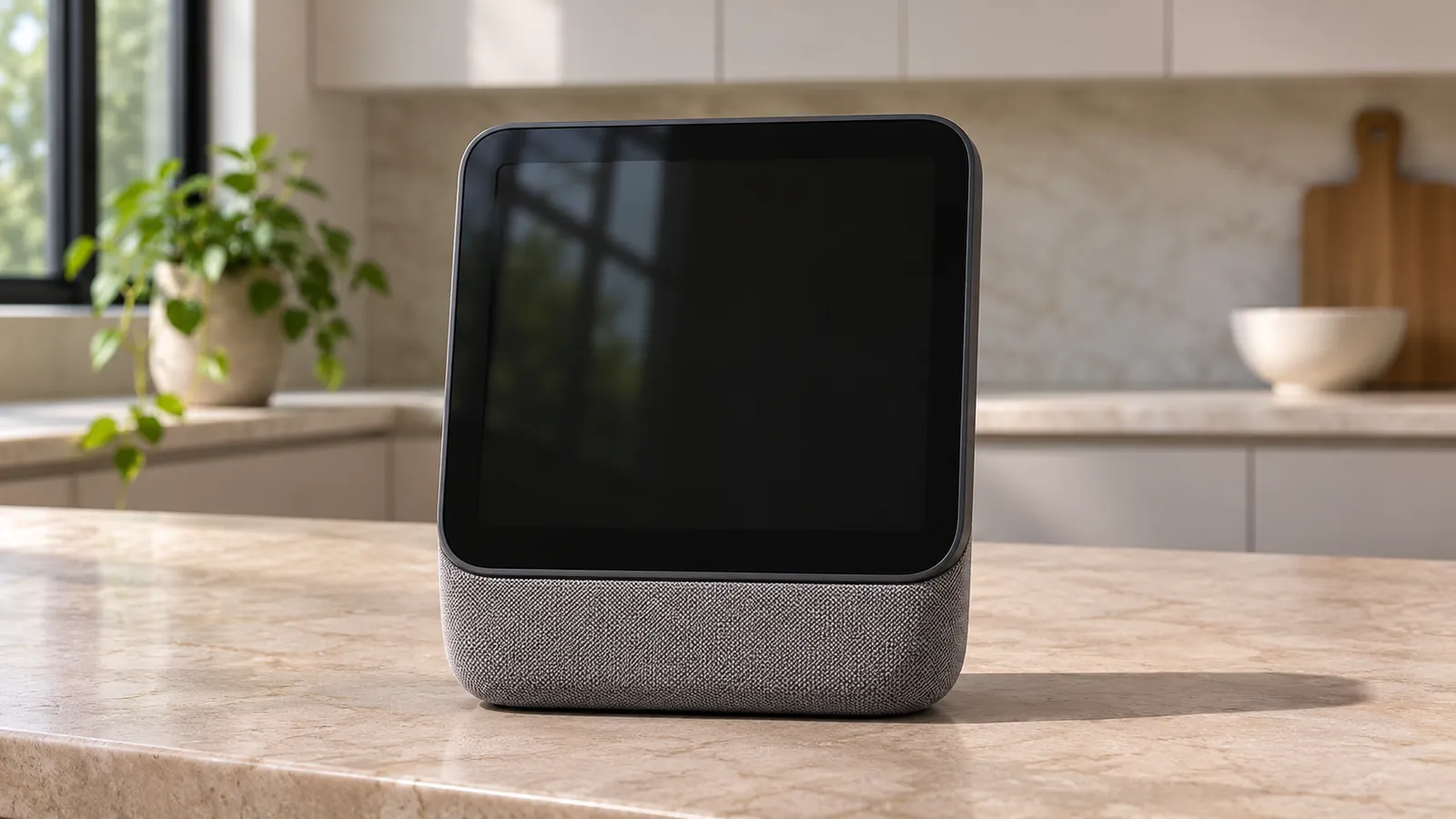
Key Takeaways
- Check the Connection: Apple HomeView can get stuck on “Downloading Siri,” refuse timers, or send music to your iPhone after an incomplete update or a connection problem. Check that both share Wi-Fi, turn on Bluetooth, and open your iPhone with Face ID or your passcode.
- Restart and Update: Restart your paired iPhone, unplug Apple HomeView for 30 seconds, then install HomeView Software 27.2 to address “a software update is required.” Confirm iOS 27.2 or later and matching English, toggle Airplane Mode for music, and check Find My and your Home role for setup.
- Reset or Restore: If Apple HomeView still fails, reset it in the Home app, restore it from a Mac or PC, or contact Apple Support. Tap the lock or garage tile until the December 2026 voice-control update, and check whether Apple’s January 8, 2027 return deadline applies.
Is your Apple HomeView not working when you ask Siri for a timer or a song? Start by turning your paired iPhone all the way off and back on, unplugging HomeView for 30 seconds, and installing HomeView Software 27.2. Owners have reported that restarting one or both devices helped when Siri kept downloading, timers asked for an update, or music went to the iPhone.
The $299 HomeView launched on November 13, 2026. Within three days, Macworld had counted roughly 170 posts across four MacRumors threads, plus more reports on Reddit. If you’ve just brought one home, here’s what was available at launch in our Apple HomeView buying guide.
Apple has promised a December update for the bug that keeps Siri from opening locks and garage doors by voice. If you’re just trying to set a kitchen timer, though, there’s plenty you can try today.
Why Is Apple HomeView Not Working Right After Launch?
HomeView can tell you it’s up to date and still ask for newer software when you set a timer. To see why that can happen, start with the software on HomeView, the iPhone it pairs with, and what Siri AI handles online.
Some Units Ship With Older Software
HomeView runs a required software update during setup. Some owners say their units arrived on version 26.5 and moved to 27.2 when they paired them.
Macworld’s tester didn’t encounter the reported bugs and suspects affected units missed the update or failed to finish it. Apple hasn’t confirmed that explanation, so check for the update even if your symptoms sound familiar.
HomeView Borrows a Lot From Your iPhone
HomeView gets its Wi-Fi, Siri, Apple Account, and language preferences from the Resident’s paired device. For personal content, check that you’ve recently unlocked your iPhone and that both devices are on the same Wi-Fi.
Apps such as Audiobooks, Classical Music, and News rely on a connected iPhone too. If your phone loses its connection or needs you to enter your passcode again, you can feel the effects on HomeView.
Siri AI Is Still Labeled Beta
Apple labels Siri AI on HomeView a beta. It’s available in English, and some features that run on Apple’s servers have daily limits.
Slashdot’s recap of a Wall Street Journal review described a wait of roughly three minutes for Siri to handle basic arithmetic, along with occasions when another device gave the reply. If the delay is on Apple’s end, restarting at home can only get you so far.
Match Your Symptom to the Right Fix
Find the message or behavior you’re seeing, then start with the fix in the last column.
| What You See | Likely Cause | Start With |
|---|---|---|
| “Downloading Siri” keeps coming back | Siri setup is stalled | Restart Your Paired iPhone First |
| Timers or alarms ask for an update | Incomplete update or stale pairing | Install HomeView Software 27.2 |
| Music plays on your iPhone | Audio goes to the paired phone | Toggle Airplane Mode When Music Plays on Your iPhone |
| Siri is slow or silent | Connection trouble or beta delays | Match Wi-Fi, Bluetooth, and Language on Both Devices |
| “Unable to Set Up” | Home role or Find My location | Check Find My and Your Home Role |
| “Device Not Found” or “Unable to Connect” | The paired device is unreachable or needs to be unlocked | Match Wi-Fi, Bluetooth, and Language on Both Devices |
| HomeView doesn’t recognize you | Face or voice recognition failed | Reset Face and Voice Recognition |
| A warning symbol appears | The software update may have failed | Restore HomeView With a Mac or PC |
| “App Unavailable” | Connection, restrictions, or app support | Match Wi-Fi, Bluetooth, and Language on Both Devices |
| Siri won’t open a lock or garage | Voice control is pending Apple’s update | Reset Face and Voice Recognition if HomeView doesn’t know you. Tap the accessory tile to open it. |
How to Fix Apple HomeView Problems
Work through these fixes in order, asking Siri to set a timer after each one so you can tell what helped.
Restart Your Paired iPhone First
One owner said an AppleCare senior advisor recommended a full iPhone restart for the timer bug. Owners have reported that restarting helped with a stuck Siri download or music playing on the wrong device too.
Hold the side button and either volume button until the power slider appears. Drag it, wait for the iPhone to shut down, then hold the side button to turn it back on. Open your iPhone with Face ID or your passcode beside HomeView and ask Siri for a timer.
Unplug HomeView for 30 Seconds
HomeView has no power button. Apple’s steps are to disconnect it from power, wait 30 seconds, then reconnect it. If you have a Wall Mounted HomeView, detach it from the mount to cut power and reattach it after the wait.
If a professional installed your HomeView, contact the installer before disconnecting it. A Macworld reader said a power cycle got auto-brightness working again on their unit.
Install HomeView Software 27.2
HomeView Software 27.2 brought Siri AI to the hub for its November 2026 launch. If your unit missed the setup update, installing 27.2 can clear the message that says you need newer software to set a timer.
On your iPhone, open Home > More (the three dots) > Home Settings > Software Update. Tap Update Now if it appears.
On HomeView, open Settings > System > Software Update > Update Software > Download and Install. Some builds show Software Update under Settings > General. Leave HomeView plugged in until it finishes.
Update Your iPhone and Check It Supports Siri AI
Your paired device needs iOS 27.2 or iPadOS 27.2 or later. For Siri AI personal context, use an iPhone 15 Pro or Pro Max, an iPhone 16 model or later, an iPhone Air, or an iPhone Duo.
The standard iPhone 15 and 15 Plus lack Siri AI support, and an A16 iPad can pair with HomeView for basic setup. On a supported iPhone, turn Siri on and go to Settings > Siri > Try Siri AI (Beta). If you’re still stuck at that step, see what to check when Siri AI isn’t working.
Match Wi-Fi, Bluetooth, and Language on Both Devices
Connect both devices to the same Wi-Fi, turn on Bluetooth, and confirm you’re signed in to your Apple Account. Open your iPhone with Face ID or your passcode if HomeView says “Device Not Found” or “Unable to Connect.”
Match the device and Siri languages to the same English variant, such as US English. If setup shows a 6 GHz alert, use one Wi-Fi network name across the 2.4 GHz, 5 GHz, and 6 GHz bands. Then forget the network on your iPhone, rejoin it, and try again.
Toggle Airplane Mode When Music Plays on Your iPhone
Does Siri hear you on HomeView and play the song on your iPhone anyway? Some owners say turning Airplane Mode on and off, or toggling Wi-Fi on the phone, helped send playback back to HomeView.
Wait for the iPhone to reconnect, then ask HomeView to play a song and pause it. You can also check Settings > your name > Primary Device on HomeView, though Apple hasn’t explained how that option affects music playback.
Check Find My and Your Home Role
If you see “Unable to Set Up,” open Home > More > Home Settings and look for Resident (Owner) under your name. Admins, other Residents, and Guests have fewer options, which can explain why a menu you need is missing.
Open Find My > Me and check that Shared From says This iPhone. If you see Use This iPhone as My Location, tap it before trying to pair again. You’ll find the full pairing steps in Apple’s HomeView setup guide.
Reset Face and Voice Recognition
If HomeView treats you as a guest, go to Settings > your name > Recognition, confirm who you are on your iPhone, and follow the face reset prompts. Stand in even light facing the screen and keep bright windows or lamps behind the display.
For voice, open Settings > your name > iCloud > Saved to iCloud > See All on your iPhone and turn on Siri. Restart your phone, check that both devices use the same language, then reset voice recognition from the same HomeView menu. When HomeView has your voice linked to two Apple Accounts, disable Recognize My Voice for one of them.
Reset HomeView From the Home App
On the paired iPhone, open Home and tap your HomeView. Tap the options button, choose Reset, then tap Reset again to confirm.
You’ll go through setup and its required software update again. Your face and voice profiles carry over from iCloud when you use the same Apple Account. One owner reported that a factory reset cleared their timer problem.
Restore HomeView With a Mac or PC
If you see a warning symbol, power-cycle HomeView and retry the update. If the symbol returns or the reset didn’t help, connect HomeView to a computer using a USB-C cable that carries data.
Open Finder on a Mac running the latest macOS, or open the latest Apple Devices app or iTunes on Windows. Select HomeView and choose Restore HomeView. If the computer says the cable is for charging only, try another one.
Allow 30 to 50 minutes for the restore. You’ll lose your Clock Face and screen layout, while your recognition profiles stay in iCloud. When the setup notification arrives, open your iPhone with Face ID or your passcode and hold it near HomeView.
Problems Apple Still Has to Fix
You can have a fully updated HomeView and still run into trouble. Here’s what you can do when a voice command, widget, or speaker keeps getting in your way.
Siri Will Not Open Locks or the Garage by Voice
Apple says recognized users will get voice control for locks and garage doors in a December 2026 update. If Siri tells you HomeView has no camera, that’s a known incorrect reply.
Until the update arrives, open the Home app on HomeView. Tap the lock or garage door tile to use the on-screen control.
Widgets and Apps Showing as Unavailable
Owners have reported seeing a photo in the Photos widget, only to get an unsupported message when they tap it. Some third-party widgets show up blank too.
If you see “App Unavailable,” check whether the app is still on your iPhone and whether it’s restricted. Developers decide which third-party apps work on HomeView. If you paired an iPad, third-party audio and video apps and remote widgets are unavailable.
The Wrong Room Answers
Some owners with multiple HomeViews or HomePods say a song starts in a different room from the one they’re in. Apple hasn’t publicly acknowledged that behavior.
Check each device’s room in the Home app and give each unit a name you can easily tell apart. Once the units are updated, restart them and try the command again in the room where you want playback.
What to Do If HomeView Still Misbehaves
If you’ve worked through the fixes and still can’t use HomeView as expected, you have two options. Start with service and check your return date while you still have time to decide.
Get Help From Apple Support
Go to getsupport.apple.com, visit an Apple Store, or contact an Apple Authorized Service Provider. Apple has HomeView service and Express Replacement information if your unit needs more than troubleshooting.
Macworld reported that Apple shut down its Support Community forums. For help with your specific device, use one of Apple’s direct support channels.
Return HomeView by January 8, 2027
If you received your HomeView directly from Apple between November 6 and December 25, 2026, Apple’s holiday return window runs through January 8, 2027. That applies in the US, UK, Canada, Australia, and other participating countries.
Check your retailer’s policy if you bought HomeView elsewhere. If voice control is what you’re waiting on, you have time to try the December update as long as you keep your return deadline in view.
How to Keep HomeView Running Smoothly
Two habits can save you from rechecking the same menus later. Start with updates, then make sure HomeView can reach your phone when you ask for personal content.
Leave Automatic Updates On
Automatic updates are on by default. To check, open Home > More > Home Settings > Software Update and look for Automatic Updates.
Keep HomeView plugged in overnight so it can install updates when they’re available. That includes the December Siri fix once Apple releases it.
Keep Your iPhone Nearby and Unlocked Now and Then
For personal content and Siri AI personal context, keep your iPhone nearby, open it with Face ID or your passcode now and then, and connect it to the same Wi-Fi as HomeView. Add the people you live with as Residents so HomeView can recognize them too.
Once your household can use the screen again, test the accessories you control through it. HomeView doubles as a hub, so if a specific accessory still acts up, check what to do when HomeKit shows No Response or a Matter device goes offline.
FAQs
Your HomeView may have missed part of the setup update, or its paired iPhone may be out of sync. Start by turning your iPhone fully off and back on. Unplug HomeView for 30 seconds and reconnect it. Then check for HomeView Software 27.2.
Yes, you can use Home controls, timers, weather, and general Siri without your iPhone nearby. Those features can handle everyday requests while your phone is away. For personal content and Siri AI personal context, keep your recently unlocked iPhone on the same Wi-Fi. Many apps also need that connection.
You need an iPhone 15 Pro or Pro Max, an iPhone 16 model or later, an iPhone Air, or an iPhone Duo. The standard iPhone 15 and 15 Plus don’t qualify. Run iOS 27.2 or later and enable Siri AI on that iPhone. Use the same version of English on your phone and HomeView.
Apple doesn’t document a Siri AI switch on HomeView itself. HomeView takes its Siri preferences from the Resident’s paired device. You can switch the paired iPhone to Siri Classic and see how HomeView responds. Whether the switch carries over to HomeView is unconfirmed.
Your face and voice profiles stay in iCloud after a reset. They carry over when you set up HomeView with the same Apple Account. Expect to set up the hub again. If you restore it from a computer, you’ll need to redo the Clock Face and screen layout too.
Apple says a December 2026 update will let recognized users open locks and garage doors by voice. That’s the problem behind Siri’s incorrect reply about having no camera. Apple hasn’t given a release date or version for fixes to the timer and music problems. For those symptoms, start by restarting the paired iPhone.
