




Key Takeaways
- Check Your Request: Google Home can play the wrong Spotify song when Gemini misreads requests or uses the wrong account. Name the full song and artist plus “on Spotify,” then check your linked Premium account.
- Repair Music Requests: For Google Home, choose Spotify as your default, relink your account, check Voice Match and Personal results, and rename conflicting playlists. Recreate affected alarms and routines, then reboot your speaker.
- Keep Playback Backups: If Google Home still misplays Spotify requests, use Spotify Connect and send Google feedback. You cannot return to Google Assistant after adopting Gemini, factory resets have mixed results, and you should keep a phone alarm as backup.
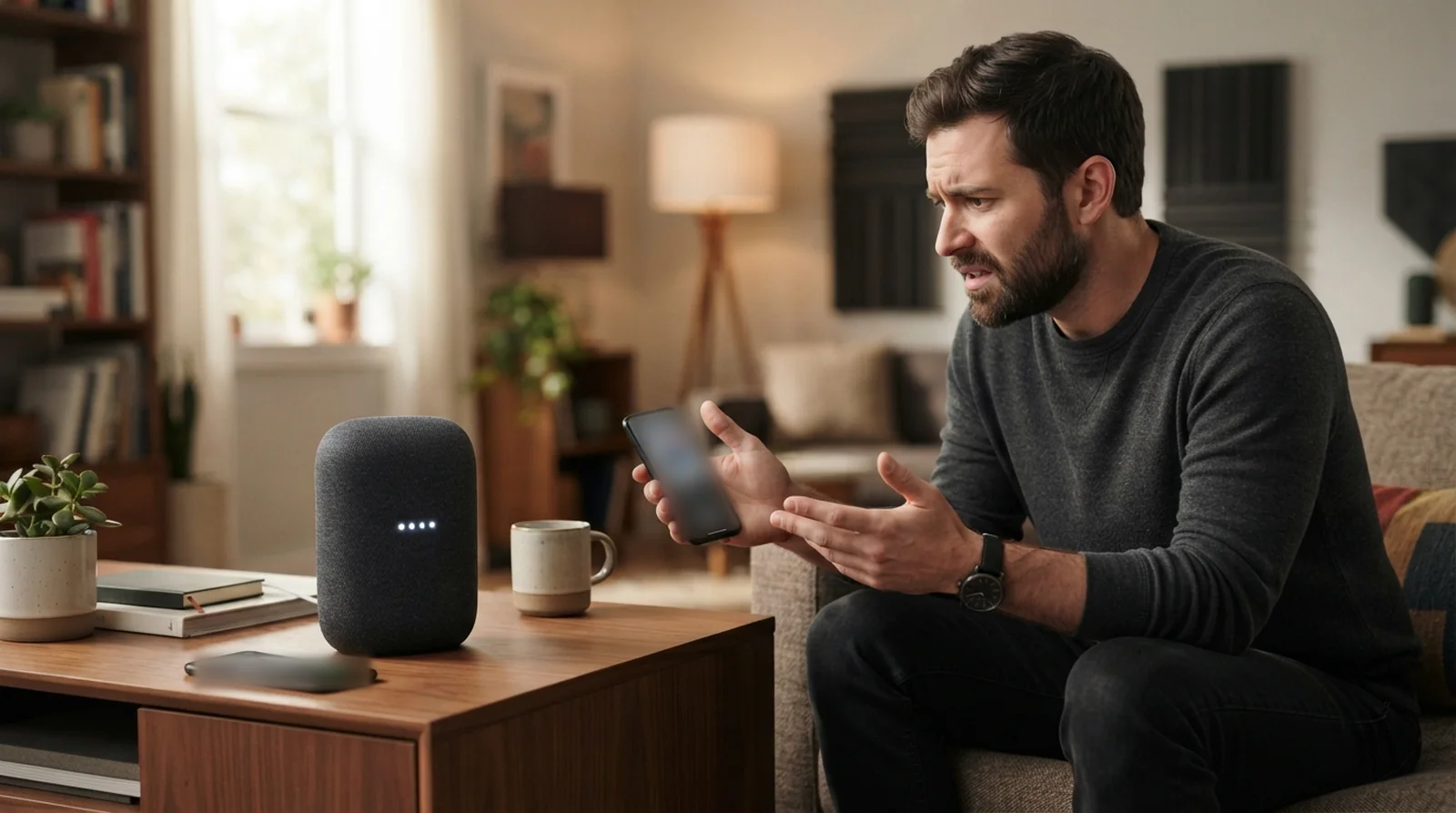
You ask your Nest Audio for “Yellow Submarine” by the Beatles. Instead, you get a live album with a similar name. Google Home playing the wrong song can come from Gemini misreading your request, a playlist name matching an album, or Spotify using the wrong account.
Owners described a fresh wave of Spotify mix-ups around November 16 to 17, 2026, with Gemini for Home apparently acting on fragments of their requests. This followed Google’s late-August announcement that an earlier wrong-playlist bug had been corrected. Song alarms have been caught up in the confusion too.
Start by naming Spotify and the full artist, checking your linked Premium account, and rebuilding affected alarms or routines. These checks can address problems within your home, although a fault in Google’s service still needs Google’s attention.
You see, hearing the right song announced does not always mean the right recording will follow. Work through what you can control, then use direct playback if voice requests keep failing.
Why Google Home Plays the Wrong Song
Several causes can produce the same frustrating result, and more than one may affect your speaker. Start by separating request recognition from account and library problems.
Gemini Matches Only Part of Your Request
During the mid-November wave, owners described Gemini selecting individual words instead of understanding the complete request. One Nest Audio played “Live in the Yellow Submarine” when asked for the Beatles song.
Another request for Lana Del Rey produced another artist’s track containing her name. Owners named Nest Audio, Nest Hub, Nest Mini and Google Home Speaker, while Google had not responded publicly to the November 17 coverage.
Playlist Names Collide With Albums
Your playlist can lose out to an album sharing its name. Spotify Community users described requests for Daily Mix, On Repeat and personal playlists producing unrelated collections through voice commands and routines.
Google announced a correction for wrong playlists in late August, but complaints later returned. Spotify staff placed the behavior on Google’s side, so renaming a playlist may help without resolving the underlying service fault.
A Free or Mismatched Spotify Account
With Spotify Free, requesting a song starts a station based on that request rather than guaranteeing the track. What sounds like a recognition failure may therefore be your account’s playback restriction.
Your phone can also use a different Google Account from your speaker. Owners have described Google Home failing to recognize a linked Premium subscription, leaving paid users with behavior they did not expect.
Voice Match Sends You to Someone Else’s Library
If your speaker does not recognize your voice, it can use the default music service belonging to the first person who configured Voice Match. That can send your request to someone else’s library.
This matters when several people share a speaker but keep separate Spotify accounts. Your partner’s playlists and listening history may be used even though you expected your own account.
How to Fix Google Home Playing the Wrong Song
Work through these checks from the quickest change to the more involved repairs. Repeat the same song request after each one so you can tell what helped.
1. Name the Service and Full Artist in Every Request
Use a complete request such as “Play Yellow Submarine by the Beatles on Spotify” instead of just “Play Yellow Submarine.” For an artist, try “Play music by Lana Del Rey on Spotify.”
Include “playlist” or “album” when that is what you want. This follows the request structure in Google’s playback troubleshooting guidance, although owners’ results vary and some Gemini users still need to name Spotify despite choosing a default.
2. Make Spotify Your Default Music Service
In Google Home, open your profile initial, then Home settings > Music > Spotify. If Google offers to make Spotify your default after a request, you can accept by saying yes.
That choice tells Google which provider you prefer when you leave the service out. Keep saying “on Spotify” during testing, though, because some Gemini owners say their default selection is not consistently followed.
3. Confirm Google Home Sees Your Spotify Premium Plan
Spotify Premium lets you request particular songs, albums and personal playlists through Google speakers. Spotify Free instead starts a station based on the music you name, so a different track can be expected.
Check whether Google Home recognizes the linked subscription as Premium and whether the Spotify login matches your phone. If several people use a Spotify Family plan, verify the individual account linked to your voice.
4. Unlink and Relink Spotify
Open Google Home > your profile initial > Home settings > Music and select UNLINK for Spotify. Keep your phone connected to the speaker’s Wi-Fi, then use + > Music and audio > Spotify > Link Account to reconnect.
Sign in with the Spotify account you actually want to use. One Nest Community participant said repeated unlinking, signing out and relinking eventually made Google Home recognize Premium, but that remains an owner-described fix.
5. Check Which Google Account the Speaker Uses
Your phone or tablet must use the Google Account linked to the speaker when you manage its music connection. Open the profile initial in Google Home and check which account is active.
Switch accounts or choose Add another account if necessary, then revisit the music connection. Gemini for Home and Voice Match require a personal Google Account because Google Workspace accounts cannot use those features.
6. Set Up Voice Match for Everyone Who Plays Music
Open Home settings > Gemini for Home voice assistant > Voice Match and enable it for the speaker. Homes still using Google Assistant have Google Assistant in that menu, and each person should link their own Spotify account.
If your speaker confuses you with someone else, open your Google Account’s Voice Match controls, then Voice Match languages > More > Re-record language. Guests and unrecognized voices generally receive the first Voice Match user’s default music service.
7. Turn On Personal Results for Liked Songs and Playlists
Google’s August Gemini update said Spotify Liked Songs and personal playlists require Personal results. Open Home settings > Gemini for Home voice assistant or Google Assistant > Personal results, select your speaker and tick its box.
Google’s general help page describes this feature around Google services and excludes third-party apps, so its guidance conflicts here. Follow the Spotify-specific update advice, but move on if Personal results is already enabled for that speaker.
8. Give Playlists Short, Unique Names
A name such as “Chill,” “Workout” or “Daily Mix 3” can compete with other Spotify content. Try a short, unusual name that an album is unlikely to share, then request that playlist explicitly.
Owners have described mixed results with this workaround, so treat it as a test. If an alarm or routine uses the troublesome playlist, point it toward a renamed copy and check what actually plays.
9. Rebuild Song Alarms and Routines, Then Reboot
Recreate affected song alarms and Google Home routines after moving to Gemini. One owner said editing an existing automation failed, while Spotify Community users suggested separate actions for playing a playlist, enabling shuffle and advancing a track.
These are owner-suggested workarounds, so confirm the result before relying on them. Next, disconnect the speaker’s power for one minute, or open All devices, hold its tile, then select Settings > More > Reboot.
Check software compatibility too, since Gemini requires Cast firmware 3.76 or later on speakers, Fuchsia 28 or later on displays, and Google Home app 4.1 or later. A reboot preserves your device setup.
Which Speakers and Displays Are Affected
November complaints named several models, but they do not establish that every supported device has the fault. Use this table to check support and the reset instructions available for your model.
| Device | Gemini for Home support | Wrong-song complaints seen in November 2026 | Reset method |
|---|---|---|---|
| Google Home Speaker 2026 | Full support | Named by owners | Mic off, hold top center about 5 seconds, then about 10 more |
| Nest Audio | Full support | Named by owners | Mic off, hold top center about 5 seconds, then about 10 more |
| Nest Mini 2nd gen | Full support | Nest Mini named | Mic off, hold top center about 5 seconds, then about 10 more |
| Home Mini 1st gen | Full support | Not specifically named | Hold underside reset button about 5 seconds, then about 10 more |
| Nest Hub 2nd gen | Full support | Nest Hub named, generation unspecified | Hold both rear volume buttons about 10 seconds |
| Nest Hub Max | Full support | Not specifically named | Remove from app first, then hold both rear volume buttons about 10 seconds |
| Google Home Max / original Google Home | Most features, without Gemini Live | Not specifically named | Follow the instructions for your exact model |
Once your home adopts Gemini for Home, Google does not offer a return to Google Assistant. Devices added afterward use Gemini too, so changing the assistant back is unavailable as a repair.
What to Do if Nothing Works
If clear requests and account repairs still produce the wrong music, you have other ways to listen and document the failure. Try direct playback before considering a reset.
Cast From the Spotify App Instead
Choose the exact recording in Spotify and send it to your speaker through Spotify Connect. Selecting the track yourself avoids asking Gemini to interpret the song title or artist.
On Android, check Spotify’s Permissions > Nearby devices access; on iPhone, open Settings > Apps > Spotify > Local Network. If playback stalls, check the speaker’s Wi-Fi connection, or review casting problems when using a Google TV Streamer or Chromecast.
Send Feedback to Google
Say “Hey Google, send feedback,” or use Google Home’s feedback option. Include your exact spoken request, what the assistant announced, and the recording that actually played, especially when the announcement was correct.
Google community specialists have asked for the device model, firmware and app version when investigating playback complaints. Include whether you use Gemini or Google Assistant, when the behavior began, and whether it affects routines as well.
Factory Reset as a Last Resort
Consider a reset only after account checks and relinking fail, because owners have described mixed results. It deletes device data permanently, requires setup again, and cannot be started through voice or the app.
Use the model-specific method above, keeping the button held until confirmation. Save Nest Hub Max video history before removing it from Google Home, and review or delete Nest Hub 2nd gen Sleep Sensing data before resetting.
How to Keep Music Requests Accurate
Once you find a request that works, make it easy to repeat and check it after updates. A little consistency gives you a useful reference when playback changes again.
Keep a Request Phrasebook That Works
Save the exact song, artist and service wording that your speaker handles correctly. If a personal playlist works only when you include “playlist” and “on Spotify,” keep both parts whenever you ask.
Reuse successful wording when you rebuild routines, then test those routines separately. A spoken request working once does not confirm that an existing automation will select the same music, particularly after the move to Gemini.
“Your most useful request phrase is the one your speaker plays correctly.”
Recheck After Each Google Home Update
Google releases monthly Home updates, so retest your usual music requests afterward. The November Google Home update and latest Home changes provide context when familiar behavior changes, but your own playback check confirms what your speaker does.
Give alarms and morning routines particular attention after an update reaches your home. Keep a phone alarm as backup until you have confirmed that the speaker alarm runs correctly and selects the intended song.
FAQs
Your Google Home may misunderstand the request, use another account or apply Spotify Free’s station-based playback rules. Gemini owners also described incomplete request matching in mid-November 2026. Start with the full song title, artist and “on Spotify.” Then check your linked account and whether Google Home recognizes Premium.
Your Nest speaker may match the playlist’s name to an album elsewhere in Spotify’s catalog. Owners have described this happening with both personal playlists and Spotify-generated collections. Say “playlist” in your request and try a short, unusual playlist name. Google announced a wrong-playlist correction in August, but later complaints show that similar failures returned.
You need Spotify Premium to request particular songs through your Google speaker. Spotify Free gives you a station based on the requested music instead. Check that your speaker uses the same Spotify login as your phone. A paid subscription on another linked account will not give your current account Premium playback.
You cannot return your home to Google Assistant after switching it to Gemini for Home. Devices you add later will use Gemini as well. A factory reset therefore does not provide an assistant rollback. Use Spotify Connect while you test account repairs or wait for Google to address the service fault.
Your music alarm may be affected by the same request-matching fault that changes spoken Spotify selections. Owners described alarms selecting unrelated albums instead of their chosen recordings. Recreate the alarm or its associated routine, then test it. Keep your phone alarm enabled until you confirm that the speaker behaves as intended.
A fix for your specific Gemini Spotify failure was not confirmed in the November 17 coverage, and Google had not responded at publication. Google previously announced a correction for wrong playlists in late August. Send feedback with your exact request, playback result and device details. Those details give Google a concrete example while you use direct Spotify playback.
