




Key Takeaways
- No-Go Zone Failures: Your robot vacuum can cross no-go zones after losing its position, failing to save a boundary or selecting the wrong map. Check the active map and saved zone first, and remember that ECOVACS ignores virtual walls while returning to charge.
- Restore Boundary Control: Start your robot vacuum from the dock, confirm Save and the active map, widen zones and keep lines away from steps. Avoid lifting during cleaning, clear the return path, repair the map, update software and clean sensors and LiDAR.
- Use Safer Barriers: If your robot vacuum still crosses zones, send video and map screenshots to support before a factory reset erases maps, zones and schedules. App boundaries can fail near stairs or fireplaces, so use closed doors, suitable gates or supported magnetic strips.
You draw a box around the pet bowls, then watch your cleaner roll straight through. A robot vacuum ignoring no-go zones has usually lost its position, failed to save the boundary on the active map, or crossed it while returning to charge.
That last reason can catch you out. ECOVACS says its robots disregard virtual walls during the return to the dock, so a boundary that works during cleaning may not protect the same spot afterward.
The 10 fixes below cover these causes, along with map changes, narrow zones and doorstep trouble. For stairs, fireplaces or an open back door, you’ll also need a backup that doesn’t depend on the map.
Why Your Robot Vacuum Drives Through No-Go Zones
A no-go zone exists on your robot’s map, so its position must match your actual floor. Start by checking what happened just before the crossing.
It Lost Track of Where It Is
Picking up your robot during cleaning can break its position tracking. Xiaomi says an error or failed location check can erase the X20+ map and its virtual boundaries.
Even successful relocation can leave its mapped position inaccurate. Dreame’s boundary guidance says crossings can happen during location checks, while spinning in circles gives you another behavior to investigate.
The Zone Didn’t Save to the Map It’s Using
Your rectangle may appear while you draw it without being saved. Dreame identifies unreliable Wi-Fi, an unconfirmed edit and the wrong saved map as possible causes.
Roborock’s S5 needs Map Saving enabled first, while Wyze owners have described disappearing edits. App timing matters too, since older ECOVACS software waits until the next departure from the dock.
It Was Heading Back to the Dock
Does your robot avoid the bowls while cleaning, then cross them afterward? ECOVACS describes ignored virtual walls during the return to charge as expected behavior.
Yeedi says failed positioning can cause a crossing during recharge exploration. Tapo and Wyze owners describe similar trips through restricted areas, though those accounts don’t establish a rule for every model.
The Zone Is Too Tight Around the Problem
A thin rectangle leaves little room for error. Yeedi advises against narrow zones, and iRobot recommends covering the entire restricted area with a small extra margin.
That matters around table legs and cables where your robot vacuum keeps getting stuck. Tapo staff recommend enlarging the map view before drawing, because small views make accurate placement harder.
The Map Changed or Was Rebuilt
Your boundary can become unreliable when the map changes underneath it. Dreame identifies distorted or overlapping maps, while iRobot says maps develop as robots retain and lose landmarks.
Tapo staff say an unlocked map can gain newly accessible areas. eufy warns that environmental changes can invalidate a map and disable its app boundaries.
Escape Moves Near Doors and Steps
A sliding door track or step can complicate an otherwise sensible boundary. Dreame says escape movements near these features can take the robot across a virtual wall.
One Tapo owner described a robot climbing a doorstep ridge and sliding across the line. Their successful adjustment concerned that doorway, so treat it as an owner’s fix rather than a universal placement rule.
How to Stop Your Robot Vacuum Ignoring No-Go Zones
Check the saved boundary and starting position before rebuilding everything. Work through these fixes, then watch the robot near the affected area.
1. Begin Each Run From the Dock
Return your robot to its dock before restarting the task. Xiaomi recommends this so the robot can establish its position again before cleaning.
You see, starting elsewhere leaves the robot needing to identify its location. With the older ECOVACS App, leaving the dock again also activates a newly drawn boundary.
2. Confirm the Zone Saved Before You Close the App
Keep the map open and finish the edit with its confirmation control. On the Roborock S5 in Mi Home, enable menu icon > Vacuum Settings > Map Saving before using Edit Map.
Use stable Wi-Fi, especially if your Roborock won’t connect, then reopen the app to check persistence. If edits vanish, update the app; Wyze owners have described switching floors or starting a clean before closing as workarounds, without a confirmed universal fix.
3. Check Which Map Is Active
Match the displayed map to the floor beneath your robot before editing. Dreame says automatic map selection can fail when several maps are available.
Don’t assume every model supports multiple floors. iRobot supports up to 10 maps on supported Smart Map robots, but i3 through i5 retain one, and Shark’s RV2600WD lacks multi-floor mapping.
4. Give Each Zone a Wider Buffer
Extend the rectangle beyond the bowls, cables or troublesome furniture. iRobot advises including the full area rather than restricting only its entrance, with some extra space around it.
Zoom in before placing the edges so you can position them more accurately. The brands covered here specify no numerical minimum, so use a generous margin and watch the result.
5. Pull Lines Back From Doors and Ledges
Keep your virtual wall away from sliding tracks and steps, as Dreame recommends. A line beside a ridge may leave the robot crossing it during an escape movement.
Adjust the wall around the actual doorstep behavior you observe. Near stairs, Shark separately requires at least 8 inches between rugs or runners and the stairs for proper cliff-sensor operation.
6. Stop Picking the Robot Up Mid-Clean
Carrying your robot around an obstacle can disrupt the location information its zones depend on. Xiaomi and Yeedi advise against moving it during cleaning, and Shark gives the same instruction.
If you must lift it, return it to the dock afterward. Restart the task there so it can re-establish its position before reaching the restricted area.
7. Plan Around the Trip Home
Check whether your boundary blocks the only route to the charger. ECOVACS ignores virtual walls during docking, while Wyze owners describe crossings during charging trips and travel to another room.
Tapo and iRobot advise keeping restricted areas clear of the charging station. Moving the dock may provide a better return path, especially when your Shark robot isn’t docking reliably.
8. Straighten, Restore or Rebuild the Map
A distorted map needs attention before another boundary edit. Dreame recommends correcting its shape, while Xiaomi Home offers map reset or restoration for the X20+ problem described above.
On supported iRobot models, open a suitable History cleaning report, then use the three-dot menu and Update Smart Map. That action cannot simply be undone, although you can apply another map update.
After major furniture changes, rebuilding may be necessary, followed by drawing the zones again. For a lost Roborock map, check restoration options first, then save or lock the corrected map where supported.
9. Update the App and Firmware, Then Recheck Zones
Install available app and robot updates before another trial. Tapo staff recommend checking firmware when a robot crosses a virtual wall.
Afterward, inspect every boundary for missing or displaced edges, as owners have described changes following updates. An installed update alone doesn’t confirm that your saved zones remain correct.
10. Clean the Sensors and LiDAR Cap
Dirty sensors or an obstructed LiDAR unit can interfere with positioning. Tapo staff recommend cleaning sensors, removing any remaining protective film and keeping LiDAR clear.
Check the turret for anything blocking it before running the robot again. If you also receive a LiDAR error, address that fault before judging another boundary test.
Brand Notes for Common Robots
The names and controls vary, and some restrictions apply only to particular models. Use this table to match the feature to your robot.
| Brand | What the app calls it | Where to find it | Known quirk |
|---|---|---|---|
| Roborock | No Go Zone, Invisible Wall | Edit Map, after enabling Map Saving on S5 | S5 supports 10 zones; starting inside a restriction can trigger Error 24 on S-series models |
| iRobot Roomba | Keep Out Zone | Map icon > Zones on an Imprint Smart Map | Unavailable on i1 through i5; supported zones apply with app, voice or CLEAN starts |
| ECOVACS DEEBOT | Virtual boundary | Map Management | Disregarded during docking; older ECOVACS App activates edits on the next departure |
| eufy | No-go Zone, Virtual Boundary | No-go Zone page | X8, LR20, LR30 and L35 support 10 of each per map; invalid maps can disable boundaries |
| Shark | No-go zone | SharkClean map | Run Explore again after big furniture or dock moves |
| Tapo | Virtual Wall, No-Go Zone | Map icon > edit | Boundaries cannot intersect the charging station; keep zones away from it |
Dreame and Xiaomi identify location errors and map problems among their crossing causes. Wyze owners additionally describe edits that fail to persist, so reopening the map is a useful check before cleaning.
Use a Physical Barrier Where a Crossing Would Be Dangerous
Some crossings create a mess, while others put the robot near a serious hazard. Choose a backup according to what lies beyond the boundary.
Why App Zones Aren’t Enough for Stairs, Fireplaces and Pets
eufy explicitly advises against depending on app boundaries around hazards. Its explanation is practical, since an invalid map can leave those boundaries disabled.
Use that warning when protecting stairs, a fireplace or an open exterior doorway. Around pet bowls and litter boxes, a crossing can also spread the mess you meant to contain.
Barriers That Work With Your Robot
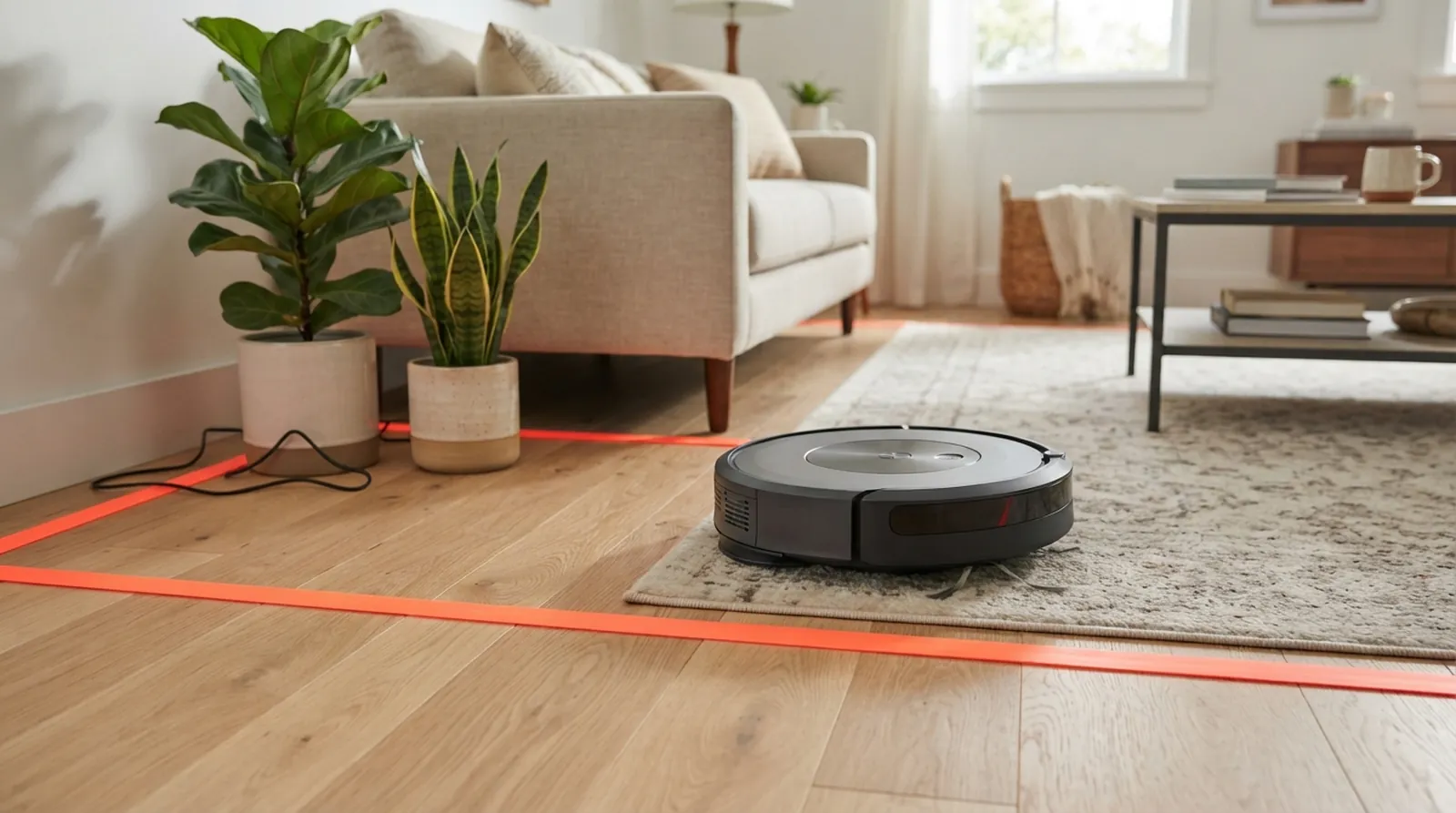
A closed door or suitable baby gate provides a physical stop, as iRobot and ECOVACS suggest. eufy recommends magnetic strips around hazards such as fireplaces, but your robot must support magnetic detection.
For compatible Roombas, the Dual Mode Virtual Wall has a $59.99 MSRP, uses two AA batteries and blocks openings up to 10 feet. Supported models include 500 through 900, e and s series, i3 through i8 and Combo i5, while j-series models are excluded.
What to Do If Nothing Works
Repeated crossings after these checks deserve a closer inspection of the robot and map. Collect evidence before making changes that erase it.
Gather Evidence and Contact Support
Save map screenshots from before and after the crossing, the cleaning report and a video. Tapo staff request these details when investigating boundary problems.
Explain whether the robot was cleaning, relocating or returning to charge. Dreame and Xiaomi advise contacting after-sales service if crossings continue, so ask about warranty coverage too.
Reset as a Last Resort
A factory reset removes your maps, zones and schedules, so leave it until other checks fail. Keep your evidence before clearing the robot.
Rebuild from the dock with doors open, then add the restricted areas again. Save a backup where available and watch a trial run before relying on the new map.
How to Keep No-Go Zones Working
A saved boundary still needs checking when your home or software changes. Build these two checks into your next edit.
Recheck Zones After Every Change
Open the map after updates, furniture moves, new rugs or a dock relocation. Check that each restricted area still covers the intended patch of floor.
If the map has changed, correct it before adjusting the boundaries. Where your app supports map locking or saving, retain the version you have checked.
Watch One Run After Editing
Stay nearby when the robot first reaches an edited boundary. Watch the return to the dock too, because that is when some crossings occur.
Tapo staff explain that the coverage display is generated from the robot’s recorded path. Your observation helps establish what physically happened when the map alone leaves doubt.
FAQs
Your robot may treat the return trip differently, since ECOVACS deliberately disregards virtual walls during docking. Yeedi describes possible crossings when location tracking fails during recharge exploration. Check whether the restricted area lies across the route home. Moving the dock or redrawing the zone may let you keep that route clear.
Yes, you need to recreate your boundaries when the previous map is deleted and replaced. Yeedi and Xiaomi include rebuilding restrictions in their map recovery guidance. Check the map after Shark’s Explore process as well. Supported iRobot models can instead use Update Smart Map from a previous cleaning report, followed by a boundary check.
Your Roborock may believe its starting position is inside a restricted area, which can trigger Error 24 on S-series models. Move it outside the restriction and restart. Some models display a no-go zone or invisible wall warning without the same error number. Error 11 concerns a strong magnetic field, so move the robot away from nearby barrier tape before restarting.
Make your zone large enough to contain the entire restricted area with extra room around its edges. iRobot recommends that margin, while Yeedi warns against thin zones. The brands covered here provide no numerical minimum. Enlarge the map view while drawing, then observe whether your chosen boundary keeps the robot clear.
Owners have described boundaries disappearing or changing after updates, so you should check yours afterward. Those accounts do not establish that every firmware update causes this problem. Reopen the correct map and inspect each zone’s position. If one is missing, recreate it and watch a trial run before leaving the robot unattended.
Magnetic strips can provide a better fallback around hazards if your robot detects them, and eufy recommends them for that purpose. They do not work with every model. Check compatibility before buying a strip. If your robot lacks magnetic detection, use a closed door or suitable physical gate instead.
