




Key Takeaways
- November Camera Failure: If your Pixel 10 or Pixel 11 camera shows a black preview after November’s Android 17 QPR2 update, a shared system component may be involved, though Google hasn’t confirmed the cause. Check whether both the front and rear cameras fail in another app.
- Five-Minute Shutdown: If your Pixel camera says “Something went wrong. Close and open the Camera app again,” power off for five minutes, then turn your phone back on. Check Camera access and app permissions, clear the cache, check for updates, then try Safe mode.
- If Problems Persist: If those checks don’t restore your Pixel camera, send Google your build number, contact Pixel Support and check Software updates for a patch. A factory reset has had mixed results, so save it for last and back up your phone and photos first.
Is your Pixel camera not working since you installed the November 2026 update? Shut your phone down completely, leave it off for about five minutes, then turn it back on. Several Pixel owners got their cameras working again this way after a regular restart failed.
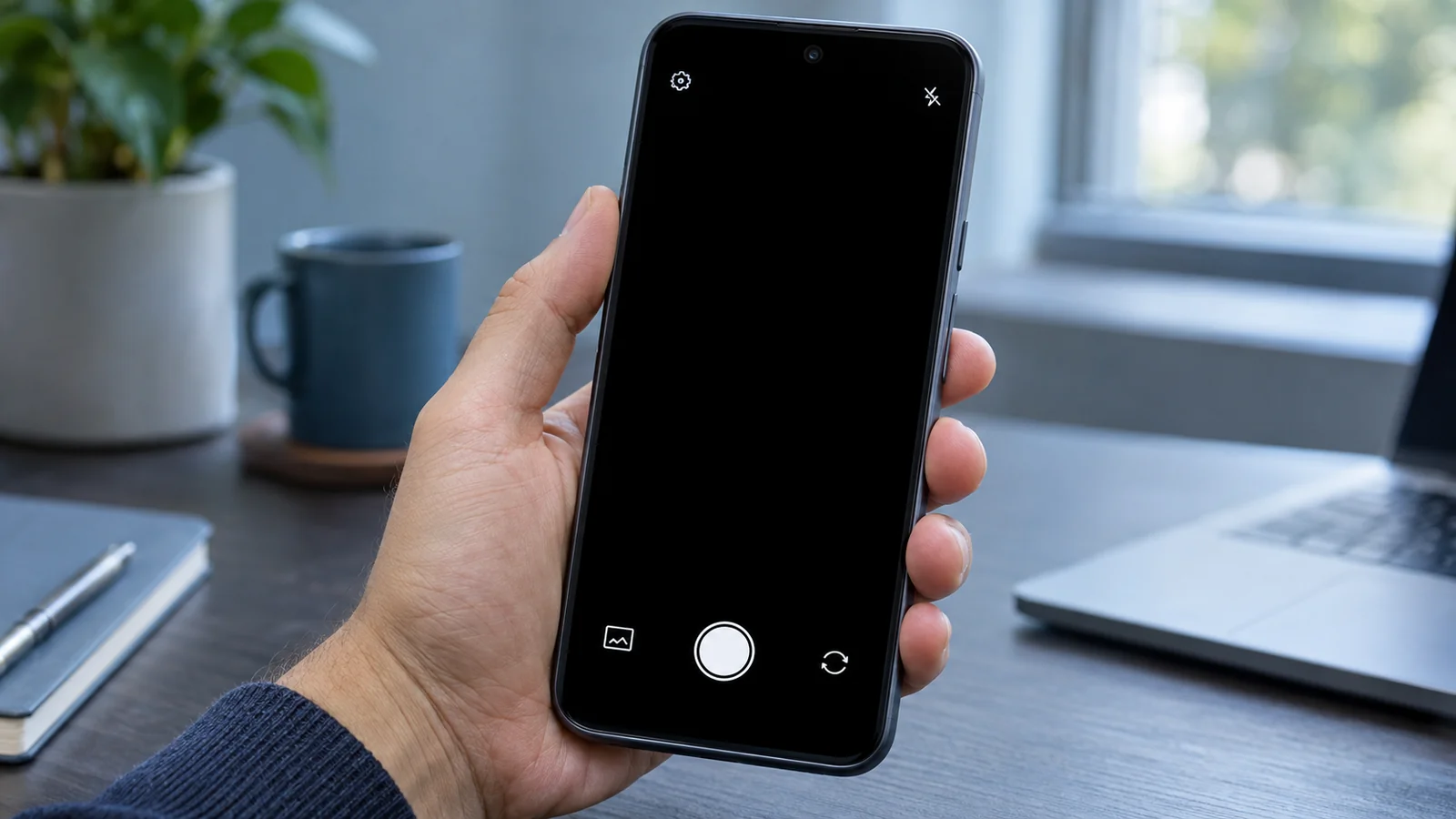
The November Pixel update started rolling out on November 10 with Android 17 QPR2. Some Pixel 10 and Pixel 11 owners now see a black viewfinder or the message “Something went wrong. Close and open the Camera app again.” The failure can affect both the front and rear cameras, including in other camera apps. As of November 13, Google hasn’t publicly confirmed the bug.
Pixel Camera Not Working? Try a Full Shutdown First
Hold Power and Volume Up together for a few seconds, then tap Power off. Give your Pixel about five minutes while it’s completely off. Hold Power until you feel the phone vibrate, then open Pixel Camera and try both cameras.
Diamond and Gold Product Experts in the Pixel Community suggested this, and several owners said it brought their cameras back. Those experts are community volunteers. Owners also reported that ordinary restarts, cache clearing, Safe mode and even factory resets failed to help in some cases.
If your viewfinder is still black, you can check camera access, test each lens and look for an update before you consider erasing anything. The nine fixes below start with the shutdown and work through those checks.
Which Pixel Phones Are Hit by the November Camera Bug
So far, reports center on the Pixel 10 and Pixel 11 series. You can use the table to compare your model and November build with the reports available as of November 13.
| Model group | November build | Camera reports so far |
|---|---|---|
| Pixel 11, 11 Pro, 11 Pro XL and 11 Pro Fold | CP4A.261105.040.D1, CP4A.261105.040.B2 in Canada | Yes, some owners reported failures |
| Pixel 10, 10 Pro and 10 Pro XL | CP4A.261105.040.A1 | Yes, some owners reported failures |
| Pixel 6a through Pixel 9a, plus Pixel 10a | CP4A.261105.040.A1 | No reports found |
To check your build, open the gear icon on your Pixel and go to About phone > Android version. Look for Build number. Google rolls out the update over several weeks, so two phones of the same model can be on different builds.
Why the Camera Stops Working After the Update
A black preview tells you the camera isn’t delivering an image. What happens when you switch lenses or open another camera app can help you narrow down the cause.
A System-Level Bug in the November Build
The first reports appeared on November 11, a day after the rollout began. So far they involve Pixel 10 and Pixel 11 models, which use Google’s own image signal processor on Tensor G5 or later chips.
Here’s the thing. If your selfie camera, rear cameras and third-party apps all fail together, the fault may be in a system component those apps share. Google hasn’t publicly identified which component, if any, is responsible.
Camera Hardware Stuck in a Bad State
One theory is that a full shutdown cuts power to the camera modules and their control chip. When you turn your Pixel back on, those parts may get a fresh start.
A regular restart might leave the camera circuitry in the same state or give it too little time without power. That could explain why waiting five minutes has helped some owners. The hardware explanation is still a theory.
Camera Access or Permissions Switched Off
Your Pixel has one Camera access switch for all apps and services. If it’s off, you can open several apps and still get no image from the camera.
Each app has its own permission as well. If Pixel Camera works and another app shows a black preview, check that app’s permission first. You can check both controls without clearing data.
A Faulty App, Cache or Physical Damage
A problem with cached app data or another installed app can interfere with your camera. Heat can slow it down too, especially if you’re already seeing heat warnings on your Pixel 11.
If the preview opens but looks blocked, check whether your case covers the lens and wipe the back glass with a soft, clean cloth. If opening the selfie camera gives you an error, Google’s Pixel camera troubleshooting page points you toward support or repair.
9 Fixes for a Pixel Camera That Won’t Open
Try these in order and open the camera after each fix. Check whether you get a live preview from both the front and rear cameras before you move on.
Power Off for Five Minutes
Hold Power and Volume Up for a few seconds and tap Power off. Wait about five minutes, then hold Power until your Pixel vibrates. That can take up to seven seconds.
Five minutes is the wait that worked for several owners, so try the full shutdown a second time if your first attempt fails. If your screen is frozen and you can’t open the power menu, hold Power for up to 60 seconds and release when you see the G logo. Once the phone starts, follow the full shutdown steps.
Make Sure Camera Access Is Turned On
Open the gear icon and go to Security & privacy > Privacy. Look for Camera access. The menu labels can vary slightly, so look for the switch that controls camera use for all apps and services.
Turn Camera access on if it’s off. Reopen Pixel Camera and check whether the preview appears.
Check the Camera Permission for Each App
From the gear icon, go to Apps > See all apps > Pixel Camera > Permissions > Camera. Choose Allow only while using the app so Pixel Camera has permission when you open it.
To check several apps, go to Security & privacy > Privacy > Permission manager > Camera. Review the permission for each camera app you’re testing, then reopen any app you made a change to.
Clear the Camera App Cache
Touch and hold the Camera icon and tap App info. Open Storage & cache and tap Clear cache.
Clearing the cache leaves your photos intact and lets Pixel Camera rebuild its temporary files. Owners with the November failure reported little success with this step, but it’s a quick way to check whether cached data is causing your symptoms.
Update Pixel Camera and Check for a System Patch
Open the Play Store, tap your profile icon and go to Manage apps & devices > Updates available. Install any Pixel Camera update you see. Google has shipped camera service crash fixes through the Play Store before, including in Pixel Camera 10.4.
Open the gear icon and go to System > Software updates > System update > Check for update. A fix could come in a separate system patch or with the December update. Google hasn’t confirmed either timetable.
Test the Selfie Camera and a Second Camera App
Touch and hold the Camera icon, then tap Take a selfie. See whether you get a live view. Open another app that uses the camera and test it there as well.
If both cameras fail across apps immediately after the update, your symptoms fit the November reports. If the failure is limited to one camera and follows it across apps, a fault with that camera is worth checking with support.
Boot Into Safe Mode to Rule Out Other Apps
Hold Power and Volume Up to open the power menu. Touch and hold Power off or Restart on the screen, then tap OK. You can also start from a powered-off Pixel and hold Volume Down when the G logo appears until you see Safe mode at the bottom.
Try the camera in Safe mode. If it works, restart to exit, then remove recently installed apps one at a time and test the camera after each removal. Owners who reported the November failure often saw the same black screen in Safe mode.
Send Google a Bug Report From the Phone
From the gear icon, open About phone > Send feedback about this device to send feedback about your Pixel to Google. Include your build number, the error you saw and whether both cameras failed in more than one app. Google’s account reportedly contacted some affected owners for more details.
For a diagnostic report, tap Build number seven times to enable Developer options. Go to System > Developer options and turn on Bug report shortcut. When the camera fails again, hold Power and Volume Up and tap Bug report.
Factory Reset Only as a Last Resort
A reset erases your phone, and results for this camera failure have been mixed. You see, some owners got their cameras back after resetting, while others went through setup again and still had a black viewfinder.
If you decide to reset, open the gear icon, go to Google services > Backup and check Backup details. Confirm that your photos and videos have synced separately, charge to at least 70% and make sure you know your Google Account password and screen lock. Go to System > Reset options > Erase all data (factory reset), then tap Erase all data to confirm. Allow up to an hour.
What to Do If the Camera Still Won’t Work
If the viewfinder is still black after a full shutdown and the app checks, your model and build number can help support understand what happened. Use what you learned from testing both cameras to decide your next step.
Contact Pixel Support or Book a Repair
Use Google’s Pixel support contact form or reach out to @MadeByGoogle on X. Tell support which Pixel and build you’re using, when the November update installed and whether the front and rear cameras both fail in other apps.
You can also use Pixel Repairs to check your repair options and see whether you can make a warranty claim. If one camera consistently gives you an error, mention which one when you contact support.
Wait for a Patch From Google
Going back to the October build requires wiping your phone and manually flashing the earlier software. Your Pixel’s update menu has no option to remove the November system update.
If your camera failure matches the November reports, you can wait for a patch and check System > Software updates for new releases. Keep your build number handy so you can tell when your Pixel moves to a newer version.
Should You Hold Off on the November Update?
If your Pixel 10 or Pixel 11 hasn’t updated and you rely on its camera for work, you could give it a few days while more reports come in. The reports so far involve some owners of those models. No reports matching this failure have turned up for older Pixels.
Keep any delay brief. The November 1 Android patch addresses 135 security issues, the November 5 patch addresses 97, and the Pixel bulletin lists another 166 fixes. Factor those November Android security fixes into your decision.
How to Avoid Camera Trouble After Future Updates
You can make an update easier to deal with by checking what’s backed up and seeing how the release is going for people with your model. Start with the data you’d want back if you had to reset.
Back Up Before Every Big Update
Open the gear icon and go to Google services > Backup. Check Backup details so you know what your Pixel can restore if you need to erase it.
Photos and videos sync separately from your device backup. Check their sync status in the service you use for them before you install a big update.
Give New Updates a Few Days and Watch Reports
Pixel updates arrive in stages, so you may have a few days to see what other owners with your model are reporting. Check the Pixel Community and coverage of early problems like camera failures or fast Pixel battery drain after an update.
Keep Pixel Camera current through the Play Store too. If a future update leaves you staring at a black viewfinder, start with the full shutdown and give yourself time to see what comes back. If the camera still fails, you’ll have your backup ready and specific details to share with support.
FAQs
Your Pixel may be experiencing the camera failure that some Pixel 10 and Pixel 11 owners reported after installing Android 17 QPR2. If both cameras fail in several apps, a shared system component may be involved. Google hasn’t publicly confirmed the cause.
A factory reset might restore your Pixel 11 camera, but owners have reported mixed results. Try the five-minute shutdown first. If you decide to reset, back up your phone and check that your photos and videos have synced before you erase it.
A full shutdown may cut power to your Pixel’s camera modules and controller long enough for them to initialize again when you turn the phone on. That explanation is unconfirmed. Several owners reported that the five-minute wait helped after a regular restart failed.
As of November 13, no matching camera reports had surfaced for the Pixel 9 or older models. If your older Pixel shows a black preview, check Camera access and test both lenses in another app to help narrow down the cause.
Your Pixel has no uninstall option for the November system update. Returning to the October build requires erasing your data and manually flashing the older software.
Google hasn’t announced a date for a Pixel camera fix. A separate patch or the December monthly update could carry a fix. You can check for either under System > Software updates.
