




Key Takeaways
- Check Power First: Your power bank can light up without charging your iPhone, Galaxy, or Pixel because its battery is low, its cable fails, or USB-C power flows backward. Recharge the bank, press its button, and test another cable through OUT or IN/OUT.
- Restore Charging Next: For your power bank, check USB-C direction, clean the phone's port, review 80% Limit or Battery protection, and cool an iPhone showing "Charging On Hold." Then try low-current mode, correct magnetic alignment, verify Qi2 compatibility, and reset the bank.
- Test Before Replacing: If your power bank still fails, restart your phone, test the bank with another phone, and try a wall charger with your phone. Magnetic attachment does not guarantee compatibility, so use a cable as backup and seek replacement for repeated failures across phones.
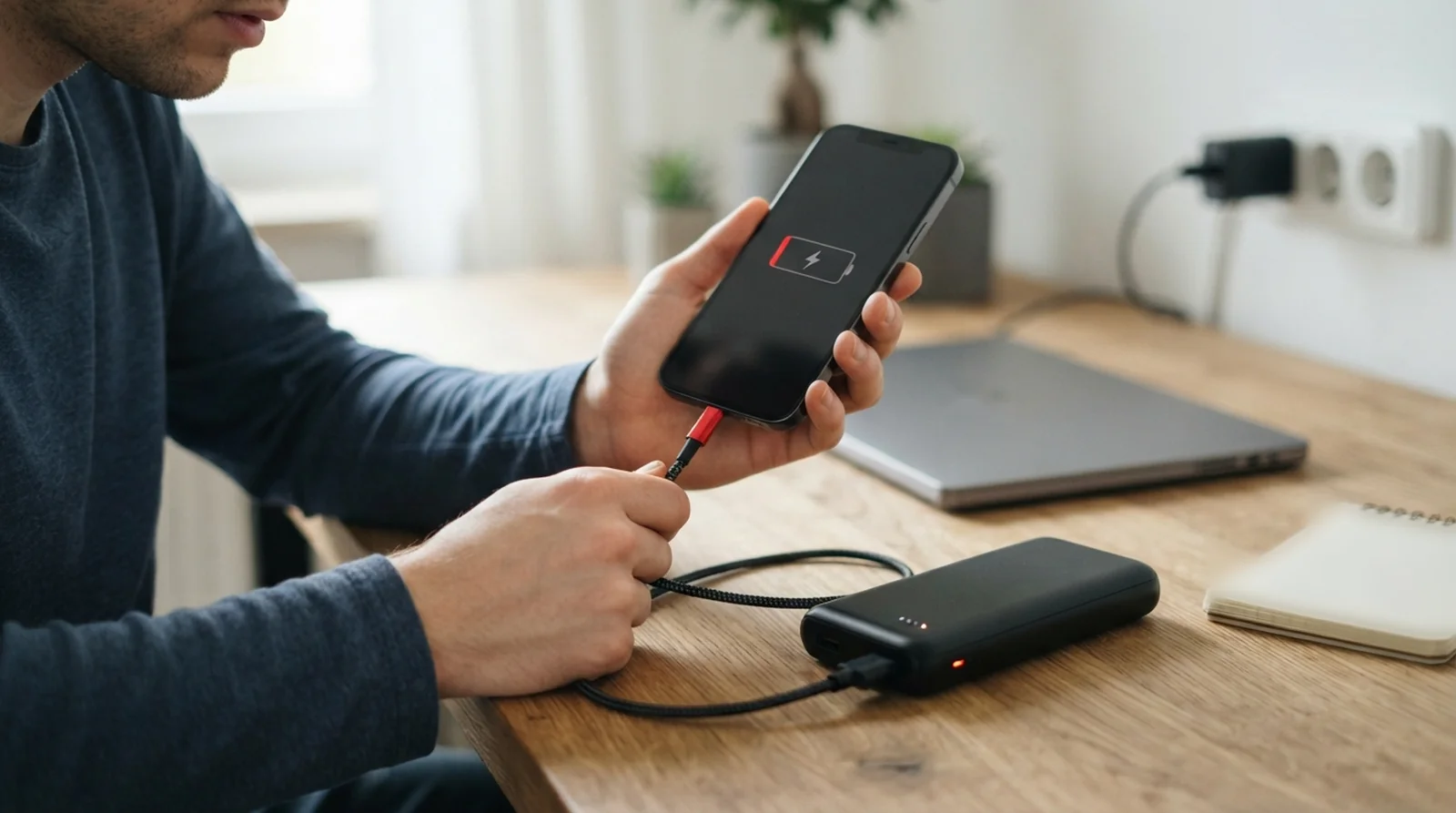
Your bank has lights, your phone is connected, and the battery percentage refuses to move. A power bank not charging phone batteries usually needs a cable or port change, a check of USB-C power direction, or relief from a charge limit or heat pause. Automatic shut-off and wireless alignment can interrupt charging too.
You might get a few seconds of power before charging stops, or find your phone stuck at 80%. Those symptoms call for different checks.
This guide covers wired and magnetic MagSafe or Qi2 banks for iPhone, Galaxy, and Pixel. Start with the quick checks, then work toward resets and replacement.
Power Bank Not Charging Phone Batteries? Check These Causes
A glowing indicator tells you the bank has detected something. It does not prove power is reaching your phone, so use the symptom to choose your starting point.
| What you see | Most likely cause | Fix to try first |
|---|---|---|
| Lights appear but your phone stays idle | Depleted bank or faulty cable | Fix 1 and Fix 2 |
| Charging stops after several seconds | Automatic shut-off or protection mode | Fix 7 and Fix 10 |
| The bank’s percentage rises instead | Your phone is supplying power | Fix 3 |
| Charging pauses at 80% | Phone charge limit or heat | Fix 5 and Fix 6 |
| Magnetic attachment works but charging does not | Coil position, case interference, or wireless compatibility | Fix 8 and Fix 9 |
| One phone charge nearly empties the bank | Expected conversion losses | See the capacity section below |
The fixes below start with the bank and cable, then cover power direction, phone controls, and wireless charging.
How to Fix a Power Bank That Won’t Charge Your Phone
Test one phone, cable, and port at a time so you can tell which change helps. Begin with checks that cost nothing.
Fix 1. Check the Power Bank’s Own Charge and Wake It Up
Disconnect everything, press the bank’s button, and check its indicators. A nearly empty bank can illuminate its display without delivering useful power, while some magnetic models refuse wireless output when low.
Recharge from a wall adapter, then reconnect your phone and press the button again. For Satechi’s OntheGo Qi2 5K, a 20W-or-higher adapter takes around two to three hours, with flashing white LEDs during charging.
That Satechi model shuts down after 35 idle seconds. Its LEDs also go dark after 14 seconds during normal operation, so disappearing lights alone do not mean charging stopped.
Fix 2. Swap the Cable and Try a Different Port
Try a cable that already charges another phone reliably. Pixel’s “Check charging accessory” notification and an iPhone warning about an unsupported or uncertified accessory both warrant checking the cable or charger.
Use a port labeled OUT or IN/OUT rather than an input-only connection. If your bank offers USB-A and USB-C outputs, test both, although USB-A-to-USB-C charging can be slower.
Fix 3. Make Sure Your Phone Isn’t Charging the Power Bank
USB-C connections can carry power in either direction. Apple says USB-C iPhones from the iPhone 15 onward can supply compatible small accessories with up to 4.5W.
MacRumors reported some iPhone 15 owners experiencing reversed charging with banks including the Anker PowerCore Slim 10K PD. Anker’s reported workaround was its USB-A output, though the suspected cause was unconfirmed.
On Android, open the USB notification and look for “USB controlled by.” Sony documents “This device” for receiving power and “Connected device” for supplying it under “No data transfer,” but labels and availability differ across brands.
Fix 4. Clean the Phone’s Charging Port
Packed lint can prevent a secure connection. For an iPhone, switch it off, remove cables, and brush loose debris outward using a dry, soft brush with nonmetallic bristles.
Avoid compressed air, cleaning liquids, bleach, and hydrogen peroxide. Follow our guide to clean the charging port safely, and gently check whether a proven cable loses contact when moved, which can indicate a connector fault.
Fix 5. Turn Off Your Phone’s 80% Charge Limit
An 80% stop can be deliberate. On iPhone 15 and later, open Settings > Battery > Charging Optimization and review “80% Limit,” “Optimized Battery Charging,” or “None”; older iPhones place the optimized option under Battery Health & Charging.
For a temporary override of optimized charging, hold its Lock Screen notification and select “Charge Now.” Our explanation of how Optimized Battery Charging works covers why that pause happens.
Galaxy’s Battery protection offers Maximum at 80%, Basic at 100% with charging restarting at 95%, and Adaptive for overnight charging. Pixel 6a and later offer “Limit to 80%” or “Adaptive Charging,” although a full charge is required every tenth cycle.
Fix 6. Let a Hot Phone or Power Bank Cool Down
A warm iPhone can pause charging, sometimes near 80%. On iOS 16 and later, “Charging On Hold” can appear on your Lock Screen or under Settings > Battery.
Pixel can restrict charging to roughly 70 to 80% after prolonged heat or several days connected. With “Protecting your battery” displayed, “Charge to full” or a restart can override that protection, though cooling comes first.
Move your phone and bank out of sunlight, remove the case, and lock the screen. Keep them outside closed bags and away from pillows, especially during wireless charging, which produces more heat.
Fix 7. Stop the Auto Shut-Off From Cutting Power Early
A bank may shut down when your phone’s power demand falls below its detection threshold. This commonly affects earbuds and other small accessories, but can happen as a phone approaches full.
Check your manual for low-current or trickle mode. Lumentac lists a 60mA minimum for its covered models, while Anker describes minimum demand around 30 to 90mA for its trickle mode.
On the Anker PowerCore Essential 20000, double-press until the first indicator glows green, then use USB-A. That mode ends after two hours; some other Anker models show a display dot instead.
Fix 8. Line Up a Magnetic Power Bank and Remove the Case
Let the magnets seat the bank against your phone rather than sliding it around. If charging works only in a particular position, coil alignment is likely involved.
Remove thick cases, wallets, metal plates, and ring stands before trying again. Keep cards and key fobs outside the space between charger and phone because Apple warns they can suffer damage.
An iPhone connected by cable uses wired power instead of MagSafe. Shared output can reduce speed too, with Satechi’s cited bank dropping wired and wireless output to 5W each when both operate.
Fix 9. Check That Your Phone Supports the Bank’s Wireless Standard
Pixel 10 and later, excluding 10a, support magnetic Qi2 charging, with Pixel 10 at 15W and Pixel 10 Pro XL reaching 25W. Older Qi 1.x chargers are limited to 5W on those phones, and Android Authority measured nearer 3W in some tests.
Google says Pixel 9a and earlier do not support MagSafe chargers, and several older Pixels lack wireless charging altogether. Check certification through the Wireless Power Consortium database, where Qi2 versions begin with 2, and see our slow Pixel charging fixes.
Compatible Qi Android phones without magnets may need a magnetic case or ring for attachment. Satechi lists iPhone 12 onward as directly compatible with its bank, while Apple’s iPhone Air MagSafe Battery delivers up to 12W.
Some Pixel owners reported Qi2 failures following the November 5, 2026 update, including “Connected but not charging.” Google had not commented, the update connection remained unproven, and those reports did not specifically identify power banks, so try wired charging meanwhile.
Fix 10. Reset the Power Bank
Anker documents a reset using one cable connected between a bank’s input and output for three to five seconds. For a compatible model, follow that with a complete recharge and discharge cycle.
Disconnect other devices before resetting, then test another phone. A Pixel 9 owner reported a bank entering protection mode, but the suggested charging-protocol explanation was a user guess, and resets do not resolve every reported pairing failure.
Fix 11. Restart the Phone and Run Its Charging Checks
Restart your phone to clear temporary charging-detection trouble. To force-restart an iPhone 8 or later, quickly press and release volume up, repeat with volume down, then keep the side button pressed until Apple’s logo appears.
For an unsupported-accessory warning, Apple’s charging guidance recommends a direct connection, debris removal, restarting, another cable or charger, and updating iOS. Skip intermediate adapters during that check.
Pixel 6 and later offer Charging diagnostics under Settings > Battery & charging. Google’s Pixel charging guide explains checks for temperature, moisture or debris, and incompatible accessories.
Where Each Phone Hides Its Charge Limit
A repeatable stop at the same percentage deserves a phone-side check before you replace the bank. Use the paths below to find the relevant control.
| Phone | Feature name | Menu path | What it does |
|---|---|---|---|
| iPhone 15 and later | Charging Optimization | Settings > Battery > Charging Optimization | Offers 80% Limit, Optimized Battery Charging, or None |
| iPhone 14 and earlier | Optimized Battery Charging | Settings > Battery > Battery Health & Charging | Delays charging beyond 80% during predicted long sessions |
| Galaxy with One UI 6.1 or later | Battery protection | Settings > Battery > Battery protection | Maximum stops at 80%, Basic allows 100%, Adaptive follows sleep habits |
| Pixel 6a and later | Charging optimization | Settings > Battery > Battery health, then Charging optimization | Offers Limit to 80% or Adaptive Charging |
| Supported Pixel heat protection | Automatic battery protection | Settings > Battery | Can restrict charging to around 70 to 80% |
Older Galaxy software used an 85% ceiling. If charging continues but remains slow, check our guide to Galaxy fast charging problems.
Why Your Power Bank Charges Your Phone Fewer Times Than Expected
One recharge can nearly empty a bank without indicating a fault. The advertised capacity describes its internal cells, while voltage conversion and electrical losses reduce delivered output.
| Stage | Example for a 10,000mAh bank |
|---|---|
| Internal cell rating | 10,000mAh at approximately 3.7V |
| Stored energy | About 37Wh |
| Converted to 5V before losses | Approximately 7,400mAh |
| Anker’s support calculation at 82% efficiency | Approximately 6,068mAh |
| Anker’s practical usable estimate | Around 6,000 to 6,500mAh |
Using those figures as a rough estimate, expect one complete recharge and some additional capacity for a 5,000mAh phone. Wireless charging loses more energy through heat, so use a cable when you need the bank to last longer.
If Your Power Bank Still Won’t Charge Your Phone
Cross-testing helps separate a bank fault from a phone fault. Before buying anything, try these final checks.
Test the Bank With Another Phone and the Phone With a Wall Charger
Connect another phone to the bank, then connect your phone to a reliable wall charger. If neither source charges your iPhone, follow our guide to an iPhone not charging at all.
A deeply depleted Pixel may remain unresponsive for 25 minutes, while Apple recommends 30 minutes before a force restart. Separately, 2026 owner reports described drained iPhone Air and iPhone 17 Pro-family phones ignoring USB-C, with one recovering after 10 to 15 minutes on a magnetic pack; Apple had not commented.
Know When the Power Bank Is Worn Out
Lithium battery banks age, and repeated unexplained cutouts deserve attention. One owner reported banks stopping at random despite apparently adequate charge, but that experience alone cannot diagnose yours.
If the bank repeatedly fails across phones or will not recharge, contact its maker. Request warranty support or after-sales testing rather than relying on its display alone.
Don’t Open or Tamper With the Battery
Do not open the casing or attempt screwdriver tricks suggested in forum discussions. A charging fault is a reason for service or replacement.
Stop using a bank that swells, smells burnt, or becomes abnormally hot. Arrange suitable battery recycling instead of continuing charging experiments.
How to Keep Your Power Bank Working
A reliable cable and suitable storage conditions reduce repeat problems. Build these checks into your routine before leaving home.
Carry a Short Known-Good Cable
Carry a short cable you have already tested with your phone and bank. Confirm that it charges reliably before depending on it away from home.
Use USB-C-to-USB-C when you need its supported charging speed. If your bank has USB-A output, a USB-A-to-USB-C cable provides a useful backup for power-direction trouble.
Recharge It With the Right Adapter
Match your wall adapter to the bank’s stated input requirements. Satechi’s 20W-or-higher recommendation applies to its cited 5K model, rather than every bank.
Recharge before a trip instead of trusting an old indicator reading. Check the bank again before packing it.
Keep It Cool and Out of Direct Sun
Keep both devices away from direct sunlight while charging. Heat can cause your phone to reduce or pause incoming power.
Avoid charging beneath a pillow or inside a closed bag. If wireless charging makes the phone warm, let it cool and try a cable.
Get Your Power Bank Charging Again
Start with charge level, cable, and output port, then check USB-C direction, charge limits, and temperature. For magnetic banks, check attachment and compatibility before resetting or cross-testing. If the bank still fails with several phones, contact the maker about testing or replacement so your next recharge is dependable.
FAQs
Your bank may have too little remaining power, a faulty cable, or the wrong port selected. Recharge it, press its button after connecting your phone, and test a reliable cable through an output port.
Automatic shut-off may cut power when your phone draws too little current, although protection mode or a poor connection can produce similar behavior. Check the cable first, then consult your bank’s manual for low-current mode or its reset procedure.
Yes, some USB-C pairings can make your phone supply power to the bank. This was reported with certain iPhone 15 and bank pairings, and using the bank’s USB-A output was Anker’s reported workaround for one affected model.
Your iPhone may be following a charge limit, delaying completion through Optimized Battery Charging, or responding to heat. Review the battery controls, use “Charge Now” when offered, and let a warm phone cool before retrying.
No, your Android phone needs compatible wireless charging, and magnetic attachment alone does not establish compatibility. Some supported phones require a magnetic case or ring, while Google says Pixel 9a and earlier do not work with MagSafe chargers.
Its advertised capacity is measured at the internal cell voltage, before conversion and other losses. Anker estimates around 6,000 to 6,500mAh of usable output, giving roughly one recharge with some capacity remaining for a 5,000mAh phone, while wireless charging adds heat losses.
