




Key Takeaways
- Start With Compatibility: For most buyers, a 15.6 to 16-inch IPS portable PC monitor at 1080p or 1200p provides useful extra workspace. Check your laptop’s USB-C port for DisplayPort Alt Mode or Thunderbolt before expecting one-cable video and power.
- Match Your Work: Choose a portable monitor by size, resolution, IPS or OLED, measured nits, gaming refresh rate, touch and pen support, power, stand and budget. Consider 2.5K for detail, 144Hz for gaming and pass-through charging for laptop power.
- Plan Around Limits: A bus-powered portable monitor drains your laptop battery and may dim when underpowered. M1 and M2 MacBook Air models need DisplayLink for two external screens; phones and consoles often need separate monitor power, so recheck compatibility and changing prices before buying.
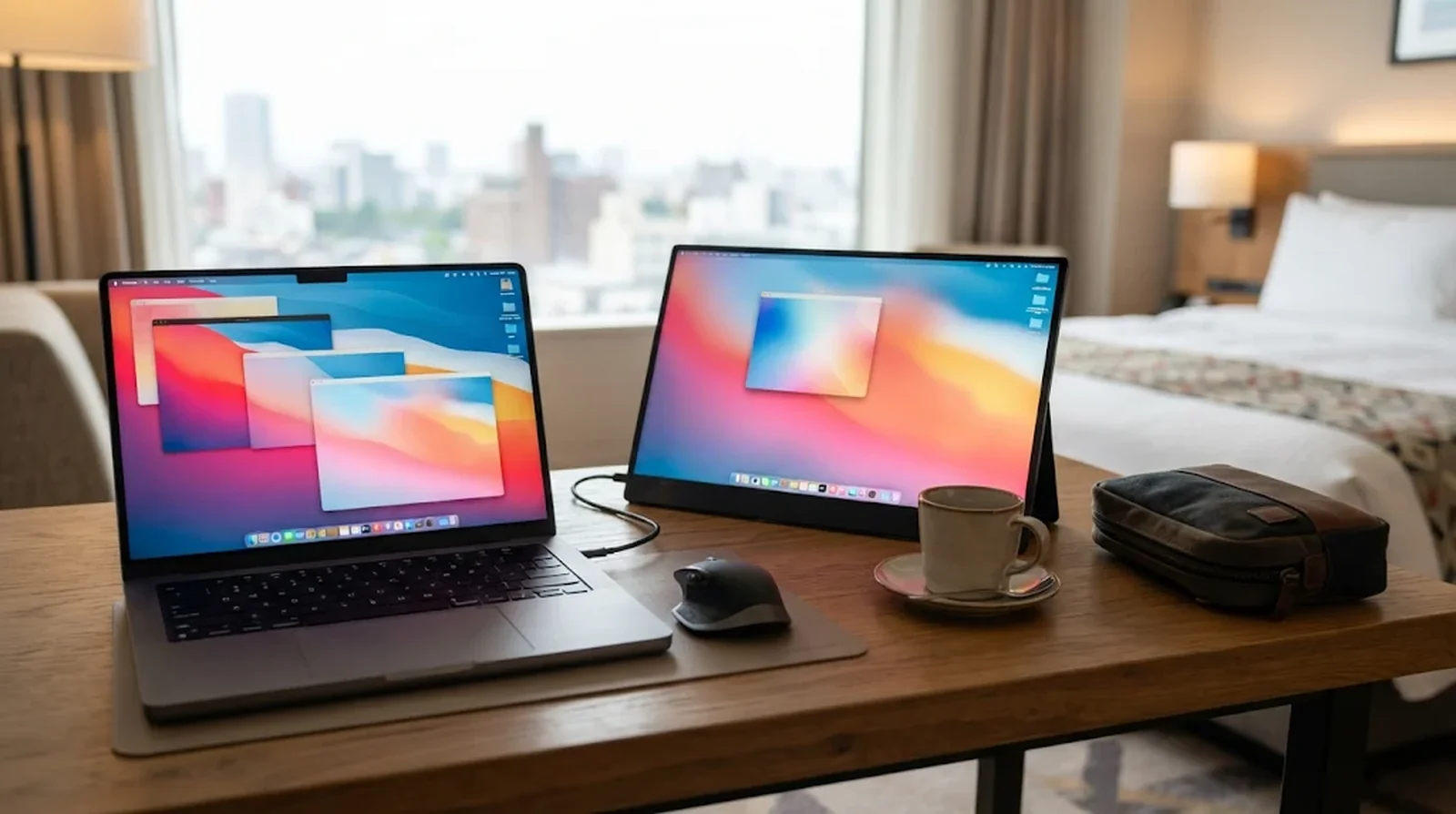
You’re at a hotel desk or coffee shop table, switching between windows because your laptop screen has no room left. For most people, the right portable PC monitor is a 15.6 to 16-inch IPS model at 1080p or 1200p that carries video and power over one USB-C cable, provided your laptop supports DisplayPort Alt Mode or Thunderbolt. Pay more when you need touch, OLED, 2.5K or 4K resolution, high-refresh gaming or pass-through charging.
Here’s the catch. Having a USB-C socket doesn’t guarantee that your laptop can send video through it. Even with a compatible connection, your chosen screen may need a separate power supply to run at the brightness you want.
Do you need the most expensive panel to get useful extra workspace? Usually, you don’t. Your money goes further when you choose around what you’ll actually do, whether that’s keeping a spreadsheet beside a document or playing on a larger screen.
We’ll cover Windows laptops, MacBooks, Chromebooks, desktop PCs, phones and consoles, including the connection limits and accessories you should check before buying. Prices listed reflect November 23, 2026, and can change, especially during Black Friday sales.
What a Portable Monitor Adds to Your Setup
A portable monitor gives you an external screen you can pack alongside your laptop. It is usually a thin, lightweight display measuring around 14 to 16 inches, rather than a standalone computer. Unlike a tablet, it needs a connected device to provide the content you see.
What can you do with that extra space? You can keep documents beside a spreadsheet, give a presentation or add a second display to your desktop PC. With compatible hardware, you can also use a portable monitor for your phone or gaming device, including a Steam Deck.
| Spec | Typical range | What it means for you |
|---|---|---|
| Screen size | Compact examples run from 13.3 to 18.5 inches, with larger office models available | You can choose a smaller travel companion or more room for your windows |
| Weight | Examples include the Dell P1425 panel at about 0.57 kg and the dual-screen ASUS MQ149CD at 1.07 kg | Check the complete carrying weight, including your stand, charger and cables |
| Internal battery | Most models do not include one | Your display needs power from your connected device or another supply |
| Support hardware | Integrated kickstands, folding covers and separate stands | Your monitor needs a stable position on the table, so its support matters too |
Here’s the thing. A portable display is useful because you can move your workspace, but screen size alone does not tell you whether it will fit. Check the monitor’s full dimensions against your bag and the space where you plan to use it.
Check Whether Your Computer Can Send Video Through USB-C
Your laptop has USB-C, so any USB-C portable monitor should work, right? Here’s the catch. The connector’s shape tells you where the cable fits, but you still need to check whether that port carries video.
Check Your Port in Under a Minute
For a native USB-C display connection, your computer needs DisplayPort Alternate Mode, often shortened to DP Alt Mode, or suitable Thunderbolt support. With compatible hardware and enough available power, your monitor can receive video, audio and electricity through the same cable.
A port limited to charging or USB data will not provide that native video signal. A USB 2.0 or SuperSpeed label alone does not confirm display support, so look for an explicit video capability rather than relying on the USB speed.
- Look for a DP symbol beside your laptop’s USB-C connector. A Thunderbolt lightning bolt is another useful indicator.
- Check your laptop’s specifications if the symbols are missing or unclear. Look for DisplayPort, DP Alt Mode or Thunderbolt, including labels such as MSI’s “USB 3.2 Gen2 Type-C/DP.”
- Check the monitor’s port labels too. ASUS distinguishes video-capable connections from DC-IN-only ports, which accept power without video.
On Windows, “Display connection might be limited” can mean your computer does not support DisplayPort output through the connected USB-C port. If you see “Use different USB port,” another port on your PC supports the required connection.
Understand Thunderbolt and USB4
Thunderbolt 4 certification requires support for video, data and power. Intel lists support for two 4K screens at 60 Hz or one 8K screen at 60 Hz through a single connection, although your computer’s own display limits still matter.
USB4 deserves a closer check. Its display capabilities can vary between laptops and docks, so confirm what your particular hardware supports rather than treating the USB4 name as a complete compatibility promise.
Choose a Cable That Supports Your Display
You see, the right ports cannot make an unsuitable cable carry your display signal. For high-resolution iPhone connections, Apple recommends a USB-C cable supporting USB 3.1 or later, while the cable included with an iPhone supports charging and USB 2 speeds.
Your Chromebook may flag this with “Cable may not support displays.” Use a cable specified for the intended display connection, and replace a damaged cable if video or charging cuts in and out.
Choose Another Connection When USB-C Video Is Missing
No compatible USB-C video output? You still have options. A monitor with HDMI or mini HDMI can accept video from your computer while a separate USB-C connection powers the screen.
DisplayLink is another route, but you need a monitor or adapter that actually uses DisplayLink hardware. These products can work through compatible USB 3.0 connections after you install the required driver, unlike native DP Alt Mode connections that do not require that driver.
| Connection | What you need | Works best for |
|---|---|---|
| USB-C with DP Alt Mode | Compatible video-capable ports, a suitable USB-C cable and enough power | A laptop setup that can run the display through one cable |
| Thunderbolt | A compatible monitor and cable connected to your computer’s Thunderbolt port | A computer with documented Thunderbolt display support |
| HDMI or mini HDMI | A matching video cable and separate USB-C monitor power | Older laptops, desktop PCs and consoles with HDMI output |
| DisplayLink | DisplayLink-compatible hardware, a suitable USB connection and the required driver | A computer whose available USB ports lack native video output |
| HDMI or DisplayPort into a USB-C-only monitor | An adapter cable supporting that signal direction, plus separate display power | A desktop PC without USB-C video output |
For your desktop PC, check its actual video outputs rather than assuming the motherboard’s USB-C port can drive a screen. HDMI and DisplayPort provide alternatives, but your monitor still needs electricity separately.
A USB-C-only display makes that desktop connection more demanding. Choose an adapter cable explicitly compatible with video traveling from your computer’s HDMI or DisplayPort output into the monitor’s USB-C input, and remember that the cable alone may not provide enough power to start the display.
How to Pick the Right Portable Monitor
Once you know how your computer will connect, work through these choices in order. Start with what fits your bag, then decide how much detail, contrast and color your work needs.
You can narrow the field fast when every upgrade has a purpose. A screen for spreadsheets does not need the same strengths as one you’ll use to edit photos or play games.
1. Choose a Screen Size Your Bag Can Hold
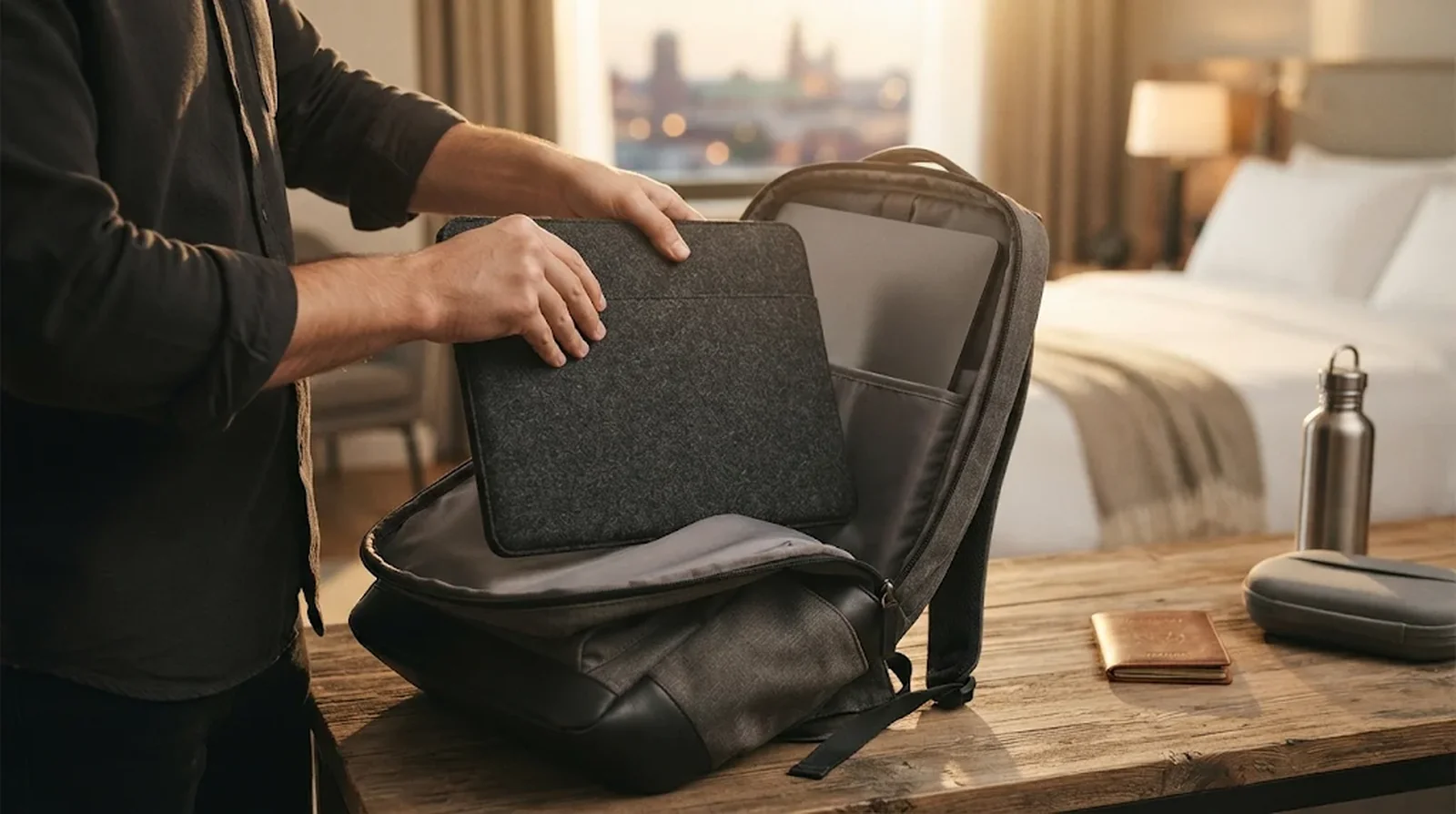
That inch measurement tells you the diagonal size of the display area, rather than the dimensions of the whole monitor. Check the complete measurements against your bag and available table space before ordering.
A smaller panel can reduce your carrying load. A 13.3-inch portable monitor will usually save you roughly a quarter to half a pound compared with a 15.6-inch model, though the exact products and their accessories matter.
| Model | Screen size | Carrying consideration |
|---|---|---|
| Dell P1425 | 14 inches | The panel weighs approximately 0.57 kg |
| HP Series 5 Pro 514pn | 14.3 inches | Its aluminum body weighs about 1.4 lb |
| Arzopa Z1FC | 16.1 inches | Listed weight is 1.72 lb |
| ASUS ZenScreen MB27ACF | 27 inches | Intended for movement between offices or rooms rather than typical laptop-bag travel |
Want more room without giving up your laptop bag? Many 15.6-inch portable displays fit bags intended for laptops of at least 14 inches, but check the measurements rather than assuming yours will. The larger display can also make small details in photos and videos easier to examine.
Choose the size you can comfortably carry and place beside your laptop. A larger panel earns its space when you use the extra room, while a smaller screen makes more sense when packing light matters most.
2. Choose a Resolution You Can Read Comfortably
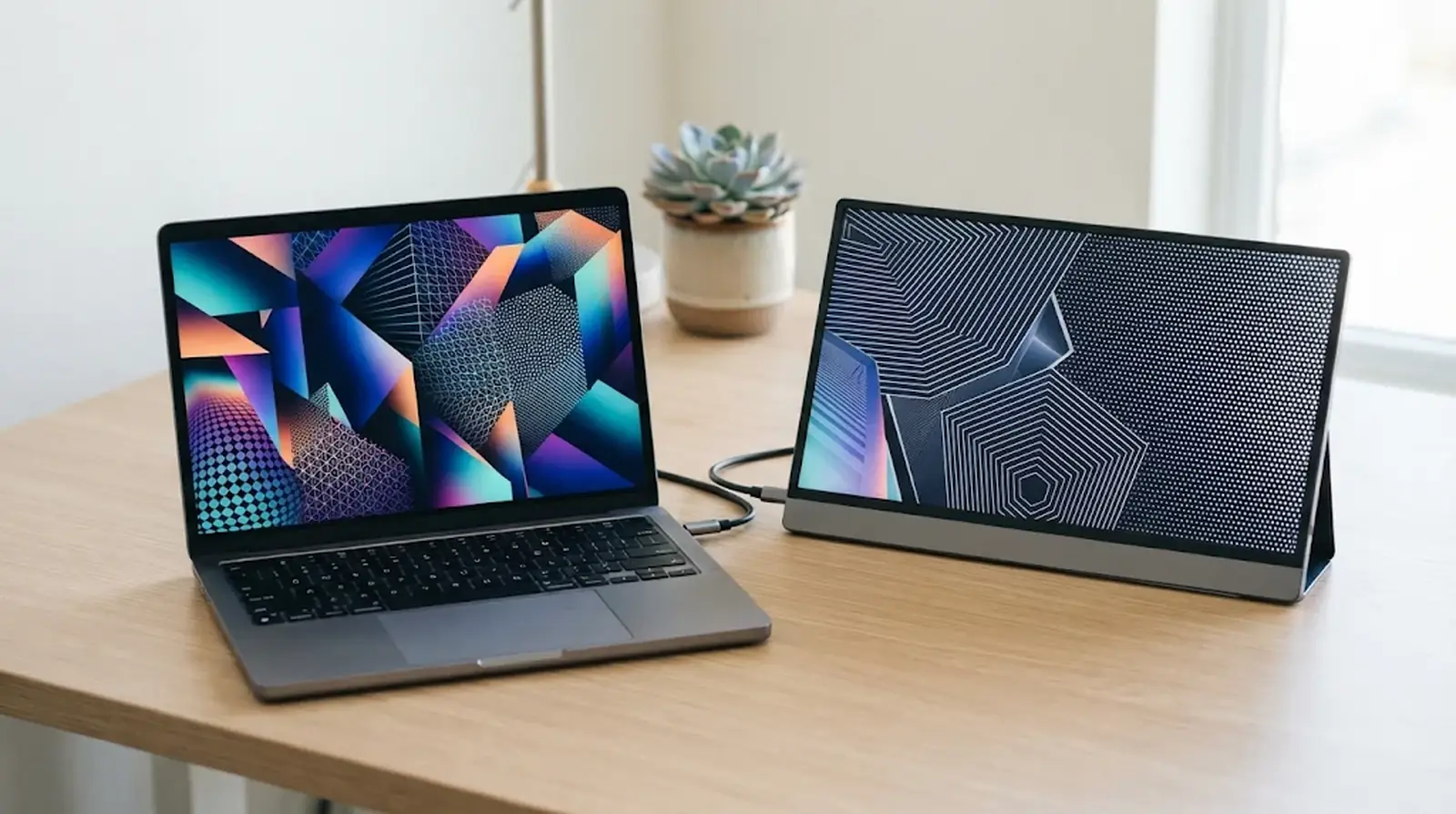
Resolution describes the pixel dimensions of your screen. More pixels can make text and fine detail sharper, but screen size affects how noticeable that difference becomes.
You see, Full HD is more useful on a small panel than its specification might suggest. A 15.6-inch 1080p monitor can look nearly as sharp as a 27-inch 4K display because its pixels occupy a much smaller area.
| Model | Native resolution | What you get |
|---|---|---|
| Arzopa A1 | 1920×1080 | A common starting point for everyday work |
| Lenovo ThinkVision M14t Gen 2 | 2240×1400 | More detail in a compact screen |
| Arzopa Z1RC | 2560×1600 | Additional resolution with a taller 16 by 10 format |
| espresso Pro 15 | 3840×2160 | 4K detail for high-resolution documents, images and video |
The screen’s proportions matter too. A 16 by 10 panel gives you more vertical room than a 16 by 9 panel, which helps when reading webpages or working through documents. Avoid unusually cheap models limited to 720p or 1366×768, where apps and pages can feel cramped.
Do you need 4K for email and spreadsheets? Usually, you don’t, and many buyers may find the added sharpness difficult to appreciate on a small display. Start with a readable everyday resolution and pay for extra detail when your work benefits from it.
3. Choose IPS or OLED for Your Work
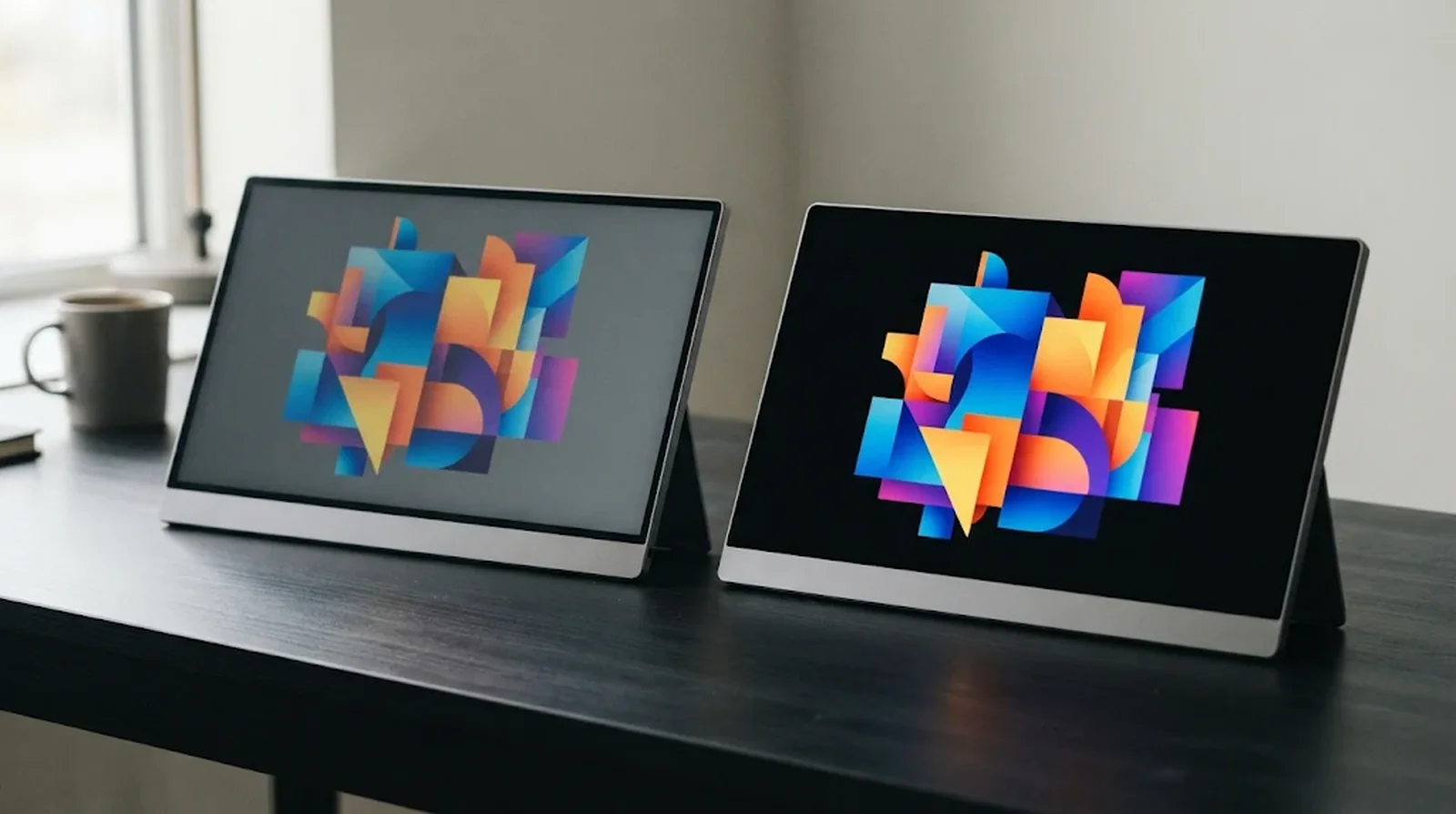
Most portable monitors use IPS LCD panels, while OLED gives you another option at a generally higher price. The main attraction is deeper blacks and stronger contrast, particularly when viewing dark content.
Here’s the thing. A good IPS panel can still suit demanding work, so OLED is not a requirement for a useful screen. The HP Series 5 Pro 514pn, for example, uses IPS Black and recorded a contrast ratio of 1710 to 1, although its black levels cannot match OLED.
Color capability deserves a separate check. Coverage of at least 95% sRGB is a useful target for general web work and entertainment, while 95% DCI-P3 or more gives you a wider color range. The ViewSonic VX1655-4K-OLED lists 100% DCI-P3 coverage, making it an option when that wider range matters.
That said, more colors do not automatically mean more accurate colors, and the espresso Pro 15 was reported to oversaturate sRGB content. For professional color work, look for accuracy measurements too, with Delta E of 2 or below as the preferred target. Choose IPS when it meets your work and budget, or pay for OLED when its contrast and black levels justify the cost to you.
4. Compare Brightness Claims With Measured Results
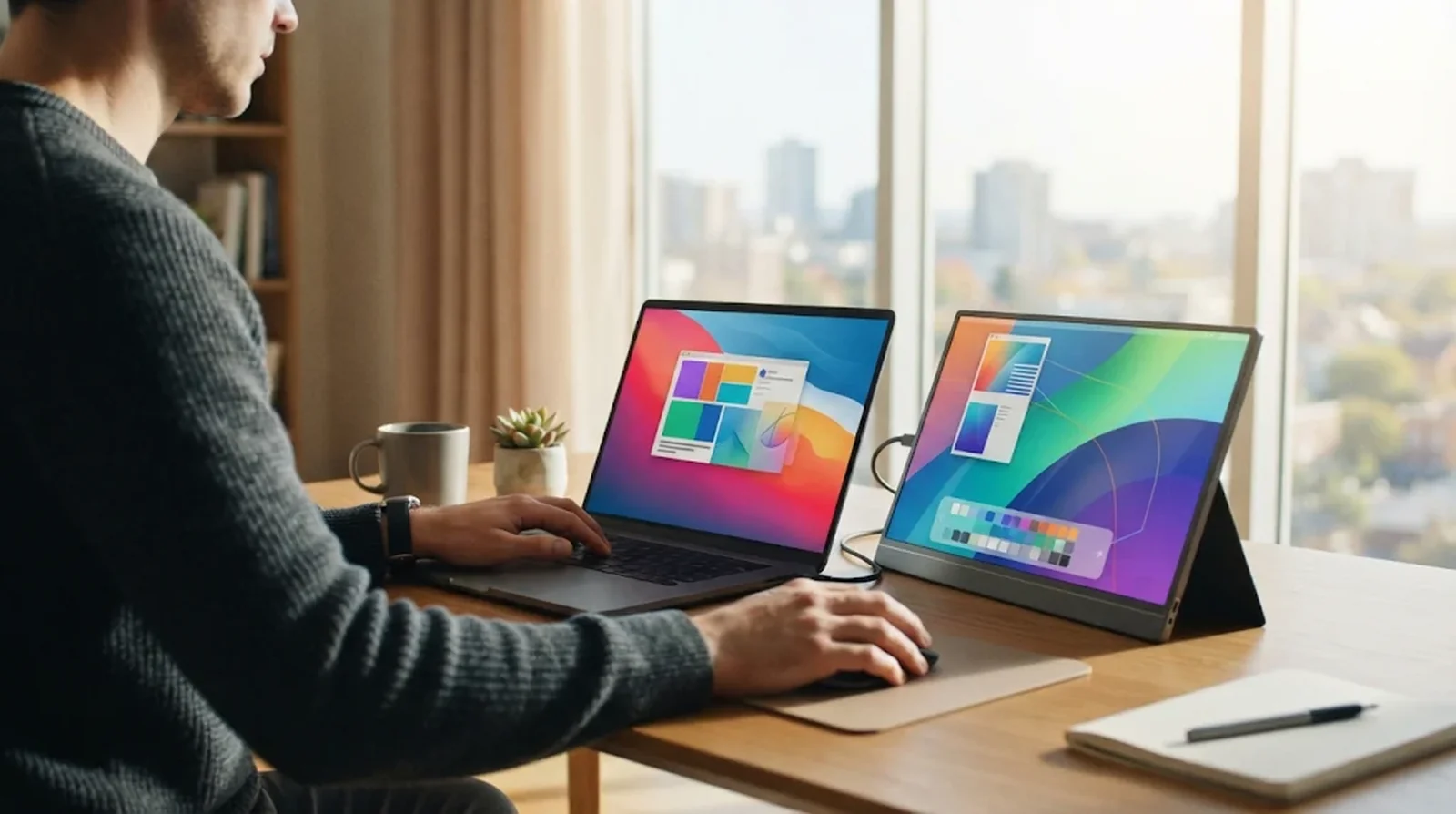
Brightness is listed in nits, but the advertised figure does not guarantee what you’ll see. Budget models commonly claim around 250 nits, while many business displays list 300 to 400 nits.
Here’s the catch. Your selected display mode can change the result, and measurements can differ between reviews. Compare the rated figure with reported readings rather than choosing the largest number on the product page.
| Model | Rated brightness | Reported brightness |
|---|---|---|
| ASUS ZenScreen OLED MQ16FC | 300 nits | 140 nits in Standard mode and 271 nits in User mode |
| espresso Pro 15 | 550 nits | 572 nits in one review |
| ViewSonic VX1655-4K-OLED | 400 nits | Separate reviews recorded 347 and 457 nits |
| UPERFECT BE16CU | 1,200 nits | Two reviewed units reached 890 and 1,053 nits |
Your surroundings matter too. A glossy panel can produce distracting reflections beside a sunny window, while a matte finish can make reflected light less troublesome. The Dell P1425 was reported to handle reflections better than the glossy Lenovo M14t Gen 2.
Choose brightness for where you’ll actually work, rather than treating the rating as a promise. Check the power requirements too, because some monitors, including the UPERFECT BE16CU, need an additional power connection to reach their maximum output.
5. Match Refresh Rate to Your Games
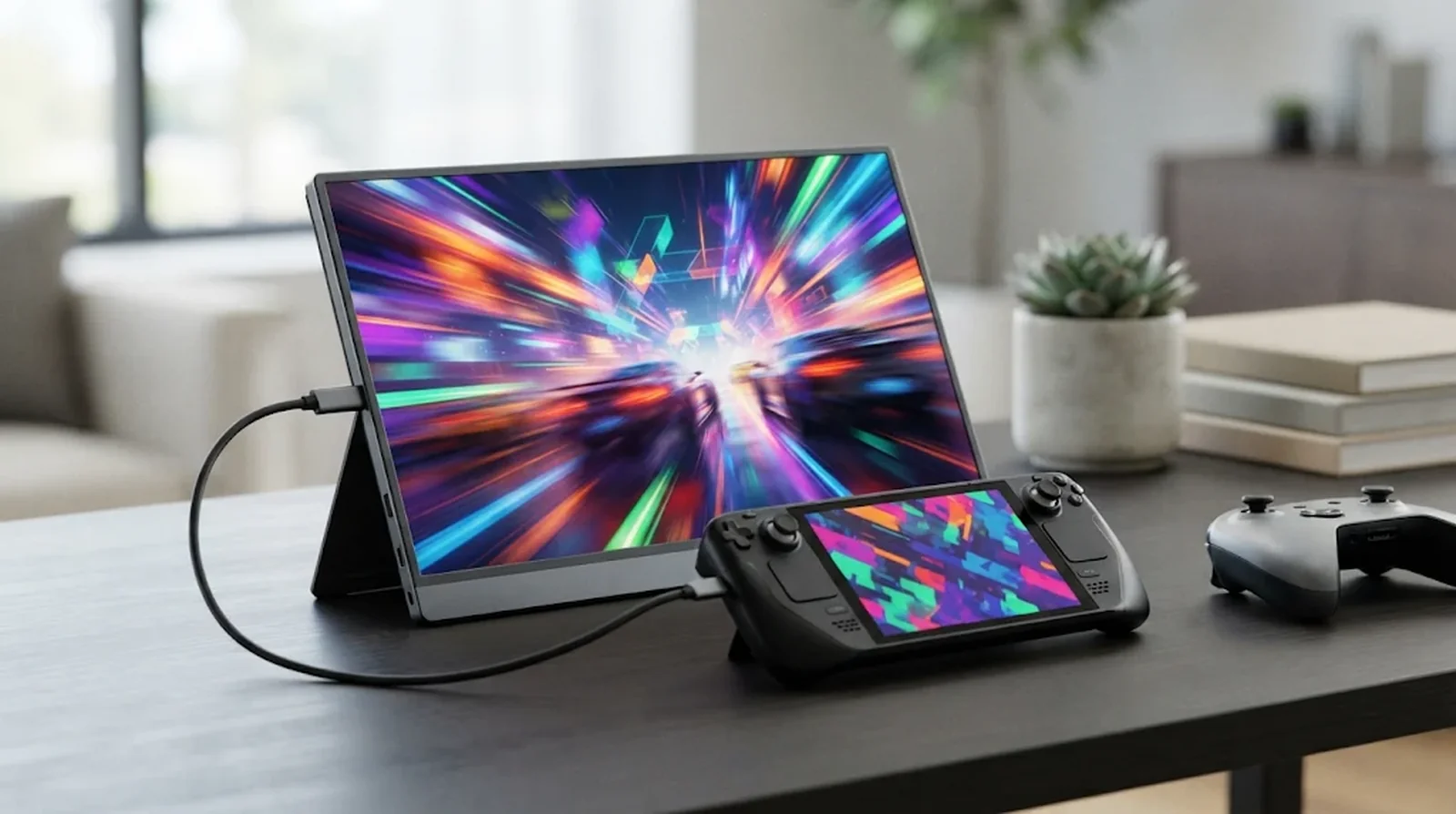
A higher refresh rate can make game motion look smoother, while 60 Hz remains common on office displays. If your second screen mainly holds documents and spreadsheets, you have less reason to pay for a gaming panel.
Want smoother play? Check the rate available through the connection you’ll use, because HDMI and USB-C can have different limits. Adaptive-Sync support is another separate detail, as a high refresh rate does not guarantee it.
| Model | Listed refresh capability | Gaming detail |
|---|---|---|
| ASUS ROG Strix XG16AHPE | 144 Hz | Adaptive-Sync and G-SYNC Compatible certification |
| Arzopa Z1FC | 144 Hz | No Adaptive-Sync support |
| Arzopa Z3FC | 180 Hz through DisplayPort, 144 Hz through HDMI | Your connection determines the available maximum |
| Nexigo NG17FGQ | Reported at 300 Hz through USB-C, 240 Hz through HDMI | The highest listed rate requires USB-C |
Refresh rate is only part of motion quality. Some portable panels show ghosting, with trails behind moving objects that are more troublesome in games than office work. OLED panels generally exhibit very little ghosting.
Choose a faster screen when gaming is a reason for buying it. Before paying extra, check your device’s output, the monitor’s supported rate through that input and whether adaptive refresh support matters to you.
6. Check Whether Touch or a Pen Helps You
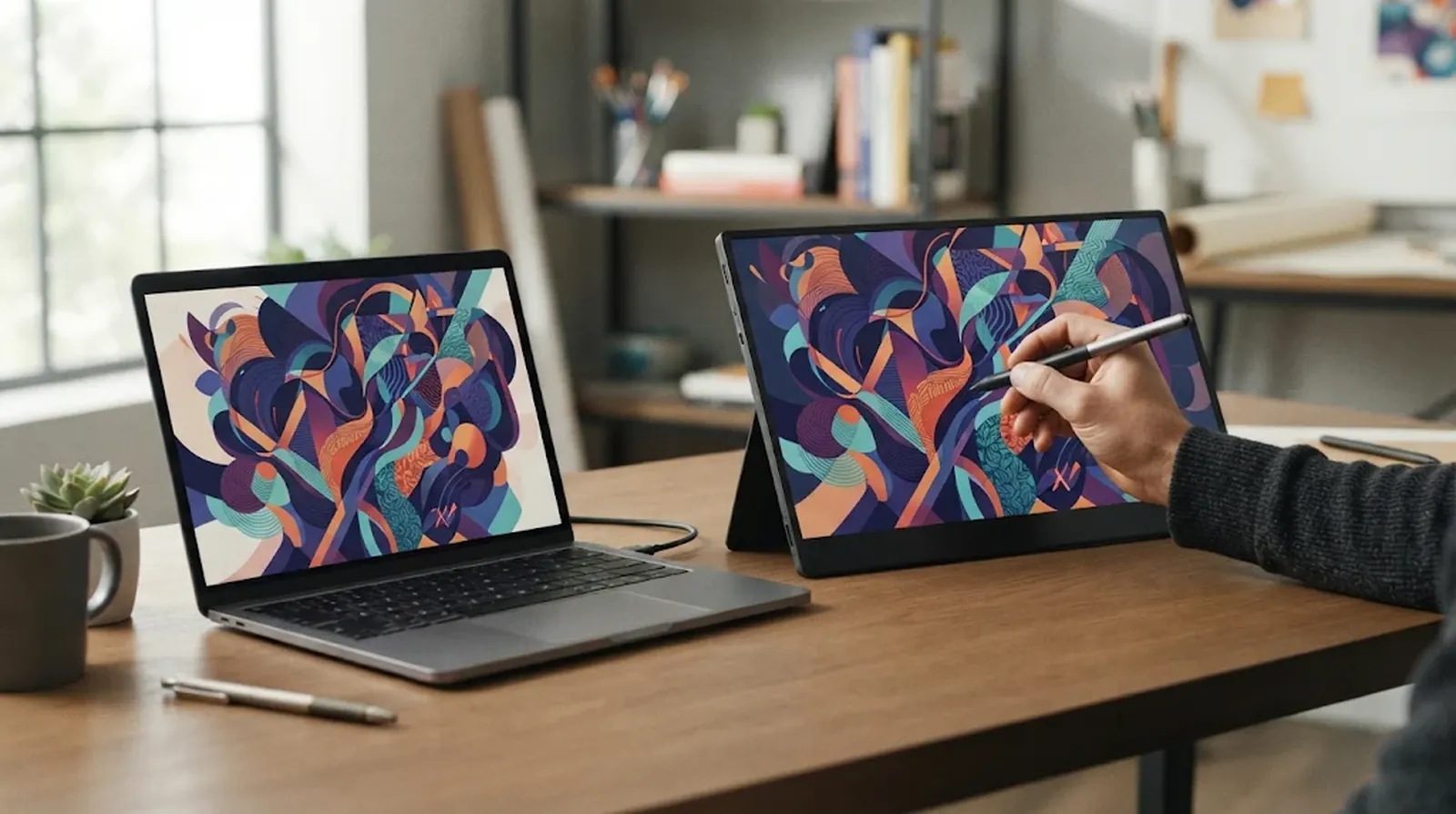
Touch lets you interact with your second screen without moving your mouse pointer across from the first. That can be useful, but you should check operating-system support before paying for it.
Pens deserve their own check. An included passive stylus and a pen with listed pressure sensitivity are different features, so do not assume that every touchscreen offers the same pen controls.
| Model | Touch support | Pen details |
|---|---|---|
| Lenovo ThinkVision M14t Gen 2 | 10-point touch | Included pen with 4,096 pressure levels listed |
| ViewSonic TD1656-2K | 10-point touch | Passive stylus included |
| espresso Pro 15 | Multi-touch | Pen sold separately |
| ASUS MB16AMT | 10-point touch | MPP 2.0 ASUS Pen with 4,096 pressure levels listed |
Your operating system matters as much as the touchscreen specification. The espresso Pro 15 supports touch on Windows and macOS, but you should confirm compatibility individually for other displays.
There’s a connection detail to remember too. ViewSonic says touch requires a USB connection, so HDMI alone will not carry your touch input. Pay for touch or pen support when you’ll use those controls, and include any separately sold pen in your budget.
7. Budget Enough Power for Both Devices
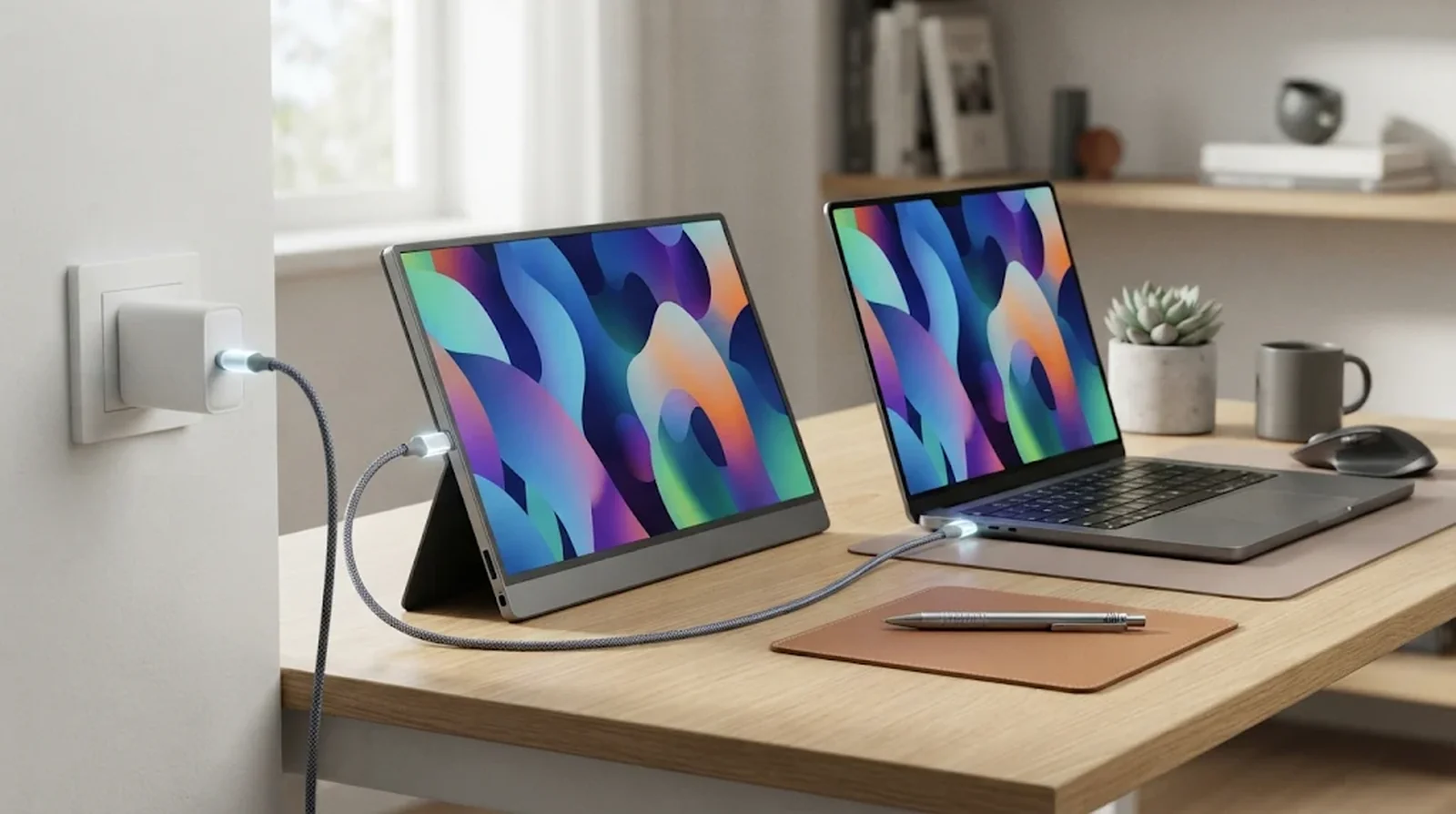
One cable sounds ideal until your laptop battery starts running down faster. When your computer powers the monitor, often called bus power, both devices draw from that battery. ViewSonic estimates roughly two to three hours of laptop-powered operation, but your actual runtime depends on your equipment and use.
Reducing brightness can help conserve your laptop’s battery. Check the monitor’s consumption too, because a basic LCD and a 4K OLED can place very different demands on your connection.
| Model | Listed power requirement | Pass-through charging |
|---|---|---|
| ASUS MB166CR | 5.24 W typical | No rating given here |
| Dell P1425 | 5.4 W typical, 7 W maximum | Up to 65 W |
| Arzopa Z1FC | 10 W | No rating given here |
| Arzopa Z1RC | 12 W | No rating given here |
| ViewSonic TD1656-2K | More than 10 W required to start | 65 W listed per USB-C port |
| ViewSonic VX1655-4K-OLED | 23 W typical | 60 W, with a 60 W adapter included |
Here’s the catch. Insufficient power can make your monitor dim or shut down rather than simply reduce your battery life. ViewSonic describes a low-power mode that fixes brightness at 15 and contrast at 70, preventing adjustment until you connect adequate external power.
Pass-through charging lets a suitable charger feed your monitor and laptop through the display. For the ASUS MB16NCG specifically, ASUS recommends at least a 30 W adapter, or one rated above 80 W to deliver the full 65 W to your laptop. Those figures are model-specific, so check your chosen monitor’s requirements. Use laptop power when it meets your needs, but bring a suitable charger for longer sessions or more demanding displays.
8. Examine the Stand, Mount and Protective Cover
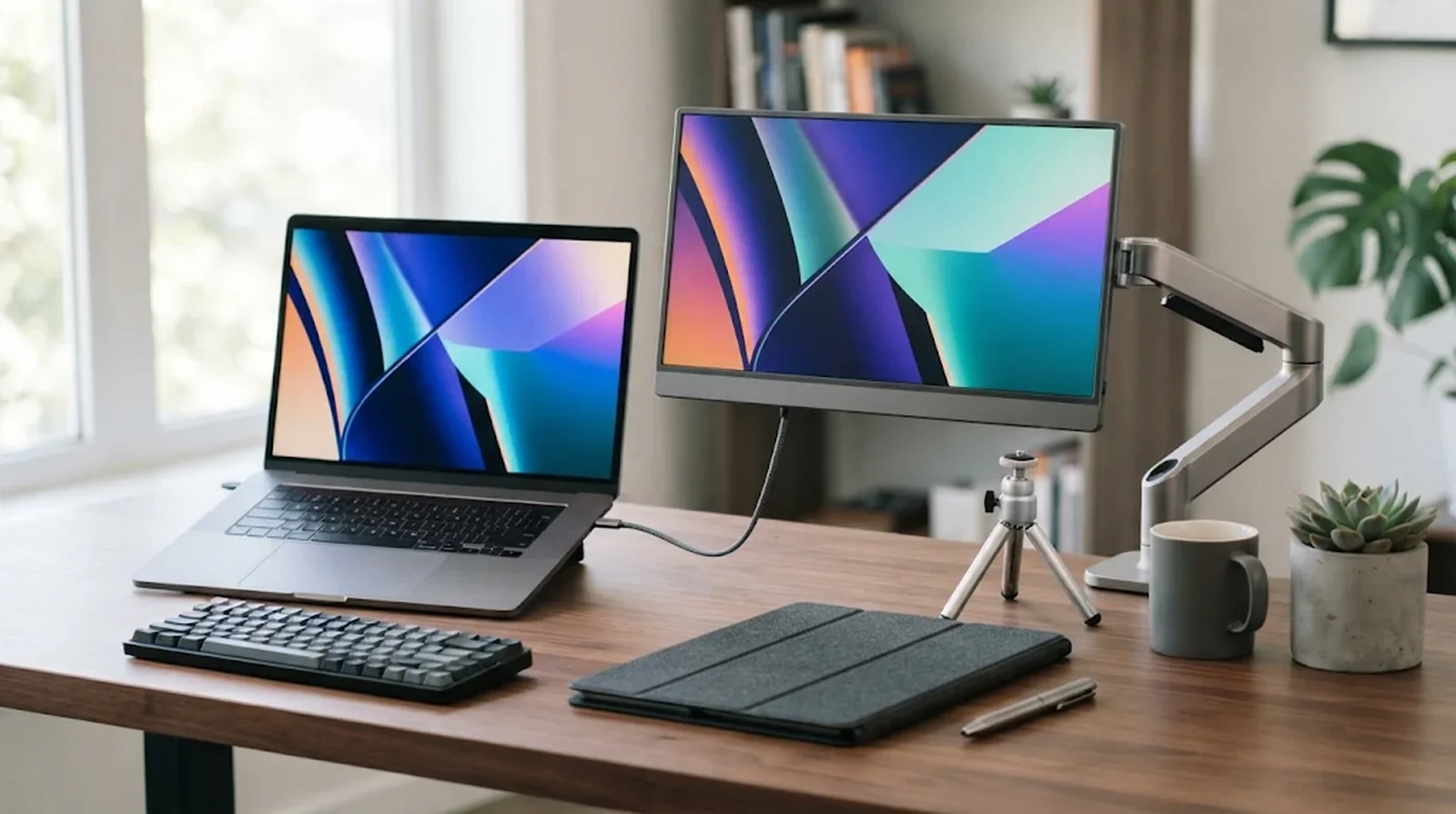
Your screen needs to stay upright wherever you put it. Built-in kickstands can be more practical than magnetic folding covers, whose stability and available angles vary. The ASUS MB166CR, for example, has a kickstand that rotates through 360 degrees.
Want more adjustment than a basic tilt? Check the actual movement available, along with any mounting socket. These details determine whether you can change the height or attach your screen to another support.
| Model | Stand adjustment | Mounting option |
|---|---|---|
| ASUS MB16ACV | Tilt from 15 to 35 degrees | Quarter-inch tripod socket |
| Lenovo ThinkVision M14t Gen 2 | Tilt from 0 to 90 degrees, pivot 90 degrees either way and 11 mm lift | VESA 100×100 |
| Dell P1425 | Tilt from 10 to 90 degrees | VESA 100×100 |
| ViewSonic TD1656-2K | Smart-cover stand that raises the screen up to 50 mm | VESA 100×100 |
Do not assume every portable monitor supports a VESA mount. The HP E14 G4 lacks that option, while the ASUS MQ149CD includes a tripod socket kit. Carrying weight deserves attention too, as the TD1656-2K goes from 0.8 kg without its stand to 1.3 kg with it.
Check what protects the panel when you pack it away. Sleeves are included with the ASUS MB16ACV, MB166CR and MQ149CD, as well as the HP E14 G4. Choose support hardware you can use comfortably and protection that suits how you carry the screen.
9. Spend According to the Features You Need
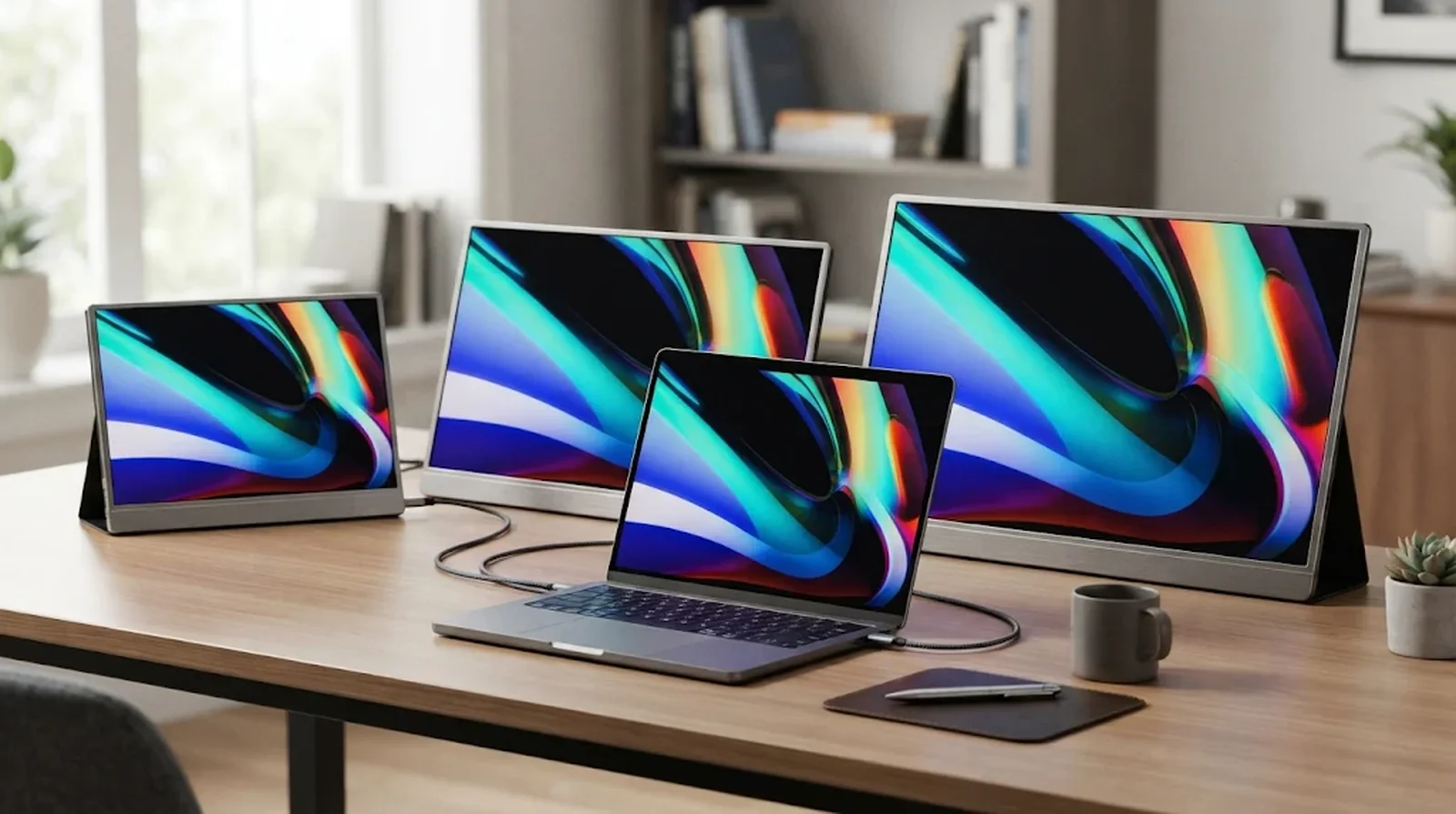
You do not need a premium budget to get useful extra workspace. That said, monitors below $150 can differ considerably in construction, color and overall display quality, so compare the complete product rather than the discount alone.
The prices below were listed on November 23, 2026, including Black Friday offers. Prices change, and a sale can move a model into a lower budget tier temporarily.
| Budget | What you get | Example models |
|---|---|---|
| Under $100 | Basic office displays, with some high-refresh options during sales | Arzopa A1 at $79.99 on sale, Arzopa Z1FC at $92.13 on sale |
| $100 to $199 | Higher-resolution options without a premium price | Arzopa Z1RC at $117.79 on sale |
| $200 to $349 | Options including lower-cost OLED panels and compact business touchscreens | ASUS MQ16FC listed between $218 and $280, Lenovo M14t Gen 2 at $329.99 |
| $350 to $499 | Larger touch workspaces and premium panels | ViewSonic TD1656-2K at $379.99 list, ViewSonic VX1655-4K-OLED listed at $499.99 |
| $500 and above | Premium options such as 4K touch displays | espresso Pro 15 at $699 |
Your total can differ from the monitor’s advertised price. The espresso Pro 15’s magnetic stand and pen are separate purchases, while other models include accessories you would otherwise need to buy. Check the box contents before deciding which offer costs less.
A lower price is useful only when the product is available and suits your setup. Check stock and return terms before ordering, particularly when buying from a less familiar brand. Spend more for a feature you will use, rather than assuming the most expensive screen is your best fit.
Check How Many Displays Your MacBook Supports
Your MacBook’s chip matters more than the portable monitor’s brand when you want several screens. Connecting one external display and running two separate external desktops are different requirements.
Here’s the catch. Extra ports on a hub do not automatically give your Mac extra display capacity. Check your exact MacBook and chip before buying a second portable screen or a two-panel add-on.
| Mac | External displays supported | Catch |
|---|---|---|
| MacBook Air with M1 or M2 | One through native display output | The M2 Air specification allows up to 6K at 60 Hz |
| MacBook Pro with base M1 or M2 | One through native display output | Do not apply this limit to the separate Pro or Max chip variants |
| MacBook Air with M3 | Two with the lid closed | Requires macOS Sonoma 14.3 or later, plus an external keyboard and mouse or trackpad |
| MacBook Pro with base M3 | Two with the lid closed | Requires macOS Sonoma 14.6 or later, plus external input devices |
| MacBook Air with M4 | Two external screens while the internal display remains available | Closing the lid does not add another external screen |
| MacBook Pro with M4 or M4 Pro | Two external screens while the internal display remains available | Closing the lid does not raise that limit |
| MacBook Air with M5 | Up to two external screens | Both can connect through one Thunderbolt port |
| MacBook Pro with base M5 | Two external screens while the internal display remains available | Closing the lid adds no capacity, and Apple advises connecting the highest-resolution screen first |
Use DisplayLink When Native Output Is Not Enough
If your base M1 or M2 MacBook needs more than its native allowance, compatible DisplayLink hardware offers a workaround. You need a DisplayLink adapter or dock and the DisplayLink Manager app, rather than an ordinary hub with extra video sockets.
An MST hub is a different product, so check what you’re buying. macOS does not support separate extended desktops through MST, meaning those connected screens display the same content. DisplayLink uses its own hardware and software route to provide additional displays.
Check Mac Adapters for Laptop Add-Ons
Some two-screen laptop accessories need an adapter even when your Mac supports several external displays. Xebec requires its DisplayLink-based Mac adapter for the Tri-Screen 3 on every Mac because of how the accessory connects its screens.
That adapter adds $59 to $99 to the purchase at the listed prices, which can change. Count both added panels when checking your setup, and confirm the accessory’s Mac requirements rather than assuming a one-cable connection removes them.
Use Your Portable Monitor With Phones, Tablets and Consoles
Your portable monitor may work with much more than a laptop, but compatibility depends on the device sending the video. A phone, tablet or console having USB-C does not establish that every display will work with it.
Plan the power connection as well as the video cable. Phones and consoles commonly need an outside supply for the monitor, so your working setup may involve more accessories than expected.
Check iPhone and iPad Support
Apple lists USB-C display support for iPhone 15 models, iPhone 16 except 16e, iPhone 17 except 17e, iPhone 18 Pro and iPhone Duo. Supported iPhones use DisplayPort output at up to 4K and 60 Hz. If you have an iPhone Air, check first rather than assuming that compatibility list includes it.
What appears on the bigger screen? Generally, you’ll see the same content as your iPhone, although some apps provide a separate second-screen experience. That is different from assuming every app will give you an independent desktop.
Check your cable before blaming the monitor. The cable bundled with an iPhone supports USB 2 speeds, while Apple recommends USB 3.1 or later for high-resolution display connections. For iPads, USB-C or Thunderbolt models may support an external display, and Stage Manager allows supported iPad Air and iPad Pro models to use screens up to 6K.
Confirm Samsung DeX and Android Compatibility
Samsung DeX can give you a desktop-style experience from a supported Galaxy device. Its listed cable-compatible range includes Galaxy S8 through S26, Note8 through Note20, Fold through Z Fold8 Ultra, Z Flip8, A90 5G and many recent Samsung tablets.
Check the exact model rather than relying on the Galaxy name. DeX isn’t available on the Z Flip7 FE or older Z Flip phones, and other Android phones may lack video output entirely. Samsung also supports starting DeX through a standard USB-C-to-HDMI adapter, though disconnecting the HDMI cable causes DeX to restart.
Connect Your Steam Deck Through DisplayPort Alt Mode
Steam Deck supports DisplayPort 1.4 Alt Mode through USB-C, with listed output reaching 8K at 60 Hz or 4K at 120 Hz. Those are output capabilities, so your portable monitor still needs to accept the resolution and refresh rate you choose.
Check how your selected display receives power before planning a one-cable setup. If the available connection cannot power the monitor adequately, you’ll need another power connection. Choose around the screen’s requirements rather than assuming video support covers electricity too.
Our Steam Deck charger guide covers which adapters keep the handheld powered, and if you are still picking a handheld, compare the ROG Xbox Ally X and Steam Deck OLED.
Bring the Required Switch 2 Dock and Power Adapter
For Nintendo Switch 2 TV output, plan around the Switch 2 dock, its NGN-01 AC adapter and an Ultra High Speed HDMI cable. An alternative dock power supply must provide at least 54 W. The original Switch HAC-002 adapter cannot power the Switch 2 dock.
Can you skip the dock and connect USB-C directly? Usually, no, according to BenQ’s compatibility guidance. A press report also identifies the bottom USB-C port as the video-capable connector, rather than the top port.
The espresso Pro 15 illustrates how accessories can add up. A reported Switch 2 setup required the dock plus an HDMI-to-USB-C cable and an extra USB-C power supply for the monitor.
You may have seen reports of the original Switch working directly with certain portable displays, including the KYY K3. Keep that exception separate from Switch 2 compatibility, and remember that Nintendo’s official original Switch TV instructions use the dock.
Use HDMI and Separate Power for PS5
For a portable monitor with HDMI input, connect your PS5 through the appropriate HDMI cable and power the screen separately. Espresso’s PS5 guidance specifically requires external monitor power.
A USB-C-only display needs more attention to the adapter. Espresso’s instructions call for an HDMI adapter, so confirm compatibility with the console-to-display connection before buying. Do not assume a cable intended to send video from a USB-C laptop into an HDMI screen will work in the opposite direction.
Decide Whether Two Extra Screens Are Worth Carrying
A triple-screen laptop accessory usually adds two panels, with your laptop supplying the third screen. That can give you more room for several windows, but it also means checking fit, display support and the complete carrying load.
You have two useful formats to consider. Attached laptop add-ons keep the extra screens with your computer, while folding, book-style monitors provide a separate two-panel display you can position on the desk.
Compare Laptop Add-Ons and Folding Displays
The Xebec Tri-Screen 3 suits you if you want an add-on designed to fit a supported laptop. The ViewSonic VG1457 and ASUS MQ149CD offer folding dual-screen formats, while the KYY X90E provides two larger additional panels.
| Model | Added screens | Details to check | Listed price |
|---|---|---|---|
| Xebec Tri-Screen 3 | Two 13.3-inch 1080p panels at 300 nits | Fits 13 to 18-inch laptops, requires compatible USB-C video and supports 60 W pass-through | $699 sale against $778 list |
| KYY X90E | Two 15.6-inch 1080p panels at 260 nits and 60 Hz | Reported single USB-C connection | $299 in a December 2025 report |
| ViewSonic VG1457 | Two 14-inch 1920×1200 panels at 60 Hz | USB-C dual-source support, 65 W Power Delivery and weight below 3 lb | Estimated street price of $349.99 |
| ASUS ZenScreen Duo OLED MQ149CD | Two 14-inch 1920×1200 OLED panels at 60 Hz | Two USB-C DP Alt Mode inputs, two mini HDMI inputs, 1.07 kg and an included power adapter | Confirm the current price before ordering |
Prices can change, and the KYY figure is historical rather than a confirmed November 23, 2026 offer. For the ASUS, the stated brightness is 400 nits in typical use, with a 500-nit HDR peak. Choose its OLED format because you want those panels, rather than assuming every dual-screen product offers comparable display quality.
Account for Weight, Power and Mac Display Limits
Two screens can make your portable setup considerably heavier and more demanding to power. As another example, the Minisforum MDSA156 weighs 3.3 lb, or 1.5 kg, and its reported maximum-brightness demand can reach 30 W. It may need a second power connection when your device cannot supply enough.
Your Mac must also support both added displays as separate screens. Refer back to its chip limit and the accessory’s connection method, including any DisplayLink requirement. An adapter can add cost and installation work even when the product advertises one USB-C cable.
Choose two extra panels when you have enough daily use for that workspace to justify carrying them. If your main need is simply another place for one document or spreadsheet, a single portable monitor may meet it with less equipment.
Portable Monitors Worth Buying Right Now
Your best portable monitor depends on what you need beside your main screen. These picks are grouped around everyday work, gaming, touch input, creative work and extra desktop space, so you can compare the options that suit your use.
The prices below were seen on November 23, 2026, during Black Friday sales, and will change. Some listings had no confirmed price, so check the seller, included accessories and availability before ordering.
| Pick | Best for | Key specs | Price seen |
|---|---|---|---|
| Arzopa A1 | A budget 15.6-inch second screen | 1080p IPS, 60 Hz, two USB-C ports, mini HDMI, speakers | $79.99 sale against $149.99 list |
| Arzopa Z1FC | Everyday work and lower-cost gaming | 16.1-inch 1080p IPS, 144 Hz, two USB-C ports, mini HDMI | $92.13 sale against $179.99 list |
| Arzopa Z1RC | A sharper everyday workspace | 16-inch 2560×1600 IPS, 60 Hz, integrated kickstand | $117.79 sale against $199.99 list, with a separate $111.79 Black Friday listing |
| Dell Pro 14 Plus P1425 | Compact business use | 14-inch 1920×1200 IPS, 400 nits rated, 60 Hz, 65 W pass-through | $307.99 through a Best Buy marketplace listing, unavailable at Dell Canada |
| Lenovo ThinkVision M14t Gen 2 | Touch and pen input | 14-inch 2240×1400 IPS, 10-point touch, included pen, 65 W pass-through | $329.99 at Best Buy |
| ViewSonic VX1655-4K-OLED | High-resolution creative work | 15.6-inch 4K OLED, 100% DCI-P3, two USB-C ports, mini HDMI | Approximately $500, including a $499.99 listing |
| ASUS ROG Strix XG16AHPE | Gaming with adaptive refresh | 15.6-inch 1080p, 144 Hz, Adaptive-Sync, G-SYNC Compatible, internal battery | No confirmed price |
| espresso Pro 15 | Premium 4K touch use | 15.6-inch 4K IPS, multi-touch, 550 nits rated, two USB-C ports | $699, with stand and pen sold separately |
| ViewSonic VG1457 | A folding dual-screen workspace | Two 14-inch 1920×1200 panels, 60 Hz, 65 W Power Delivery, under 3 lb | Estimated street price of $349.99 |
Best on a Tight Budget
If you mainly want another place for documents, webpages or chat, the Arzopa A1 is a sensible starting point. Its USB-C and mini HDMI connections give you alternatives for compatible laptops and HDMI devices. You also get an integrated kickstand and speakers.
Keep your expectations tied to its price. The A1 is rated at 250 nits, while one review measured 228 nits, so do not buy it expecting a particularly bright screen. Its sale price makes it worth considering for basic work, rather than as a substitute for a color-critical display.
Best for Everyday Work and Play
The Arzopa Z1FC gives you a larger Full HD screen with a 144 Hz refresh rate. That makes it useful when your second display needs to handle documents during the day and casual gaming afterward.
Here’s the catch. It lacks Adaptive-Sync, and its HDMI input uses the smaller mini HDMI connector. Brightness claims also conflict, with the official listing giving 300 nits and separate coverage claiming 500 nits, so do not assume the higher figure applies.
Best for Office Work
Choose the Arzopa Z1RC when you want more detail and vertical workspace without moving into premium pricing. Its 2560×1600 panel and integrated kickstand make it an option for documents, spreadsheets and webpages.
The brightness specification needs caution. Its main listing gives 350 nits, while page metadata gives 500 nits, and a review reported output below the advertised specification. Treat the higher claim cautiously rather than making it your reason to buy.
If carrying less matters more, the Dell P1425 offers a smaller business-oriented alternative. Its matte finish was reported to handle reflections well, and its stand, VESA support and pass-through charging give you useful desk options.
The Dell costs considerably more than the discounted Arzopa models. Its US price came from a marketplace listing, while Dell Canada showed it as unavailable, so check the actual seller and stock. You also give up touch input, which may matter if you were comparing it with the Lenovo.
Best for Touch and Pen Input
The Lenovo ThinkVision M14t Gen 2 suits you when you want touch controls and a pen in a compact display. Its included pen has 4,096 pressure levels listed, while the panel covers 100% sRGB.
That said, its glossy finish can make reflections troublesome. Despite a 300-nit rating, it was reported to suit dimmer rooms better than brightly lit spaces. Choose it for its input features and compact format, rather than expecting the strongest glare handling.
Best for Creative Work
The ViewSonic VX1655-4K-OLED gives you high resolution, deep OLED blacks and wide color coverage in a portable format. Its integrated stand and sturdy construction were also praised, making it worth considering when image quality matters to your work.
Budget for the power requirements as well as the panel. Typical consumption is listed at 23 W, and reviews noted a flimsy included cover and confusing on-screen controls. Brightness measurements also varied between reviews, so the advertised figure should not be treated as a guaranteed result.
Best for Gaming
The ASUS ROG Strix XG16AHPE makes sense when you want adaptive refresh support alongside a faster panel. Its Adaptive-Sync and G-SYNC Compatible features distinguish it from the cheaper Z1FC.
ASUS lists three hours of internal-battery operation, which you should treat as a stated figure rather than a promise for every session. Check your cable too, because the HDMI input is micro HDMI. With no confirmed price available here, compare the current total against the features you actually need.
Best Premium Pick
The espresso Pro 15 suits you when you want 4K resolution, touch support and a bright IPS panel together. Its touch functions support Windows and macOS, and one review measured 572 nits against its 550-nit rating.
The purchase price does not include everything. Its magnetic stand and pen cost extra, and the glossy panel can produce strong reflections near a sunny window. Reported sRGB oversaturation also means you should not assume its wide color range guarantees accurate output for every task.
Best for Two Extra Screens
The ViewSonic VG1457 is worth considering when one extra panel still leaves you switching between windows. Its book-style design provides two displays, with USB-C dual-source support and laptop charging among its listed features.
You still need to account for both screens when checking your computer’s display allowance. On a Mac, confirm how the product provides separate desktops rather than assuming any dual-screen connection will work. Its price is an estimated street figure, so verify the current offer before deciding whether two panels justify the extra equipment.
Set Up Your Portable Monitor on Windows, Mac and Chromebook
Once you have a compatible video connection and enough power, choose how you want to use the extra screen. You can add desktop space or show the same content on both displays.
Set Up Your Screen on Windows
Windows gives you controls for identifying your screens and choosing how they work together. Start there before assuming an unfamiliar desktop arrangement means something is wrong.
- Open Settings > System > Display.
- Select Identify to display a number on each screen.
- If your monitor is missing, open Multiple displays and select Detect.
- Press Win+P and choose the display mode you need.
| Mode | What it does |
|---|---|
| PC screen only | Uses your main PC screen |
| Duplicate | Shows the same content on both screens |
| Extend | Adds desktop space across your displays |
| Second screen only | Uses the external screen instead of your main PC screen |
Choose Extend when you want separate windows on each display. Duplicate suits situations where you want someone else to see the same content you’re viewing.
Arrange Your Displays on Mac
Your Mac setup starts with deciding whether the portable screen should provide extra workspace or repeat your main display. Check your MacBook’s external-display allowance first if you’re connecting several screens.
- Open System Settings > Displays.
- Select your portable display and choose whether to extend your desktop or show the same content on both screens.
- For an extended desktop, arrange the display positions to match where the screens sit on your desk.
If your connection uses DisplayLink hardware, install the required DisplayLink Manager app too. An ordinary MST hub cannot provide separate extended desktops on macOS, even if it has enough sockets for both monitors.
If your Mac still won’t show the portable screen, our guide on fixing a Mac that is not detecting an external monitor walks you through more checks.
Connect Your Chromebook Display
Your Chromebook has controls for showing the same content on both screens. You also have a keyboard shortcut for moving windows between displays.
- Open Settings > Device > Displays.
- Select Mirror Built-in Display when you want both screens to show the same content.
- Press Search + Alt + M to move a window between screens.
If ChromeOS displays “Cable may not support displays,” check the cable rather than repeatedly changing display options. Your USB-C cable needs sufficient capability for the connection.
Use Portrait Mode and Correct Flicker
Portrait support depends on your monitor, its stand and its software. Turning the panel physically and having the content rotate are separate parts of the setup.
- Check that your stand supports the upright position you want.
- Use the supported orientation controls for your model. Some ASUS displays use DisplayWidget Center or their on-screen menu.
- Check whether automatic rotation is supported. Dell and Lenovo list rotation features, while espresso supports automatic orientation changes on macOS.
- If duplicating your display causes flicker, check for a refresh-rate mismatch. Intel advises adjusting the external monitor’s refresh rate through Advanced display settings.
Do not assume every portable display rotates automatically. Confirm the feature for your model, and treat flicker as a separate problem from screen orientation. For flicker that keeps coming back, see why monitor flickering happens and how to fix it.
Fix No Signal, Unexpected Shutdowns and a Dim Screen
A blank or dim screen does not automatically mean your monitor is defective. Work through the connection and power checks in order so you can narrow down what needs attention.
Check the Video Connection
- Confirm your computer’s port supports video. Native USB-C display output requires DP Alt Mode or suitable Thunderbolt support, rather than a connection limited to charging or data.
- Check the cable. Use one suitable for your display connection, and replace it if video or charging works intermittently.
- Check the monitor’s USB-C port. On some ViewSonic models, including the VA1655 and VX1755, one connector accepts power without video.
- Select the correct input in the monitor’s on-screen menu. Match it to your HDMI or USB-C connection rather than assuming the monitor has selected the right input.
Restore Power and Find the Display
- Connect adequate external power if the monitor dims or keeps shutting down. ViewSonic describes a low-power state that holds brightness at 15 and contrast at 70 until sufficient power is connected.
- Ask Windows to check for the screen. Open Settings > System > Display > Multiple displays > Detect after confirming the physical connection.
Check Your Device and Try Another Connection
- Verify a desktop PC’s USB-C video capability. If that port cannot send video, use an appropriate HDMI or DisplayPort connection with separate monitor power, including a compatible adapter arrangement for a USB-C-only display.
- Check Switch 2 dock power if you see “Please use the provided AC adapter.” Use the NGN-01 adapter or a suitable alternative supplying at least 54 W, because the original Switch HAC-002 adapter cannot power the Switch 2 dock.
- Try the monitor with another compatible device and suitable power. If it works there, return to the original device’s port, cable and output requirements rather than assuming the display itself has failed.
How to Use a Portable Monitor Comfortably on the Road
Getting your screen connected is only part of a useful travel setup. You also need a comfortable viewing position, protection for the panel and enough power for the session.
Put Your Screen at a Comfortable Height
A portable monitor on its kickstand can sit low on the desk. A suitable riser or VESA arm can bring it closer to eye level, provided your display supports the mounting arrangement.
- Top Edge: Position the upper edge level with your eyes or a little lower.
- Screen Center: Aim for the center to sit around 15 to 20 degrees below your horizontal line of sight.
- Viewing Distance: Keep roughly 20 to 40 inches, or 50 to 100 cm, between your eyes and the screen.
- Side Angle: Keep the monitor within 35 degrees to either side of your forward view.
Here’s the thing. A stand that tilts does not necessarily let you raise the screen. Check height adjustment separately, especially if you expect to work for long periods. If an OLED screen tires your eyes, see what helps with OLED MacBook Pro eye strain.
Protect the Panel Inside Your Bag
Your laptop protects its display when you close the lid, but a portable monitor usually lacks that protection. Use a sleeve or cover to reduce scratching, and pack the screen where pressure will not bend it.
Airport screening needs a separate check. Do not assume a portable monitor follows exactly the same removal procedure as a laptop, since a monitor-specific requirement was not confirmed. Check the applicable airport guidance and follow screening staff instructions.
Plan Power Before You Settle In
Running the monitor from your laptop uses battery capacity that would otherwise power the computer alone. Lowering the display’s brightness can help, while a compatible external charger or power bank gives you another way to power the screen.
For longer sessions or a more demanding panel, bring a power supply that meets the monitor’s requirements. If you use pass-through charging, check how much power can reach your laptop after the display takes its share. Choose your charger around both devices rather than assuming the one-cable video connection covers every power need. If your power bank stops charging things on the road, these power bank fixes can help.
FAQs
Yes, if you want extra room for documents, spreadsheets or other windows while working away from your usual desk. A basic display can handle those tasks without premium gaming or OLED features. Check that its connection, dimensions and power requirements suit your laptop and bag.
Yes, when your connected computer can supply enough electricity for the display. Some models have an internal battery, and a compatible power bank can provide another option. Laptop-powered operation uses your computer’s battery, so runtime depends on your equipment and brightness.
Yes, you can use the desktop’s HDMI or DisplayPort output with a compatible monitor and separate display power. A USB-C-only screen needs an adapter cable that supports video traveling into its USB-C input. Do not assume an ordinary USB-C-to-HDMI cable works backward.
Compatible USB-C iPhones support external video, while supported Samsung devices can provide DeX. Other Android phones may lack display output, so check your exact model before buying. The monitor will often need separate power, and your cable must support the intended connection.
There is no single percentage that applies to every setup. Arzopa claims battery drain may be 10% to 25% faster, but does not explain how that estimate was measured. Your monitor’s consumption and brightness matter, and reducing brightness can help preserve runtime.
Apple lists one external display for the M2 MacBook Air through its built-in video output. Running two separate external desktops requires a workaround using compatible DisplayLink hardware and its software. An ordinary MST hub does not provide separate extended desktops on macOS.
Final Word
Start with your laptop’s port before choosing the screen. Confirm native video support through DP Alt Mode or Thunderbolt, or plan the appropriate alternative connection.
Then choose a size you can carry and a resolution that suits your work. Plan how you’ll power the display too, including whether you need a charger for longer sessions.
Before ordering, check the current price, stock and included accessories again. The listed prices reflect November 23, 2026, and can change, so choose the complete setup that gives you useful workspace at a cost you’re comfortable with.
