




Key Takeaways
- The Charger You Need: Your Steam Deck OLED or LCD uses a 45W USB-C Power Delivery charger with a fixed output of 15V at 3A. A higher-rated PD charger is safe and can power other gear while your Deck charges at the same speed.
- Chargers for Each Setup: For your Steam Deck, choose a genuine Valve adapter from iFixit, a 45W spare, a 65W charger with a 45W and 20W port split, a USB-C PD laptop charger, your dock’s supply, a PD power bank, a 12V PD car adapter, or an emergency phone charger.
- Charging and Battery Health: Low-power phone chargers, USB-A cables, shared ports, and docks can limit Steam Deck charging. If you see Slow Charger or the battery won’t charge, test Valve’s adapter directly and check the cable and outlet, then use the 80% Battery Charge Limit for long-term battery health.
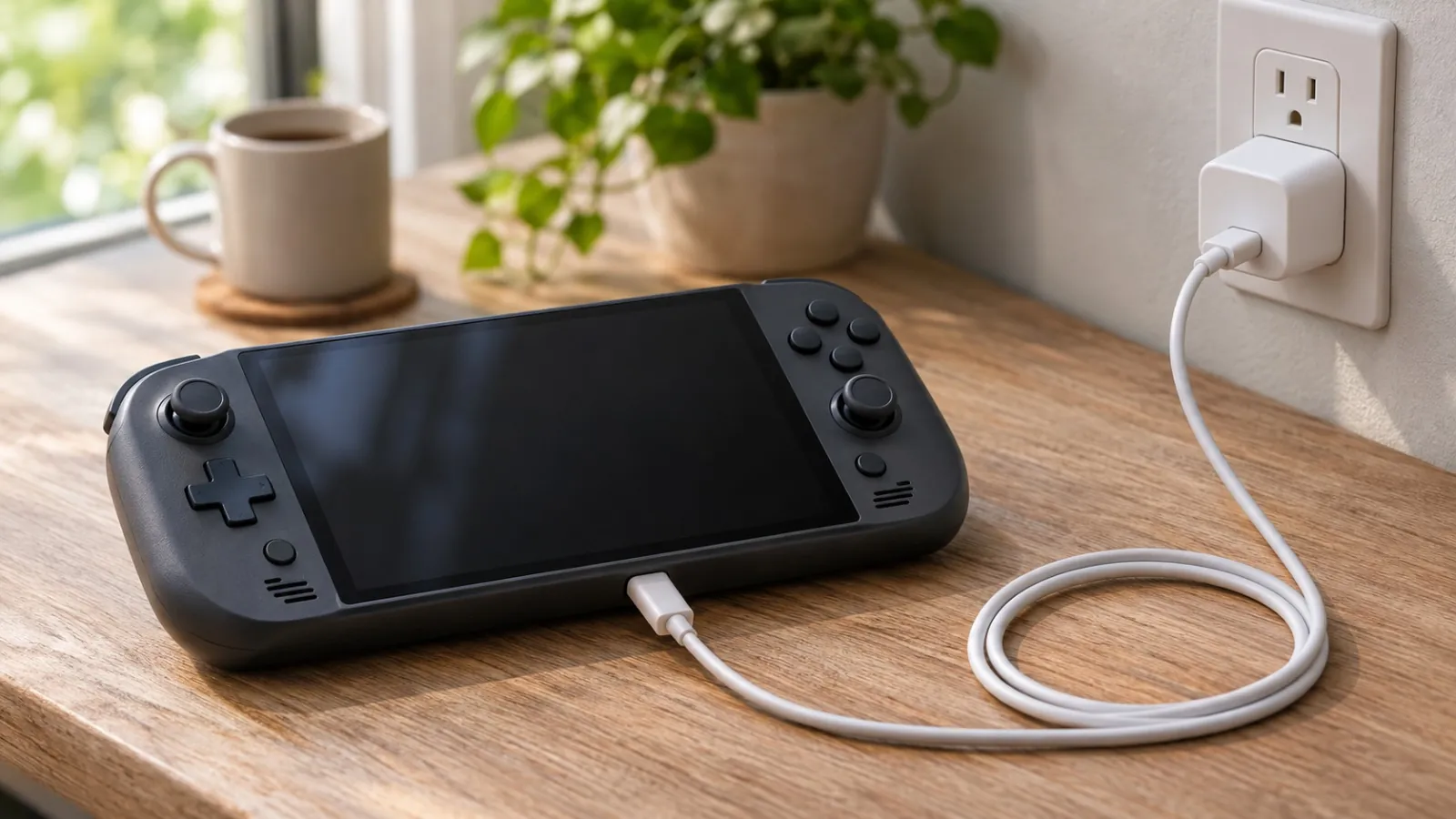
Your battery icon turns red halfway through a game, and the only adapter within reach is the one you use for your phone. Which Steam Deck charger should you grab? Use a USB-C Power Delivery (PD) adapter that delivers 45W at 15V and 3A, like the one Valve includes.
You can safely use a higher-wattage USB-C PD adapter, and your Deck will charge at the same speed as it does with a compatible 45W adapter. A low-power phone charger or a USB-A to USB-C cable may give you a slow top-up. Keep playing and the battery may still drain while you’re plugged in.
Here’s the catch. If your charger has several ports, the wattage on the brick tells you only so much. Plugging your phone into a second port can change how much power your Deck gets from the first one.
Start with what Valve puts in the box for the LCD and OLED models. Once you know what that adapter delivers, it’s easier to check a spare, pick a charger for your dock or travel bag, and figure out why your Deck is warning you about slow charging.
What Valve Includes With Your Steam Deck
Valve bundles a 45W USB-C PD 3.0 adapter with both models. If you’re buying a new Steam Deck, OLED is the current lineup because Valve has discontinued the LCD models. If you already own an LCD, the main difference you’ll notice at the outlet is the shorter cord. Still choosing a handheld? Our ROG Xbox Ally X vs Steam Deck OLED comparison lays out the trade offs.
| Charging spec | Steam Deck LCD | Steam Deck OLED |
|---|---|---|
| Bundled adapter | 45W USB-C PD 3.0 | 45W USB-C PD 3.0 |
| Attached cable length | 1.5 m | 2.5 m |
| Adapter logo | No logo | Logo added |
| Battery capacity | 40Wh | 50Wh |
The bundled adapter offers four outputs. You can get 3A at 5V, 9V, or 15V, and 2.25A at 20V. Your Deck selects the 15V option, and measurements with Valve’s adapter came in at about 39W to 41W.
Does the larger OLED battery take longer to top up? Valve says the revised battery chemistry can bring an OLED from 20% charge to 80% in just 45 minutes. In a separate test with the OLED asleep, one owner reached 100% in about 2 hours and 10 minutes.
How to Tell if a Charger Will Work With Your Steam Deck
Got a USB-C plug that fits? Check the adapter for USB Power Delivery and look for a fixed 15V output at 3A on the port you plan to use. That’s the profile that gives your Deck its rated 45W.
Check the Charging Protocol and Cable
USB-C tells you the shape of the plug. Power Delivery lets your charger and Deck agree on how much power to use. Your Deck uses a fixed voltage, so you can skip PPS, and Quick Charge or a phone maker’s own fast-charging mode won’t give you the PD profile you need.
For the cable, a USB-C to USB-C lead rated for 3A or 60W is enough. You’ll need a 5A e-marked cable for charging above 60W. If charging gets slow or cuts in and out, a damaged cable can be the cause even when your adapter has the right output.
Read the Wattage for the Port You’ll Use
How can a 100W charger work safely with a 45W Steam Deck? A USB-C PD charger starts at 5V and raises the voltage when your Deck requests a supported output. Your Deck draws what it can use, leaving any extra capacity for a shared setup.
Here’s where the port ratings matter. The Ugreen Nexode 200W, for example, lists two USB-C ports that can each supply up to 100W and two more that can each supply up to 65W. Output per port can drop when you plug in more devices, so check the published split for the ports you’ll use together.
| Charger wattage | What it means for your Steam Deck |
|---|---|
| Under 45W | With a compatible output, your Deck may charge slowly or lose battery during play. |
| 45W | A dedicated port with the required profile meets Valve’s rating for the Deck. |
| 65W | You have room to charge a phone too if the port split leaves 45W for your Deck. |
| 100W and up | The extra capacity can help when you share the charger with a laptop or several devices. |
Which Steam Deck Charger to Use for Every Setup
Did you lose the charger that came with your Deck, or do you just want one you can leave in your bag? Those are two different buys. Start with where you play and what else needs power at the same time.
Here’s the thing. You may already have a laptop charger that works, while a new charger with several ports can leave your Deck short on power when you plug in your phone. Check the output for the way you’ll actually use it.
1. Buy a Genuine Valve Replacement
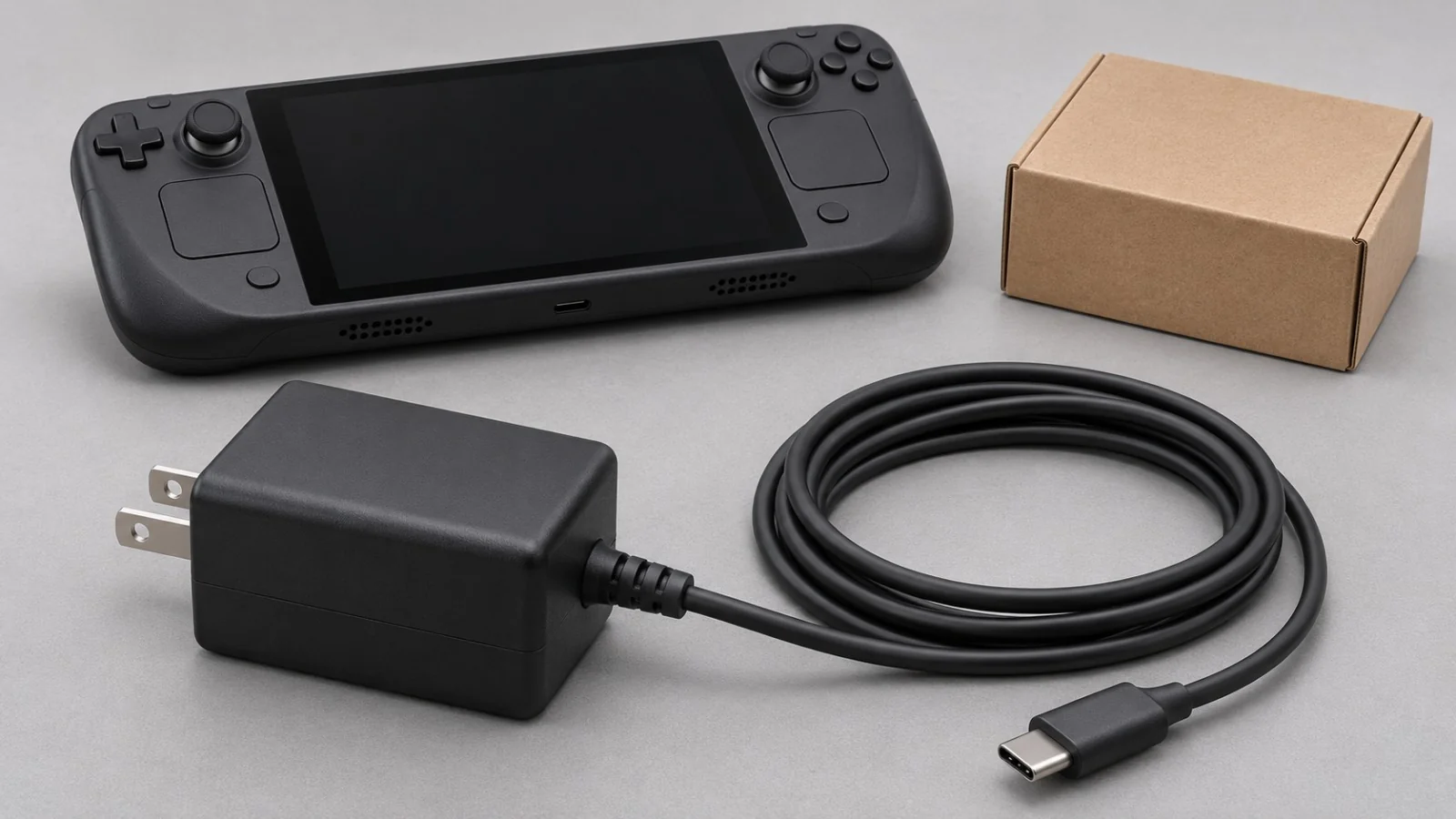
If your original adapter is lost or broken, you can get a genuine Valve replacement through iFixit. The US version lists for $34.99, works with both LCD and OLED models, and delivers 45W through an attached 96-inch cable, or 243 cm.
Check stock before you count on getting one. There are separate versions for the UK, EU, Australia, and Korea, so choose the plug that fits the outlets you’ll use.
How to Set It Up
- Find the genuine Valve adapter in iFixit’s Steam Deck parts catalog.
- Choose the version for your outlets and check whether it’s available.
- Plug the adapter into the wall and connect its attached cable directly to your Deck.
2. Pick a 45W Wall Adapter as a Spare
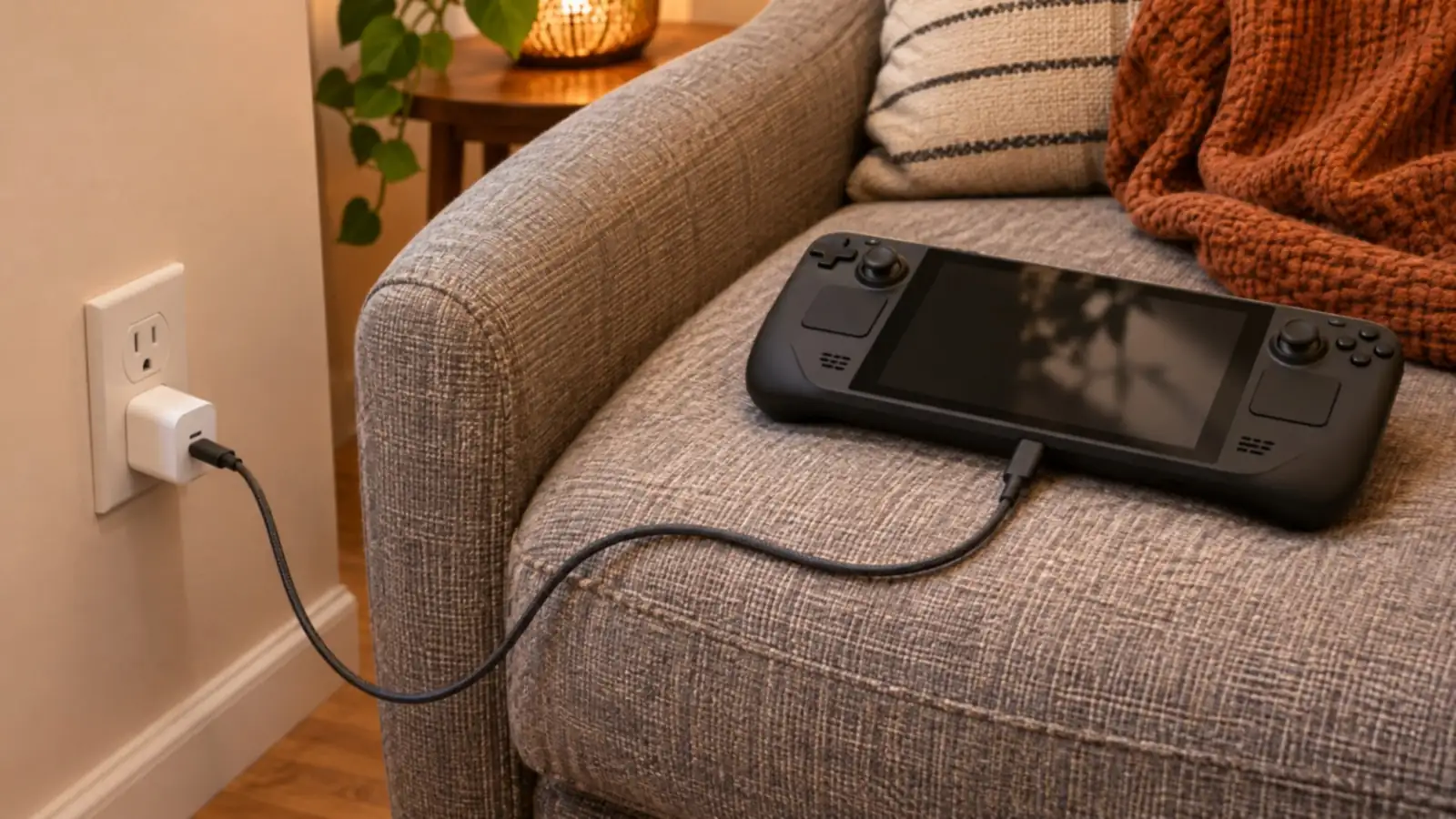
Want a second charger you can leave at your desk or keep in your bag? A 45W USB-C PD wall adapter can do the job if its output label lists 15V at 3A. A compact GaN adapter is an option if you want a smaller brick.
Check whether the cable comes attached. The JSAUX 45W USB-C PD wall adapter, for example, comes with a fixed lead in 5-foot or 10-foot versions. If you pick an adapter with a detachable cable, bring a USB-C to USB-C lead rated for 3A or 60W so the cable can carry the power your Deck needs.
How to Set It Up
- Check the adapter’s label or manual for USB-C PD and an output of 15V at 3A.
- If the adapter has several ports, confirm that the one you’ll use offers that output.
- Attach a 3A or 60W USB-C to USB-C cable if the charger has no built-in lead.
- Plug the charger into the wall and connect your Deck to the port you checked.
3. Split a 65W Charger Between Your Deck and Phone
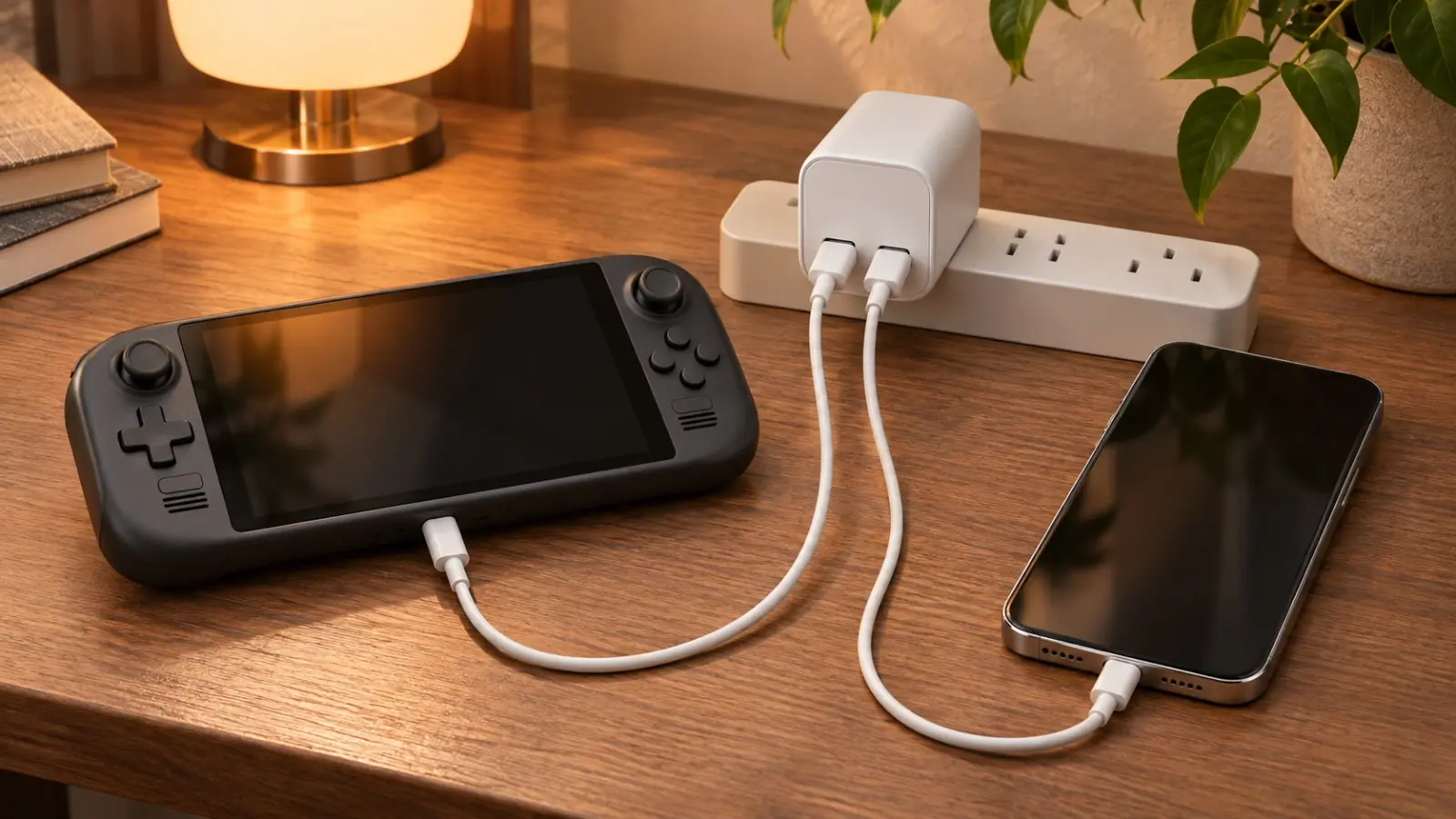
Can one 65W brick power both? Yes, if its published two-device split leaves 45W for your Deck and 20W for your phone. Those extra watts give your phone a share while your Deck charges at its usual rate.
Here’s the catch. A third device can reduce the output on the Deck’s port, and using a different pair of ports can change the split again. These published examples show how much the choice of ports matters.
| Charger | Outputs in use | Published split |
|---|---|---|
| Anker 735 Nano II 65W | USB-C1 and USB-C2 | 45W on C1 and 20W on C2 |
| Anker 735 Nano II 65W | All three ports | 40W, 12W, and 12W |
| HAVIT UC253 65W | Built-in USB-C cable and separate USB-C port | 45W on the cable and 20W on the port |
| HAVIT UC253 65W | Separate USB-C and USB-A ports | 17W shared |
How to Set It Up
- Find the output chart for the exact charger you’ll use.
- Look up the two outputs you plan to use together.
- Connect your Deck to the output that keeps 45W available at 15V and 3A.
- Plug your phone into the other output in the same row.
- Check the three-device split before adding anything else.
4. Check the USB-C Charger You Use for Your Laptop
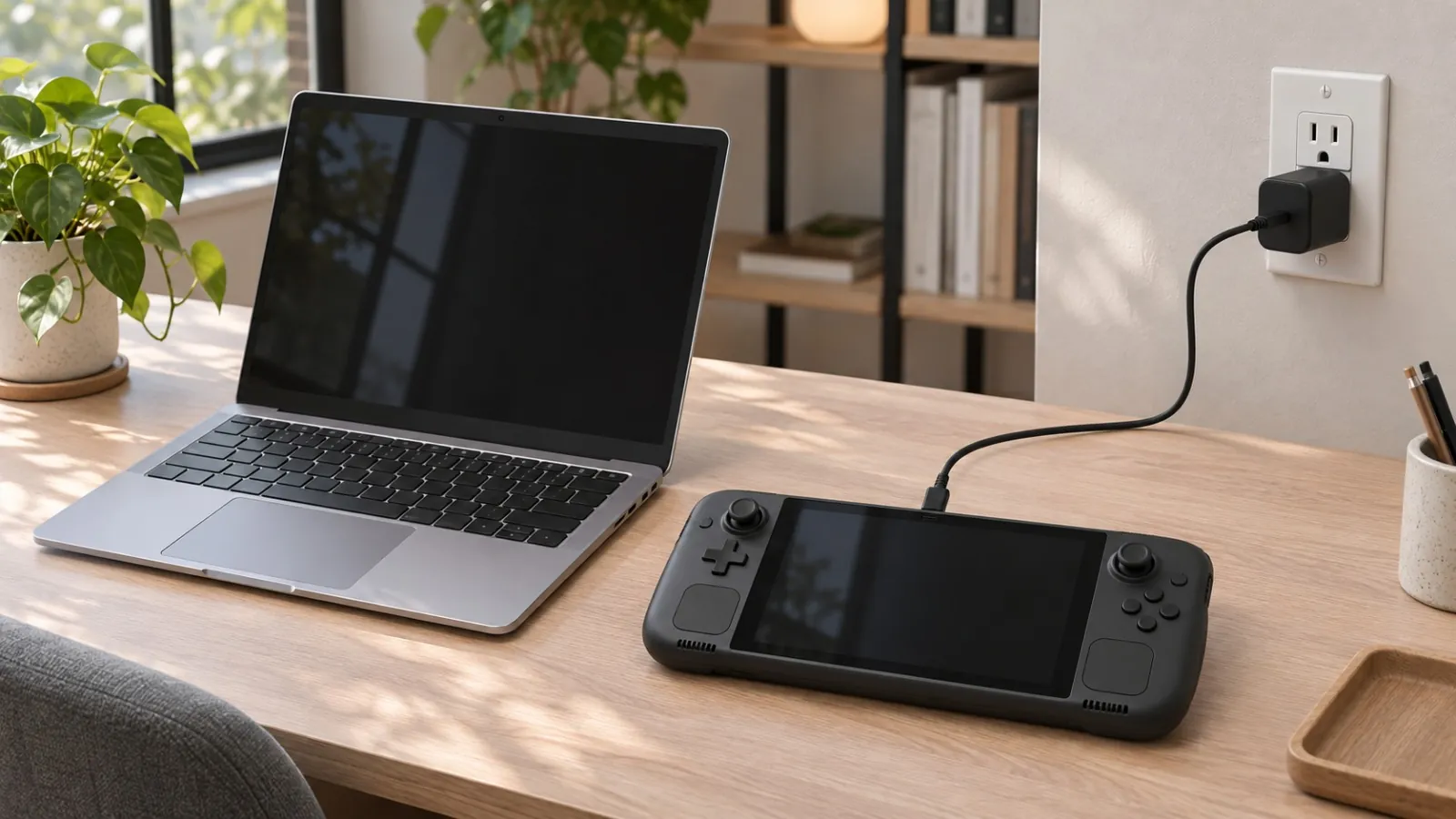
Already carrying a USB-C laptop charger? A 65W to 140W USB-C PD adapter can charge your Deck if it offers the fixed 15V output at 3A. Your Deck requests the power it can use, so the laptop charger’s higher rating leaves the Deck’s charging speed unchanged.
Read the output list on the brick before you pack it. If the lead detaches, check that your cable is rated for at least 3A. A round barrel connector or a USB-A output can’t provide the USB-C PD connection your Deck uses. The same checks apply to other handhelds, like the two in our ROG Xbox Ally X20 vs Ally X comparison.
How to Set It Up
- Confirm that your laptop charger has a USB-C Power Delivery output.
- Check the output list for 15V at 3A.
- If the cable detaches, connect a USB-C to USB-C lead rated for at least 3A.
- Plug your Deck into the charger directly and check that charging starts.
5. Match Your Power Supply to Your Dock
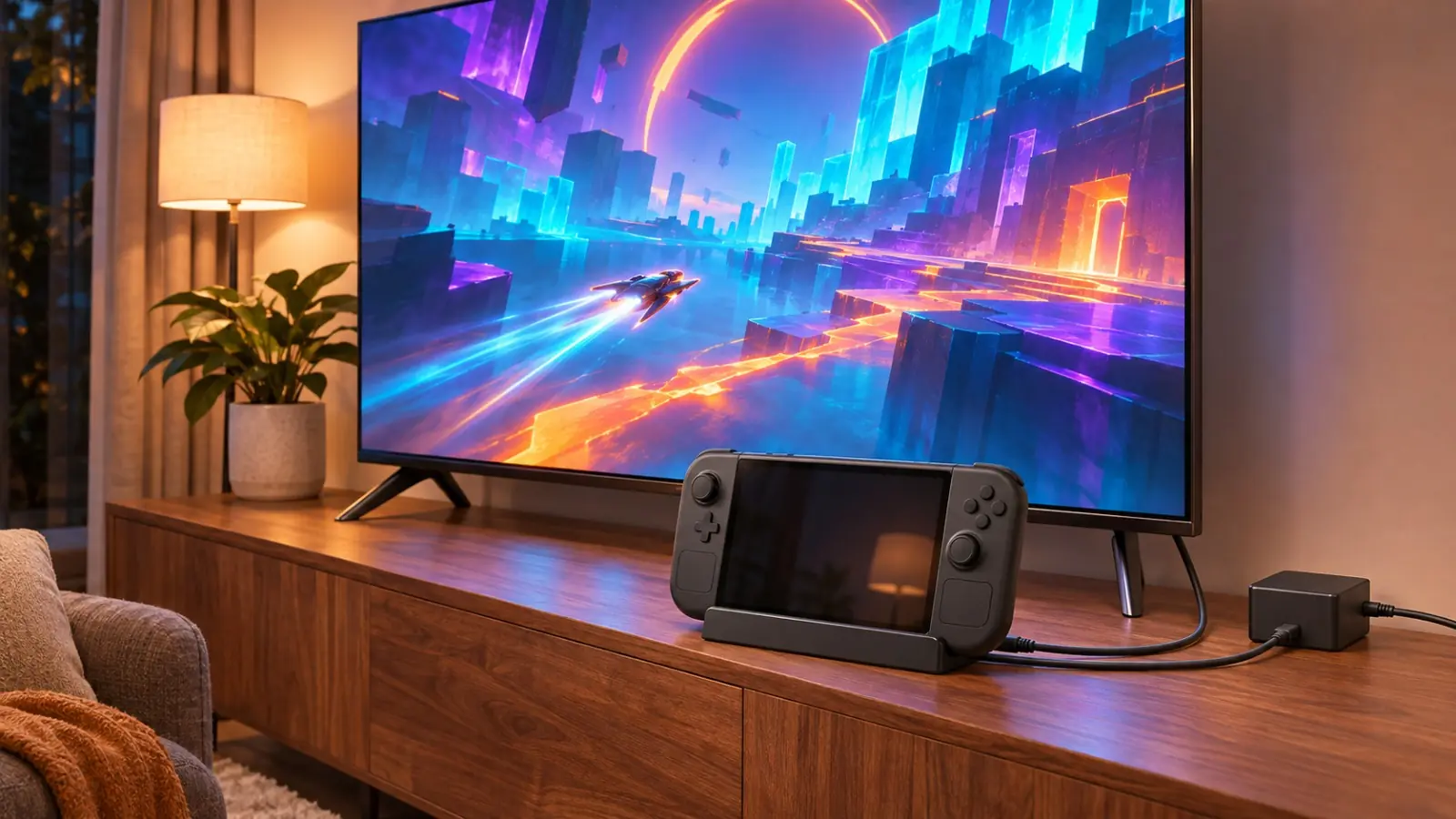
If you use Valve’s $79 Steam Deck Docking Station, start with the 45W supply that comes with it. The adapter plugs into the USB-C power port on the back of the dock.
With a third-party dock, some of the incoming power can go to the dock and its accessories. One Ugreen dock user reported an amber light on the OLED and a reading of 15V at 2.6A, or about 39W, through the dock. Check what your exact dock can pass to your Deck before buying a bigger charger.
How to Set It Up
- Connect the charger directly to your Deck and check whether it charges.
- Move the charger to the dock’s power input and connect the dock to your Deck with the display and peripherals unplugged.
- Check charging again with just the dock connected.
- Reconnect the display and see whether charging changes.
- Add storage and other accessories one at a time so you can tell which connection changes the result.
6. Check Your Power Bank’s USB-C Output and Capacity
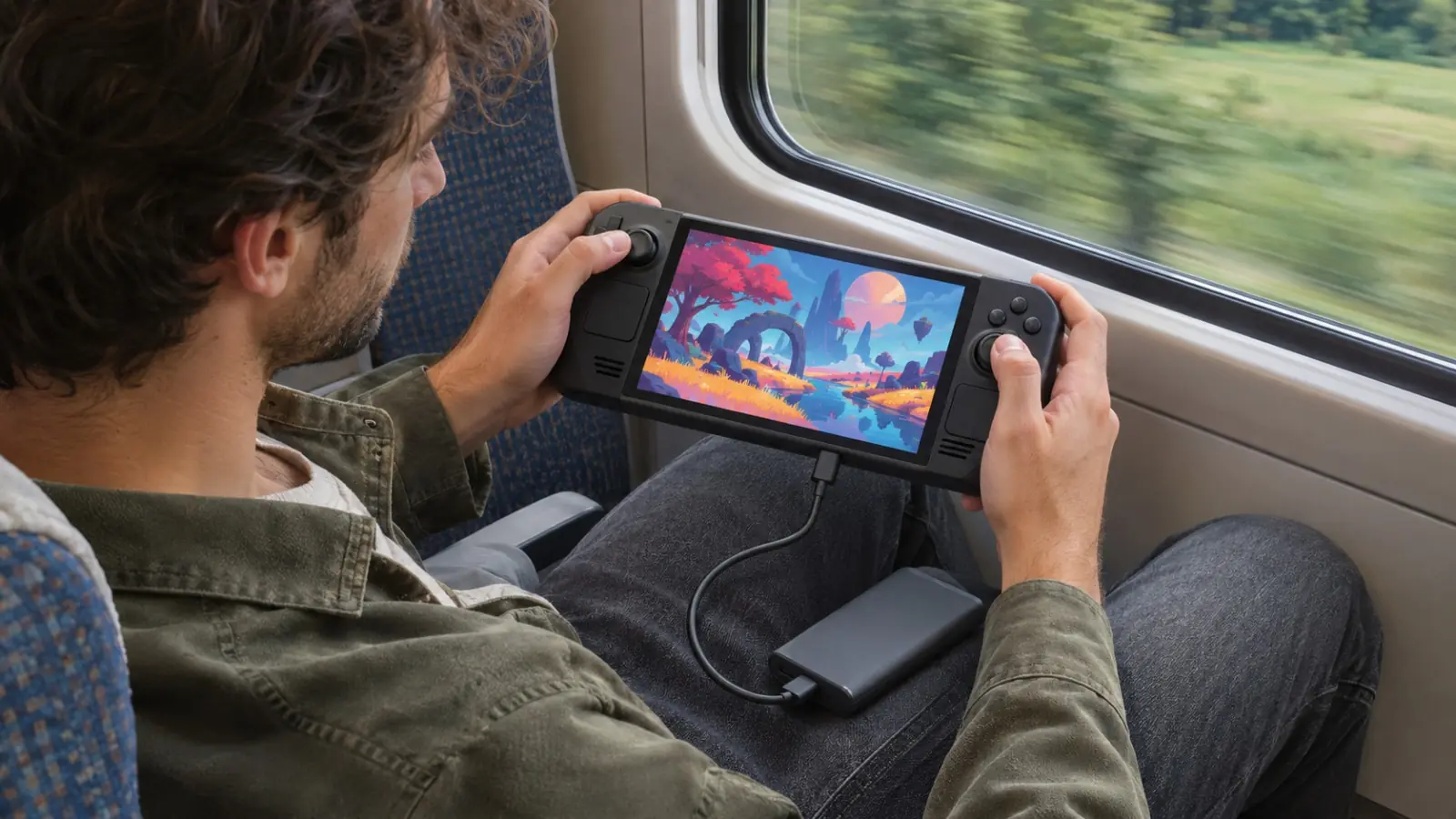
Taking your Deck somewhere without an outlet? Look for a power bank with a USB-C PD port that offers 15V at 3A in the mode you’ll use. In ChargerLAB’s test of 10 banks, about half supplied around 35W to the Deck, while the rest supplied 15W to 25W.
Then check how much energy the bank stores. Watt-hours, or Wh, let you compare stored energy directly, while a milliamp-hour figure depends on the battery voltage. A 20,000mAh bank can hold about 72Wh to 74Wh, which is roughly enough for one full OLED recharge after conversion losses.
If you’re flying in the US, the FAA requires power banks to go in your carry-on and sets a standard limit of 100Wh per battery. With airline approval, you can carry up to two spare batteries rated from 101Wh to 160Wh. Check your airline’s rules before you fly, since some carriers ban power bank use during the flight.
How to Set It Up
- Check the USB-C output for 15V at 3A, including the shared output if you plan to charge a phone too.
- Read the Wh rating on the bank to compare capacity and check it against your airline’s limit.
- Connect your Deck to the USB-C PD port with a cable rated for at least 3A.
- For a flight, protect the bank’s terminals and pack it in your carry-on.
- If your carry-on gets gate-checked, take the power bank out before handing over the bag.
7. Use Your Car’s 12V Socket With a PD Adapter
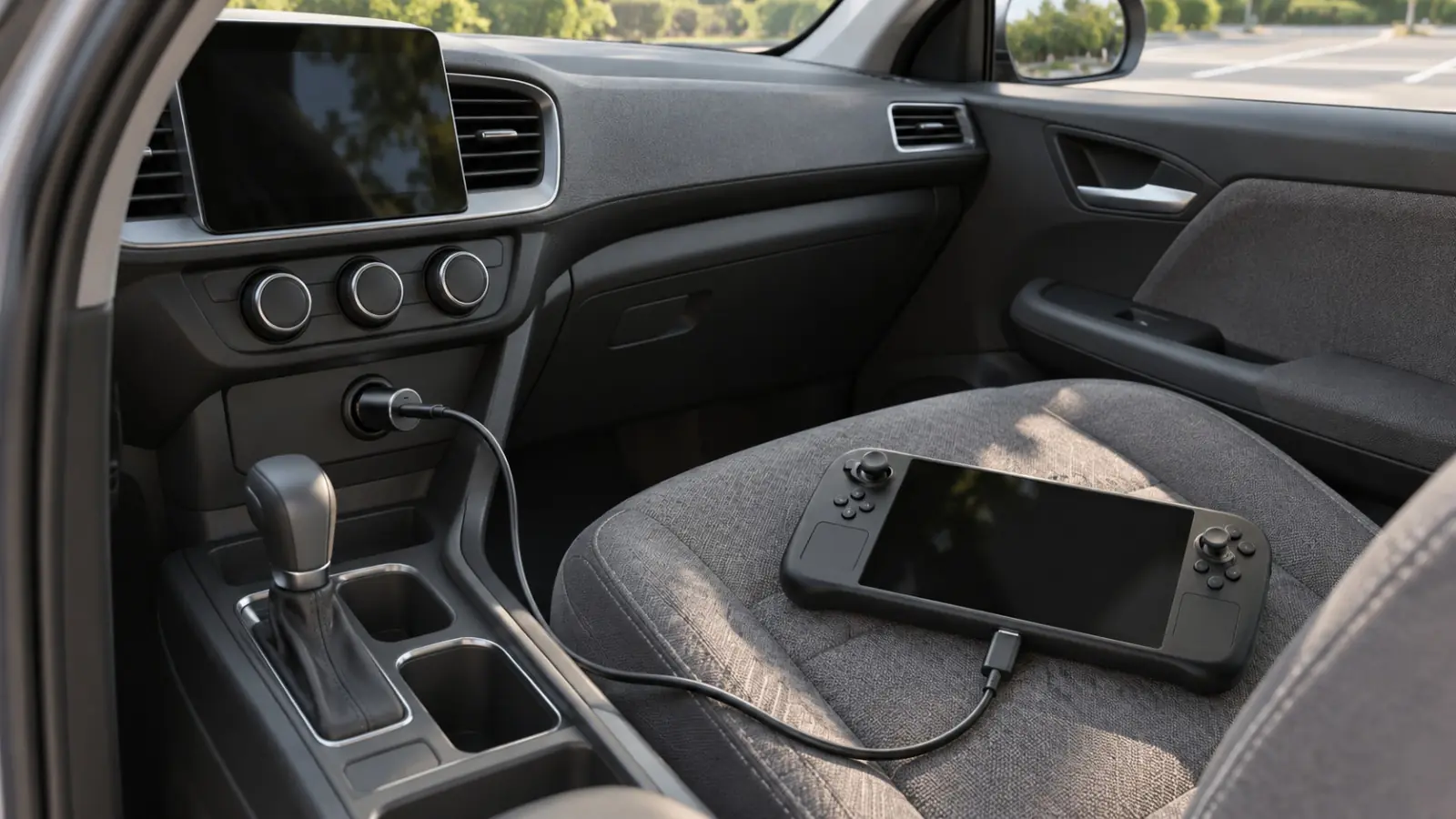
If you play as a passenger on road trips, a USB-C PD adapter for the car’s 12V socket gives you another place to charge. Owners report charging during play with adapters that offer 45W at 15V and 3A.
Check the individual port before you plug in. If the adapter has more than one output, the total on the label can be higher than what the USB-C port gives your Deck with another device connected.
How to Set It Up
- Check that the adapter is for a 12V car socket.
- Find the USB-C PD port that lists 15V at 3A.
- Plug the adapter into the socket and connect your Deck with a USB-C to USB-C cable.
- Check that your Deck charges before adding a phone or another device to the adapter.
8. Keep a Phone Charger for an Emergency Top-Up
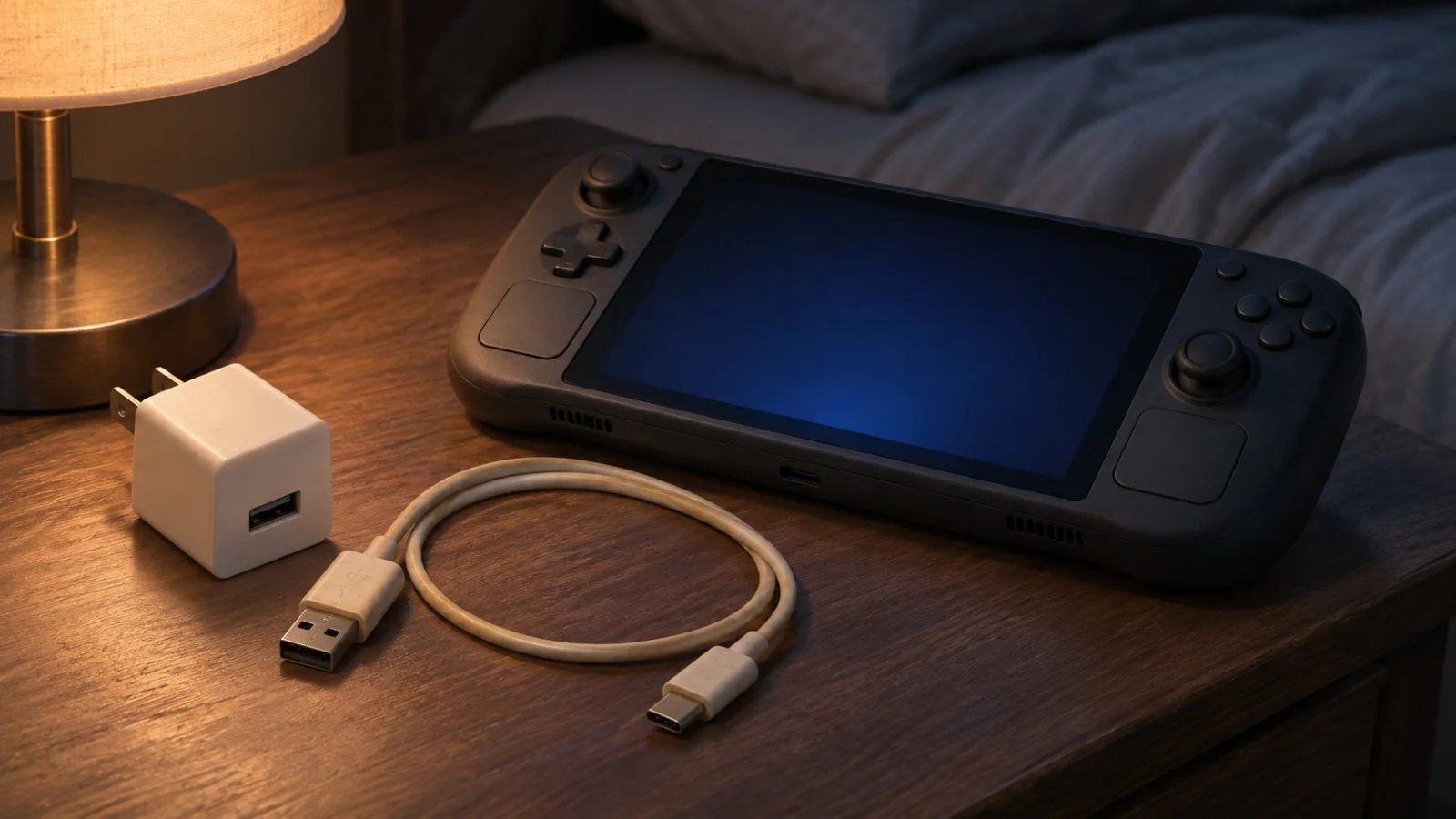
If an 18W to 20W phone charger is all you have, try it while your Deck is asleep or off. Owners report that some lower-voltage adapters can add charge slowly in those states. During a game, the battery may keep draining even with the cable plugged in.
Using a USB-A to USB-C cable? The USB-C end fits your Deck, but the USB-A connection can’t supply the USB-C PD mode your Deck uses for full power. Use a USB-C PD port and a USB-C to USB-C cable when you have the choice.
How to Set It Up
- Check whether your phone charger has a USB-C port with Power Delivery.
- Connect your Deck with a USB-C to USB-C cable if that port is available.
- Put your Deck to sleep or shut it down to give a low-power charger a chance to add charge.
- Check whether the battery percentage has risen before you resume playing.
What the Charging Light and Slow Charger Warning Mean
You plug in your Steam Deck and the light goes dim. Did charging stop? Usually, that’s just how the indicator behaves. A Slow Charger warning gives you a different clue about the power your Deck is getting.
Read the Charging Light on LCD and OLED
Your Steam Deck LCD has a white charging light, while the OLED has a multicolor light. The light can stay on when the battery is full. Expect it to dim after about 3 to 5 seconds on the LCD or about 15 seconds on the OLED.
On the OLED, users report white during normal charging, amber during slow charging, and green when the battery is nearly full. Reported green readings range from around 90% to 95%, so treat the color as a rough cue. If the light flashes when you press Power, your battery is depleted.
Find Out Why You See Slow Charger
The warning can appear when the adapter supplies too little power to your Deck. Valve hasn’t published a numerical cutoff for the warning, so start with what’s connected. A low-power adapter, a faulty cable, a shared charger port, or a dock can all affect what reaches your Deck.
Did the warning appear right after you plugged in your phone? Unplug the phone and see if the warning clears. If it showed up through a dock, try connecting your charger directly to the Deck. One owner reported clearing the warning by reconnecting or resetting a setup that used Valve’s dock and its included adapter.
Check the Volts and Amps
Want to see what your Deck and charger agreed on? Switch to Desktop Mode and run sensors in a terminal. Owners report using it to check the voltage and current shown for their charging setup.
Run watch sensors if you want the readings to refresh as you swap ports or compare direct charging with your dock. Owners have reported seeing 15V at 3A with a compatible adapter. That reading describes the power the connection makes available, while the amount your Deck draws can be lower.
What to Do When Your Steam Deck Won’t Charge
Start with Valve’s charger and a direct connection so you can see how your Deck behaves on its own. Then change one thing at a time. If charging starts again, you’ll know which change made the difference. If the screen stays black even on the charger, our guide on what to do when your Steam Deck won’t turn on goes further.
Try Valve’s Charger, Another Outlet, and a Spare Cable
Connect Valve’s adapter straight to your Deck, with the dock out of the setup. If you get no response, try a different wall outlet. The cable on Valve’s adapter is attached, so you’ll need a charger with a removable lead to test a cable separately.
If you’re using a detachable lead, swap in a USB-C cable you know works and keep the charger and port the same. You can also try the suspect charger on another USB-C device. One owner reported that a cable worked with other devices and still had to be replaced to get the Deck charging.
Check the Port and Give a Depleted Battery Time
Look inside your Deck’s USB-C port for debris. If you need to clear anything out, use a nonmetal tool.
Did the charging light flash when you pressed Power? Connect Valve’s adapter directly and give your Deck at least 15 minutes to charge before trying to turn it on again.
Wake Your Deck From Battery Storage Mode
Your Deck won’t respond to the Power button while it’s in battery storage mode. Plug in the included charger to wake it. That’s also how you wake a newly unboxed LCD that shipped in this mode.
A newly unboxed OLED can wake when you hold Power for about seven seconds. If your Deck appears to charge and still won’t start normally, hold Volume Up and press Power to open the boot menu.
Update SteamOS and Check for Swelling
If you can get your Deck to start, update SteamOS. If an update leaves it hanging at boot, see how to fix a Steam Deck stuck on the logo. You can also compare charging in Gaming Mode and Desktop Mode to see whether the problem shows up in both.
Check for signs of battery swelling. Contact Steam Support if you see swelling or if your Deck still won’t charge after you’ve tried Valve’s adapter directly and worked through the checks above.
How to Keep Your Steam Deck Battery Healthy While Charging
If you often play near an outlet, you can set a charge limit so your battery spends less time at full charge. And if you notice the percentage dip after a long stretch on the charger, your Deck may be doing exactly what Valve intended.
Set the Battery Charge Limit to 80%
Open Settings > Power and look for Battery Charge Limit. The option reached the stable release in May 2025 with SteamOS 3.7.8.
Use the 80% cap if your Deck spends much of its time plugged in. Valve says limiting the charge to 80% can help with long-term battery health.
Understand Why the Battery Can Drop Below 100%
Still plugged in and seeing less than 100%? Valve lets the battery level drift down gradually after long periods on the charger to help preserve battery health.
Some owners report seeing the battery settle around 90% to 93% while plugged in. Owners have also reported the white light blinking as the Deck tops up again.
Play While Your Deck Is Plugged In
Can you keep playing with the charger connected? Owners generally consider plugged-in play safe. If most of your sessions are at a desk or dock, the charge limit gives you a way to keep the battery from topping up to 100% every time.
Your Deck uses some of the incoming power to run the game, and the battery gets what’s left. If the percentage climbs slowly during play, compare it with what happens when your Deck is asleep before you blame the charger.
Put Your Deck Into Battery Storage Mode
Putting your Deck away for weeks? Bring the battery to about 50% to 60% before you shut it down. Then use battery storage mode while it’s put away.
- Turn your Deck off.
- Hold Volume Up and press Power to open the boot menu.
- Choose Setup Utility, then Power, then Battery storage mode.
- Confirm your choice.
On the LCD, look for three flashes from the power light. On the OLED, look for two blue flashes after about eight seconds. When you’re ready to use your Deck again, plug in the included charger to exit storage mode.
FAQs
Check for USB-C Power Delivery and a 15V output at 3A on the port you’ll use. That gives your Steam Deck the full 45W Valve rates the handheld for, while a lower-power adapter may charge slowly or let the battery drain during play.
Yes, you can safely use a 65W or 100W USB-C Power Delivery charger. Your Deck requests a supported output and draws only the power it can use, so the higher rating won’t make the Deck charge faster on its own.
One OLED owner reached 100% in about 2 hours and 10 minutes with the Deck asleep on Valve’s adapter. Owners of the older LCD model have reported roughly 2.5 to 3 hours from near empty. Valve’s 45-minute figure for the OLED covers a partial charge from 20% to 80%.
Yes, owners generally consider playing while plugged in safe. Your game uses some of the incoming power, so the battery may fill more slowly than when your Deck is asleep.
Valve lets the battery level drift down after extended time on the charger to help preserve battery health. If you’ve enabled Battery Charge Limit under Settings > Power, the 80% cap can explain why the percentage stops there.
Yes, pack your power bank in your carry-on and remove the bank if your bag gets gate-checked. The FAA generally allows up to 100Wh per battery, with airline approval required for up to two spares rated from 101Wh to 160Wh. Check your carrier’s policy before flying, since some airlines ban power bank use on board.
Final Word
Before you buy another charger, check the one you already have. Look for 15V at 3A on the USB-C PD port you plan to use, then check what that port delivers if you plug in your phone too.
If charging has been giving you trouble, start with Valve’s adapter plugged straight into your Deck. Once you know how your Deck charges on its own, you can test your dock or spare charger one connection at a time and get back to your game. And if you’re still shopping for a system, our guide on how to pick the right game console for you is a good next read.
