




Key Takeaways
- Why Start Changed: Your Windows 11 Start menu can become one scrolling page after a cumulative update or the 26H2 upgrade. Microsoft offers no switch back, so check your build with winver and look under Personalization > Start for All and Start menu size.
- Make Start Smaller: To shrink your Windows 11 Start menu, hide All, choose Small, turn off Recent, reorder your pins, and set Taskbar alignment to Left. If KB5132061 fails with 0x80070306, 0x800f0989, or 0x800f0993, Microsoft began rolling out an automatic repair on November 11.
- When Controls Disappear: If your Windows 11 Start menu lacks the All toggle, check for 26H2 in Windows Update or use Group Policy on Windows 11 Pro. Rolling back to 25H2 keeps the scrolling menu, so save a screenshot of your pins before upgrading.
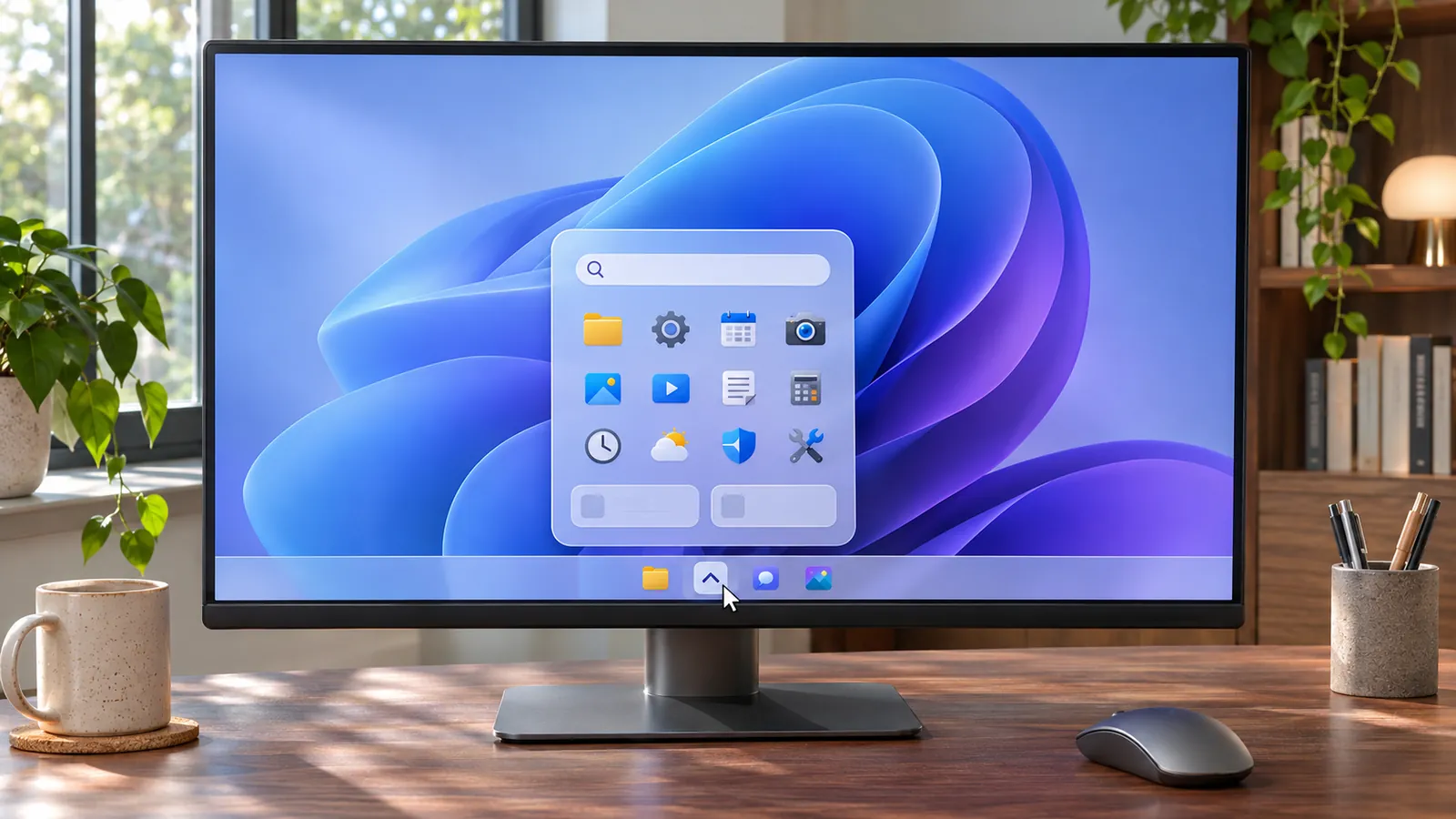
You restart after the November update or the 26H2 upgrade, press the Windows key, and find every app listed beneath your pins. If your Windows 11 Start menu changed into one long scrolling page, Microsoft offers no switch back to the old design. You can get close with the controls introduced in 26H2 by hiding All, choosing Small, and turning off Recent.
What if those controls are missing, or the menu changes again after you fix it? Your Windows version and build can help explain what you see. Here’s how to find the controls your PC supports and get your pins back where you expect them.
Make the Start Menu Small and Plain Again
Right-click Start, open the Windows system preferences, and go to Personalization > Start. Leave Pinned on, turn off All, and choose Small under Start menu size. If you want a menu without recent files or newly added apps beneath your pins, turn off Recent too.
Press the Windows key again. With Pinned as the only section, Start feels closer to the old two-page layout because the full app directory stays out of sight. You can still open any unpinned app by typing its name.
These controls belong to the feature set Microsoft introduced with 26H2. If your Start page has neither the All toggle nor the size control, the next thing to check is your build. More on that later.
What Microsoft Actually Changed
The pins you recognize now share a page with the app directory, and the area for recommendations has a new name on 26H2. Once you know what each section does, it’s easier to decide which ones to keep.
The Menu Became One Scrolling Page
Pinned, Recommended, and All became sections of the same scrolling menu. You used to open the full app list with its own button. Now you can scroll down to it, and the menu adjusts its size to your screen resolution.
Pinned starts with two rows, with room for up to eight apps per row. Show more and Show less let you expand or fold up the grid. The old layout selector disappeared from the Start personalization page.
All Apps Now Sorts Itself Into Categories
Open All and you’ll see a choice of Category, Grid, or List. Category is the default, and Windows needs at least three apps to form a group. Apps without a large enough group land in Other.
Prefer looking for apps by name? Switch to Grid or List once and Start remembers your choice. You’ll see the same view the next time you open the menu.
Recommended Is Called Recent Now
With 26H2, Microsoft renamed Recommended to Recent and changed what happens when you turn off Show recent and suggested files. You can hide those files from Start and keep your recent file history in File Explorer.
Recent can show apps you’ve just installed, files you’ve opened lately, or both. If you open Start mainly to launch the same pinned apps, you can hide Recent as a section and reclaim that space.
Why Your Windows 11 Start Menu Changed This Week
You might have noticed the menu after a monthly restart, a version upgrade, or a problem with a replacement menu. The timing gives you a clue about what changed on your PC.
A Monthly Update Switched the Design On
The one-page menu started reaching 24H2 and 25H2 in November 2025 through KB5067036, on builds 26100.7019 and 26200.7019. The rollout reached everyone on both versions by July 2026.
You see, Microsoft enabled the design in stages. Two identical PCs could have the same update and show different menus for weeks because the rollout reached them at different times.
The 26H2 Enablement Package Flipped the Switch
All eligible 24H2 and 25H2 PCs can now get 26H2 through Windows Update, usually with one restart. The three versions share a servicing branch, so the package can activate features delivered in earlier monthly updates. The new Start controls are among the changes Microsoft lists for 26H2.
That’s how an upgrade that takes minutes can change how Start looks. Rolling back to 25H2 leaves you with the scrolling menu because that version already received the redesign. If you’re still on 24H2, check what the end of 24H2 support means for your upgrade.
Your Start Menu Replacement Stopped Working
If you’ve installed a replacement menu or a customization mod, a feature update can bring back the built-in menu. Sometimes the replacement still opens but freezes or interferes with Windows Explorer.
On 26H2 build 26300.9711, one Start11 2.81 user reported a black screen when Start froze. Another reported that Explorer sometimes crashed at boot. Stardock hadn’t confirmed that it could reproduce either problem in that thread.
How to Get the Old Behavior Back
Think about what you miss most. If it’s a compact menu full of familiar pins, start with the built-in controls and see how close you can get before editing policies.
Hide the All Section
Go to Personalization > Start and switch off All. Unpinned apps stay installed, and their directory disappears from the scrolling menu.
To launch an app you haven’t pinned, press the Windows key and type its name. If you miss browsing the full directory, go back to the same Start page and turn All on again.
Shrink the Menu With the Size Control
Under Personalization > Start, open Start menu size. On a high-resolution display, Automatic lets Windows size the menu for your screen, Small gives you a more compact menu, and Large gives it more room.
Here’s the thing. You size Start by picking a preset, so dragging its edge won’t resize it. Small with All and Recent hidden gets you closest to the old footprint.
Turn Recent Off Completely
On the Start personalization page, turn off Recent if you have the section toggle. If your build offers individual switches, turn off recently added apps, most used apps, and file recommendations. Some people call those recommendations ads because suggested entries can show up without them adding anything.
With the 26H2 controls, switching off recent and suggested files in Start leaves your File Explorer history intact. If All is already off and Pinned is on, you’ll see your pins without those recent entries underneath.
Put Your Pins Back the Way You Had Them
Choose Show all to keep your pin grid open, then drag your pins into the order you want. To group apps, drop one pin onto another and name the folder. If you leave only one pin in a folder, Start removes the folder and leaves the pin.
You can pin folders from File Explorer and websites through More tools in Edge. Start remembers whether you left the grid expanded. You’ll find the pinning options on Microsoft’s Start menu customization page.
Switch All Apps Out of Category View
Open Start and use the view control in All to pick Grid or List. Grid lets you scan icons arranged by name, while List puts the app names in a single column.
Keep Category if you tend to look for a type of app before you remember its name. Whichever view you pick, Start keeps it the next time you open All.
Move Start Back to the Left Corner
Open Personalization > Taskbar > Taskbar behaviors and set Taskbar alignment to Left. With 26H2, you can also move the taskbar to the top, left, or right edge, or choose the smaller taskbar option.
Do you still move your mouse to the bottom left out of habit? Keep the taskbar at the bottom and change its alignment. Opening Start from that familiar corner can make the menu feel more like Windows 10.
Hide Your Name and Account Image
In Personalization > Start, look under Other for the 26H2 option to hide your name and account image. It’s there for moments when you open Start while sharing your screen or projecting it.
The power button and any folder shortcuts you’ve added beside it stay available. Open Personalization > Start > Folders to add shortcuts such as Documents, Downloads, or your personal folder.
Remove the All Apps List With a Policy Value
Back up the registry first. In Registry Editor, go to HKCU\Software\Microsoft\Windows\CurrentVersion\Policies\Explorer, creating the Explorer key if it is missing. Create a DWORD (32-bit) value named NoStartMenuMorePrograms, set it to 1, then restart Windows Explorer through Task Manager.
This undocumented method removes All and the link to open it, so you’ll need search for unpinned apps. To undo the change, set the value to 0 and restart Windows Explorer again.
Use Group Policy on Windows 11 Pro
In Local Group Policy Editor, open User Configuration > Administrative Templates > Start Menu and Taskbar. Enable Remove All Programs list from the Start menu and choose Collapse. You can also enable Hide Category view in the Start menu and Remove Recommended section from Start Menu.
On 24H2, hiding Category through policy requires KB5067036 or later. Run gpupdate /force, then sign out and back in to see the changes. A feature update can reset your choices, so check these policies if the menu changes again.
What You Can Change on Each Windows 11 Version
The scrolling layout reached 24H2 and 25H2 through monthly updates. Some controls introduced with 26H2 can reach those versions the same way, so their availability depends on your build.
| Control | 24H2 | 25H2 | 26H2 | Where it lives |
|---|---|---|---|---|
| One-page scrolling menu | Via monthly update | Via monthly update | Yes | Start |
| Hide All | Depends on monthly update | Depends on monthly update | Yes | Personalization > Start |
| Start menu size | Depends on monthly update | Depends on monthly update | Yes | Personalization > Start |
| Recent rename | Depends on monthly update | Depends on monthly update | Yes | Start |
| Hide name and account image | Depends on monthly update | Depends on monthly update | Yes | Personalization > Start > Other |
| Category view policy | KB5067036 or later | Yes | Yes | Group Policy > Start Menu and Taskbar |
| Taskbar on any edge | Unconfirmed | Unconfirmed | Yes | Personalization > Taskbar |
When Nothing Sticks or the Controls Are Missing
If the menu still looks wrong or you can’t find a toggle, check which build you’re running. That tells you where to start before you install a replacement.
Check Your Build Number First
Search for and open winver. Build numbers start with 26100 on 24H2, 26200 on 25H2, and 26300 on 26H2. The November 2026 security update gives all three a build ending in .9974.
On a build that predates the redesign, you’ll still have the earlier menu and its controls. Pausing updates leaves whichever design is already installed in place. The same November update also included the fix for USB audio Code 10.
Install the November Update and Check for Errors
Open Windows Update and check for KB5132061, released November 10, 2026. That update takes 24H2 to build 26100.9974, 25H2 to 26200.9974, and 26H2 to 26300.9974.
If the update keeps retrying or shows 0x80070306, 0x800f0989, or 0x800f0993, Microsoft began sending out an automatic repair on November 11. It expected the repair to reach affected PCs within 24 to 48 hours. If you’re still seeing an error, work through the checks for a stuck Windows 11 update.
When a Replacement Start Menu Is Worth It
Open Shell and Start11 give you a different Start menu. Windhawk’s Start Menu Size mod changes the size of the built-in one. Which makes sense depends on whether you want a different layout or just a smaller menu.
Users have reported crashes with Start11 on 26H2, and updates can reverse changes that rely on undocumented Windows behavior. If you use a replacement or a mod, disable or uninstall it before a feature upgrade.
Tell Microsoft What You Want Back
Press the Windows key + F to open Feedback Hub. Support advisers direct you there because Microsoft treats the layout as a design change, and Windows offers no built-in switch to the previous one.
Say what you want back and how you used it. Microsoft added size presets and switches for individual sections after users asked for more control, so describe which part of your routine still takes extra work.
How to Stop It Changing Again
You can make it easier to get your menu back in shape after an upgrade. Save your pin arrangement and give Start a quick check once the update finishes.
Save Your Pinned Layout Before the Next Upgrade
If you manage PCs, arrange Start on a reference PC and use Export-StartLayout to export the pins to JSON. Apply the layout through Configure Start Pins in Group Policy or the ConfigureStartPins CSP in Intune. On 24H2, that requires KB5062660 or later.
On a home PC, take a screenshot of Start with the pins expanded before you upgrade. Pins generally carry over, but their order and folders can change. The screenshot gives you a reference if you have to put things back.
Recheck Your Changes After Each Feature Update
Open Start after the first restart and check its size, section toggles, and All view. If you used Group Policy, check your choices for All Programs, Category, and Recommended, since a feature update can reset them.
Put any moved pins back where you expect them. If you’re tidying up what opens when you sign in, you can also stop apps from opening on startup.
Once your everyday apps are back where you reach for them, give the menu a few days of normal use. You can bring back any section you find yourself missing and keep the rest tucked away. When the next upgrade comes around, you’ll know which controls to check first.
FAQs
Yes, you can hide All under Personalization > Start on builds with the section toggle. You can still find unpinned apps through search. If you lack the toggle, the registry value can remove the directory and its link. A future update can affect how that method works.
Windows now fits your pins, recent items, and app directory into one scrolling menu that scales to your display. If your build has Start menu size, choose Small. Hiding All and Recent can reduce how much the menu shows.
Uninstalling one update gives you no reliable way to restore the old menu. The redesign came through cumulative updates, so a later update can bring it back. Rolling back from 26H2 to 25H2 also leaves you with the scrolling design.
Windows 11 gives you no built-in option for the Windows 10 Start menu. Left alignment does put the Start button back in the corner you remember. For a different menu layout, you’d need a third-party replacement.
Slow opening has been reported with the redesigned menu. The delay alone gives you little to go on about what caused it on your PC. Microsoft released an optional update, KB5089573, with a Low Latency Profile that boosts the CPU to help Start respond faster.
Your pinned apps generally survive the 26H2 upgrade, but folders and pin order can change. Take a screenshot with your pins expanded before you update so you can rebuild the arrangement if needed.
You can use a replacement on 26H2, but compatibility depends on the tool and your Windows build. Some Start11 users reported freezes or Explorer crashes on build 26300.9711. Disable or uninstall the replacement before your next feature upgrade.
