




You’re about to finish work when an email warns that someone tried to access your account. A phishing email impersonates a person or service you trust to trick you into handing over information, sending money or granting access. The phishing email examples worth watching for often give themselves away through mismatched addresses, misleading links and pressure to act before you check.
You see, bad spelling is no longer something you can count on. Attackers can use AI to write fluent messages, copy familiar branding and make a fake account warning sound convincing. Would you question it if the wording looked perfect?
The trick can be just as ordinary as an overdue invoice, a shared document or a quick favor from your boss. Some messages even arrive through a compromised account inside a conversation you recognize. A familiar name helps the scam earn your trust.
That is why you need to examine what the email wants you to do. Is it asking you to sign in somewhere unexpected, change payment details or keep a request secret? Those instructions deserve a pause.
In this guide, we walk you through 13 phishing email examples, the red flags in each and what to do instead. You’ll also learn what steps to take if you have already clicked, replied or shared information.
What a Phishing Email Really Looks Like Now
A phishing email borrows someone else’s identity to get you to do something that benefits an attacker. You might be asked to enter your password, download a file, approve a payment or change where an employee’s salary goes. The message gives you a believable reason to act, while hiding who actually benefits.
And no, you cannot rely on spotting a typo anymore. Generative AI helps attackers produce fluent sentences, imitate a company’s tone and personalize messages for many recipients. You can receive an email with clean formatting, familiar branding and perfect grammar that still sends you to a fake login page.
Mass phishing sends the same basic bait to large numbers of people. Spear phishing uses details about you, your team or your responsibilities to make the request more relevant. If you authorize payments, for example, an attacker might impersonate an executive and ask you to arrange a transfer.
Already know the sender? That helps, but it does not settle the question. Attackers can take over genuine mailboxes and insert harmful links, attachments or payment instructions into existing conversations. You need to check whether the request fits, even when the address does.
According to the Anti-Phishing Working Group, or APWG, phishing attack numbers grew by 10.1% during the second quarter of 2026. APWG also recorded 425,808 attacks in June, its largest monthly count since April 2023. Those figures show why familiar-looking messages still deserve your attention.
Verizon’s 2026 Data Breach Investigations Report found a non-malicious human element in 62% of breaches. That figure includes errors and social engineering beyond phishing, so you should not read it as the percentage caused by phishing emails alone.
SecurityMetrics reported an approximately 341% surge in malicious phishing emails between 2023 and 2024, linking much of that growth to generative AI. Keep the dates in mind. This is an earlier measurement, separate from APWG’s 2026 figures.
So what should you look for when the writing looks convincing? Start with the pressure tricks pushing you to act.
The Six Pressure Tricks Behind Every Scam Email
Why would you follow an instruction you would normally question? A scam email gives you a reason to rush, help someone or trust a familiar name. The wording changes, but the pressure follows recognizable patterns. These six tricks help explain what the message wants you to feel before you act.
| Trick | What It Sounds Like | Why It Works |
|---|---|---|
| Urgency | “Your password expires tomorrow. Confirm your account now to keep access.” | You worry about losing access, so the deadline pushes you toward the button before you check the sender or destination. |
| Scarcity | “Your coupon is nearly out of time. Claim the offer before it expires.” | You are encouraged to treat the offer as something you could lose, making a quick click feel more appealing than stopping to verify it. |
| Trust | “A colleague has sent you a revised contract. Sign in to read it.” | You recognize the person or service, so you may carry that trust over to a link or login page you have not checked. |
| Helpfulness | “Could you do a small favor? Let us know when you are available.” | You want to be useful. An innocent-looking opening gets you talking before the sender introduces a request for gift cards or money. |
| Authority | “Your chief executive needs this transfer handled urgently and kept confidential.” | You feel pressure to follow instructions from someone senior, especially when the message discourages your usual checks or questions. |
| Social proof | “Twelve people on your team have finished the training. Complete yours today.” | You are told others have already acted, making the request seem routine and giving you a reason to follow without checking. |
You see, the trick matters more than the logo. A familiar design cannot tell you whether a payment change, login request or attachment is safe. Ask what you are being pushed to do, then verify it through a channel you already trust.
That pause is the habit to carry into the next section. As you read the 13 examples, look for both the pressure being applied and the action it is trying to get from you.
13 Phishing Email Examples and the Red Flags in Each
You might receive any of these messages during an ordinary day, which is exactly why they deserve a closer look. The examples below include documented attacks and training simulations based on real attack patterns, with the simulations identified where used. Start with this quick comparison, then check how each scam tries to earn your trust.
| Example | Pretends to Be | What the Scammer Wants | Biggest Red Flag |
|---|---|---|---|
| 1. Blocked sign-in alert | Your account security provider | Your credentials or approval of a login | An unexpected request to approve a supposedly blocked attempt |
| 2. Password or mailbox warning | Your IT team or email provider | Your account credentials | A login link tied to a threat of lost access |
| 3. Declined payment notice | A company you pay | Your payment or account details | A demand to update billing through an unexpected link |
| 4. Overdue invoice | Your supplier or finance contact | A payment to their bank account | Banking instructions that differ from your records |
| 5. Gift card favor | Your boss or another executive | Gift cards or a transfer | An unusual payment request wrapped in secrecy |
| 6. HR or payroll update | Your HR team or an employee | Your credentials or redirected wages | An unfamiliar portal or unverified bank change |
| 7. Shared document | Your colleague or a cloud service | Your login details | An unexpected document leading to an unfamiliar sign-in page |
| 8. E-signature request | A document-signing service | Your credentials or a harmful download | A trusted page sending you to an unrelated login site |
| 9. Delivery or customs notice | Your courier | Your card details or a small payment | A fee request for a parcel you cannot verify |
| 10. QR code login | Your IT team or document provider | Your credentials entered on your phone | An unexpected instruction to scan and sign in |
| 11. Voicemail attachment | Your voicemail service | Your credentials or a harmful file opening | An unusual attachment presented as a voice message |
| 12. Fake charge callback | A payment or subscription provider | Your information, money or remote access | A cancellation process built around the supplied phone number |
| 13. Hijacked email reply | Someone in your existing conversation | Your credentials, a payment or a file opening | A sudden request that does not fit the discussion |
1. The “Unusual Sign-In Blocked” Security Alert
You receive a warning that someone tried to access your account, followed by an instruction to verify your identity or approve a request. It looks protective. In one Hook Security training simulation, the subject “Critical security alert” appears with Google branding, but the sender is google@ransombot.com. The company name is familiar. The address is not.
The scam uses your concern about account security to send you toward a fake login page. In Microsoft 365 impersonation attempts, you may even receive a genuine push notification that the attacker triggered. That second notification can make the email seem believable, but it does not mean you should approve it. If the attempt was blocked, why are you being asked to authorize it?
- Unrelated sender: You see a trusted company’s name, but the full email address belongs to a different domain.
- Unexpected approval: You are asked to accept a login or verification prompt that you did not initiate.
- Wrong destination: You follow what appears to be a Microsoft account link, but the login page uses an unrelated domain.
- Pressure to react: You are pushed to resolve the warning before checking your account independently.
Deny the unexpected push notification and open your account through your usual app or bookmark. Review recent sign-in activity there. You can investigate a security warning without using the route supplied by the email.
2. The Expiring Password or Full Mailbox Notice
You are told your password will expire shortly or your mailbox has no space left. The email offers a quick fix so you can keep working. Huntress documented a Microsoft 365 storage warning sent from dse@docusign.net, with the supposed Microsoft identity misspelled as “Microsof Teams Online.” Other lures offer a button that supposedly lets you retain your existing password.
The threat is interruption. You want to keep receiving messages, so signing in may feel like a routine task. In the Huntress example, the link passed through a legitimate news website before reaching a fake Microsoft login page. A recognizable first destination can therefore be part of the deception, rather than proof that the request is safe.
- Service mismatch: You receive a Microsoft mailbox warning from an address that does not match the service being claimed.
- Convenient password fix: You are offered an email link to preserve your password instead of being directed to your normal account controls.
- Unexpected login page: You reach a sign-in form through a storage or password warning you were not expecting.
- Loss-of-access pressure: You are encouraged to act quickly because your email supposedly depends on it.
Open your account yourself and check whether the warning appears there. If it concerns your work mailbox, contact your IT team through its established channel. Make any password change inside the account you reached independently.
3. The “Payment Declined, Account on Hold” Billing Email
You receive a message claiming your recurring payment failed and your account needs attention. Hook Security’s training examples include the subject “Your recurring card payment to GEICO was declined,” sent from GEICO@financialadvicers.com. Another simulation impersonates ExpressVPN with a failed-payment warning. Both use an ordinary billing problem to give you a reason to respond.
The scam makes access to a service feel uncertain, then presents an update button as the solution. You may be asked to enter card information or sign into an imitation account page. You see, the payment problem is the bait. The attacker wants the details you provide while trying to fix it, and professional wording does not make that request legitimate.
- Brand name camouflage: You see the company’s name before the @, but the domain after it belongs somewhere else.
- Unexpected billing link: You are asked to submit payment information through a message you did not request.
- Vague greeting: You receive an impersonal greeting alongside a financial demand, giving you another reason to investigate.
- Account pressure: You are warned that access is restricted or at risk unless you complete the requested action.
Open the service’s app or enter its website address yourself to check your billing status. If you need help, use contact information from that trusted route. Do not let the email choose where you submit your card details.
4. The Overdue Invoice With New Bank Details

You receive an overdue-payment notice that looks like it came from a supplier or finance contact. It may include an invoice number and enough familiar business language to seem routine. The detail that matters is the payment destination. You are being asked to use banking information that differs from what you already have.
The attacker wants you to treat a bank change as part of settling an ordinary bill. The supporting conversation can be deceptive too. APWG reported an attack pattern in which fake invoices were paired with an invented email exchange to make the payment appear approved. A thread that seems to show earlier agreement can discourage you from asking the question that matters. Who verified this account?
- Changed bank account: You are instructed to send money somewhere different from the supplier details in your records.
- Reply-to mismatch: You see one sender address, but your response would go to another address that does not fit.
- Deadline pressure: You are pushed to pay before completing your normal verification checks.
- Assumed approval: You are shown an email exchange as reassurance, even though that exchange may have been fabricated.
Call the supplier using a phone number you already held before the email arrived. Confirm the banking instructions directly, rather than replying to the message. For large transfers, use a second person to check the payment before it proceeds.
5. The Boss Who Suddenly Needs Gift Cards
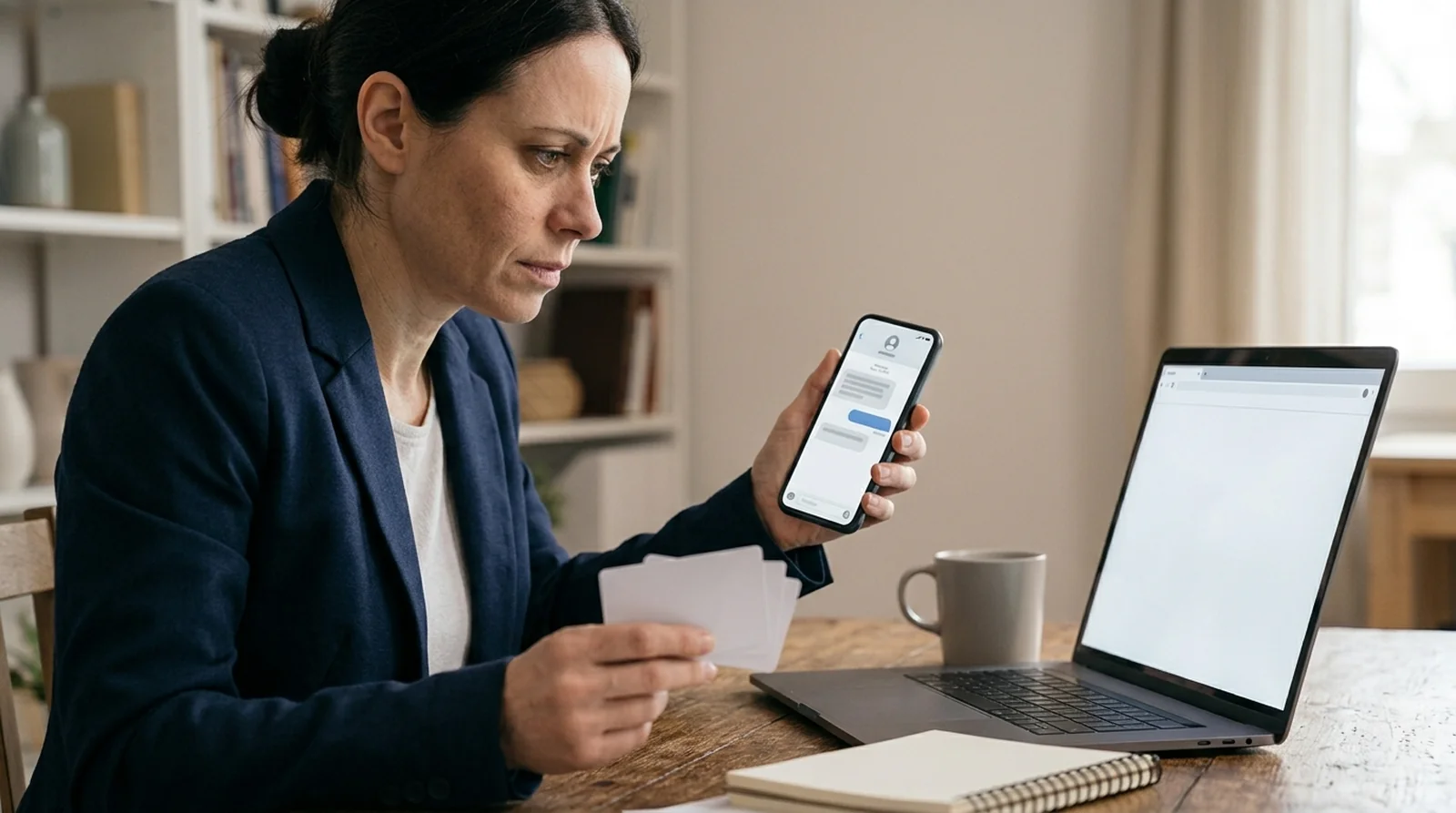
You receive a short message asking whether you are available. There may be no link, attachment or mention of money yet. The sender appears to be your boss, and the request sounds small enough to answer without much thought. Once you reply, the conversation turns to buying gift cards or arranging a transfer.
That opening matters because the attacker gets you talking before making the suspicious request. You want to help, and a senior person’s name adds pressure to comply. If the message then asks for secrecy, you may feel discouraged from checking with anyone else. But would you normally receive payment instructions this way? The familiar name should not replace that question.
- Personal or lookalike address: You recognize the displayed name, but the full address uses a free email service or an altered company domain.
- Unusual payment method: You are asked to buy gift cards or send money in a way that does not fit your normal work.
- Confidentiality demand: You are told to keep the request private, cutting you off from colleagues who could help verify it.
- Escalating favor: You answer a harmless availability check, then receive a financial request under time pressure.
Contact the person through an established internal channel such as Teams or Slack, or speak by phone or in person. Verify the request before purchasing anything. You do not need to continue the suspicious conversation to check whether your boss actually needs help. The same trust trick shows up in payment apps, as our Zelle guide explains.
6. The HR, Payroll or Direct Deposit Update

You receive what appears to be an HR notice about a handbook revision, salary review or benefits enrollment deadline. The message asks you to open a document or sign into a portal. If you handle payroll, the email may instead impersonate an employee who wants their wages sent to a new bank account.
These messages pursue different outcomes through the same familiar workplace context. A fake HR portal can collect your credentials, while an employee impersonation can redirect a salary payment. Timing adds pressure, especially when a bank change arrives just before payroll closes or a benefits notice claims enrollment is ending. You are encouraged to treat verification as a delay rather than part of the task.
- Unfamiliar portal: You are asked to enter work credentials somewhere other than the HR service you normally use.
- Personal sender address: You receive a payroll instruction from an address that needs independent confirmation.
- Last-minute bank change: You are asked to replace payment details shortly before wages are processed.
- Resistance to a call: You are discouraged from contacting the employee through a number you already know.
Open your HR system through your usual bookmark and confirm policy or enrollment notices with the team directly. For payroll changes, call the employee on a known number before updating their details. A deadline does not establish who sent the instruction.
7. The Shared Document That Wants You to Sign In
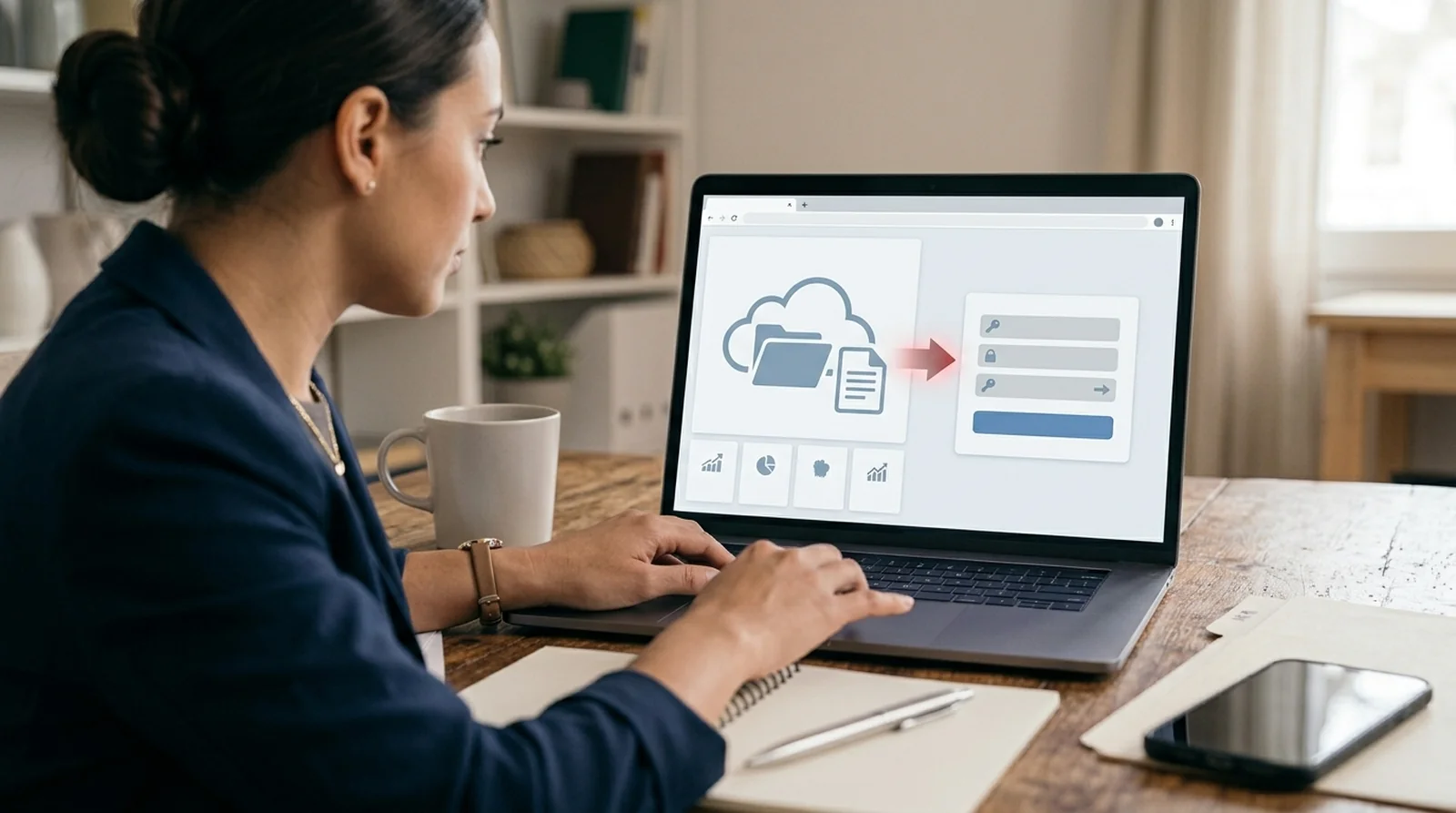
You receive a file-sharing notification that appears to come from a colleague or a familiar cloud service. The document might concern a payment schedule or revised contract. In a Hook Security training simulation, a Box-themed message titled “Due Diligence” uses the sender Dropbox@shared-document.com. The service names look familiar, but they do not form a convincing match.
The document gives you a reason to click, and the next page asks for your account password. Some attacks go further by using a compromised colleague’s account or a genuine file-sharing notification. That means checking the sender is useful, but it cannot settle everything. You also need to ask whether you expected the file and whether the login destination belongs to the claimed service.
- Mixed service identities: You see different company names in the branding and sender address, with an unrelated domain underneath.
- Unexpected document: You receive a contract or financial file that does not fit your recent conversations.
- Unfamiliar sign-in destination: You are asked to enter credentials on a domain you do not recognize.
- Trust carried too far: You treat a genuine sender or sharing notification as proof that every linked page is safe.
Check with the sender through another channel before opening an unexpected document or entering your password. Ask whether they sent that specific file. If the request is genuine, you can confirm it without relying on the email’s login link.
8. The E-Signature Request That Runs Through a Trusted Site

You receive an email asking you to review or sign a document before a deadline. Hook Security’s DocuSign training simulation uses noreply@sharing-documents.com and warns that a contract needs your signature before it expires. The request resembles an ordinary approval task, especially if reviewing agreements is already part of your work.
The deception can involve more than one website. Attackers use legitimate services such as Dropbox, Canva or DocuSign as a stop before the harmful page. Huntress documented a related document-review attack that started with a genuine Figma address and a figma.com link, then sent the recipient to a fake Microsoft login. You see, a trusted first page does not establish whether the next page deserves your password.
- Unexpected agreement: You are asked to review a contract that does not fit your current work or recent conversations.
- Unrelated sender domain: You see document-service branding, but the address underneath does not match the claimed provider.
- Another login destination: You leave the trusted service and reach an unfamiliar page asking for your credentials.
- Deadline pressure: You are pushed to complete the signature before you have confirmed who sent the document.
Contact the supposed sender through a channel you already trust and confirm the specific agreement. Check each destination before entering information, rather than assuming the first legitimate link makes the entire request safe.
9. The Missed Delivery or Customs Fee Notice
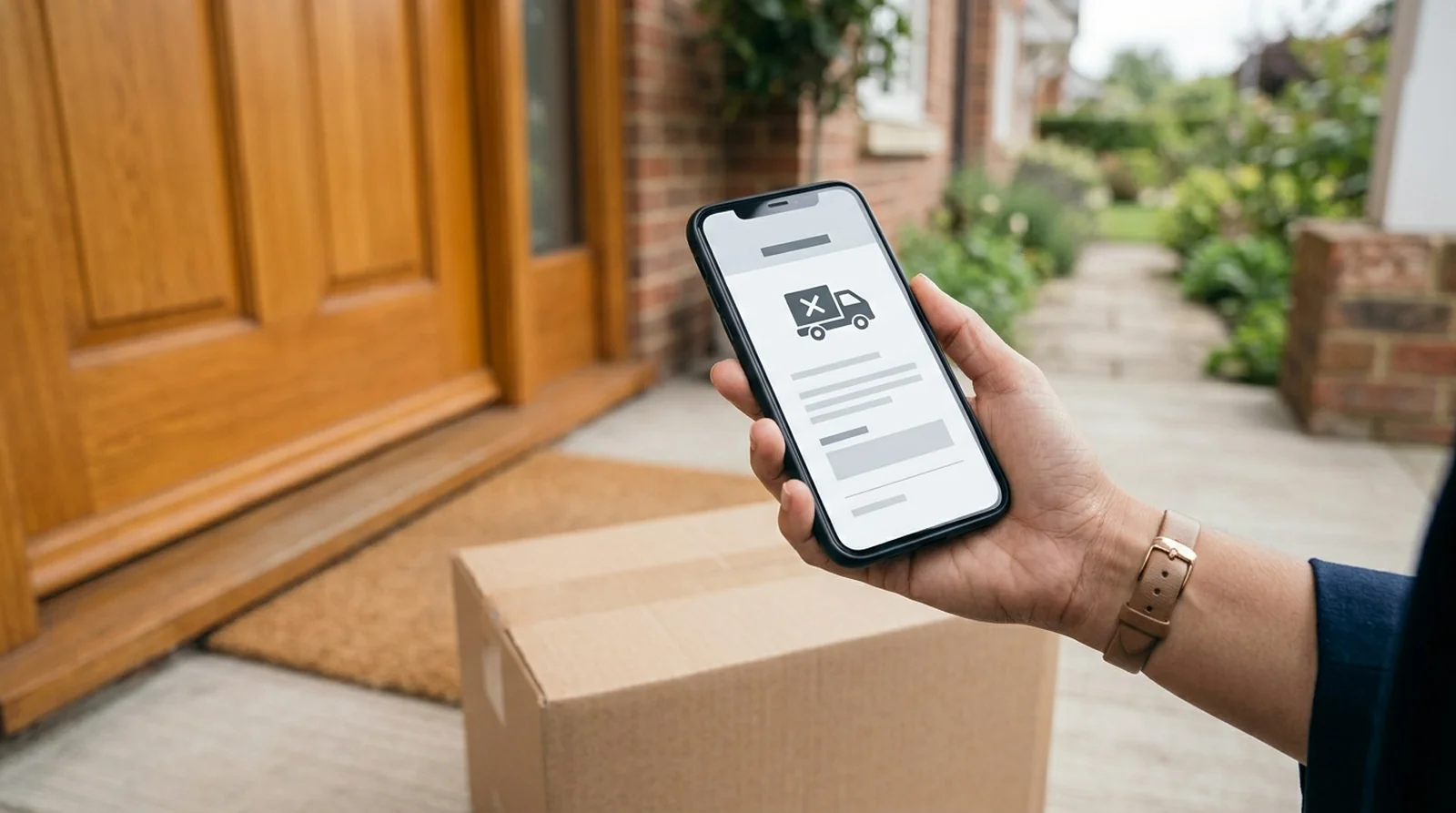
You receive an email saying your parcel could not be delivered, your address needs correcting or a customs payment is outstanding. Hook Security’s FedEx training simulation uses the subject “Your package was scheduled for delivery today” and the sender TrackingUpdates@emails-track.com. If you are already expecting a delivery, the timing can make the message feel relevant.
The scam turns a routine shipping problem into a request for information or money. You might be asked to pay a small redelivery fee, provide card details or correct your address through a supplied page. Some messages use QR codes instead of ordinary buttons. Huntress documented a FedEx impersonation that presented a code made from text characters while asking the recipient to update delivery information.
- Unverified parcel: You cannot connect the notice to an order or shipment you recognize.
- Unrelated courier address: You see a familiar delivery company’s name, but the sender domain does not match.
- Unexpected fee: You are asked to submit payment details through a delivery message you have not verified.
- Alternative click route: You are encouraged to scan a code to resolve the issue, without first checking where it leads.
Visit the courier’s website yourself and check the tracking number there. If the delivery problem is genuine, verify it through that independent route. An expected parcel gives the message context, but it does not prove who sent it.
10. The QR Code That Asks You to Scan and Sign In
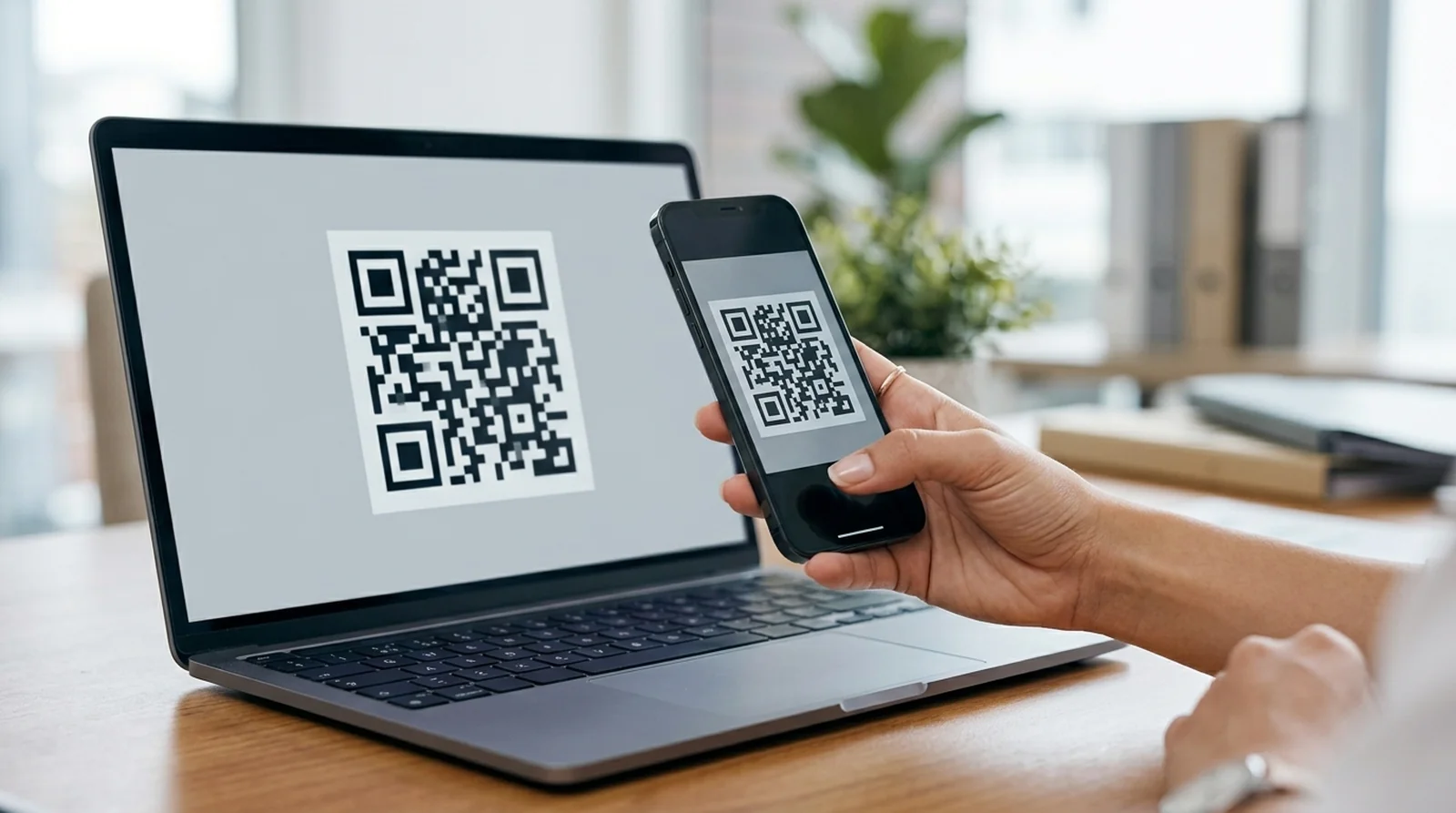
You receive an email asking you to scan a QR code to restore authentication, view a document or complete an account task. The instruction may appear to come from your IT team or a familiar service. Instead of a visible web address, you get a code and a reason to reach for your phone.
Scanning changes where the interaction happens. You leave your work computer and open the destination on a phone, which may sit outside your workplace device protections. A link hidden inside an image can also be harder for email security tools to inspect. Once you reach the page, the request is familiar enough. Enter your work credentials to continue. But did you verify where you landed?
- Unexpected scan instruction: You are asked to use a QR code for an account task you did not initiate.
- Hidden destination: You cannot assess the website from the email’s visible wording because the address is contained in the code.
- Unfamiliar login domain: You reach a page that asks for credentials but does not belong to the claimed service.
- Account pressure: You are told access or authentication depends on completing the scan and sign-in process.
Open the relevant account through your usual app or bookmark instead. For a workplace request, confirm the instruction with IT through its established channel. Treat the code as a link that still needs checking, rather than a reason to trust the message.
11. The Voicemail Notification With an Attachment
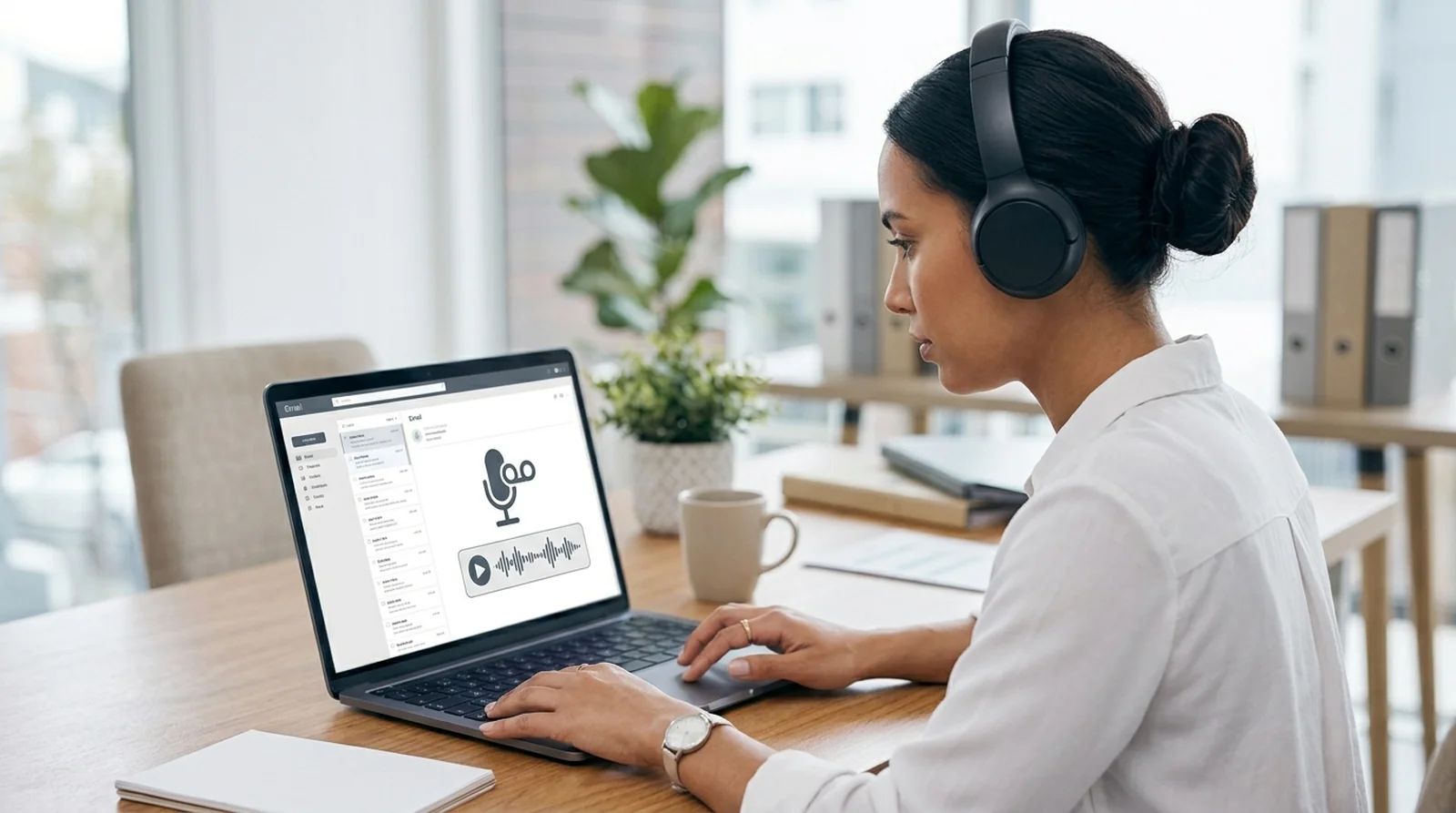
You receive what looks like an automated voicemail notification, complete with caller information, a timestamp and a recording length. The message offers an attachment to hear the recording or read its transcript. Those details make it resemble a routine communication you can handle quickly between other tasks.
Huntress documented a voicemail lure with an SVG attachment that opened in a browser and redirected the recipient to a fake Microsoft login page. The phishing software could place the recipient’s email address into the form before they arrived. That familiar detail can make the page seem personal, but it does not establish who controls it. Other voicemail lures use HTML, HTA or LNK attachments.
- Unexpected file: You receive a voicemail attachment that you were not expecting and have not verified.
- Unusual format: You are asked to open an SVG, HTML, HTA or LNK file to access what is presented as a voice message.
- Login detour: You try to hear a recording but instead reach a page requesting your account password.
- False familiarity: You see your email address already filled in and are encouraged to treat that as reassurance.
Verify the notification through a trusted contact or your workplace IT team before opening the attachment. Report the suspicious message through your organization’s process. If you already opened the file or entered a password, explain exactly what happened so the response addresses the action you took.
12. The Fake Charge That Asks You to Call a Number

You receive a receipt for a payment you do not recognize, with instructions to call a support number to cancel it. Huntress documented a Visa impersonation claiming a $699.95 charge and displaying no-reply@globalclient.visa.com as the sender. The alarming amount gives you a reason to react, while the phone number appears to offer a way out.
There may be no harmful link at all. Instead, the attack continues when you call and someone persuades you to disclose personal or financial information. Other callback scams push you to install remote access software or make a supposed refund payment. A message without a suspicious button can still lead you into a scam. The requested phone call is the action that matters.
- Unrecognized transaction: You are shown a charge that you cannot verify through your account.
- Supplied cancellation number: You are directed to resolve the payment by calling contact details inside the unexpected email.
- Inconsistent wording: You notice abrupt changes in tone or different phone numbers within the same message.
- Escalating instructions: You are asked during the call to share sensitive details, install software or transfer money.
Check your account independently before making any call. If you need support, obtain the number from the company’s actual website or another trusted source. Do not use the email’s contact details to verify the email itself. Scam calls can now use cloned voices too, which we cover in our look at deepfake-as-a-service.
13. The Hijacked Reply in a Real Email Thread

You receive a reply inside a conversation you already know, perhaps about a contract or supplier payment. The sender address may be genuine, and the earlier messages may be yours. In a hypothetical example, IRONSCALES explains how an attacker controlling a client’s mailbox could insert a dangerous file into an ongoing car leasing discussion.
The attacker borrows trust from a discussion that was legitimate before they entered it. You recognize the participants and subject, so the new file or instruction may receive less scrutiny than an unexpected standalone email. Some attackers also reuse similar replies across old conversations, leaving clues when the new content does not fit. The history is real. The latest request still needs checking.
- Unrelated instruction: You receive a reply whose request does not make sense in the conversation you were having.
- Old thread revived: You see a dormant discussion return unexpectedly with a new link or attachment.
- Changed payment destination: You are asked to replace banking details despite the familiar sender and message history.
- Unexpected file: You receive a document that was not part of your earlier exchange or agreed next steps.
Contact the person through another trusted channel and confirm the specific request before acting. For banking changes, use a phone number you already know. Replying within the same thread does not provide independent verification if someone else has control of that mailbox.
Clicked, Opened or Replied? What Happens Next and What to Do
Already interacted with the message? Take a breath. Reading an email, entering a password and installing software carry different risks, so your next step depends on what happened. If you replied, consider what information you shared and use the relevant steps below.
You Only Opened the Email
Opening a phishing email does not automatically mean someone has access to your account. Many scams still need you to click, enter information or open an attachment. Infection through a flaw in an email app is possible but rare, so simply reading the message is not the same as handing over your password.
Stop interacting with the email and report it before deleting it. Avoid its links, attachments, QR codes and contact numbers. Keep your device and email software updated. At work, use your reporting button or tell IT what you opened, making clear that you did not take any further action.
You Clicked the Link but Typed Nothing
If you opened the page but entered nothing, your risk is generally lower than if you submitted credentials. Many phishing pages depend on you completing a fake login form. That is reassuring, but it is not a guarantee that every link is harmless, especially if something downloaded or you took another action.
Close the page without continuing and report the message. For a work device or account, tell your IT team that you clicked, whether anything downloaded and whether you entered information. If you downloaded suspicious software, follow the scanning steps below. You do not need to revisit the page to investigate it yourself.
You Entered a Password or Card Number
Entering your password on a fraudulent page gives the attacker information they can use to access your account. From a trusted device, open the genuine service independently and change the affected password immediately. Sign out of active sessions and enable multi-factor authentication. For email accounts, also check for unfamiliar forwarding rules.
If you shared a card number, bank account number or Social Security number, visit IdentityTheft.gov for recovery guidance. A password change does not address exposed financial details. Tell your IT team immediately if a work account was involved, including what you submitted. Reporting quickly helps the response begin, and you should not wait because you feel embarrassed.
You Opened an Attachment or Called the Number
The risk depends on what followed. An attachment may send you to a fake login page or contain harmful software. A phone call may lead to requests for financial details, remote access or a payment. Calling alone does not establish that your device was compromised, but following those instructions can create a more serious problem.
End the interaction and tell your IT team if it involved work. If a harmful download reached your device, bring your security software up to date, scan the device and delete any threats it detects. Follow the password or identity-recovery steps above if you shared credentials or financial information. Explain whether you installed software or granted remote access so IT can respond accordingly. On a phone, our checklist on how to know if your phone is hacked and our guide to removing a virus from your iPhone can help.
Scam Emails That Come From Your Own Address or Know Your Password
Seeing your own address or a password you recognize can make an extortion email feel convincing. But neither detail, by itself, proves the sender controls your account or device. Before you react to the threat, separate what the message shows from what it merely claims.
Why the Email Looks Like It Came From You
An email can display your address without having been sent through your account. As IRONSCALES explains, attackers can forge the From information that identifies the apparent sender. This is called spoofing. You see an address you recognize, but that visible detail alone does not establish where the message actually originated.
So, does receiving an email “from yourself” prove your mailbox was hacked? No. Treat the message as suspicious, then open your account independently and check for unfamiliar forwarding rules. If it involves your work email, ask your IT team to examine it rather than replying to the sender for an explanation.
Why the Scammer Knows an Old Password
A password you recognize may have come from an earlier data breach. Many people on Reddit report receiving extortion emails that quote an old password as supposed proof that the sender has access to their device. Knowing that password is different from proving that someone currently controls your account or has installed spyware.
If you still use the exposed password, change it on every account where you have reused it. Make those changes through the genuine services, using a trusted device, and turn on multi-factor authentication. You do not need to accept the sender’s story to take the exposed password seriously. Address the information you know is compromised. Big incidents like the Oracle Health data breach show how long exposed details can keep circulating.
What to Do With an Extortion Email
Do not pay or reply. Reddit users report receiving threats that claim someone controls their device and demand payment in cryptocurrency. Your own sender address or an old password can make the threat frightening, but those details do not independently prove the claims being made.
Open your account through a trusted route, change any reused password and enable multi-factor authentication. Check for forwarding rules you did not create, then report the message and delete it. If your work account is involved, tell IT. You can take sensible account-protection steps without engaging with the person trying to frighten you.
How to Check a Suspicious Email on Your Phone
You can inspect a suspicious message without following its instructions. Start with the sender’s full address, then examine the link destination using the preview your email app provides. Whether you use iPhone Mail, Gmail or Outlook, a familiar name or button label is only the starting point.
Reveal the Real Sender Address
Tap the sender’s displayed name to reveal the full email address. You are checking whether the address supports the identity shown above the message. Pay particular attention to the domain after the @, looking for altered spelling, added characters or a completely unrelated organization. A company name before the @ does not prove the company sent it.
Does the address look correct? Keep checking the request. Attackers can send messages from compromised accounts, including those belonging to people you know. If the email asks you to change banking details, open an unexpected file or sign in, verify it through another trusted channel.
Preview a Link Without Opening It
Touch and hold the link instead of tapping it to follow it. Apple recommends this check on iOS, while other email apps may provide their own link preview. Examine the destination address the app reveals and compare it with the company or service the message claims to represent.
You are checking where the link leads, rather than trusting the words printed on the button. A familiar service name in the message cannot validate an unrelated destination. If your app does not show enough information for you to judge, leave the link alone and open the service through your usual app or bookmark.
Be Extra Careful With QR Codes and Unsubscribe Links
A QR code deserves the same caution as an unexpected login link. Its destination is hidden inside the code, and scanning can move you away from protections on your work computer. If you are asked to scan and enter credentials, open the relevant account independently instead. The code itself gives you no reason to trust the request.
Be careful with unsubscribe buttons in suspicious spam too. Following an email link can signal that your address is active, and an unsubscribe link may serve that purpose rather than stop the messages. Use your email app’s reporting or junk controls for suspicious mail instead of interacting with the sender’s buttons. Text messages work the same way, as our breakdown of the Apple Pay scam text shows.
A 60-Second Check for Any Suspicious Email
You do not need to identify the exact scam before deciding to pause. Start with five checks that test who sent the message, what it wants and where it would take you. Does the request still make sense when you look past the branding?
- Sender: Reveal the full email address instead of relying on the displayed name. Check the domain after the @ for altered spelling or an unrelated company. Remember that a genuine address can belong to a compromised account, so this check alone cannot establish trust.
- Subject line: Look for a deadline, account warning or payment problem designed to make you react. Ask whether the claimed urgency fits the situation. A threat of lost access gives you a reason to verify the message, rather than follow its instructions immediately.
- Greeting and tone: Check whether the wording sounds like the person or organization you know. An impersonal greeting, unusual familiarity or abrupt change in tone can raise questions. None proves fraud alone, and polished grammar does not establish that the message is safe.
- The request: Identify the action you are being asked to take. Does it involve a password, payment, gift card, file download or banking change? Be especially cautious if you are told to keep it secret or bypass a process you normally follow.
- Links and attachments: Preview the destination before following a link, using a hover on desktop or a long-press on mobile. Question unexpected files, password-protected archives and documents asking you to enable macros. A filename ending in .pdf.html also deserves scrutiny.
Still unsure? Open the service independently or contact the person through a known channel. You do not need to prove an email is fraudulent before choosing a safer way to verify its request.
Phishing Email vs Real Email Side by Side
What separates a routine message from a suspicious one? Often, it is how the details fit together. Use this comparison to check whether the sender, requested action and verification route match what you would reasonably expect.
| What to Check | Real Email Usually | Phishing Email Often |
|---|---|---|
| Sender address | Matches the organization or contact you expect | Uses a familiar name with an unrelated or altered domain |
| Reply-to address | Fits the sender and the conversation | Sends your response to an unexpected address |
| The request | Relates to an account, task or exchange you recognize | Asks for credentials, unusual payments or skipped checks |
| Links | Lead to the service you expect to use | Send you to an unrelated login page, sometimes through a trusted site |
| Attachments | Fit the work or document you were expecting | Arrive unexpectedly or ask you to enable editing or macros |
| Tone and timing | Make sense for the sender and situation | Use threats, secrecy or deadlines to pressure you |
| Bank or account changes | Can be checked through your established process | Push you to accept new details without independent confirmation |
| Verification | Can be confirmed through contact details you already trust | Steers you toward numbers, links or replies supplied in the message |
Treat these as signs to assess together, rather than hard rules. Legitimate organizations may use third-party services, while attackers may control real accounts and write convincing messages. When money or account access is involved, confirm the request through a trusted route outside the email.
How AI-Written Phishing Emails Give Themselves Away
Perfect grammar used to feel reassuring. Now, AI can help attackers produce fluent messages that imitate familiar organizations and contacts. SecurityMetrics identifies several writing patterns worth questioning, especially when the email asks you to sign in, share information or make a payment.
- Unusually formal language: You receive phrases such as “kindly” or “please be advised” from someone who normally writes casually. The concern is whether the language fits your contact, rather than whether a particular phrase appears.
- Robotic perfection: You notice carefully constructed sentences but none of the shorthand or informal wording your team normally uses. Correct grammar is not evidence of fraud, but an unfamiliar voice gives you something to check.
- Too many connecting words: You read repeated uses of “moreover,” “furthermore” and “consequently,” with lengthy explanations between them. The message sounds polished, yet takes an oddly elaborate route to a simple request.
- Generic greetings: You are addressed as an unnamed user or department despite the email claiming an established relationship. That mismatch matters more when the sender then asks for private information or account access.
- Details that say very little: You see references to a previous discussion or ongoing project without a date, name or specific task. Ask whether the sender has actually identified something you recognize.
- Unfamiliar policy names: You are told that a newly named security protocol requires your cooperation. An official-sounding title does not establish that the policy exists, so confirm it through your usual internal channel.
- A disconnected instruction: You read an explanation that does not support the action requested at the end. If the stated problem gives you no clear reason to provide credentials or payment details, pause.
None of these clues proves an email was written by AI or sent by a scammer. Use them to question the message, then check the sender, destination and requested action. You are assessing whether the request is trustworthy, not trying to identify the writing software. AI also works on the defense side, as we explain in how AI is used to detect and prevent fraud.
Phishing, Spoofing, Spam and Scam Emails Compared
You may hear these terms used as though they mean the same thing. They describe different parts of the problem, though one message can fit several categories. Knowing the distinction helps you choose whether to report a message as junk, phishing or another form of fraud.
| Term | What It Means | What to Do With It |
|---|---|---|
| Phishing | You receive a deceptive message impersonating a trusted contact or service to obtain your information, money or account access. | Report it as phishing. Avoid its instructions and verify any relevant request through an independent, trusted channel. |
| Spoofing | You are shown a forged sender name or address. It describes the identity trick, which can be used within a phishing attack. | Check the full address and requested action. Report a fraudulent message and confirm the claimed sender separately. |
| Spam | You receive unwanted bulk email, commonly advertising, without every message necessarily being an attempt to steal from you. | Use your junk or spam controls. If the message also attempts fraud, treat it as suspicious rather than ordinary advertising. |
| Email scams | You receive a fraudulent proposal or demand, including advance-fee promises, “Nigerian prince” style messages, false invoices, gift card requests or extortion. | Do not send money or personal details. Report the fraud and delete the message after reporting. |
A scam does not need a login link to put you at risk. You might instead be asked to reply, call a number or arrange a payment. Judge what the sender wants you to do, even when the terminology overlaps.
How to Report a Phishing Email
You do not need to confront the sender or investigate the scam yourself. Use the reporting route that matches your email service or workplace, and explain any action you already took. Reporting the message and dealing with an exposed password are separate tasks.
- Gmail: On a computer, open the suspicious message and find the More menu beside Reply. Choose Report phishing. You can inspect and report the email without following the links or opening the attachments inside it.
- Outlook mobile: With the suspicious email selected, open the upper-right three-dot menu and use Report Junk to reach the Phishing option. Choose the phishing option when the message attempts deception, rather than treating it as ordinary unwanted advertising.
- Apple impersonation: Forward messages pretending to come from Apple to reportphishing@apple.com. On a Mac, use Forward As Attachment so the report includes the email headers. Those details accompany the message instead of just its visible text.
- Anti-Phishing Working Group: Forward phishing emails to reportphishing@apwg.org. This gives you a reporting destination outside your own email provider. Avoid replying to the suspicious sender while trying to pass the message along.
- Phishing texts: Forward suspicious text messages to 7726, which corresponds to SPAM. Do not use the text’s link or supplied phone number to confirm whether the claimed account, payment or delivery problem is genuine.
- FTC: Report the scam through ReportFraud.ftc.gov. If you disclosed a card number, bank account number or Social Security number, also visit IdentityTheft.gov for recovery guidance. Reporting fraud does not replace addressing exposed information.
- Your workplace: Use your report-phishing button or established security reporting process. Tell IT whether you clicked, entered credentials, downloaded a file or granted access. Report early rather than waiting until you are certain something went wrong.
Reporting brings the message to your provider, a reporting organization or your security team for review. Once you have reported it and followed any workplace instructions, delete it. There is no need to keep engaging.
How to Lower Your Phishing Risk at Home and at Work
You cannot depend on every fraudulent email looking suspicious. What you can do is make account access, payment changes and incident reporting less dependent on a rushed decision. Start with the protections you control at home.
- Automatic security updates: Enable automatic updates for your security software. After a harmful download, check that the software is current, scan your device and delete any detected threats.
- Phone software updates: Enable automatic updates on your phone. Keeping its software current is one of the FTC’s recommended measures for protecting yourself against phishing-related threats.
- Multi-factor authentication: Add another verification factor to your password. The three categories are something you know, something you possess and something about your body, such as a fingerprint.
- Data backups: Back up your data as part of your protection routine. The FTC includes backups alongside security software, phone updates and multi-factor authentication in its phishing prevention advice.
- Independent account access: Type a known website address yourself or use your usual app or bookmark. Check account warnings there instead of signing in through unexpected email links.
At work, your payment and reporting habits matter too. A convincing message should still have to pass the checks your team normally uses.
- Verified banking changes: Call the supplier or employee on a number you already know before accepting new payment details. Do not use contact information supplied by the suspicious message.
- A second payment check: Have another person review large transactions. An urgent request carrying an executive’s name should not let you skip that additional check.
- Email authentication: Ask your IT team about SPF, DKIM and DMARC checks. SPF checks whether the sending server is authorized for the claimed domain, alongside other email authentication controls.
- Regular practice: Use phishing simulations with varied scenarios. Measure how often and how quickly your team reports messages, rather than judging the exercise only by who clicked.
- Reporting without blame: Make it easy to admit a mistaken click. Punishing people discourages reporting, leaving your security team with less information and more delay before it can respond.
You do not need perfect instincts every time. Build habits that give you another chance to verify a request and get help quickly when something goes wrong.
FAQs
Yes, although infection from simply reading an email is rare and can involve a flaw in the email app. Many phishing attempts still require you to enter information, open an attachment or take another action. Opening the message alone does not prove that your account or device was compromised.
Close the page, stop interacting with it and report the message, including to IT if it involves work. If you entered a password, change it through the genuine service on a trusted device and sign out of active sessions. If a harmful download reached your device, bring your security software up to date, scan the device and delete any threats it detects.
Scammers can forge the sender information so the message appears to come from your address. This technique, called spoofing, does not by itself prove that someone accessed your mailbox. Check your account independently for unfamiliar forwarding rules rather than replying to the message.
Yes, an unsubscribe link in suspicious spam may confirm that your address is active instead of stopping the messages. Use your email app’s spam or phishing reporting controls rather than interacting with the sender’s link.
Login and account-security impersonation is the most common type identified by Hook Security. You might receive a warning about suspicious access that directs you to a fake sign-in page. Check the account through your usual app or bookmark instead.
Yes, attackers can take over a genuine account and send messages to that person’s contacts. They can even add a harmful attachment or payment instruction to an existing conversation. Verify unexpected requests through another trusted channel, even when the sender address looks correct.
Final Word
You do not have to memorize every scam to make a better decision about the next suspicious email. These phishing email examples share a practical lesson. Before you sign in, send money or open a file, pause and check who is asking, what they want and where the link leads.
A familiar logo cannot answer those questions for you. Neither can perfect grammar or a conversation you recognize. If the request involves sensitive information or changed payment details, open the service yourself or contact the person through a channel you already trust.
Your next step can be small. Check that multi-factor authentication is enabled, keep your software updated and make sure you know how to report a suspicious message. At work, keep using the verification process even when a request sounds urgent or comes with a senior person’s name.
Already clicked? Use the recovery steps that match what happened and tell your IT team if work is involved. You do not need to hide a mistake or investigate everything alone. Reporting early gives the response a chance to begin.
