




Key Takeaways
- Start Pairing Mode: JBL earbuds normally enter pairing mode automatically when you open the case or remove the buds for first use. For later pairing, many current models use one tap followed by a roughly 5-second hold on both earbuds, per JBL's illustrated guide.
- Connect Your Devices: Pair JBL earbuds through Bluetooth on iPhone, Android, Galaxy, Windows, Mac, TV or Switch 2, using Fast Pair or Swift Pair where supported. After Bluetooth pairing, use JBL Headphones for EQ and firmware updates.
- Check Connection Limits: Supported JBL earbuds offer two-device multipoint; PS5 blocks Bluetooth headsets, as reportedly does Xbox Series X. Clean charging contacts for single-earbud trouble, select non-LE names, and reserve triple-tap factory resets for last, holding over 5 seconds or over 10 on third-generation Tune, Wave and Vibe.
You’ve opened your new JBL earbuds case, checked your phone and found nothing in the Bluetooth list. To pair JBL earbuds for the first time, open the case or remove the buds, then select your JBL model through Bluetooth. For many current models, repeat pairing means tapping both earbuds once, then touching and holding both for roughly 5 seconds, according to JBL’s Quick Start Guide.
Sounds simple enough, right? Here’s the catch. JBL doesn’t use one pairing method across every generation, so an instruction for your old earbuds may not work with your new pair.
Some smart-case models need waking up before your phone can find them. Certain older models can also show a separate Bluetooth entry containing “LE,” which JBL says is for voice assistant features rather than the main audio connection.
We’ll walk through connecting your earbuds to phones, laptops, TVs and Nintendo Switch 2. You’ll also find help with connecting two devices at once, fixing one earbud that won’t connect and choosing the right reset for your model.
Put Your JBL Earbuds Into Pairing Mode
Pairing mode makes your earbuds available for a new Bluetooth connection. Your first connection usually starts automatically, but adding another phone or computer can require a gesture on the earbuds.
Start With Brand-New Earbuds
On first use, opening the case or taking the earbuds out normally starts pairing. If your new smart-case earbuds stay absent from the Bluetooth list, they may still be in the battery-saving sleep state used for shipping.
JBL gives a wake-up procedure for Tour Pro 3, Tour Pro 2 and the Live 3 models named Beam, Buds and Flex. For those models, follow these steps before trying Bluetooth again.
- Plug the charging case into a charger for roughly 2 seconds.
- Take the earbuds out.
- Put them back into the case to get them ready for pairing.
The Tour Pro 3 and Live Beam 3 guides also show a 2-second hold for first use. Their drawings appear to indicate holding the earbud controls to power them on, so check your Quick Start Guide for the control shown on your model.
That earbud hold and the brief charger connection are separate instructions. Use the procedure for your model rather than treating either one as a step every JBL owner needs.
Start Pairing Again With Another Device
Already used your earbuds with another phone? You may need to activate pairing mode manually. On several current models, JBL’s guides indicate a single tap followed by a hold, while older earbuds can use different controls.
Use the table below to match the method to your earbuds. Where the guide’s text does not confirm a light pattern or control sequence, check your Quick Start Guide rather than relying on a color or timing from another model.
| JBL earbuds | How to start pairing mode | What you should see |
|---|---|---|
| Tune Buds 2, Tune Flex 2, Live Pro 2, Live Beam 3 and Tour Pro 3 | Per JBL’s Quick Start Guide, tap both earbuds once, then touch and hold both for about 5 seconds. Check your Quick Start Guide for the illustrated controls. | Your JBL model should become available in the Bluetooth list. Check your Quick Start Guide for the indicator color and pattern. |
| Wave Beam 2 and Vibe Buds 2 | Their guides indicate one tap followed by a roughly 5-second hold for another connection. Check your Quick Start Guide for the illustrated gesture. | Blue indicates Bluetooth connection states, but the text does not specify the flashing pattern for each state. |
| Original Endurance PEAK, SPRINT and JUMP | Double-tap the JBL logo and keep your finger down on the second touch for 5 seconds. | Blue blinks during pairing and becomes steady after connection. |
| JBL Free and Free X | Switch each earbud off with a 5-second button hold, then hold both buttons for 8 seconds. Connect the right earbud to your device. | The right earbud alternates between blue and white during pairing. |
| Live Beam 4 | Tom’s Guide reports that its case touchscreen can start pairing. Check your Quick Start Guide for the exact controls. | Check your Quick Start Guide for the on-screen confirmation and earbud indicators. |
Here’s the thing. A blue light does not mean exactly the same thing across the JBL range, and a charging light is not necessarily a pairing signal. For Wave Beam 2 and Vibe Buds 2, white indicates earbud charging or a full charge, while red, orange and green show low, medium and high case battery levels.
Prepare Your Earbuds and the Device You Want to Connect
Before you try another gesture, check the power and Bluetooth connection. JBL’s connection guidance includes disconnecting another device that may already be using your earbuds.
You should also check the exact model name before following instructions for extra features. Fast Pair, Swift Pair and multipoint support vary, so sharing the Tune, Live or Endurance name does not guarantee identical features.
- Charge Both Parts: Charge your earbuds and their case before setup. Don’t assume that opening the lid means the earbuds have enough power to connect.
- Enable Bluetooth: Turn Bluetooth on for the phone, laptop or other device you want to use. The device sections below give the relevant menu paths.
- Check Existing Connections: Disconnect another phone or computer that may already be connected to your earbuds. Then try pairing with the device you want to use.
- Keep Your Phone Close: If you’re using Google Fast Pair and no notification appears, Google recommends bringing your phone within 0.5 m, or 1.6 ft, of the earbuds. That is a Fast Pair troubleshooting distance, not JBL’s stated Bluetooth range.
- Check Feature Support: Confirm that your exact earbuds support the pairing shortcut you want. Google Fast Pair requires Android 6.0 or newer, while JBL’s Swift Pair guides specify Windows 10 version 1803 or newer.
Pair Your JBL Earbuds With Your Chosen Device
Ready to pair JBL earbuds with your phone or computer? Choose your device below and follow its Bluetooth steps.
Put the earbuds into pairing mode before you start. Use the method for your exact JBL model from the section above, since switching them on does not always start a new pairing.
1. Connect to an iPhone or iPad
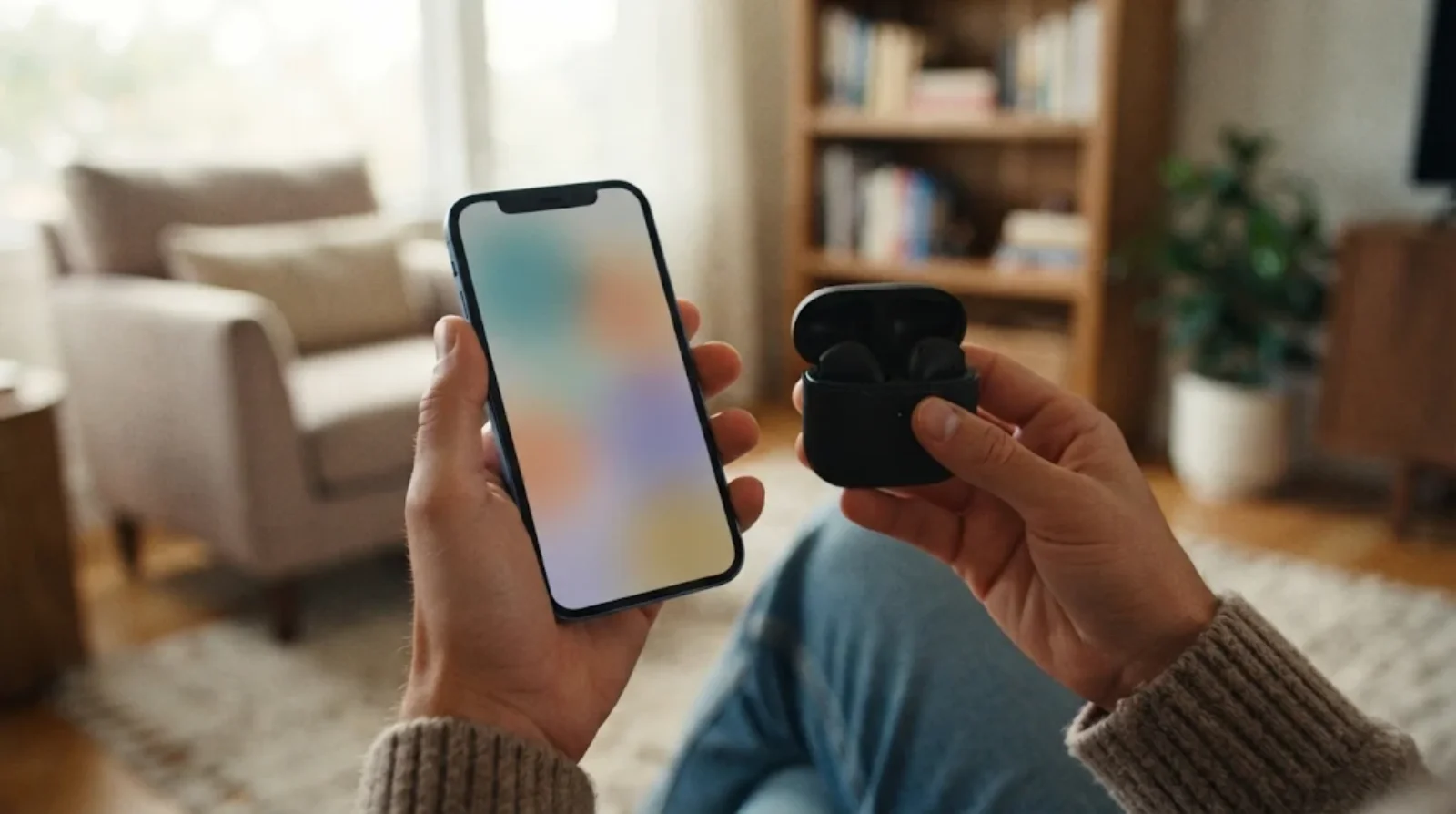
Your iPhone or iPad connects through Settings > Bluetooth. Look for your JBL model under Other Devices or My Devices, then tap its name.
Need to clear an old connection first? Tap the information button beside your earbuds and choose Forget This Device. Apple applies that removal across devices using your Apple Account, so keep that in mind before confirming. Many of the checks in our AirPods disconnecting fixes also help when any earbuds keep dropping off an iPhone.
How to Do It
- Activate pairing mode on your JBL earbuds.
- Open Settings > Bluetooth on your iPhone or iPad.
- Turn Bluetooth on if it is off.
- Find your JBL model under Other Devices or My Devices and tap it.
- Complete any confirmation that appears. If your device requests a PIN, follow the accessory’s instructions rather than guessing a code.
2. Use Google Fast Pair on Android
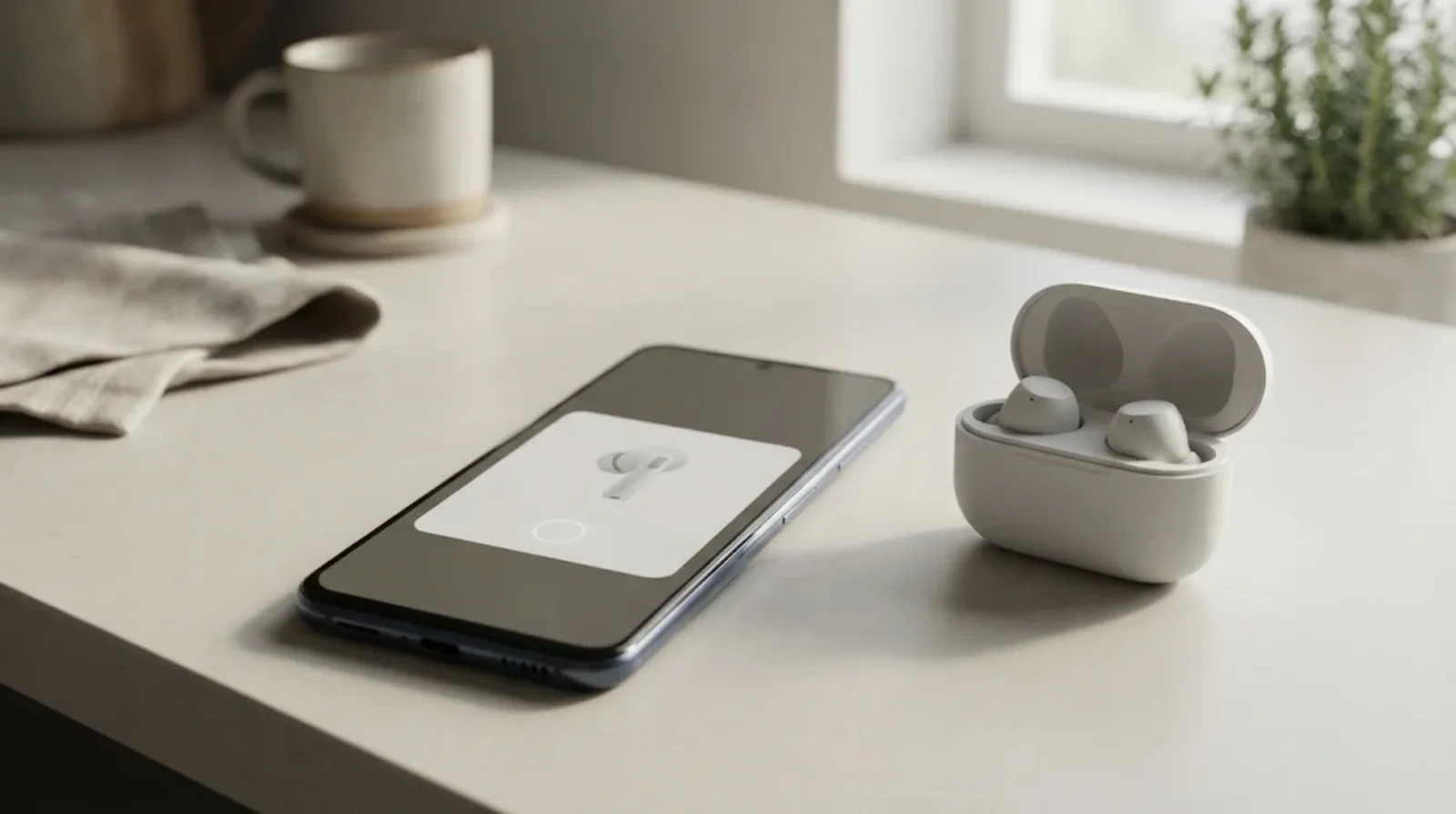
Google Fast Pair lets you connect compatible earbuds through a notification on your phone. Confirmed JBL examples include Tour Pro 3, Endurance Peak 4, Tune Buds 2, Tune Beam 2, Wave Beam 2 and Vibe Beam 2.
You need Android 6.0 or newer, with Bluetooth and Location enabled. Keep Wi-Fi or mobile data connected, too. If the notification stays absent, Google recommends moving your phone within 0.5 m, or 1.6 ft, of the earbuds.
No notification? You can still try the manual Bluetooth route because Fast Pair cannot detect every accessory. To remove an existing pairing, open the Bluetooth device list, tap the gear beside your JBL earbuds and select Forget. If the connection keeps dropping later, our guide to Android Bluetooth that keeps disconnecting covers the next checks.
How to Do It
- Put your earbuds into pairing mode and bring them close to your Android phone.
- Check that Bluetooth, Location and your internet connection are on.
- Tap Connect when the Fast Pair notification appears.
- If Android offers additional setup, tap Set up and follow the instructions.
- If no notification appears, open Settings > Connected devices > Pair new device.
- Select your JBL model from the available devices. You can also reach Pair new device by swiping down and pressing and holding the Bluetooth icon.
3. Connect to a Samsung Galaxy
On a Samsung Galaxy phone or tablet, you can select your earbuds through Settings > Connections > Bluetooth. Put the buds into pairing mode first, then choose their name and confirm with Pair.
Already have an old JBL entry that you want to remove? Tap its gear icon and choose Unpair. That gives you a way to clear the saved connection before trying again.
How to Do It
- Activate pairing mode on your JBL earbuds.
- Open Settings > Connections > Bluetooth on your Galaxy.
- Switch Bluetooth on if necessary.
- Tap your JBL model in the device list.
- Select Pair to confirm the connection.
4. Connect to a Windows 11 PC
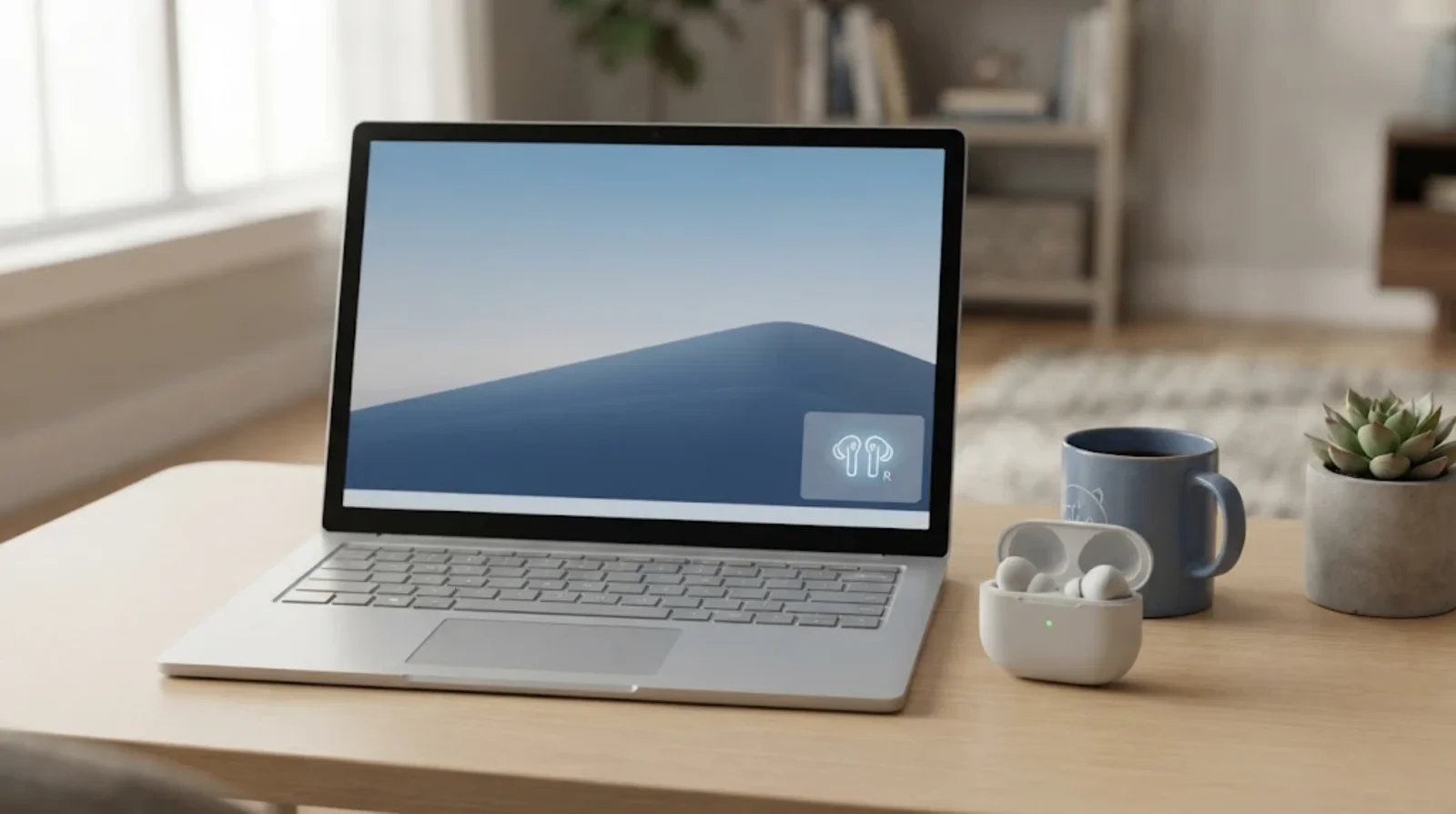
Windows 11 lets you select your earbuds through the taskbar’s Bluetooth controls. You can also use Swift Pair when your JBL model supports it, including Tune Buds 2, Tune Flex 2, Live Beam 3, Tour Pro 3, Wave Beam 2 and Vibe Buds 2.
With Swift Pair, Windows may first ask whether you want to allow the feature. Choose Yes, then select Connect when the nearby-device notification appears. JBL’s guides list support from Windows 10 version 1803 onward.
What if your PC finds other accessories but misses the earbuds? Microsoft recommends choosing Advanced for Bluetooth scanning. If your computer has no Bluetooth hardware, a USB Bluetooth adapter can add it.
How to Do It
- Put your JBL earbuds into pairing mode.
- Open Settings > Bluetooth & devices and enable Bluetooth.
- Select the Network, Sound or Battery icon area on the taskbar.
- Click the Manage Bluetooth devices chevron beside the Bluetooth control.
- Find your JBL earbuds under New devices and select them.
- If they do not appear, change Bluetooth scanning to Advanced and check the list again.
5. Connect to a Mac
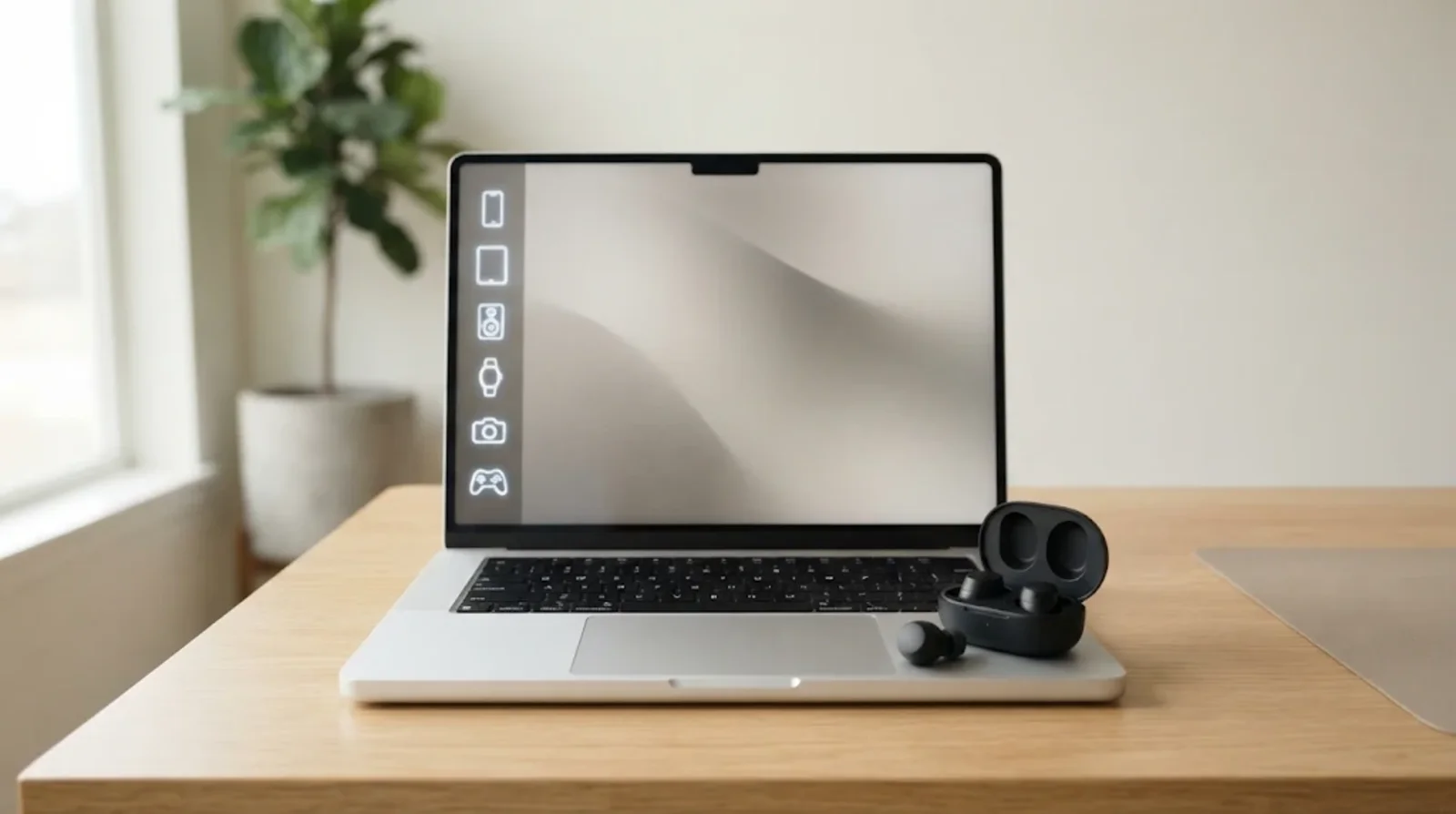
Your Mac connects to JBL earbuds through System Settings > Bluetooth. Put the earbuds into pairing mode first so you can select them from the device list.
Need to remove a saved connection before trying again? Control-click your JBL earbuds in the Bluetooth list and choose Forget. You can then repeat the pairing process.
How to Do It
- Activate pairing mode on your JBL earbuds.
- Open Apple menu > System Settings > Bluetooth.
- Find your JBL model and move the pointer over it.
- Click Connect.
- Select Accept if your Mac asks for confirmation.
6. Connect to a Smart TV
Want your TV audio through your earbuds? On a compatible Samsung TV, you select them from Bluetooth Speaker List. The exact route can vary slightly between TV models.
Here’s the catch. Samsung generally supports one Bluetooth audio output at a time, although newer TVs can offer Multi Connect. Your TV’s features determine whether another Bluetooth audio device can play alongside your earbuds.
You may also notice a delay between the sound and the action on screen. Samsung warns that lip-sync errors can occur and that some headphones designed for phones may not connect to a TV.
How to Do It
- Put your JBL earbuds into pairing mode.
- On your Samsung TV, open Menu > Settings > Sound > Sound Output > Bluetooth Speaker List.
- Select your JBL model and confirm pairing.
- If your TV uses different menu names, check its instructions for the Bluetooth audio option.
7. Connect to Nintendo Switch 2
Nintendo Switch 2 supports Bluetooth audio, but you need to check your controller count before pairing. You can have no more than two wireless controllers connected while using Bluetooth audio, and a Joy-Con 2 pair already counts as two.
Your console can remember up to 10 Bluetooth audio devices, though only one can be connected at a time. Saved pairings and active connections are different things here.
Planning to use the earbuds for voice chat? Nintendo Switch 2 does not support Bluetooth microphones. Bluetooth audio also disconnects during local wireless play, so that interruption does not necessarily mean your JBL earbuds have failed.
How to Do It
- Update your Nintendo Switch 2.
- Check that no more than two wireless controllers are connected.
- Activate pairing mode on your JBL earbuds.
- Open System Settings > Bluetooth Audio > Pair Device.
- Select your JBL earbuds to connect.
8. Finish Setup in the JBL Headphones App
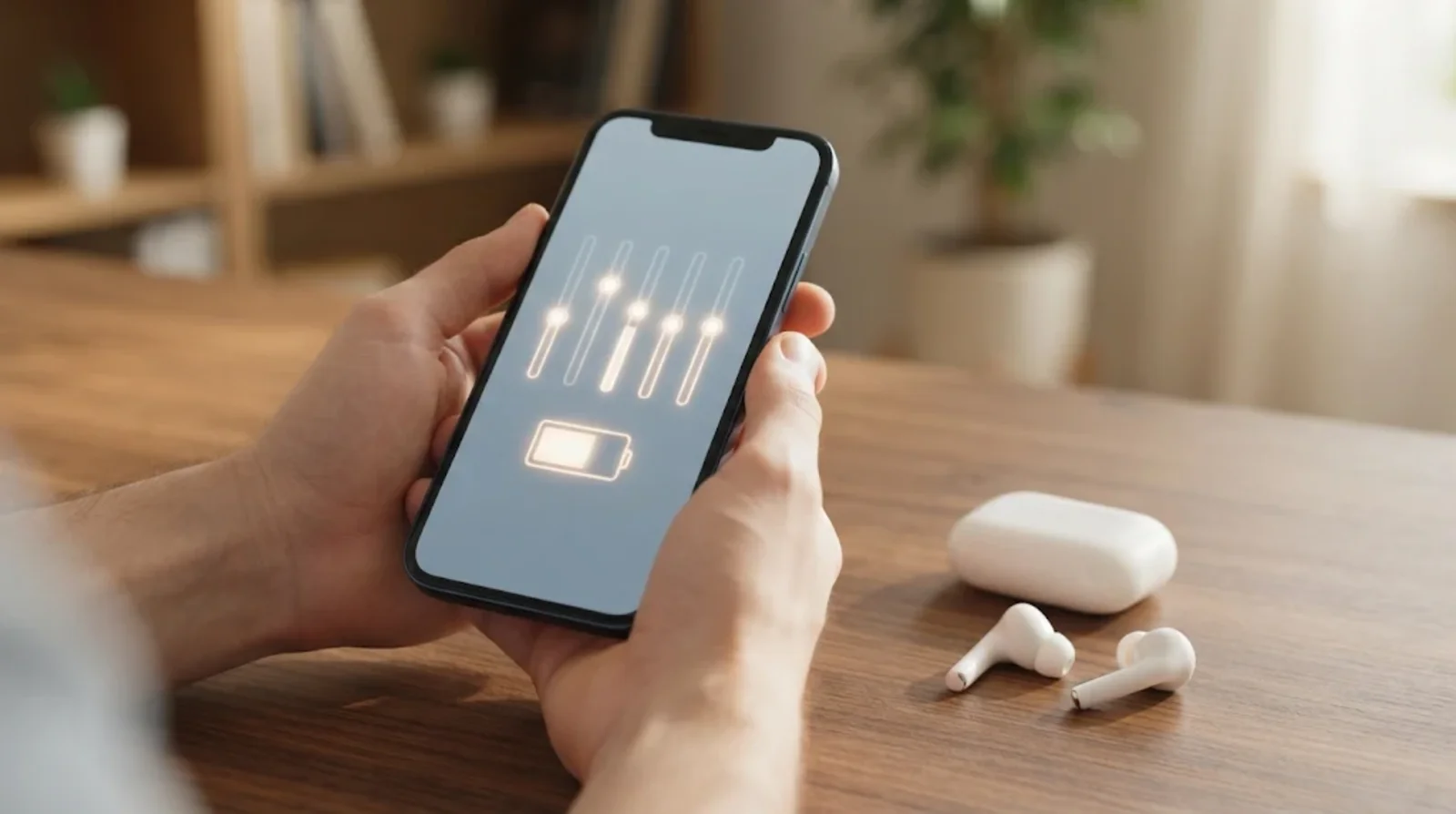
Pair your earbuds through Bluetooth before completing setup in JBL Headphones. The app generally detects them after that connection is established. You can then use preset or custom EQ, check battery levels and change supported controls, including gestures and ANC on some models.
Firmware updates arrive through the app, too, and certain audio features were added after launch. App version 5.33 added Auracast receiver support for Tune Buds 2 and Tune Beam 2, while version 5.36 added it for Tune Flex 2. That does not mean every JBL model supports Auracast.
Misplaced an earbud? Find My Buds is available on some models, including Live Beam 3, while JBL also advertises earbud finding for Tune Beam 2. Check which features your model offers rather than expecting every app control to appear.
How to Do It
- Complete Bluetooth pairing using the instructions for your phone.
- Open JBL Headphones and check whether it recognizes your earbuds.
- Choose an EQ preset or adjust the custom EQ.
- Review the battery information and any gesture or noise-control options available for your model.
- Check for firmware updates through the app and follow the instructions it provides.
- If your model supports earbud finding or Auracast, check the available controls after updating.
Connect Your JBL Earbuds to Two Devices
Want to move between your phone and laptop without pairing your earbuds again each time? Multipoint supports two active connections on compatible JBL models.
Here’s the catch. Saving your earbuds on several devices does not mean they can stay connected to all of them. You need to check what your exact model supports.
Check Which JBL Earbuds Support Multipoint
JBL confirms multipoint for the models below through its compatibility list, product pages or Quick Start Guides. Check the full model name, including the generation number.
| JBL Family | Confirmed Multipoint Examples |
|---|---|
| Tune | Tune Buds, Tune Buds 2, Tune Beam 2 and Tune Flex 2 |
| Wave and Vibe | Wave Beam 2, Vibe Beam 2 and Vibe Buds 2 |
| Live | Live Free 2, Live Pro 2, Live Flex, Live Beam 3, Live Buds 3 and Live Flex 3 |
| Tour | Tour Pro 2 and Tour Pro 3 |
| Endurance | Endurance Race 2 and Endurance Peak 4 |
JBL’s general compatibility list does not include every model whose product page confirms multipoint. Tom’s Guide also reports the feature on Live Beam 4, but that report should not be extended to every Live model.
Understand Paired Versus Connected
Paired means your earbuds remember a device for future use. Connected means there is an active Bluetooth connection right now.
Vibe Beam 2 can remember up to eight devices while keeping two connected simultaneously. So, finding your earbuds saved on three phones does not mean all three can maintain an active connection.
Add the Second Device
JBL’s illustrated multipoint instructions indicate a single tap followed by a 5-second hold. The guide presents that gesture as a control label within a drawing, so the label alone does not fully explain which earbud controls to touch.
For the original Tune Buds, SoundGuys interprets it as tapping both earbuds once, then touching and holding both for about 5 seconds. Check your Quick Start Guide before applying that interpretation to another model.
- Pair your JBL earbuds with your first device.
- Activate pairing mode using the repeat-pairing gesture for your model.
- Open Bluetooth on your second phone or computer.
- Select your JBL earbuds and complete the pairing confirmation.
Switch Between Your Connected Devices
Pause computer playback before moving audio to another connection. JBL recommends this in its Soundgear Sense guidance, making it a useful switching tip rather than a guaranteed fix for every earbud. The same guidance suggests restarting the audio product and computer if switching still fails.
Some JBL earbuds add Google Audio Switch for moving audio between Android devices associated with one Google account, including Live Beam 3 and Endurance Peak 4. However, JBL support says Tune 235NC allows only one active device connection. Having that model saved on both your phone and laptop does not establish multipoint support.
Get Both JBL Earbuds Working Together
One side connects, and the other stays silent. Before resetting your earbuds, check whether the silent side is charging and whether your model needs a separate left and right pairing procedure. Galaxy owners can compare the steps in our Galaxy Buds one side fixes.
Clean the Charging Contacts
An earbud that has not charged can leave you troubleshooting the wrong thing. JBL says dirty charging contacts are almost always responsible for charging trouble and earbuds unexpectedly switching on to begin pairing.
Clean the metal contacts on your earbuds and inside their case using a cotton swab and rubbing alcohol. Allow them to dry before checking charging again.
Reset With Both Earbuds Outside the Case
JBL’s generic TWS reset procedure requires both earbuds to be connected, powered on and outside the case. The Wave and Vibe instructions also specify that both earbuds must be operating outside their case.
Many covered models use three touches, with the third held for more than 5 seconds. Third-generation Tune, Wave and Vibe models need a hold longer than 10 seconds instead. Tour Pro 3 requires the gesture on both earbuds.
- Check the reset instructions for your exact model.
- For the outside-the-case procedure, make sure both earbuds are powered on and removed.
- Perform the correct reset gesture.
- Remove the saved JBL pairing from your phone if necessary.
- Activate pairing mode and connect again.
A factory reset removes saved pairings and personal preferences. Older models can use a different procedure, so do not apply the current touch gesture to every JBL earbud.
Manually Pair Older Left and Right Earbuds
Some older JBL earbuds need their two sides connected to each other before you reconnect them to your phone. JBL provides this guidance for models including Tune 115TWS, Tune 120TWS, Tune 125TWS, Tune 220TWS, Tune 225TWS and Tune 130NC.
Here’s the thing. On the older models covered by that guidance, resetting does not automatically pair the left and right earbuds together. You still need the manual procedure in your model’s guide.
- Remove the JBL pairing from your phone.
- Follow your manual’s left/right pairing instructions.
- Connect the earbuds to your phone again.
- If that fails, remove the phone pairing again and perform the correct product reset.
- Manually pair the earbuds to each other once more.
- Reconnect them to your phone.
C100TWS, C105TWS and T100TWS have their own procedure. Place both earbuds inside the charging case, then press the left and right buttons together five times.
JBL Free and Free X use another method when the left side stops connecting. Keep the right earbud powered on and playing, remove the left earbud and hold its power button for 5 to 8 seconds until its startup sound plays.
Use One Earbud With Dual Connect
Want to listen through just one earbud? Dual Connect allows that on supported models while the other earbud remains in its charging case.
JBL support confirms this behavior for Endurance Peak 3. The guides for Live Pro 2, Tune Buds 2 and Tune Flex also show mono and stereo modes, so single-earbud playback can be intentional.
Use JBL Earbuds With Consoles and Wired Audio Devices
Your earbuds can pair with your phone while refusing a direct connection to another device. Consoles, computers without Bluetooth and airplane screens each need a different check before you try pairing again.
Check Console Bluetooth Restrictions
Sony says PS5 does not support direct connections to third-party Bluetooth headsets. Its supported headset connection options include USB-A, USB-C and a 3.5 mm jack.
For Xbox, a 2022 What Hi-Fi? article reports that Xbox Series X does not support Bluetooth audio. That is an older third-party report, so do not treat it as current Microsoft confirmation for every Xbox model.
Third-party guidance suggests Bluetooth transmitter dongles as a PS5 workaround. However, PS5 compatibility is unconfirmed for JBL Smart Tx and the Tour Pro 3 case transmitter, so check a transmitter’s exact console support before buying.
Add Bluetooth to a Windows PC
If your Windows computer has no Bluetooth hardware, Microsoft says a USB Bluetooth adapter can add it. You can then use Windows Bluetooth controls to pair your earbuds.
You still need to activate pairing mode on the JBL earbuds. Adding the adapter does not replace that part of the connection process.
- Insert a USB Bluetooth adapter into a USB port on your PC.
- Enable Bluetooth in Windows.
- Put your JBL earbuds into pairing mode.
- Follow the Windows pairing instructions earlier in this guide.
Use JBL’s Audio Transmitters
The Tour Pro 3 charging case can transmit audio from compatible wired equipment to your earbuds. Its guide illustrates connections for computers, TVs, aircraft entertainment and treadmills.
JBL Smart Tx is a separate accessory with wired connection options for computers, TVs and aircraft systems. Check its compatibility with your exact earbuds rather than assuming it supports the entire JBL range.
| JBL Option | Connection Options | Important Limits |
|---|---|---|
| Tour Pro 3 charging case | JBL describes AUX and USB-C audio connections with the included cables. Its guide also illustrates USB-A connections. | Some aircraft entertainment systems require a separate conversion adapter that is not included. |
| JBL Smart Tx | Its guide shows AUX, USB-C and USB-A connections. A 2-second hold powers it on, while a 10-second hold restarts it. | Earbud compatibility needs checking, and PS5 support is unconfirmed. |
Retailer JB Hi-Fi NZ lists Smart Tx compatibility with Live Flex 3, Live Buds 3, Live Beam 3, Tune Flex 2, Tune Buds 2, Tune Beam 2, Tune Buds and Tune Beam. Keep that retailer attribution when checking whether your earbuds are covered.
JBL’s Smart Tx guide specifies Bluetooth 6.0, but JB Hi-Fi NZ lists Bluetooth 5.3. Those conflicting versions do not establish whether the transmitter will work with your console.
Reset Your JBL Earbuds and Pair Them Again
A factory reset removes your saved Bluetooth pairings and personal preferences. Before you start, check the exact model and generation, because JBL uses different gestures and hold times across its earbuds.
Choose the Reset for Your Model
For many JBL earbuds, the gesture means two separate taps followed by a third touch that you keep held. JBL’s Quick Start Guides sometimes illustrate that as two taps followed by a hold, so do not mistake it for holding the second touch.
| JBL series | Reset gesture | Other ways to reset |
|---|---|---|
| Tune Buds, Beam and Flex, including second generations | Tap either earbud three times, holding the third touch for more than 5 seconds. | JBL Headphones app |
| Tune Gen 3, including Buds 3, Beam 3 and Flex 3 | Tap either earbud three times and hold the third touch for more than 10 seconds. | JBL Headphones app |
| Wave and Vibe, first and second generations | Tap three times and hold the third touch for more than 5 seconds. Both earbuds must be powered on and outside the case. | JBL Headphones app |
| Wave and Vibe Gen 3 | Tap three times and hold the third touch for more than 10 seconds. Both earbuds must be powered on and outside the case. | JBL Headphones app |
| Supported Live models | Tap either earbud three times, holding the third touch for more than 5 seconds. | App reset or case-button reset on supported Smart Case models |
| Tour Pro 2 | Tap either earbud three times and hold the third touch for more than 5 seconds. | App reset or case-button reset |
| Tour Pro 3 | Perform the three-touch gesture on both earbuds, holding the third touch for more than 5 seconds. | App reset or case-button reset |
| Models covered by JBL’s generic TWS reset article | Tap the right earbud three times and hold the third touch for more than 5 seconds, until shutdown. Both earbuds must be connected, powered on and outside the case. | Check the model’s series-specific reset instructions |
Some older Tune earbuds use an inside-the-case procedure instead. For Tune 115, 120, 125, 215, 220 and 225 TWS, place both earbuds in the case and hold the right earbud control for more than 5 seconds.
Reset Through the App or Charging Case
If your earbuds support an app reset, open JBL Headphones and follow Support > Reset to Factory Setting > Reset. JBL lists this route for supported Tune, Wave, Vibe, Live and Tour models.
Supported Live Smart Case models and Tour Pro 2/3 also offer a case-button factory reset. Place the earbuds inside and hold the reset button for 10 seconds. On the supported Live cases, JBL locates that button beside the charging port.
Keep Hardware and Factory Resets Separate
Here’s the catch. JBL separately describes a hardware reset that preserves your preferences, using a case-button hold longer than 5 seconds on covered models. That differs from the 10-second case factory-reset instructions on its Live and Tour pages.
Follow the procedure named for your exact model rather than treating those timings as interchangeable. After a factory reset, clear the old phone pairing if it remains listed and pair the earbuds again.
- Forget the saved JBL earbuds on your phone if necessary.
- Perform the factory reset for your model.
- Put the earbuds into pairing mode.
- Select your JBL model through your phone’s Bluetooth menu.
- If you have an older model requiring manual left/right pairing, complete that procedure before reconnecting to your phone.
Why Your JBL Earbuds Won’t Show Up in Bluetooth
An empty Bluetooth list does not immediately mean your earbuds need a factory reset. Check pairing mode, power and existing connections before removing all your saved preferences.
Work through the checks below using the ones that match your device. A missing Android notification and a Windows laptop failing to list the earbuds can need different fixes.
- Another Device Is Connected: Disconnect a phone or computer that may already be using your JBL earbuds. Activate pairing mode again before checking the device you want to connect.
- The Separate LE Entry: On certain models, including Live Pro 2 and Live Free 2, JBL says to select the product name without “LE.” The separate LE entry on those covered models serves voice assistant features, so do not confuse it with newer earbuds’ genuine LE Audio support.
- Smart Case Sleep Mode: Tour Pro 2/3 and Live Beam 3, Live Buds 3 and Live Flex 3 can arrive in a battery-saving sleep state. Connect the case to a charger for roughly 2 seconds, remove the earbuds, then return them to the case before trying pairing again.
- Low Battery: Charge your earbuds and their case before retrying. If one earbud is failing to charge, use the charging-contact cleaning procedure above before assuming its Bluetooth connection has failed.
- Too Far From Your Phone: For a missing Google Fast Pair notification, bring your phone within 0.5 m, or 1.6 ft, of the earbuds. This is Google’s Fast Pair troubleshooting guidance, not a confirmed JBL Bluetooth range.
- Windows Scanning Limits: Microsoft recommends selecting Advanced for Bluetooth scanning when an accessory does not appear. Check that option before assuming your earbuds are incompatible with the laptop.
- An Old Bluetooth Pairing: JBL recommends switching Bluetooth off and on, forgetting the saved pairing, then restarting your phone and earbuds. Afterward, activate the correct pairing mode for your model and connect again.
- Outdated Firmware: JBL delivers earbud firmware through the JBL Headphones app. Check for an update if connection trouble continues, while keeping expectations model-specific. For example, Live Beam 3 firmware 4.8.0 addressed multipoint noise rather than every possible pairing failure.
- Apple Account Removal: On iPhone, open Settings > Bluetooth, tap the information button beside your earbuds and choose Forget This Device. Apple says that removing the pairing also affects other devices using your Apple Account, which can explain why the earbuds need reconnecting elsewhere.
- Windows Driver or Service Trouble: In a July 2026 Microsoft Q&A thread about an HP laptop missing Live Beam 3, a moderator suggested updating the Bluetooth driver through Device Manager, restarting Bluetooth Support Service and removing old JBL entries. These were troubleshooting suggestions in response to a user report, without a confirmed successful repair.
FAQs
Many JBL models use the earbud controls to start pairing, so do not assume your case has a dedicated pairing button. Tom’s Guide reports that Live Beam 4 can begin pairing through its case touchscreen. Check your model’s guide before using a case button, since supported cases also have reset controls.
Yes, supported models offer Dual Connect for single-earbud listening while you leave the second earbud inside its case. JBL confirms this for Endurance Peak 3, and the guides for Tune Flex, Live Pro 2 and Tune Buds 2 also show mono operation.
Certain JBL models show an additional LE entry used for voice assistant features, including Live Pro 2. For those models, select the regular JBL product name without LE for your audio connection. This duplicate-entry advice should not be confused with genuine LE Audio support on newer earbuds.
Sony does not support pairing third-party Bluetooth headsets directly with PS5. A 2022 What Hi-Fi? article also reports that Xbox Series X lacks Bluetooth audio support. Third-party guidance suggests transmitters for PS5, but you need to check console compatibility, and support for JBL Smart Tx or the Tour Pro 3 case is unconfirmed.
No, you normally complete pairing through your device’s Bluetooth controls before JBL Headphones detects the earbuds. You can then use supported app features such as EQ adjustments, battery information and firmware updates.
The number depends on your exact model. Vibe Beam 2 retains up to eight saved pairings while allowing two simultaneous connections. Do not assume that other JBL earbuds have the same memory capacity or active connection limit.
Final Word
Start with the pairing method for your exact JBL model, then select the earbuds on the device you want to use. If your model shows the separate voice assistant LE entry, choose the regular product name without LE.
Still having trouble? Work through the connection checks before making a factory reset your last step, then forget the old pairing and connect again. Once your earbuds are working, keep their firmware updated through JBL Headphones so you have the fixes and features available for your model. Still shopping for a new pair? Our noise cancelling earbuds picks and our look at open ear headphones worth buying can help you choose.
