




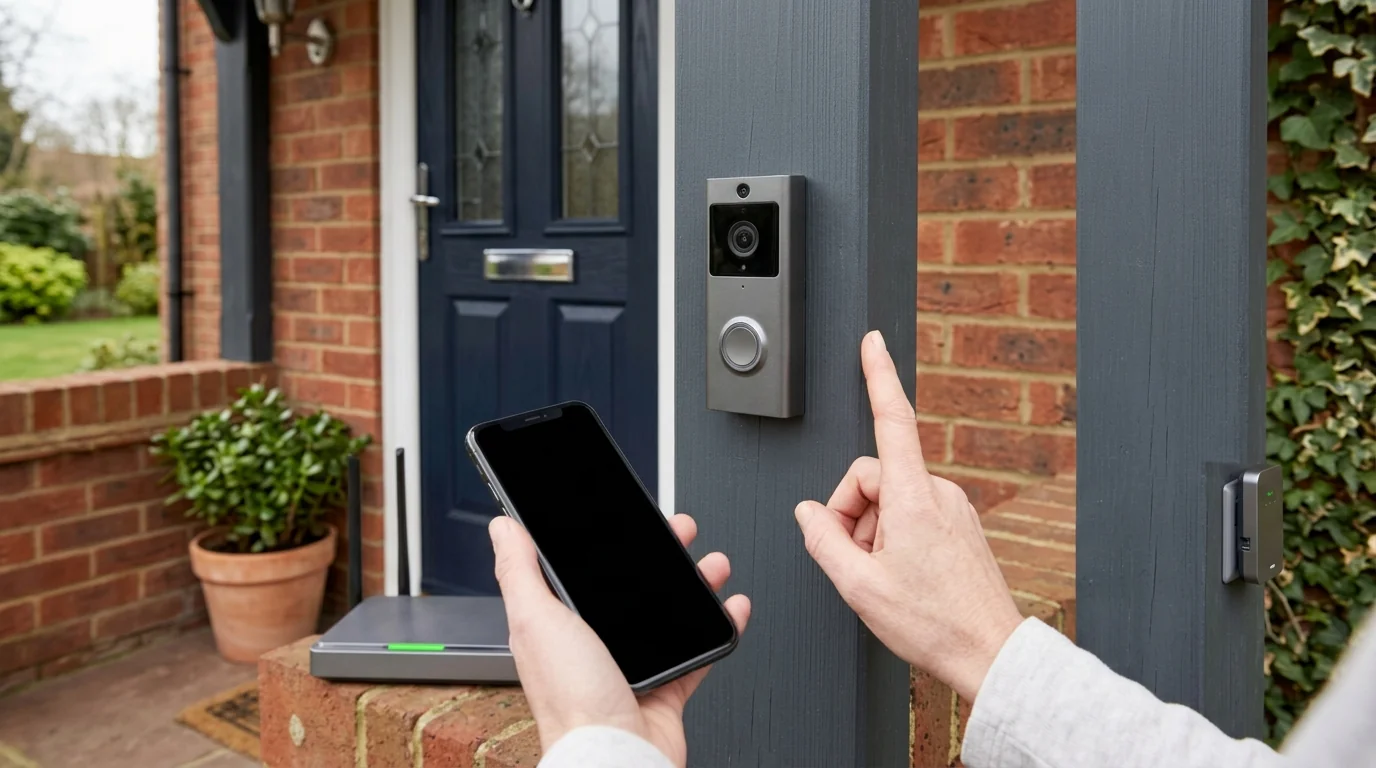
Your package arrives, you open the app, and your doorbell is offline. Again. If your ring doorbell keeps going offline, the usual causes are a weak wifi connection at your door, a battery or wired power problem, or trouble with your router. The Ring app’s Device Health screen is a useful place to start narrowing it down.
Where do you begin? With a few checks that help you choose the right fix. We’ll walk through 10 fixes, but first, let’s look at what can cause those repeated disconnections.
Why Your Ring Doorbell Keeps Going Offline
Your doorbell needs enough power and a reliable internet connection to stay online. You see, a connection problem can start at the door, at your router or with your internet service. These six causes give you a starting point.
- Weak signal. Your router may be too far from your doorbell. Brick, stucco and metal walls, along with large appliances, can weaken the signal before it reaches your door.
- Slow upload speed. Your internet connection might not provide enough upload capacity for your doorbell’s video resolution. If you have several Ring devices, you need enough capacity for their total requirements.
- Low or drained battery. Your battery-powered doorbell can disconnect when its charge runs low. If the battery runs completely flat, you may struggle to get the doorbell running again.
- Wrong transformer. Your hardwired doorbell needs a power source that meets its model’s requirements. An incompatible supply can cause disconnections, damage your device and create an electric shock risk.
- Router firewall or two routers. Your router’s firewall can interfere with the connection. Running more than one router on your network can cause problems too.
- Cold weather. Your battery lasts less time around freezing temperatures, and charging stops below freezing. That can leave your doorbell without enough power to stay online.
Check These Three Things First
Before you start moving equipment or resetting your doorbell, use the information already available to you. A service update, an error code or a signal reading can help you decide what to check next. Start with these three checks.
1. Look at Ring’s status page.
Visit status.ring.com to check whether Ring reports a service incident. You can see updates for its apps, doorbells and other services, along with earlier incidents.
Why begin here? It lets you check Ring’s service status before spending time troubleshooting your own equipment.
2. Tap the offline icon for the error code.
Open the Ring app and find your doorbell’s camera tile. Tap its offline icon to see an error code and the troubleshooting instructions linked to it.
Your code gives you something specific to work with. Follow the accompanying guidance before trying unrelated fixes.
3. Read the Device Health screen.
In the Ring app, open the menu, select Devices and choose your doorbell. Open Device Health to check its status, then find Signal Strength for its RSSI reading.
That number helps you judge the wifi connection where your doorbell sits. Here’s how to read it.
What Your Ring Signal Strength Number Means
Your RSSI reading tells you how strong the wifi signal is at your doorbell. A reading closer to zero means a stronger connection, so -55 is better than -75. Use the ranges below to decide whether improving the signal should be your next move.
| Signal strength (RSSI) | What it means | What to do |
|---|---|---|
| 0 to -60 | Your doorbell has a strong wifi signal. | Check power, upload speed and router issues if disconnections continue. |
| -60 to -70 | Your connection is usable, with room for improvement. | Try reducing the distance between your router and doorbell. |
| -70 to -80 | Your signal is weak enough for delays and interruptions. | Bring wifi closer to your door or consider a Chime Pro to improve coverage. |
| -80 or worse | Your connection is very weak and may repeatedly drop offline. | Prioritize better wifi coverage at your door through router placement or a signal boost. |
10 Fixes When Your Ring Doorbell Keeps Going Offline
You’ve checked the service status and your doorbell’s signal strength. Now you can work through the fixes that match what you found. Start with a restart, then check the connection and power supply before considering a factory reset.
1. Restart your router and modem.
Start here if your network seems to be causing trouble. Ring recommends restarting both your router and modem as a way to address connection problems.
- Disconnect your router and modem from power.
- Leave them unplugged for 30 seconds.
- Reconnect their power to restart them.
2. Reconnect the doorbell in the Ring app.
Still offline? Try reconnecting your doorbell through the app. You can use the same route to change the network it connects to.
- Open the Ring app’s main dashboard.
- Tap the three-line menu, then choose Devices.
- Select your doorbell and open Device Health.
- Under Network, choose Reconnect or Change Network.
- Follow the instructions, watching your doorbell’s lights and listening for its audio guidance.
3. Bring the wifi closer to the door.
A weak RSSI reading gives you a reason to reduce the distance between your router and doorbell. Walls made with brick, stucco or metal can weaken the connection, as can large appliances and electronics.
You can also add a Chime Pro to help the signal reach your doorbell. Already have one? Use its placement test in the Ring app to help choose where it goes. A mesh wifi system is another option Ring lists. Not sure which gadget fits your home? Our guide to WiFi booster vs WiFi extender explains the difference.
4. Switch the doorbell to 2.4 GHz.
If your doorbell is connected to 5 GHz, try a 2.4 GHz network instead. Ring includes this among its suggested fixes for devices that keep disconnecting.
Use the Change Network option in Device Health and follow the app’s instructions. This gives you another connection option to try before moving on to a reset.
5. Test your upload speed at the door.
You see, signal strength is only part of the problem. Your connection also needs enough upload speed for your doorbell’s video resolution, so test beside the router and at the doorbell.
- Connect your phone to the wifi network your doorbell uses.
- Turn off any VPN on your phone.
- Open speedtest.net while standing near your router and tap Go.
- Repeat the test where your doorbell is installed.
- Compare the upload results with your device’s requirements.
Your upload requirement is 1 Mbps for 720p, 2 Mbps for 1080p, 2.5 Mbps for 1536p, 10 Mbps for 2K or 15 Mbps for 4K. If you use several Ring devices, add their requirements together.
6. Charge the battery the right way.
Has your battery run completely flat, leaving the doorbell unable to start? Ring recommends this charging attempt before you move to the reset step.
- Connect your doorbell’s battery to a USB wall charger.
- Plug the charger into a wall outlet.
- Let it charge for 30 minutes, then check whether your doorbell starts.
Cold weather needs a different consideration. Your device stops charging below freezing, so bring the battery indoors and charge it through USB if freezing conditions prevent charging outdoors.
7. Make sure the transformer can power it.
A wired connection does not automatically mean your power supply is suitable. Your transformer needs to meet the requirements for your exact doorbell model. Use the table below to check the required voltage, frequency and VA rating.
| Doorbell model | Transformer it needs |
|---|---|
| Ring battery doorbells and Video Doorbell Elite | 8 to 24 VAC, 50/60 Hz, 5 to 40 VA |
| Video Doorbell Wired | 10 to 24 VAC, 50/60 Hz, 8 to 40 VA |
| Video Doorbell Plus, Video Doorbell Pro and Wired Doorbell 2K Plus | 16 to 24 VAC, 50/60 Hz, 10 to 40 VA |
| Wired Doorbell 4K Pro | 16 to 24 VAC, 50/60 Hz, 10 to 40 VA |
Some wired models also require a Pro Power Kit when connected directly to a transformer. Take compatibility seriously, because the wrong power source can damage your doorbell and cause an electric shock.
8. Lower the firewall or bridge a second router.
Your router’s firewall can interfere with your doorbell’s connection. Ring lists reducing the firewall level as one possible fix when it is causing the problem.
Have two routers on the same network? Ring recommends using just one or putting the second into Bridge mode. Your broadband company or the team behind your router can guide you through putting the second router into Bridge mode.
9. Try the guest network.
Your router’s guest network gives you another option to test. Ring includes connecting through a guest network among its suggested remedies for an offline device.
Use Change Network in your doorbell’s Device Health screen and follow the app’s instructions to connect. Then check whether your doorbell comes back online.
10. Factory reset as a last resort.
Still no connection after the other fixes? Ring recommends a factory reset followed by setting up your device again as the final option.
There is also a specific instruction for a doorbell that will not start after its battery has drained completely. If the 30-minute wall-charge attempt has failed, follow this sequence.
- Disconnect the doorbell from the charger.
- During the factory reset, keep the front doorbell button pressed for 30 seconds.
Ring Doorbell Offline but Your WiFi Works Fine
Your phone can show full wifi bars indoors while your doorbell struggles outside. You see, distance and walls can weaken the signal before it reaches your front door, and a good download result does not tell you whether you have enough upload speed. Check the connection where your doorbell actually sits.
- Signal at the door. Read your doorbell’s RSSI in Device Health. A reading between -70 and -80 means the connection is poor, while -80 or worse can leave you offline.
- Obstacles along the way. Check whether brick, stucco, metal, large appliances or electronics sit between your router and doorbell.
- Upload capacity. Run a speed test beside your router and another at the door. Compare the upload results with the total requirements of your Ring devices.
- Power supply. Check your battery charge or transformer compatibility. Working wifi cannot keep a doorbell online without sufficient power.
The same pattern shows up with other smart home gear, as our fixes for a smart plug that won’t connect to WiFi and a Roomba not connecting to WiFi show.
“Test the connection at your door, because that is where it has to work.”
Battery vs Hardwired Ring Doorbells
Your power source changes what you should check when the doorbell disconnects. Both types can suffer from weak wifi, but their power problems differ. Use this comparison to choose your first check.
| Issue | Battery doorbell | Hardwired doorbell |
|---|---|---|
| Power source | Your doorbell uses a battery, with wired power options available. | Your doorbell needs a compatible transformer or power source. |
| Typical offline cause | Your battery may be low or completely drained. | Your power supply may not meet your model’s requirements. |
| First fix | Recharge your battery. | Check that your power source matches your doorbell model. |
| What to check | Battery charge, cold weather and wifi strength. | Required voltage, frequency, VA rating and any Pro Power Kit requirement. |
Why Your Ring Doorbell Goes Offline in Cold Weather
Does your doorbell struggle when temperatures fall? Your battery can run down sooner around freezing, and your device stops charging below freezing. That makes it worth checking temperature alongside your wifi signal.
Your Ring device’s normal operating range is -4°F to 122°F, or -20°C to 50°C, with its best performance around 75°F or 25°C. Here’s the thing. Being within that operating range does not mean your battery will charge below freezing.
If freezing conditions prevent charging, take your battery indoors and use a USB cable instead of depending on solar power. Once temperatures rise and you have recharged the battery, its usual battery life returns.
When to Contact Ring or Your Internet Provider
You do not need to keep repeating the same fixes without a result. Your speed tests and the troubleshooting you have already completed can help you choose who to contact. Use these two points to decide.
- Your internet provider. Get in touch if a test beside your router returns less than 1 Mbps, falls below your device’s required speed or delivers under 60% of the speed you pay for.
- Ring support. If your doorbell remains offline after a factory reset and setup, contact Ring for further help.
How to Keep It Online for Good
Once your doorbell reconnects, keep checking the things that caused trouble. Reliable wifi, enough upload capacity and suitable power remain the priorities. Build these checks into your routine.
- Watch the signal. Use Device Health to check whether your doorbell’s RSSI points to a weak connection.
- Allow for every device. Add together the upload requirements of all your Ring devices when checking your internet speed.
- Keep power compatible. Match your transformer to your exact model, including any required Pro Power Kit.
- Account for cold weather. Remember that freezing conditions shorten battery life and can stop charging. Use indoor USB charging when needed.
FAQs
Start by restarting your router and modem, then try reconnecting your doorbell through Device Health in the Ring app. Leave both network devices unplugged for 30 seconds before restoring power. If your doorbell stays offline, tap its offline icon for an error code and instructions that help you choose your next step.
Yes, your hardwired doorbell can disconnect if its transformer does not meet the power requirements for that model. Check the required voltage, frequency and VA rating rather than assuming any doorbell transformer will work. An incompatible power source can also damage your device and create an electric shock risk.
If your doorbell keeps disconnecting on 5 GHz, try connecting it to a 2.4 GHz network. Ring lists this as a troubleshooting option, rather than a guarantee that changing bands will solve every problem. You still need adequate signal strength, upload speed and power.
Improving wifi coverage with a Chime Pro may help if a weak signal is causing your disconnections. If you already have a Chime Pro, its in-app placement test can help you choose a suitable spot. That said, boosting the signal will not address an empty battery or an incompatible transformer.
You can check status.ring.com for reported problems affecting Ring’s services. The page covers its apps, doorbells and other components, with both current service information and past incidents. Check the component relevant to your problem before continuing with your own equipment.
Your battery can lose charge sooner around freezing, while temperatures below freezing stop your device from charging. That can leave your doorbell without enough power to stay connected. If the cold prevents charging, bring your battery indoors and recharge it using a USB cable.
Final Word
If your ring doorbell keeps going offline, start with Device Health and let the signal reading guide your next check. Test upload speed at the door, check your power source and work through the relevant fixes before trying a factory reset.
You now have a place to begin. Take the next step that matches what you found, and contact your internet provider or Ring if the problem continues. Adding more Ring gear later? Read our look at the Ring smart lock first.
