




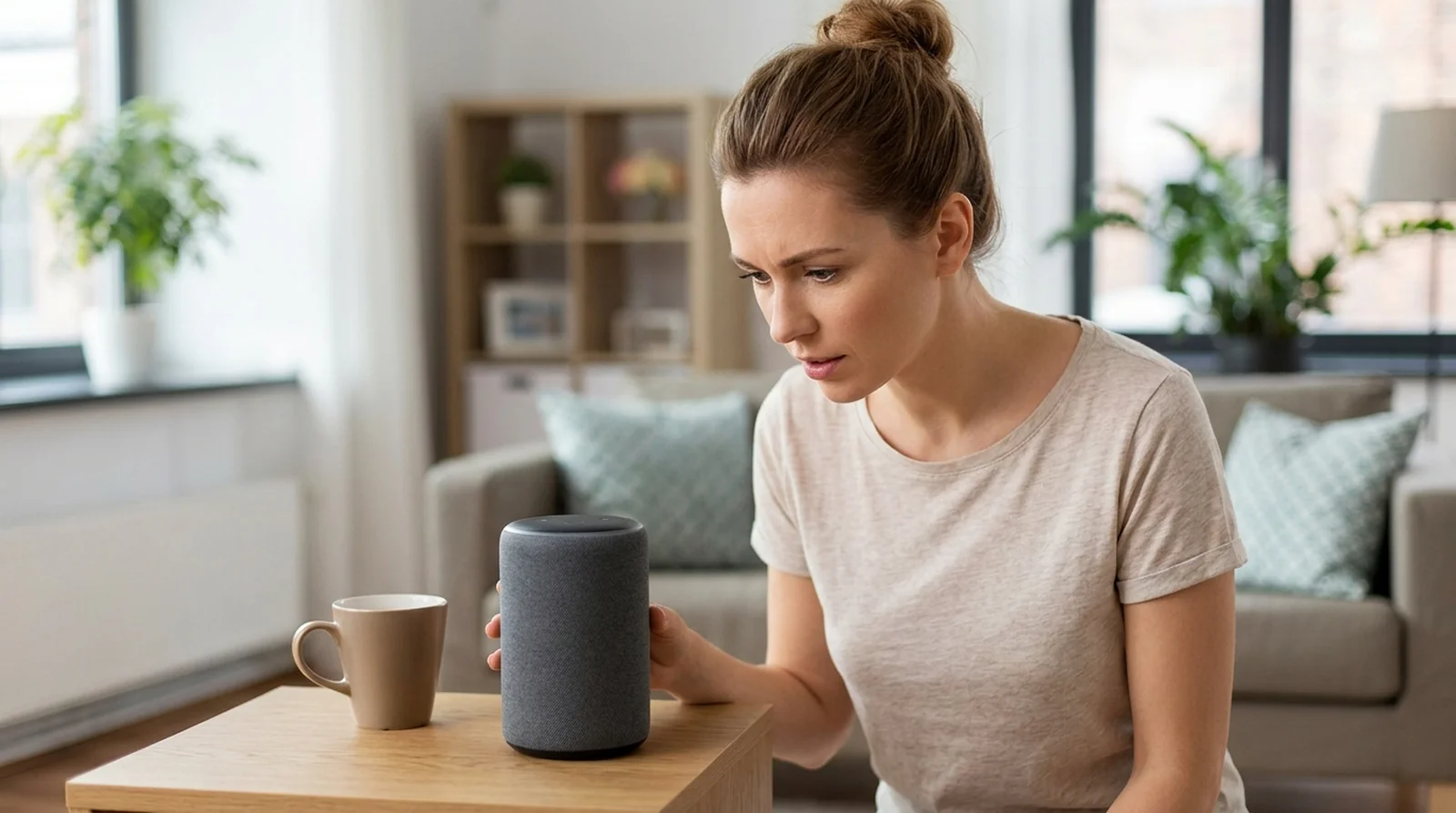
You say “Alexa” and nothing happens. Or the ring lights up, then you get silence. When you find Alexa not responding, check for a red light first, then check Wi-Fi, restart your Echo and move it away from background noise.
If the trouble began after an Alexa+ upgrade, some users have reported slower replies and missed smart home commands. You can return to original Alexa, or try a reset if the earlier checks do not help. Start with what your Echo is showing you.
| Light you see | What it means | What to do |
|---|---|---|
| Solid red | Your microphone is disabled | Press the microphone button to enable it |
| Orange | Your Echo is being set up or attempting an internet connection | Complete setup or check your Wi-Fi |
| Spinning teal and blue | Your Echo is booting or restarting following an update | Let it finish starting |
| Purple | During setup, it indicates Wi-Fi trouble. A brief flash after a request indicates Do Not Disturb | Check Wi-Fi during setup, or turn off Do Not Disturb |
| Slow yellow pulse | You have an unread message, notification or missed reminder | Ask Alexa for your messages or notifications |
| Green | A pulse indicates an incoming call. A spinning light indicates a call or Drop In in progress | Check whether your Echo is receiving or handling a call |
| No light at all | Check the power adapter before drawing a conclusion | Use the adapter supplied with your Echo |
Why Alexa Is Not Responding
Silence alone does not tell you what went wrong. Your Echo might have its microphone disabled, have lost its connection or be waiting for a different wake word. Before you change anything, check these possible causes.
- Muted microphone. A red indicator means your Echo cannot hear your request because its microphone is disabled.
- Wi-Fi trouble. Your Echo needs an active internet connection. Router problems or a dropped connection can interrupt requests.
- Power adapter. Amazon recommends using the adapter supplied with your device, so check this if you have swapped it.
- Noise and placement. Nearby speakers, background noise and walls can interfere with your Echo hearing you.
- Different wake word. Your Echo responds to the word chosen for that device. Saying “Alexa” will not activate one assigned “Echo” or “Ziggy”.
- Do Not Disturb. A purple flash after a request can indicate this mode. On an Alexa+ screen, look for a crescent moon near the upper left.
- Update or startup. A spinning teal and blue light means your Echo is starting. A brief glimmer can mean it is processing a request or updating.
- Alexa+ changes. Some users report slower answers or smart home requests going wrong after upgrading. These are reported experiences, so check power and Wi-Fi too.
- Older hardware. Some older Echo models cannot use Alexa+. They continue using original Alexa, so incompatibility alone does not explain a silent device.
10 Fixes When Alexa Won’t Answer
You see, the light gives you a useful starting point, but power and Wi-Fi deserve a check too. Work through these fixes in order, testing your Echo again after each change. Begin with the checks you can make on the device itself.
1. Check the Light Ring First
Look at the color and how it moves. A yellow pulse signals something waiting for you to read or hear. Green relates to calls. Neither means your Echo has stopped working.
Orange points you toward setup or an internet connection, while spinning teal and blue indicates startup. On an Echo speaker with an Action button, press it to check whether the device responds.
2. Turn the Microphone Back On
A red microphone indicator gives you a clear answer. Your Echo is not listening, so repeating your request will not help until you enable the microphone.
- Find the microphone mute button on your Echo.
- Press it once to enable the microphone.
- Say the wake word assigned to that device and try your request again.
On Echo Dot Max and Echo Studio from 2025, the mute button stays red while the ring flashes red briefly. Check the button too, even if the ring is no longer red.
3. Use the Original Power Adapter
Have you replaced the adapter? Use the one that came with your Echo. This is one of Amazon’s checks when Alexa does not understand or answer requests.
If your Echo shows no light, check which adapter you are using before moving on to a reset.
4. Restart Your Echo the Simple Way
A restart is worth trying before a reset. Amazon’s model guides specify a 10-second pause for several Echo speakers, while the Echo Show guide specifies 15 seconds.
- Disconnect your Echo from power.
- Wait 10 seconds for an Echo speaker, or 15 seconds for an Echo Show.
- Reconnect it and let startup finish before trying another request.
Watch for the spinning teal and blue indicator during startup. Give the device time to finish before testing it.
5. Fix the Wi-Fi Connection
Check whether your phone or another device can connect too. If several devices have dropped together, the trouble may involve your network or internet provider. If only your Echo is affected, check its connection details and nearby interference.
- Keep your Echo no more than 30 feet, or about 10 meters, from your router.
- Move it away from microwaves, baby monitors and other electronics that can interfere.
- Restart your router if other devices cannot connect either.
- If you changed your Wi-Fi password recently, update the password used by your Echo.
- If your router gives its 2.4 GHz and 5 GHz networks different names, try connecting to the other network.
- Temporarily turn off some other connected devices to check whether congestion is involved.
If your devices still cannot get online, try again in a few hours or ask your internet provider for help. If the Echo’s connection keeps failing, a reset is a later option.
6. Move It Away From Noise and Walls
Give your Echo some distance from walls and speakers, and choose a quieter spot. Then ask “Did you hear me?” and watch for a listening light.
With original Alexa, look for a cyan spot against a blue ring or bar. With Alexa+, you’ll see blue light pulse at the lower edge of your display or light ring. On Echo Dot Max and Echo Studio from 2025, two blue lights pulse at the sides.
7. Check the Wake Word and Do Not Disturb
Your Echo might be waiting for “Computer” while you keep saying “Alexa”. Each device can have its own wake word, so check the one assigned to yours.
- In the Alexa app, open Devices > your Echo > Device Settings > Wake Word.
- Choose the word you want to use, then tap OK.
Turn off Do Not Disturb if you see a purple flash after a request. On an Alexa+ display, a crescent moon near the upper left indicates that mode.
8. See What Alexa Actually Heard
Did Alexa misunderstand you? Your voice history can help you check the request it received.
- Open the Alexa app and go to More > Alexa Privacy > Review Alexa History.
- Filter the entries by device, profile or date.
- Select the relevant request and review what Alexa heard.
You can also ask Alexa to repeat your previous request.
9. Update the App Before Resetting
Check that you have the latest Alexa app version, especially if setup is failing. If restarting and checking Wi-Fi have not helped, try a reset.
Use the model table below to choose the correct buttons and duration. Check whether your chosen reset keeps your smart home links before you begin.
10. Return to Original Alexa
If problems began after upgrading, you can deactivate Alexa+ and return to original Alexa.
- Say “End Alexa+”.
- If you have Prime, you can also deactivate it through alexaplus.com.
- After returning, say “turn off Follow-Up Mode” if you do not want it left enabled.
If you pay for Alexa+ Standard, cancel through amazon.com/yourmembershipsandsubscriptions > Alexa+ Standard > Cancel My Subscription. Your subscription benefits continue through the current billing period.
Is your Echo singing random tunes instead of staying silent? That is a different glitch, covered in our Alexa la la la bug explainer.
How to Reset Your Echo by Model
A reset that keeps smart home links lets you retain those connections. A full factory reset removes them and your personal information. Find your model below before pressing any buttons.
| Device | Keep smart home links | Full factory reset |
|---|---|---|
| Echo Dot 2nd-5th Gen | Hold Action for 20 seconds. Wait for the ring to go dark, then light again | Hold Volume down and Microphone off together for 20 seconds |
| Echo 3rd/4th Gen | Hold Action for 20 seconds, until the ring goes dark and lights again | Hold Microphone off with Volume down for 20 seconds |
| Echo Pop | Hold both volume buttons for 15 seconds, until the light bar goes dark and lights again | Hold Volume down with Microphone off for 25 seconds |
| Echo Dot Max | Hold Volume down with Microphone enable/disable for 15 seconds. Wait for spoken confirmation | Hold those same buttons for 25 seconds, until spoken confirmation |
| Echo Studio 2025 | Hold Microphone Enable/Disable with Volume Down for 15 seconds. Wait for spoken confirmation | Hold those same buttons for 25 seconds |
| Echo Show | You can keep your smart home links when resetting an Echo Show 2nd Gen or Echo Show 10 | Buttons – hold Microphones & Camera Disable/Enable with Volume Down until the Amazon logo appears, about 15 seconds. Menu – on Alexa+, use Menu > Settings > Device Options > About this Device > Reset to Factory Defaults. On original Alexa, swipe down, then use Settings > Device Options > About this Device > Reset to Factory Defaults |
If a reset still does not help, you can deregister your Echo from your Amazon account. This removes its saved device preferences.
Alexa+ Problems and What You Can Do
If your Echo became less reliable after an upgrade, you have options. Check these reported issues, compatibility limits and ways to return to original Alexa.
- Reported complaints. TechSpot reported slower replies, while PCWorld reported smart home commands going wrong. These describe user complaints rather than a fault affecting every device.
- Price. Alexa+ costs $19.99 monthly without Prime and is included with Prime. The free, limited app and web experience does not extend to Echo devices.
- Older devices. Echo 1st and 2nd Gen, Echo Dot 1st Gen, Echo Plus 1st Gen, Echo Show 1st and 2nd Gen, Echo Spot 1st Gen and Amazon Tap cannot run Alexa+. Your incompatible devices continue using original Alexa.
- Your choice. Say “End Alexa+” to deactivate it. If you have Prime, alexaplus.com provides another option.
- Household control. You can deactivate Alexa+ individually without changing the primary account holder’s access. Follow-Up Mode remains enabled after you leave unless you turn it off.
When the App Says a Device Is Unresponsive
An Unresponsive label gives you a reason to check the connection before resetting your Echo. Start by comparing what works on your Echo, in the Alexa app and on other connected devices. Use these checks to decide what to try next.
- Other devices. Check whether your phone and other devices still have internet access. If several lose their connection together, your network or internet provider may be involved.
- Changed password. If you recently replaced your Wi-Fi password, update the connection details on your Echo too.
- Router trouble. Restart your router if other devices cannot connect. If only your Echo has trouble, recheck its password and try the other Wi-Fi band when separate network names are available.
- Several failures. If multiple devices remain disconnected, give it a few hours or contact your internet provider.
- Repeat problems. If your Echo keeps losing its connection after these checks, use the reset instructions for your model.
If your Echo sits far from the router, our WiFi booster vs WiFi extender guide helps you fix weak spots, and the same checks work for a smart plug that won’t connect to WiFi.
Tips to Keep Alexa Responsive
Give your Echo a suitable place to listen and a reliable connection. These are useful checks to revisit whenever you move the device or change your home network. Keep the following habits in mind.
- Clear placement. Keep your Echo away from walls, nearby speakers and noisy areas so it has a better chance of hearing your request.
- Supplied adapter. Use the power adapter that came with your Echo, including after moving it to another room.
- Router distance. Keep your Echo within about 10 meters, or 30 feet, of the router and away from microwaves, baby monitors and other interference.
- App updates. Keep the Alexa app current, particularly before setting up your Echo again.
- Waiting notifications. When you see a slow yellow pulse, ask Alexa for your notifications or messages.
- Voice history. Occasionally review what Alexa heard through More > Alexa Privacy > Review Alexa History. This can help you spot misunderstood requests.
Our Take
Start with the light color, then check the microphone, power and Wi-Fi. Make one change, try your request again and continue from there. If you still get silence, use the reset table to find the instructions for your Echo.
You also have a choice about Alexa+. If your trouble began after upgrading, you can return to original Alexa. Start with the check that matches what your device is showing you, and take the next step from there.
FAQs
Your Echo’s light may indicate processing, startup, an update or another activity rather than a spoken reply. Check its color and movement against the table above. If requests still go unanswered, check Wi-Fi and restart the device.
You reset your Echo using the buttons or screen controls specified for its model. Use the reset table above because button pairs and hold times differ. Choose carefully, since a factory reset removes your personal information and smart home connections.
A red microphone indicator means your Echo’s microphones are disabled, so it cannot hear you. Press the microphone button again to enable them. On an Alexa+ device with a screen, red also indicates that the camera is disabled.
You cannot tell how many people are affected from one unresponsive Echo. Check whether Alexa works in your app and whether other devices can access the internet. Several devices failing together may point to your network or internet provider.
Yes, you can deactivate Alexa+ by saying “End Alexa+” and return to original Alexa. With Prime, you can also deactivate it at alexaplus.com. Follow-Up Mode stays enabled unless you ask Alexa to turn it off.
Alexa+ costs $19.99 per month without Prime, while Prime includes it at no additional charge. You can use a limited free experience through Alexa.com and the Alexa app. That free access does not include Alexa+ on your Echo.
