




You already bought the game, and your friend wants to play it too. Does that mean buying another digital copy? You can share your purchase by signing in on their PS5, enabling Console Sharing and Offline Play, downloading the game, and having your friend switch to their own account to play.
Here’s the thing. Signing in is only part of the setup, and choosing the wrong console can affect people who already use your games at home. You need to know which account owns the purchases, which PS5 will receive shared access, and what happens when you move that activation. Get those details right, and you can each play through your own account with separate progress and trophies.
| Item | Detail |
|---|---|
| Sharing menu | Open Settings > Users and Accounts > Other, then select Console Sharing and Offline Play > Enable. |
| Console allowance | Your account can have sharing enabled on one PS5 while keeping one PS4 activated as its primary console. |
| Shared content | Downloaded digital purchases and eligible PS Plus benefits, including online multiplayer, downloaded Monthly games, and catalog titles covered by your plan. |
| PS Plus requirement | You do not need PS Plus to share purchased games. Sharing subscription benefits requires an active membership. |
| Your playing accounts | You each use your own account to keep progress and trophies separate. |
| Stopping access remotely | Deactivate All Devices removes every console activation. You can use this remote action once every six months. |
Let’s get your accounts and consoles ready before you start sharing.
What You Are Sharing When You Enable the Feature
Here’s the thing. PS5 game sharing gives other users on one designated console access to your downloaded digital purchases. Once you enable Console Sharing and Offline Play there, your friend can play those games through their own account. Eligible PS Plus benefits can be available too, provided your membership remains active.
Does that designated PS5 have to be the one in your living room? No. You can enable your account’s sharing feature on your friend’s console instead, making that machine the PS5 where other users can access your purchases. Your downloaded purchases can also be played offline on that designated console.
That said, you only get one PS5 sharing activation per account. If your family uses their own accounts to play your games on your home PS5, moving activation to your friend’s console can remove their access. Before you make the change, check who already depends on it.
The takeaway is simple. Choose the PS5 where you want other accounts to use your library, because that choice affects everyone already sharing your purchases.
Get Your Accounts and Consoles Ready
Ready to sign in? A few checks now can save you from downloading games under the wrong account or moving access away from a console your family still uses. Before you begin, work through this list.
- Two consoles and separate accounts: For PS5-to-PS5 sharing, you need both consoles and your own PSN accounts. You will use the purchasing account to set up access, then your friend will use their account to play.
- Someone you trust: Keep sharing to a trusted friend or family member. You are putting your account on another console, and PlayStation holds you responsible for how that account is used.
- Your sign-in details: Have the purchasing account’s email address and password ready. If verification is enabled, you will also need to complete that check when signing in.
- Two-step verification: Use an authenticator app or SMS verification to protect your account. Save your backup codes privately so you have them if you cannot use your usual verification method.
- An internet connection: Have both consoles connected for sign-in and game downloads. Offline play on the designated sharing console comes after setup.
- Current system software: Check that your PS5 software is up to date. PlayStation includes this among its checks when sharing activation fails.
- Your existing activation: Check which PS5 already has sharing enabled for your account. You must disable that activation before enabling it on a different PS5.
- Stored payment methods: Before signing in on someone else’s PS5, consider deleting the payment methods stored in your account. Trust still matters even when verification is enabled.
- Game and add-on regions: Pay attention to region compatibility if you plan to share DLC. Matching regions can help avoid add-on problems, but do not treat that as a universal requirement for every shared game.
Choose Between Library Sharing, Account Sign-In, and Share Play
Want your friend to download a game and play through their own account? You need console sharing. Signing in and starting Share Play serve different purposes, so it helps to separate the three before you begin.
| Feature | What you can do | What you need | Main limit |
|---|---|---|---|
| Library sharing | Let other users on your designated PS5 play your downloaded digital purchases through their own accounts. | Enable Console Sharing and Offline Play using the purchasing account. | Your account can enable sharing on only one PS5 at a time. |
| Account sign-in | Access your purchases while using the account that owns them. | Sign in with the purchasing account and complete verification if required. | Signing in alone does not give your friend access through their own account. |
| Share Play | Let a visitor control your game or join you in a supported shared play session without owning it. | You need PS Plus as the host. Your visitor also needs PS Plus when you play together. | You can invite one visitor, and the session ends one hour after they join. |
There’s another difference worth remembering. During Share Play, trophies go to you as the host, rather than your visitor. With library sharing, your friend plays through their own account and earns their own trophies.
For ongoing access to downloaded games on your friend’s PS5, use library sharing. Share Play is the option when you want to invite someone into a temporary session instead. If you also play on Xbox, our look at whether Game Pass Ultimate is worth it covers Microsoft’s subscription.
How to Game Share on PS5 in Seven Steps
For these steps, you own the games and your friend wants to play them on their PS5. You will add your purchasing account to their console, enable sharing there, and download the games before your friend returns to their own account. Keep those roles in mind as you work through the setup.
1. Protect Your Sign-In Before You Begin
Before adding your account to another PS5, turn on two-step verification. You can receive verification codes through an authenticator app or by SMS.
- On your PS5, open Settings > Users and Accounts > Security.
- Select 2-Step Verification, then choose Authenticator App or Text Message.
- For the app method, scan the QR code. For SMS, enter your phone number.
- Enter the verification code to activate protection.
- Save your backup codes somewhere private.
Already have verification enabled? Keep your verification method available for the next step. Retain the backup codes yourself rather than giving them to your sharing partner.
2. Add Your Account to Your Friend’s Console
Now move to your friend’s PS5. Add the account that purchased the games you want to share, even though your friend will eventually play through a different account.
- Press the PS button to bring up the control center.
- Choose Switch User > Add User.
- Enter your purchasing account’s email address and password, then select Sign in.
- Complete two-step verification if requested.
Before continuing, check that you are using the account that owns the intended games. Your friend’s account comes back into the process after the downloads, so stay with your purchasing account for now.
3. Give Their PS5 Access to Your Downloads
Here’s where the console choice matters. You need to enable your account’s sharing feature on your friend’s PS5 so their own account can use your downloaded purchases.
Your account may already have sharing enabled on an earlier PS5, because PlayStation enables it automatically on the first PS5 you sign into. If so, disable that activation before enabling it on your friend’s console.
- If needed, sign into your purchasing account on the previous PS5 and open Settings > Users and Accounts > Other.
- Select Console Sharing and Offline Play > Disable.
- Return to your purchasing account on your friend’s PS5.
- Open Settings > Users and Accounts > Other.
- Select Console Sharing and Offline Play > Enable.
Cannot reach the previous console? PlayStation provides remote deactivation through your account, but it removes every console activation and is available once every six months. We cover that process in the removal section later in this guide.
Once enabled, your friend’s machine is your account’s designated sharing PS5. Other users on that console can access your downloaded purchases and eligible subscription benefits, while your account remains limited to that one PS5 sharing activation.
4. Restore Your Licenses if Content Is Missing
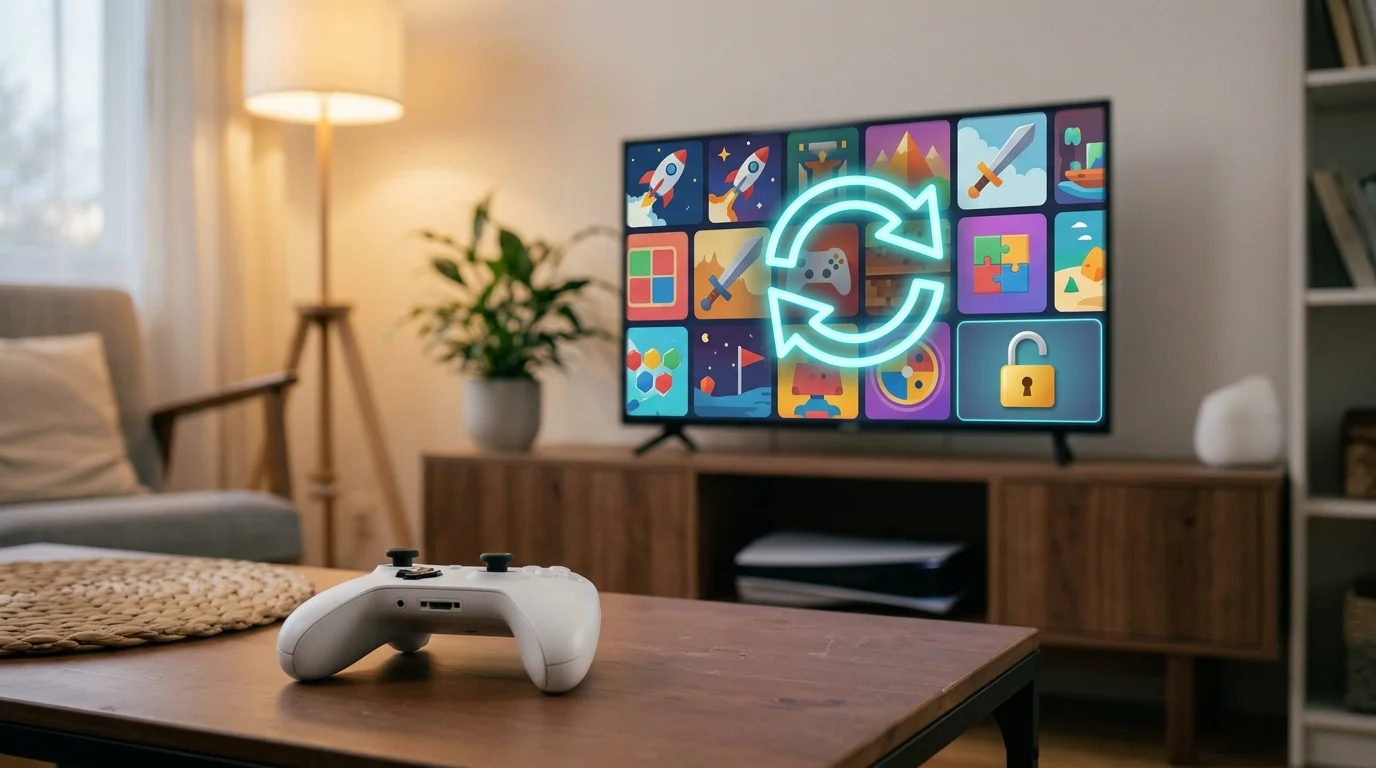
Can you already find your purchases without a problem? You can move to the download step. License restoration is useful when a game or add-on is missing, or a padlock prevents access.
- Stay signed into your purchasing account on your friend’s PS5.
- Open Settings > Users and Accounts > Other.
- Select Restore Licenses.
- Choose the licenses you want to restore.
You can also select a game on the home screen or in your library, press Options, and choose Restore License. PlayStation says restoration leaves your data intact, so this does not require deleting your progress.
5. Download the Games You Want to Share
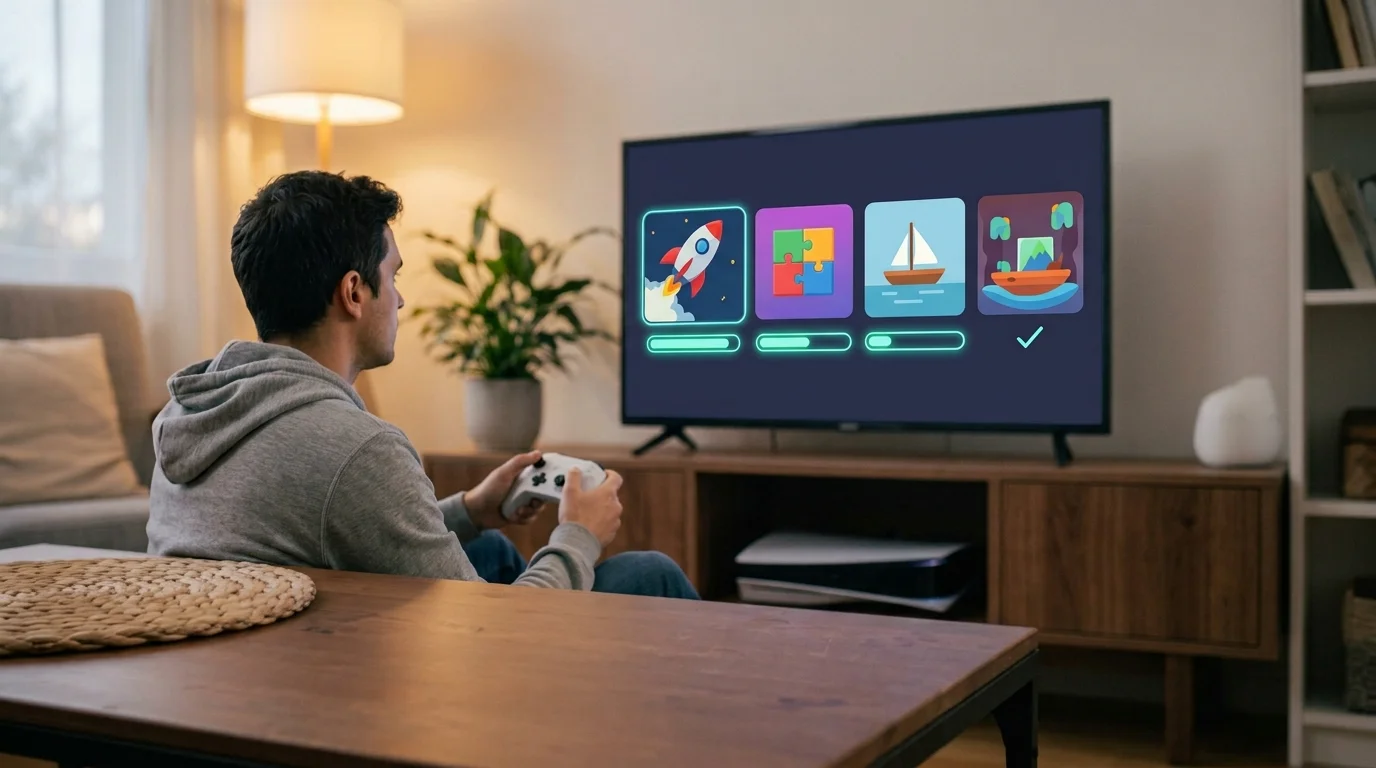
With sharing enabled, you can download the purchases your friend wants to play. Keep using your purchasing account for this part so you are selecting games from the correct library.
- Open Game Library on your friend’s PS5.
- Select the Your Collection tab.
- Choose a game you own digitally and download it.
- Repeat for any other games you want to make available.
You are downloading games onto the receiving console, rather than transferring ownership to your friend’s account. Physical copies are different, so this process does not turn a disc game into a shared digital purchase.
6. Have Your Friend Play on Their Own Account
The download is done. Now have your friend return to their own account before starting the game. That keeps their progress and trophies attached to them.
- Press the PS button to bring up the control center.
- Select Switch User.
- Have your friend choose their own account.
- Start the downloaded game from that account.
Hoping you and your friend can play the same title simultaneously? You should each use your own PSN account, rather than both trying to play through the purchasing account. Your friend uses the shared access on their PS5 while you play through your account on yours.
7. Set Up the Return Share if You Both Want Access
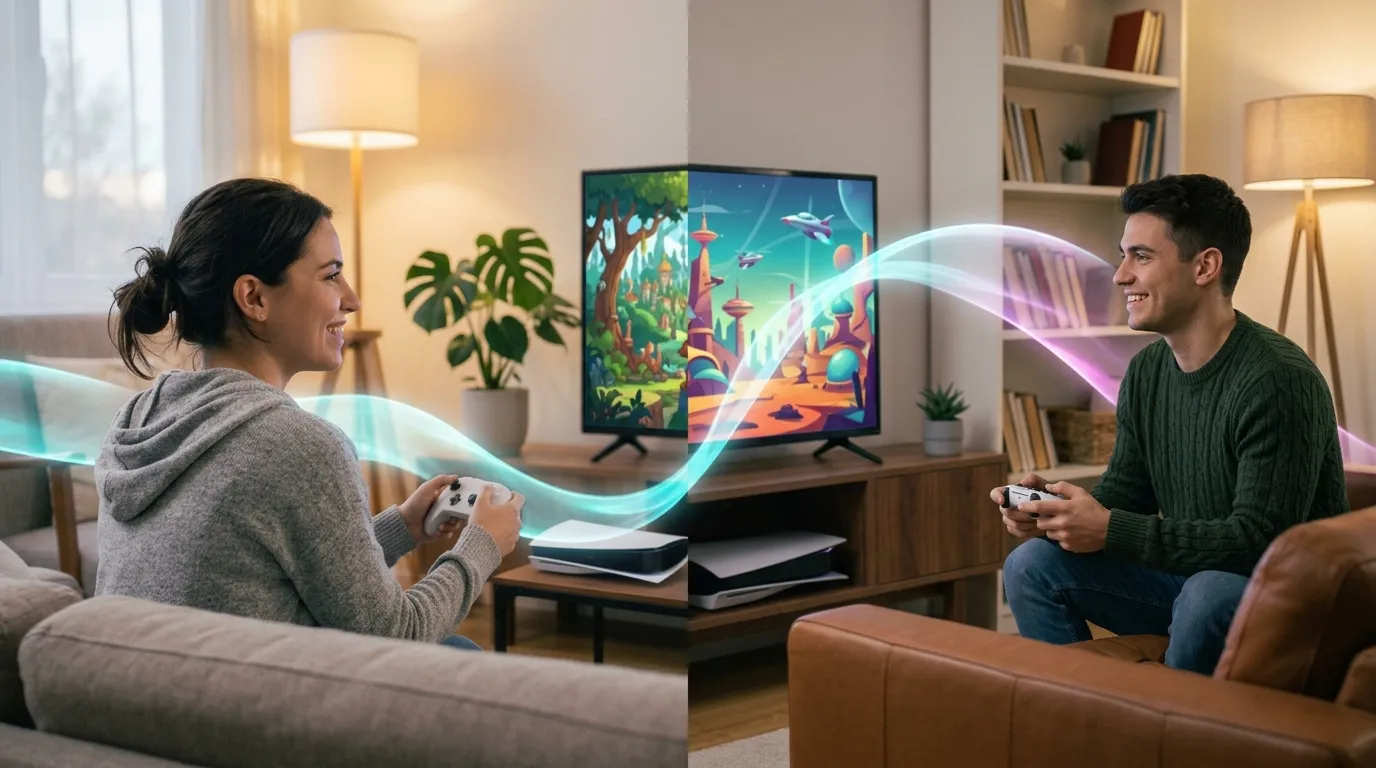
You have shared your purchases, but what about the games your friend owns? Those do not automatically become available to your account. To share both libraries, repeat the setup with your account and console roles reversed.
- Have your friend sign into their purchasing account on your PS5.
- If their sharing activation is already enabled on another PS5, have them disable it there first.
- On your PS5, use their account to open Settings > Users and Accounts > Other.
- Select Console Sharing and Offline Play > Enable.
- Download the games you want from their library.
- Switch to your own account to play.
You now have two separate sharing activations, one belonging to each purchasing account. Your account shares purchases on your friend’s PS5, and their account shares purchases on yours.
That still leaves each account with just one designated sharing PS5. Sharing both ways does not give either of you an extra PS5 activation.
Locked Out of a Shared Game? Check These Causes
A padlock or missing download does not automatically mean sharing has stopped working. You may be dealing with the wrong purchasing account, a license problem, an expired membership, or activation on another PS5. Start with the symptom you can see, then work through the relevant checks.
A Padlock Appears Beside Your Game
If you see a padlock next to your game, its license may need attention. If the lock covers the entire game image, however, ask your family manager to check parental restrictions. Those are different problems, so avoid treating every lock as a license failure.
- Sign into the account that bought the game and confirm the purchase in its transaction history.
- If you accessed the game through PS Plus, check that the membership is active.
- Confirm that the purchasing account has sharing enabled on the PS5 where you want to play.
- Check PlayStation’s service status. If an outage is listed, wait before trying again.
- Make sure your console software is current, then restart your PS5.
- Restore the affected game’s license through the purchasing account.
If your PS5 keeps losing its network, our guide to fixing a PS5 that won’t connect to WiFi can help. If your connection is failing, PlayStation also recommends switching off your router for at least five minutes before restarting it. For continuing launch problems, its troubleshooting guidance includes Safe Mode and Rebuild Database as a later step. Contact PlayStation Support if you still cannot access a purchase after these checks.
Another PS5 Already Has Your Sharing Activation
Your account gets one PS5 sharing activation at a time. If another console already has it, release that activation before trying to enable sharing on the receiving PS5.
- On the previous PS5, sign into the account whose purchases you want to share.
- Open Settings > Users and Accounts > Other.
- Select Console Sharing and Offline Play > Disable.
- Return to the receiving PS5 and enable sharing through the same purchasing account.
Cannot access the previous console? You can remove activations remotely using Deactivate All Devices, but that action affects every activated console rather than just the missing PS5. PlayStation limits it to once every six months, so check the removal instructions later in this guide before proceeding.
You Can Find License Restoration but No Sharing Option
Seeing Restore Licenses does not mean you have found a replacement for the sharing control. PlayStation documents license restoration and sharing activation as separate options within the Other menu.
- Confirm that you are using the PS5 and signed into the purchasing account.
- Open Settings > Users and Accounts > Other.
- Look for Console Sharing and Offline Play rather than selecting Restore Licenses again.
If the documented option is still absent, contact PlayStation Support. There is no confirmed explanation in PlayStation’s cited guidance that lets you diagnose this symptom as a child-account issue, so avoid changing account details based on that assumption.
Your Add-Ons or Edition Extras Are Missing
The base game works, but an expansion or bonus does not? Check that specific item rather than assuming every extra attached to an edition will share in the same way.
- Use the purchasing account to confirm that you own the missing add-on.
- Download the add-on through that account on the receiving console.
- Check region compatibility between the game and its DLC.
- Restore the relevant licenses on both consoles, then try the content again.
Many add-ons can be shared, but that does not guarantee access to every deluxe-edition extra or preorder bonus. In-game currency and other account-bound content do not carry over in the same way as a downloadable expansion. If the item remains unavailable, contact PlayStation Support with the game and missing add-on identified.
Which PS Plus Benefits Can Your Friend Use?
Yes, your friend can use eligible PS Plus benefits on the PS5 where your account has sharing enabled. PlayStation allows those benefits on that designated PS5 and your primary PS4 while your subscription is active. Your friend gets access through the activated console, rather than receiving a separate membership.
Benefits You Can Share on the Activated Console
You see, sharing goes beyond games you bought individually. For this month’s lineup, check our PS Plus October 2026 roundup. PlayStation includes multiplayer and eligible subscription games, so catalog access is part of the feature when your plan covers it.
- Online multiplayer: Your friend can use your shared multiplayer benefit while playing through their own account on the designated PS5.
- Monthly games: Downloaded Monthly games claimed through your membership can be played by other users on that console.
- Game and classic catalogs: Your friend can access eligible catalog titles covered by your subscription tier. The available benefits depend on your plan.
- Purchases made with member discounts: If you buy and download a game at a PS Plus discount, other users on your sharing console can play that purchase.
Sharing does not remove parental restrictions. If you share the console with children, their access still depends on the applicable age and parental controls.
Benefits That Remain With the Subscriber
Does that make your friend a PS Plus member? No. Some benefits remain attached to your subscription account, even when you share access to games and multiplayer.
- Discounted buying: Your friend does not receive your member pricing when making purchases through their own account.
- Claiming subscription games: Your friend cannot use your membership to redeem PS Plus games into their own account.
- Cloud storage: Your online save storage benefit does not become available to the other accounts using your console.
- Automatic patch downloads: PlayStation excludes this subscription benefit from sharing.
- Early trial access: Your friend does not receive your subscriber access to time-limited game trials.
The distinction matters when you decide what your friend can do next. Playing a shared Monthly game is different from claiming it through another account, just as playing your discounted purchase is different from receiving your discount at checkout.
Remove Access When You No Longer Want to Share
Ready to end the share? You can disable it directly on the receiving PS5 or remove console activations remotely if that machine is unavailable. A password change handles account access separately, so do not treat it as a replacement for deactivation.
Disable Sharing Directly on the Receiving PS5
If you can access your friend’s PS5, disable sharing there through the account that owns the games. This removes the access granted by that account’s sharing activation.
- Sign into your purchasing account on the receiving PS5.
- Open Settings > Users and Accounts > Other.
- Select Console Sharing and Offline Play > Disable.
You do not need to erase the console to end sharing. PlayStation confirms that deactivation leaves console data intact, although other users lose the shared access provided by that activation.
Remove Every Console Activation Through Your Account
Cannot get to the old PS5? PlayStation lets you deactivate consoles through Account Management. Here’s the catch, though. Remote deactivation affects all your activated consoles, and you can use it only once every six months.
- Sign into Account Management with the account whose sharing access you want to remove.
- Open Device Management > PlayStation Consoles.
- Select Deactivate All Devices.
You cannot use this remote action to remove just one selected PS5. Afterward, enable sharing again on the PS5 you intend to use, and reactivate your primary PS4 if you still want that console activated too.
Change Your Password After Removing Access
Once activation is dealt with, consider who can still sign into your account. PlayStation recommends changing your password to sign out consoles you cannot access.
A password change alone does not disable an existing sharing activation. If your goal is to stop other users playing your purchases through that activation, complete the local or remote deactivation process as well.
Think of these as two separate controls. Deactivation removes the console’s shared access, while changing your password addresses sign-in access to your account.
Check What Your Friend Can Actually Use
A shared game does not bring every account benefit or bonus with it. Use this table to check what your friend can play, what depends on the content, and what stays attached to your account.
| Item | Shared? | What this means for you |
|---|---|---|
| Downloaded digital purchases | Yes | Other users can play your purchased downloads on the PS5 where your account has sharing enabled. |
| Physical disc games | No | Console sharing does not provide a digital copy of a game you own on disc. |
| DLC and expansions | Varies | Many add-ons can be shared, but you should check the specific content and its region compatibility. |
| Deluxe extras and preorder bonuses | Varies | Do not assume every bonus carries over. Some extras remain tied to the purchasing account. |
| Downloaded Monthly games | Yes, with an active membership | Your friend can play eligible games claimed through your subscription, without claiming them through their own account. |
| Game and classic catalog titles | Yes, depending on your plan | Eligible catalog access is shared on the designated console while your membership is active. |
| PS Plus online multiplayer | Yes | Other users on your sharing PS5 can use this benefit, subject to parental controls. |
| Save progress | No transfer between accounts | You each keep your own progress when playing through separate accounts. |
| PS Plus cloud storage | No | Your subscription’s online save storage does not extend to your friend’s account. |
| Trophies | Earned separately | Your friend earns trophies through their own account rather than receiving yours. |
| Games bought at a member discount | Yes, once downloaded | Your discounted purchase can be played through sharing like other eligible digital purchases. |
| Member pricing at checkout | No | Your friend does not receive your PS Plus buying discount through their own account. |
| In-game currency and wallet funds | No | Sharing your library does not give your friend access to these account balances. |
The useful distinction is access versus ownership. Your friend can play eligible shared content through their own account, while your purchases, subscription, and account balances remain yours.
Know Your Console and Account Limits
Can you share your library with two friends who each have a PS5? You cannot give both consoles your account’s sharing activation at the same time. The limit applies to the designated console, though, rather than restricting that console to one other player.
- One sharing PS5 per account: You can enable your account’s sharing feature on one PS5 at a time. To use a different PS5, disable the existing activation first.
- A primary PS4 can stay active too: Your PS5 activation does not use up your primary-PS4 allowance. You can keep one console of each generation activated for the same account.
- Other users on the designated console: Sharing is available to other accounts using that PS5. It is not a separate invitation that gives each friend access on whichever console they use.
- Offline access belongs to the designated PS5: Your downloaded purchases can be played offline on the console where sharing is enabled. Do not assume your other PS5 has the same offline access.
- Your other PS5 needs an internet connection: When your friend’s PS5 holds your sharing activation, your own console needs internet access for license verification. A connection outage can therefore interrupt access to your purchases there.
- Simultaneous play needs separate accounts: You and your friend should each play through your own PSN account. Using the purchasing account on both consoles is different from using shared access through your friend’s account.
- DLC can have region requirements: A working base game does not guarantee that every add-on will work with it. Check the game and DLC regions if extra content is missing.
Choose the receiving console with these limits in mind. Your account’s sharing activation determines where other users get access and where your downloaded purchases support offline play.
How to Game Share on PS5 With a PS4 in the Setup
Have a PS4 in the household too? You can keep a primary PS4 activated alongside your account’s sharing PS5. You do not have to give up one activation to use the other.
On your PS5, use the sharing feature covered earlier. If it is already enabled on the intended console, you can leave that activation in place.
- Sign into the account whose purchases you want to share.
- Open Settings > Users and Accounts > Other.
- Select Console Sharing and Offline Play > Enable.
Your PS4 uses primary-console activation instead. If another PS4 is already your account’s primary console, deactivate that one before activating the replacement.
- Sign into the purchasing account on the PS4 you want to use.
- Open Settings > Account Management.
- Select Activate as Your Primary PlayStation 4 > Activate.
Once activated, other users on that PS4 can access applicable purchases and eligible PS Plus benefits. Subscription benefits still depend on your membership being active.
| Console | Feature | Allowance |
|---|---|---|
| PS5 | Console Sharing and Offline Play | One designated PS5 per account |
| PS4 | Primary-console activation | One primary PS4 per account, alongside your sharing PS5 |
The useful part is that these allowances operate separately. Keep access limited to games each console supports, rather than assuming that activating a PS4 makes PS5-only games playable there.
Understand the Account Risk Before Sharing
Worried about a ban? PlayStation documents Console Sharing and Offline Play as an official feature. That gives you a supported way to share eligible content, but it does not remove your responsibility for how your account is used.
PlayStation’s terms require you to protect your sign-in details and prevent other people from accessing your account on shared devices. They also allow account restrictions or suspension for breaches, and protective action if PlayStation believes your account has been compromised. An official sharing feature is therefore no guarantee against consequences from account misuse.
Before putting your account on another console, keep these rules in mind.
- Choose someone you trust: Share with a trusted friend or family member. You remain responsible for activity through your account, including use by other people.
- Protect your sign-in: Enter your credentials yourself during setup and limit access to the purchasing account afterward. Watch for fake account emails too, and our phishing email examples show what they look like. Your friend can play shared games through their own account.
- Keep verification enabled: Use an authenticator app or SMS verification, and retain your backup codes privately. Adding your account to another PS5 is not a reason to switch protection off.
- Review stored payment methods: Consider removing saved payment methods before adding your account to someone else’s console. Game access does not require giving your friend spending access.
- End access properly: Disable sharing when you no longer want that console to use your purchases. If you cannot reach the console, use the remote deactivation process and address sign-in access separately with a password change.
You are trusting someone with more than a list of games. If the email tied to your PSN account is ever taken over, our guide to a hacked Gmail account with a changed password walks you through recovery. Keep control of your purchasing account while letting your friend play through theirs.
FAQs
No, you do not pay a separate fee to enable sharing for digital games you already own. A paid PS Plus membership matters when you want to share its eligible subscription benefits.
No, your account cannot activate sharing on both owners’ PS5s simultaneously. You must release the existing PS5 activation before assigning another, although a primary PS4 can remain active alongside it.
Your access can fail because activation belongs to another machine, you used an account without the purchase, licenses need attention, or a required membership expired. Check the buyer’s account, console activation, subscription status, and connection before restoring the affected licenses.
Yes, you can use the PS5 sharing feature documented by PlayStation. You still need to keep your credentials private, and PlayStation’s account rules apply to anything done under your login.
Yes, you can play simultaneously by using separate PSN accounts on the two consoles. Your friend uses the shared download through their profile, while you play as the purchaser.
No, giving access to your purchases does not create a return share. Your friend must separately enable sharing for their purchasing account on your machine before you can use their eligible downloads through your profile.
Final Word
You now have the steps to share your digital games with someone you trust. Start by confirming the purchasing account and choosing the PS5 where you want other users to have access. Enable sharing there, download a game, and have your friend play through their own account.
Want access to their purchases too? Repeat the setup with their account on your PS5, keeping each account’s activation limit in mind. Protect your sign-in details, check your membership when sharing PS Plus benefits, and remove access when the arrangement ends.
Once everything is in place, you can get back to choosing what to play next. Want better sound for those sessions? Here’s how to connect Bluetooth headphones to PS5. Your friend gets access to eligible games, and you each keep your own progress and trophies.
