




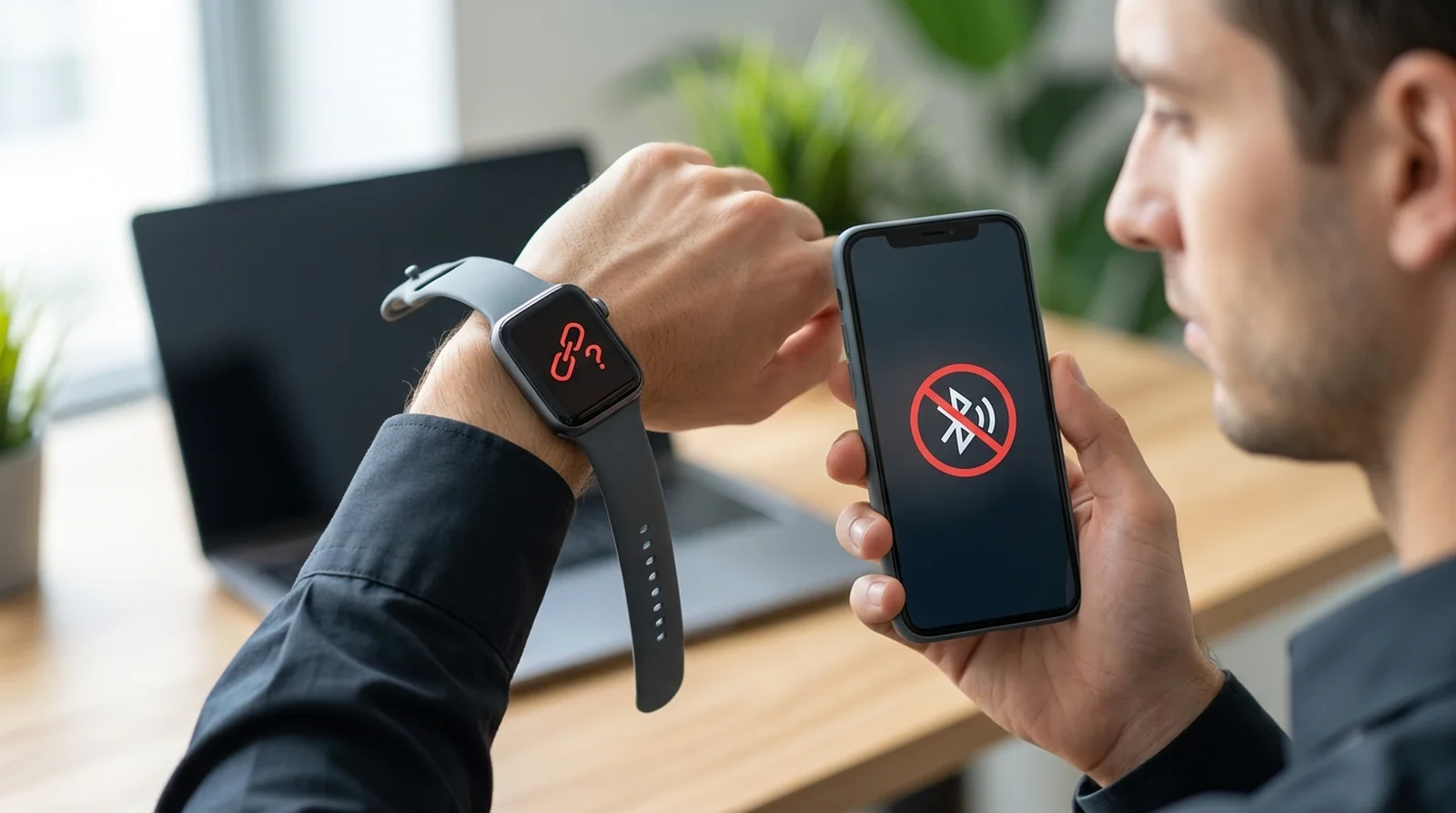
Your messages stop arriving, and a red iPhone icon appears on your watch. For an Apple Watch not connecting to iPhone, start by bringing both devices together, checking Airplane Mode and Bluetooth, then restarting them. If those checks fail, you may need a force restart, a software update or, as a final step, to unpair and pair again.
Did this start after installing iOS 27? Your watch may need a watchOS update to keep syncing. Before changing anything, check which symbol you can see.
| What you see | What it means | First thing to try |
|---|---|---|
| Red iPhone or red X in Control Center | Your watch has no connection to your iPhone | Place both devices together |
| Red watch-and-iPhone status icon | The link between your devices has dropped | Bring them closer and check Airplane Mode |
| Blue Wi-Fi icon | Your watch is using Wi-Fi rather than your iPhone | Check your iPhone’s Bluetooth |
| Orange airplane icon | Airplane Mode is enabled | Turn it off |
| iPhone-and-watch animation | Your watch needs an update or recovery | Charge to 50% and follow the restore instructions |
| Red “!” on the watch | Your watch may need recovery or service | Double-click its side button to begin recovery |
Why Your Apple Watch Is Not Connecting to iPhone
You see, a disconnected watch can mean several different things. Distance and wireless controls are worth checking first, while pairing and software problems need different fixes. Here are the causes to check.
- Too much distance. Bluetooth usually reaches about 33 feet, or 10 meters, between your watch and iPhone.
- Airplane Mode. This disables some wireless connections, although Bluetooth remains enabled by default.
- Bluetooth turned off. Disabling it through Settings > Bluetooth differs from tapping its Control Center button, which leaves your Apple Watch connected.
- Software mismatch. An iOS update can require a watchOS update before your data will sync again.
- Unsupported devices. watchOS 27 requires a Series 9 or newer, Ultra 2 or newer, or SE 3, alongside a supported iPhone running iOS 27.
- An existing pairing. Your watch may still belong to another iPhone. Activation Lock can also require the linked Apple Account credentials during setup.
- Recovery needed. An iPhone-and-watch animation or red exclamation point can mean your watch needs restoring.
Fixes 1 to 4 for the Quick Wins
Start with these checks and test the connection after each one. A green iPhone symbol in your watch’s Control Center confirms that the devices are connected. Work through the following tips in order.
1. Bring Both Devices Close Together
Put your iPhone beside your watch. Press the watch’s side button to open Control Center and check whether the disconnected symbol changes to a green iPhone.
Keep both devices together while troubleshooting. If you’re pairing them, leave them close until syncing finishes and the watch face appears.
2. Turn Off Airplane Mode on Both Devices
Check both screens, even if you only remember enabling Airplane Mode on one device.
- Open Control Center on your iPhone by swiping down from the upper-right corner.
- Turn Airplane Mode off if it’s enabled.
- Press your watch’s side button to open Control Center.
- Tap the airplane symbol if it’s orange.
To link this control across both devices, use Apple Watch app > My Watch > General > Airplane Mode > Mirror iPhone. When enabled, changing Airplane Mode on either device changes it on the other.
By default, your watch keeps Bluetooth enabled in Airplane Mode while disabling Wi-Fi and cellular. If you previously disabled Bluetooth during Airplane Mode, it can stay disabled the next time you activate that mode.
3. Switch Bluetooth and Wi-Fi Back On the Right Way
Your iPhone’s Control Center Bluetooth button disconnects other accessories without fully disabling Bluetooth. Your Apple Watch is an exception and stays connected, so that button alone doesn’t explain a lost watch connection.
- On your iPhone, open Settings > Bluetooth and enable Bluetooth.
- Open Settings > Wi-Fi and enable Wi-Fi.
- Check your watch’s connection again.
Connections paused through Control Center can resume when you reactivate the relevant button, restart your iPhone or reach 5 a.m. local time. Check the menu paths above instead of waiting.
4. Restart Your iPhone and Apple Watch
Still disconnected? Restart both devices. Remove your watch from its charger first, because it cannot restart while charging.
- On an iPhone with Face ID, hold the side button and either volume button, then drag the shutdown slider. Without Face ID, hold the side or top button.
- Turn your iPhone back on.
- Hold your watch’s side button until the power controls appear. Tap the power symbol, then drag the shutdown slider.
- Hold the watch’s side button again until you see the Apple logo.
Bring the devices together and check Control Center once more.
Fixes 5 to 7 When the Basics Don’t Work
Still seeing that disconnected symbol? Your next checks are a forced restart, software updates and device compatibility. Try these before erasing your watch.
5. Force Restart the Watch
Use a forced restart only if a normal restart fails.
- Hold the Digital Crown and side button together.
- Keep pressing for 10 seconds or longer, releasing when you see the Apple logo.
6. Update iOS and watchOS
An iPhone update can leave your watch needing its own update before syncing resumes. If you see an alert requesting an Apple Watch update, install it.
- Update your iPhone first and connect it to Wi-Fi.
- Get your watch’s battery to 50% or higher, then keep it charging beside your iPhone.
- Open Apple Watch app > My Watch > General > Software Update.
- Install the available update. Allow several minutes, or roughly an hour, without restarting either device or closing the app.
If installation won’t begin, check the charging connection, restart both devices and retry. Still stuck? Open Apple Watch app > General > Storage, remove the downloaded update and try downloading it again.
7. Check Your Devices Are Compatible
A restart cannot change which iPhone your watch requires. You see, the watch model and its installed software both matter.
- Find your watch model and watchOS version in the table.
- Compare the requirements with your iPhone model and iOS version.
| Apple Watch | What it needs |
|---|---|
| SE 3, Series 9 to 12, Ultra 2 to 4 running watchOS 27 | iOS 27 on an iPhone 11 or newer, or iPhone SE from the second generation onwards |
| Series 12 and Ultra 4 | An iPhone 11 or newer with iOS 27 or newer |
| Series 11, SE 3 and Ultra 3 | An iPhone 11 or newer with iOS 26 or newer |
| Series 4, Series 5 and first-generation SE | Their final supported watchOS release is 10.6.1 |
| Series 3 | Its final supported watchOS release is 8.8.1 |
Fixes 8 to 10 for Stubborn Connection Problems
If the earlier checks haven’t helped, your watch may need recovery or a fresh pairing. Choose the next fix according to what appears on its screen.
8. Restore a Watch Showing Recovery Symbols
An animation bringing an iPhone and watch together means your watch needs updating or restoring. You can use a nearby iPhone or iPad, including someone else’s, without sharing your watch data.
- Update the assisting device and enable Wi-Fi and Bluetooth.
- If your watch shows a red exclamation point, double-click its side button first.
- Charge your watch to 50% or higher and leave it charging.
- Place the assisting device nearby, double-click the watch’s side button and follow the recovery prompts.
If recovery fails, try 2.4GHz Wi-Fi rather than 5GHz. Avoid networks requiring a sign-in portal or 802.1X authentication. A persistent red exclamation point needs Apple service.
9. Unpair Your Watch and Pair Again
Save this for when the earlier fixes fail. Back up your iPhone first, since its backup includes your watch data.
- Place both devices together.
- Open Apple Watch app > My Watch > All Watches > info button > Unpair Apple Watch.
- Confirm which watch you want to unpair.
- Keep your cellular plan if you’re reconnecting the same devices. Remove it if you’re giving the watch away.
- Supply your Apple Account password and confirm.
- Start pairing again. If scanning fails, choose the manual pairing option.
Unpairing through your iPhone erases the watch and removes Activation Lock. If pairing asks you to sign in, enter the Apple Account details associated with your watch or have its former owner disable Activation Lock.
10. Erase Your Watch Without the Paired iPhone
Without the paired iPhone, you can erase the watch directly. Activation Lock remains, so you’ll still need the original account credentials.
- On your watch, open Settings > General > Reset > Erase All Content and Settings.
- Confirm the erase, then pair again.
Forgot your passcode? Follow these steps instead.
- Keep your watch charging and hold its side button until the power symbol appears.
- Hold the Digital Crown until the red reset control appears.
- Tap it, then confirm the reset.
Moved to a New iPhone? Do This Instead
Moving your watch to another iPhone takes more than placing them together. Your old phone’s backup matters too, especially for Health and Activity data. Prepare both phones before starting these steps.
Have your Apple Account password and watch passcode ready. Connect both iPhones to Wi-Fi, and charge your watch and new iPhone to at least 50%.
- Update your old iPhone and watch before transferring.
- On the old phone, open Settings > [your name] > iCloud > Saved to iCloud > Health and enable the option to sync this iPhone.
- Back up your old iPhone, which also backs up your watch. If you use a computer, encrypt the backup to retain Health and Activity records.
- During setup on your new iPhone, restore your most recent backup.
- When asked to use your watch, wear it, enter its passcode and tap Continue.
No request appears? Open the Apple Watch app while wearing your watch, with its passcode entered and the phone nearby. If the app displays “Start Pairing,” unpair your watch and set it up with the new phone.
When Your Watch Connects but Data Won’t Sync
A connected symbol doesn’t always mean your data is syncing. Some iPhone updates require a watch update before transfers resume. Check the software before repeating the entire pairing process.
- Check for an update alert. If your iPhone asks you to update Apple Watch, complete that update.
- Restart both devices. Restart your phone and watch, then check whether data transfers resume.
- Check both software versions. Update your iPhone first, then install the watchOS release available for your watch.
- Allow setup to finish. Keep the devices beside each other until syncing completes and your watch face appears.
How to Stop It Happening Again
Once your connection returns, a few habits can help you avoid repeating these checks. Pay attention to updates, wireless controls and how you move between phones.
- Keep both devices updated. Complete any watch update required after installing new iPhone software.
- Link Airplane Mode deliberately. Use Apple Watch app > My Watch > General > Airplane Mode > Mirror iPhone only if you want that control linked across both devices.
- Disable Bluetooth deliberately. Turning it off through Settings > Bluetooth cuts the connection your watch uses.
- Stay within range. Keep your devices within roughly 10 meters when relying on Bluetooth.
- Prepare for updates. Charge your watch to at least 50% and keep it charging beside your Wi-Fi-connected iPhone.
- Unpair before handing it over. Use the paired iPhone to remove Activation Lock before selling or giving away your watch.
Once everything is talking again, these hidden iPhone features are worth a look too.
When to Contact Apple
If recovery fails or your watch still won’t start, contact Apple for help. Before arranging service, check these last details.
Charge a watch that won’t turn on. If it is your iPhone that won’t power up, our guide to fixing an iPhone that won’t turn on walks you through it, and our iPhone not charging fixes help when the phone battery is the problem. If recovery failed on 5GHz Wi-Fi, retry using a 2.4GHz network without a sign-in portal or 802.1X authentication. A red exclamation point that persists or returns may need service.
You’ve now worked through the connection checks, software requirements and recovery options. Start with the step that matches your watch’s screen, then check the connection again. If it remains stuck, tell Apple what you see and which fixes you’ve tried so you can move toward getting it working again.
FAQs
Still have a question about pairing or syncing? These answers cover the checks that matter most.
Your watch can lose its connection when it moves beyond Bluetooth range, Bluetooth is disabled or Airplane Mode interrupts wireless access. Bring your devices together and check their wireless controls first. Software requirements are another check if the problem began after an update.
Restart both devices and install any watchOS update required by your iPhone’s software. Keep them nearby during syncing. If they remain disconnected, try the other fixes before unpairing.
You can try distance checks, wireless controls and restarts without erasing your watch. Before taking an erase or unpair step, back up your iPhone because that backup includes watch data.
Your watch could remain linked to your old iPhone, or you might need a newer watchOS version. Follow the transfer process using your old iPhone’s latest backup. If the new phone displays “Start Pairing,” unpair and set up the watch again.
For watchOS 27 alongside iOS 27, supported watches include SE 3, Series 9 through 12 and Ultra 2 through 4. You need an iPhone 11 or newer, or a second-generation iPhone SE or newer.
No, tapping your iPhone’s Control Center Bluetooth button leaves your Apple Watch connection available. To disable Bluetooth completely, use Settings > Bluetooth.
