




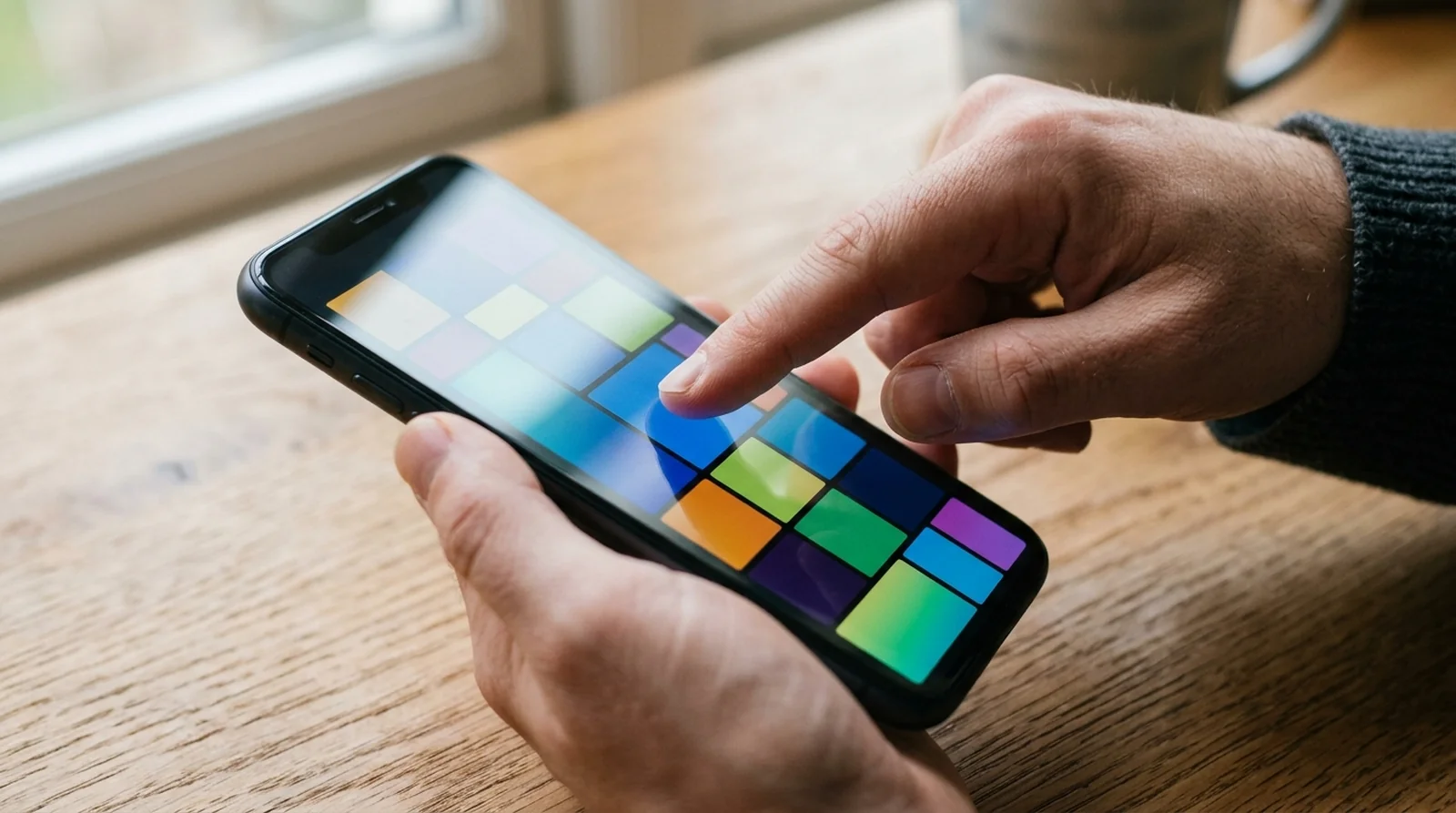
Key Takeaways
- Start With Simple Checks: An unresponsive phone touch screen can result from software faults, moisture, accessories, or physical damage. Try a force restart, clean and dry your display, then remove the screen protector, case, and charger before checking your taps again.
- Follow the Fixes: On iPhone, Samsung Galaxy, Pixel, or other Android phones, check power and heat, clear storage, update software, review touch controls and gestures, then try Android safe mode and available touch diagnostics. Leave a factory reset until the end.
- Know When to Stop: Back up your iPhone or Android before a factory reset. If ghost touch persists, touch fails after a screen replacement, or a drop damages your phone, get a hardware assessment rather than assuming another reset will repair the display.
Your phone is ringing, you’re tapping the answer button, and nothing happens. You can often fix a phone screen that is unresponsive to touch with a force restart, a clean and dry display, removal of a protector or charger, or an Android safe mode check for a faulty app. A damaged digitizer, the part that detects your touch, needs repair.
Does that mean you should book a screen replacement immediately? Not necessarily. Your phone could be dealing with a temporary freeze, moisture on the glass, or an accessory interfering with your taps.
Here’s the thing. A screen that ignores every touch and one that stops responding inside a single app give you different clues. Even glass that looks fine can hide damage after a drop, so appearance alone won’t tell you what’s wrong.
Whether you have an iPhone, Samsung Galaxy, Google Pixel, or another Android phone, we’ll walk you through the relevant checks and button presses. You’ll start with fixes that don’t erase your data, then learn when a backup, reset, or professional repair deserves your attention. Try each fix and check your screen before moving on.
Why Your Phone Ignores Your Touch
Why can your display light up while your taps do nothing? Your phone can still show an image when a software fault or a problem with touch detection prevents it from accepting input. You see, your touchscreen depends on electrical contact, and grease, sweat, water, or even very dry fingers can interfere with that contact.
That said, the cause isn’t always on the surface. Your phone may be struggling with limited storage, heat, an app, or internal damage. Use the clues below to decide where to start, without treating any one symptom as a confirmed diagnosis.
| Cause | What you might notice | What to try first |
|---|---|---|
| Temporary software fault | Your phone freezes during use or after an update | Force restart your phone |
| An app causing trouble | Your taps stop working inside a particular app | Test your Android phone in safe mode |
| Dirt, oil, or moisture | Your display feels greasy or has water on it | Wipe your screen and dry it thoroughly |
| Gloves or very dry skin | Your phone struggles to detect your fingers | Remove your gloves or try hand cream for dry hands |
| Poorly fitted screen protector or case | Your protector is cracked, lifting, or interfering near the edges | Remove the protector and case temporarily |
| Faulty charger or accessory | Your touch problems appear while an accessory is connected | Disconnect it and check touch response |
| Almost full storage | Your phone is slow at other tasks too | Remove unused apps and large files |
| Excess heat | Your phone feels hot after gaming, charging, or time in sunlight | Turn it off and leave it somewhere cool |
| Changed accessibility controls | Your phone speaks when you tap, or taps need unusual timing | Review TalkBack and touch timing controls |
| Damage beneath the glass | Your touch problems follow a drop, even without visible cracks | Have your phone assessed for repair |
| Battery swelling | Your display is being pressed outward from inside | Arrange professional assessment |
How to Tell Whether Software or Hardware Is Responsible
Does a missed tap mean your screen is damaged? No, and the pattern of the problem can help you decide what to check next. Trouble limited to one app gives you a different clue from a strip of glass that never accepts your touch.
| Symptom | What it usually points to |
|---|---|
| Your touch response returns after restarting | A temporary software fault may have caused the freeze |
| Your screen works elsewhere but fails inside one app | An app problem rather than a failure across your entire touchscreen |
| Your touchscreen works normally in Android safe mode | A downloaded app is likely responsible |
| Your problem began after a software update | A software issue is possible, though the timing alone does not confirm the cause |
| Your screen stopped responding after a drop | Internal damage, even if your glass looks intact |
| Your display has cracks, unusual lines, or flickering | A display or internal fault that deserves professional assessment |
| Your taps repeatedly fail along the same strip | A localized touch problem that needs further checking |
You can also use Google’s drag test to check whether your Android phone repeatedly loses contact at one position. Here’s how you can check that pattern without installing another app.
- Place your finger at your display’s upper left corner.
- Drag diagonally toward the lower right, keeping your finger against the glass.
- Take enough time to count to 10 during the movement.
- Watch whether the Quick Settings panel and notifications follow your finger throughout.
- If the panel releases before you finish, repeat the test and note where contact stops.
If you can pull the panel all the way down, the test does not suggest one specific failed area. If it releases repeatedly at the same position, contact your manufacturer and describe that result. That said, use the test as a clue for the next step, rather than proof that you need a replacement screen.
How to Fix an Unresponsive Phone Touch Screen
Start with the first fix and work down the list. After each one, check whether your phone accepts taps and swipes again before changing anything else.
Here’s the thing. You don’t need to try every fix if an earlier step restores normal touch response. We’ll begin with your phone’s buttons, then check the display surface and anything connected to your device.
1. Restart Your Phone With Its Buttons
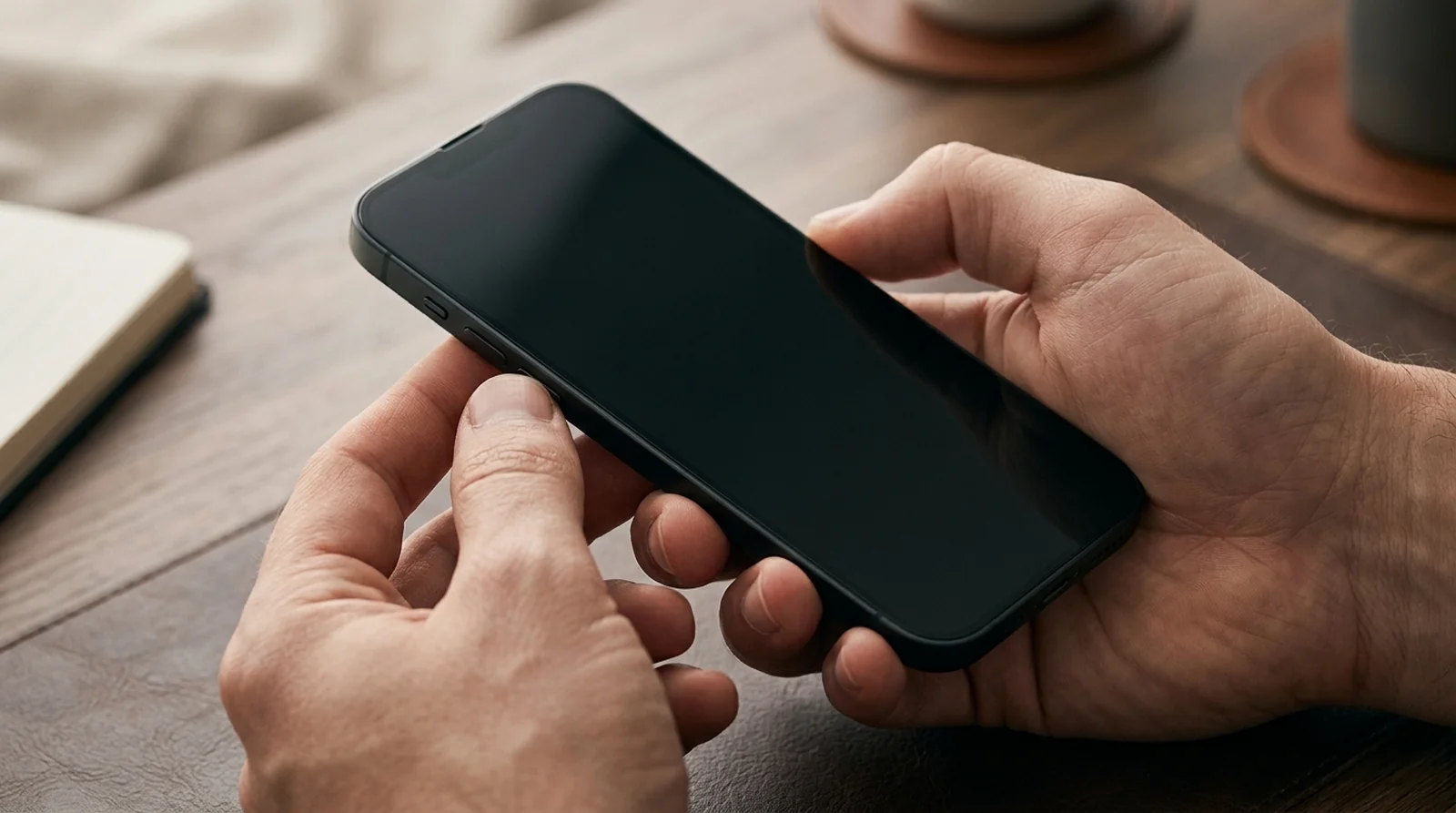
Can you restart a phone when you can’t tap its power menu? Often, yes. A force restart uses physical buttons and may clear the temporary software fault behind your frozen screen.
This is a useful starting point when your phone stops responding during ordinary use. Your button sequence depends on your device, so follow the relevant instructions below. If your iPhone stays dark after the button sequence, our guide on what to do when an iPhone won’t turn on picks up from there.
How to Fix It
- iPhone
- Briefly press Volume up, then release it.
- Do the same with Volume down.
- Keep the side button held until you see the Apple logo, then let go.
- Samsung Galaxy
- Press the Side button together with Volume down.
- Keep both held for longer than 7 seconds, until your Galaxy restarts.
- Pixel or other Android phones
- On most Android phones, keep the power button held for roughly 30 seconds, or until your phone restarts.
- If your phone displays a Restart option instead, tap it if your screen allows you to.
2. Wipe Your Display and Remove Moisture
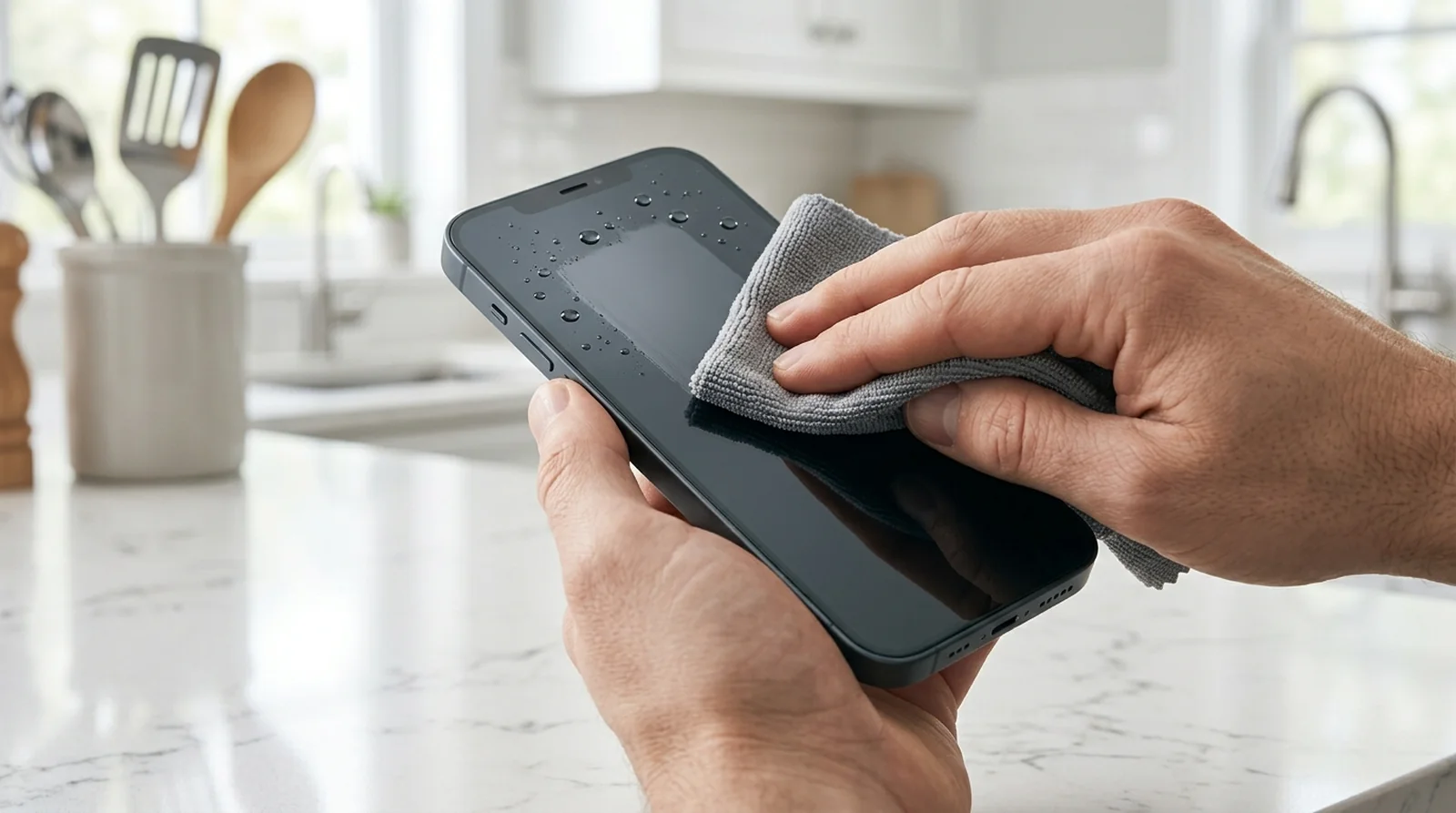
Your screen doesn’t need a crack to miss your taps. Fingerprints, oily residue, and moisture can interfere with touch detection, so cleaning the surface may restore its response.
You see, water resistance doesn’t prevent water on your display from affecting touch. If your phone is wet, drying the glass matters, and your charging port must be completely dry before you connect power.
How to Fix It
- On your iPhone, Galaxy, Pixel, or other Android phone, gently wipe the display with a clean microfiber cloth.
- For residue that won’t come off, lightly moisten the cloth with water or a cleaner intended for phone screens.
- Apply the cloth to your display rather than spraying liquid onto your phone.
- Keep harsh household cleaners away from your device.
- Use a soft, dry cloth to remove remaining surface moisture.
- Check touch response again, and leave the charging port dry before plugging anything into it.
3. Remove Anything Covering Your Screen
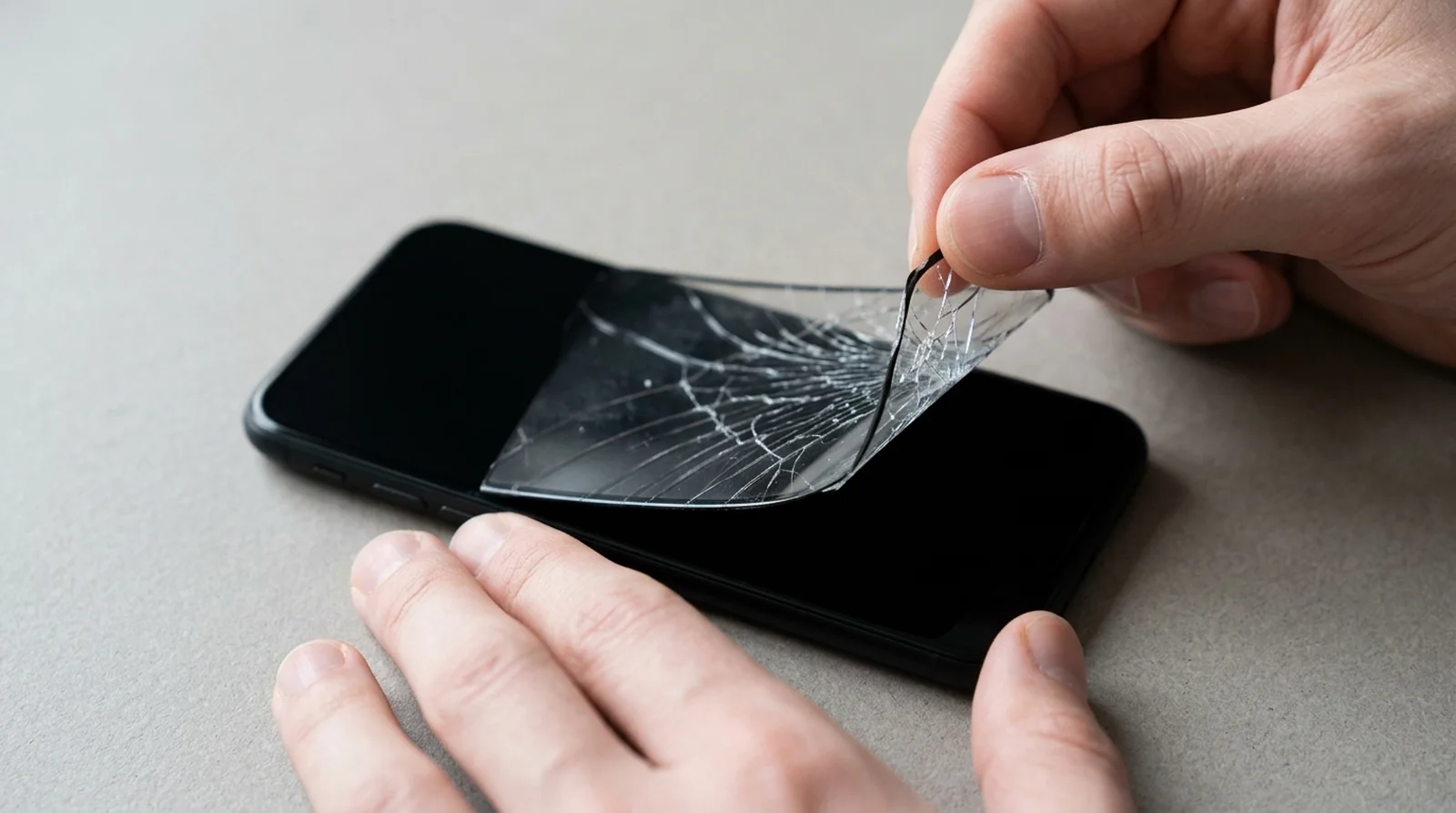
Your protector may be protecting the glass while interfering with your taps. A cracked, lifting, or poorly fitted protector can reduce touch sensitivity, while some cases and protectors can cause trouble around the edges.
Gloves and stickers covering your display or sensors are worth checking too. Here’s the catch. You may be unable to reuse a screen protector after peeling it away.
How to Fix It
- Remove your gloves before checking your iPhone, Galaxy, Pixel, or other Android phone.
- Take your phone out of its case.
- Peel away stickers covering the display or sensors.
- Remove your screen protector temporarily.
- Try your screen again to check whether removing those coverings restores normal response.
4. Disconnect Your Charger and Other Accessories
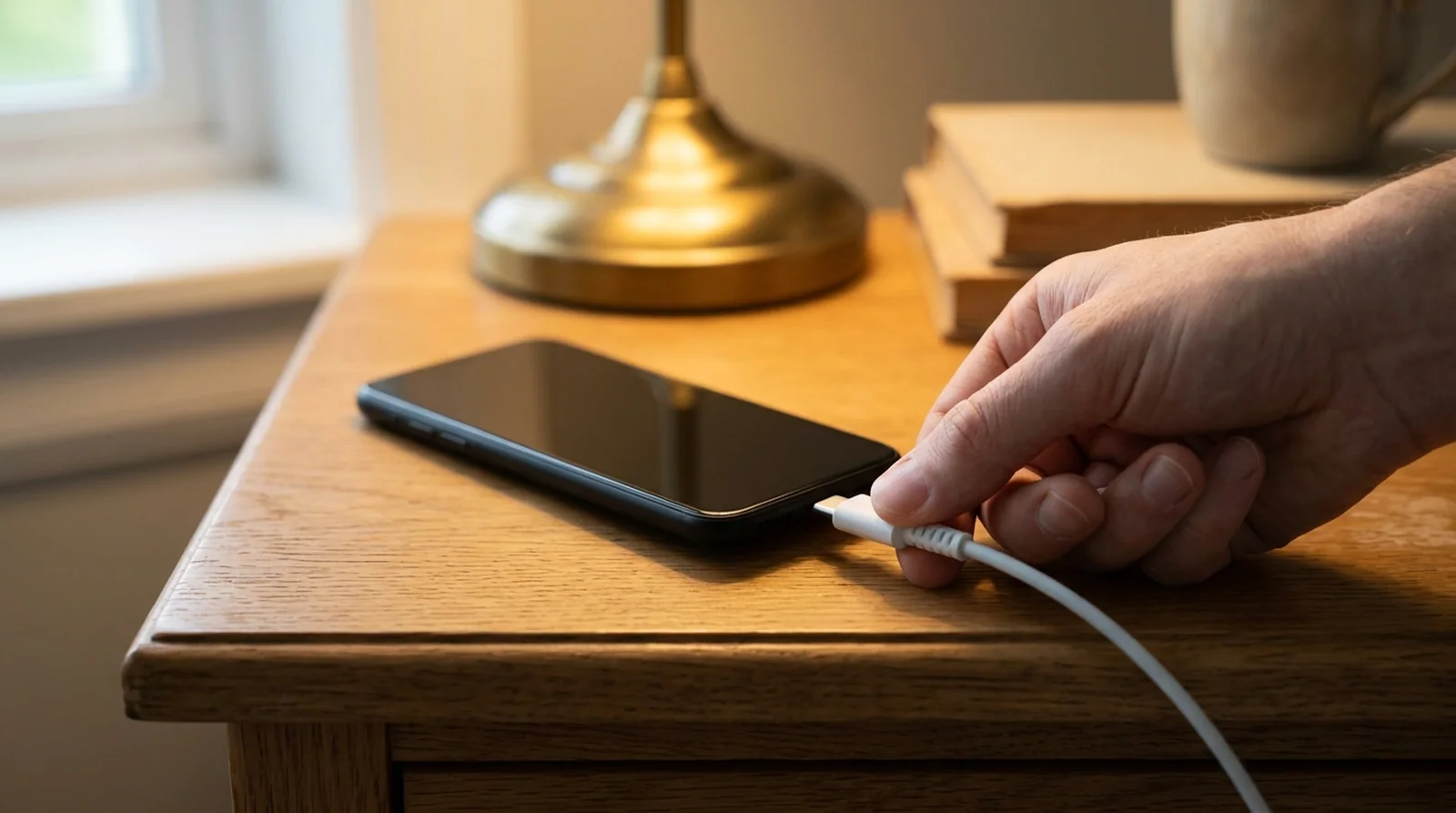
Does your screen behave differently while your phone is plugged in? Disconnecting an accessory can help you determine whether it is involved in the problem. If your iPhone also refuses to charge, our iPhone not charging guide covers the cable and port checks. On an iPhone, Apple recommends this check when touch response is intermittent or unusually sensitive.
A damaged Galaxy charger can also cause touchscreen trouble if it fails to supply power properly. That said, changing the screen itself should not be your first move when removing a connected accessory restores touch.
How to Fix It
- iPhone
- Disconnect any accessory using your Lightning or USB-C port.
- Check whether your screen responds normally without it.
- If touch returns, try another power outlet, cable, or charger to help identify what caused the trouble.
- Samsung Galaxy
- Disconnect your charger and check your screen again.
- Replace a damaged charger with an undamaged one.
- Avoid using your touchscreen while your Galaxy charges.
5. Restore Power and Give Your Phone Time to Cool
Is your battery almost empty? Give your phone some charging time before trying again. A critically low battery is worth addressing before you assume your touchscreen has failed.
Heat deserves a separate check, especially after demanding games, prolonged charging, or time in direct sunlight. Your phone may reduce performance while it cools, which can affect touch response. Avoid putting it in a refrigerator or freezer, since the sudden temperature change can cause condensation inside. If heat keeps coming back, our guide on why your phone gets so hot explains the usual triggers.
How to Fix It
- iPhone, Galaxy, Pixel, or other Android phones
- When your battery is nearly empty, plug your phone into the charger that came with it.
- Allow at least 20 minutes of charging before another attempt.
- If your phone is hotter than usual, power it down and give it time to cool in a cooler location.
- Check touch response again after your phone has cooled.
- Pixel with a display that stays dark
- Connect your Pixel to power.
- Hold Power together with Volume up for at least 20 seconds.
- If a red light appears, allow at least 30 minutes of charging, then hold Power.
- If you see the Android robot and Start, use the volume buttons to select Power off.
- Charge for 30 minutes, then hold Power. You can also try holding Power for 30 seconds to restart.
6. Make Storage Space and Install Updates
Your touchscreen may seem to be the problem when your entire phone is struggling. Almost full storage can slow ordinary tasks or leave your phone temporarily frozen, so clearing space may help.
Outdated software and apps can cause bugs or compatibility trouble too. Here’s the thing. An update may help with a software fault, but save your important files before installing it.
How to Fix It
- Storage on any phone
- Review unused apps, duplicate photos and videos, and large downloads.
- Remove items you no longer need, including old messages, attachments, and cached files where available.
- Aim to leave several gigabytes of storage free.
- iPhone updates
- Back up your important files before updating.
- Install an available iOS update, then check whether touch response improves.
- Samsung Galaxy updates
- Open Settings.
- Choose Software Update, then Check for updates.
- Install an available update.
- Google Pixel updates
- Open Settings and select System.
- Choose Software updates and check for an available update.
- Android app updates
- Open Google Play Store and select your account icon.
- Choose Manage apps & device.
- Tap Update all.
7. Review Accessibility and Touch Controls
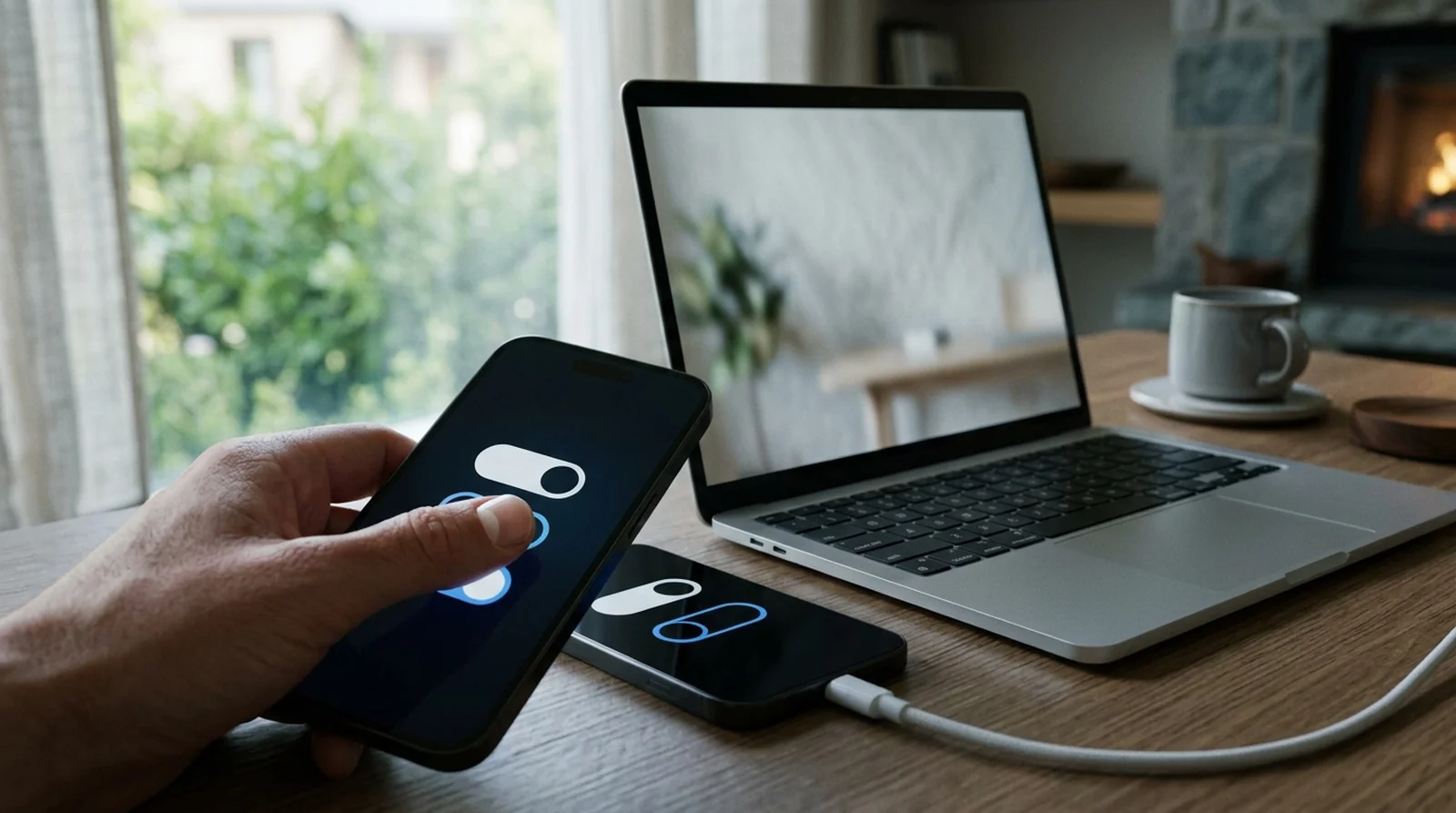
Does your phone speak when you tap an item, yet refuse to open it with your usual gesture? TalkBack may be enabled on your Galaxy. With TalkBack active, you select an item with one tap, open it with two taps, and move through content using two fingers.
Other touch controls can change how long you need to press or how repeated taps are treated. Your Galaxy or Pixel may also offer a sensitivity option for use with a protector. Review controls you changed accidentally, while keeping any accessibility features you rely on.
How to Fix It
- Samsung Galaxy TalkBack
- Open Settings, then Accessibility.
- Select TalkBack.
- Turn its switch off if you enabled it unintentionally, using TalkBack’s tap gestures while it remains active.
- Samsung Galaxy touch timing
- Go to Settings > Accessibility > Interaction and dexterity.
- Review tap duration, ignore repeated touches, and touch and hold delay.
- Return any unintentionally changed controls to their default values.
- Samsung Galaxy magnification
- Open Settings and choose Accessibility.
- Select Vision enhancements, then Magnification.
- Turn off Magnification shortcut if its triple tap option is delaying or missing your quick taps.
- Samsung Galaxy protector sensitivity
- Open Settings > Display.
- If you use a screen protector or tempered glass, enable Touch sensitivity.
- Check whether your taps register more reliably.
- Pixel 9, 9 Pro, and 9 Pro XL
- Open Settings and select Display & touch.
- Choose Touch sensitivity.
- Test Adaptive touch enabled and disabled, checking your screen after each change.
- Pixel 8a and earlier, including Fold
- Go to Settings > Display & touch.
- Select Touch sensitivity.
- Try Screen protector mode enabled and disabled to compare your touch response.
- iPhone Touch Accommodations
- Open Settings and select Accessibility.
- Choose Touch, then Touch Accommodations.
- Review whether Hold Duration, Ignore Repeat, or Tap Assistance is changing how your taps register.
- Use Recalibrate Touch Accommodations or Reset Touch Accommodations where available if you need to correct an unintended setup.
8. Try Button Controls and Disable Developer Options
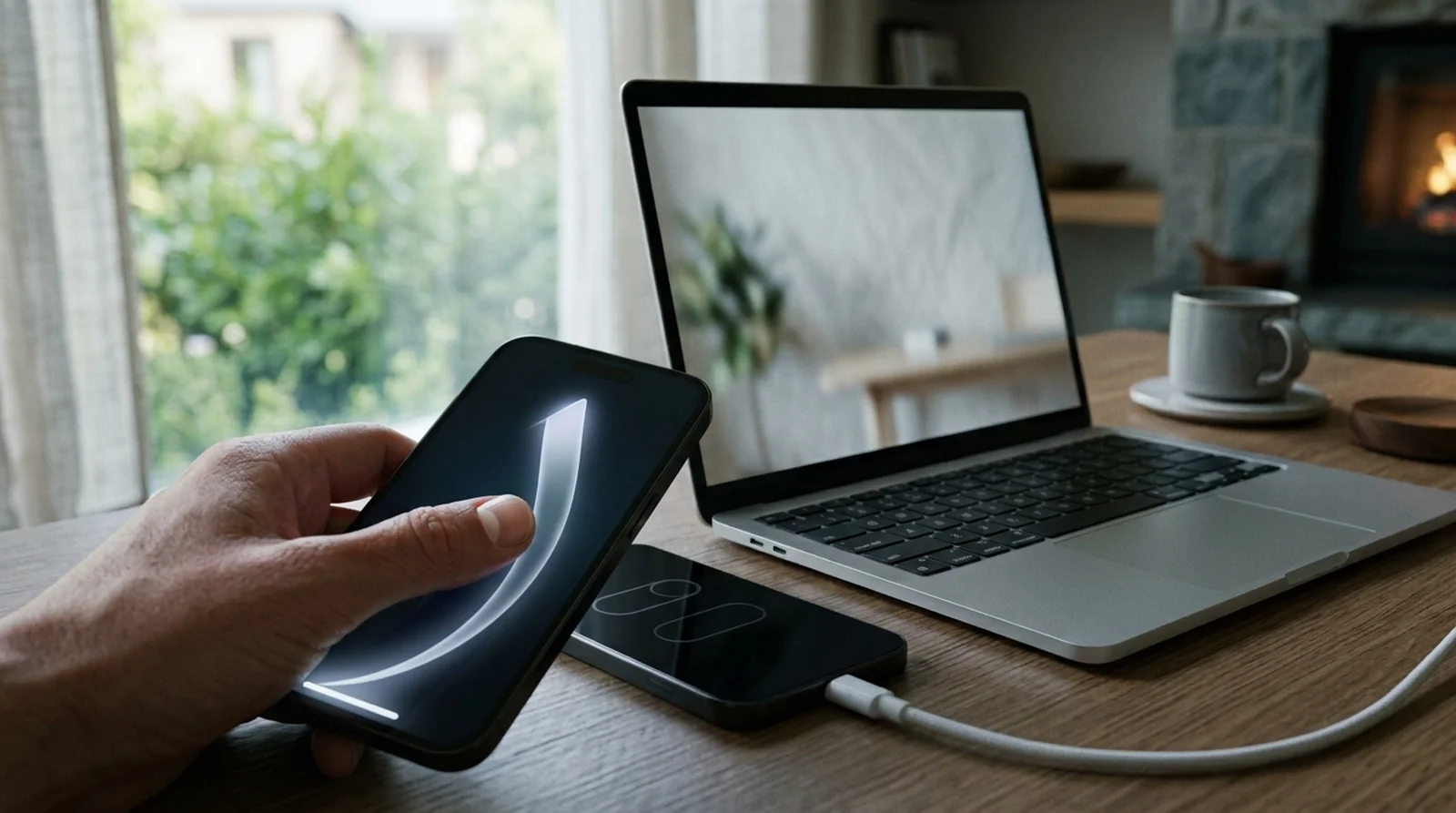
Sometimes your phone accepts your contact but interprets it as a gesture. On a Galaxy, switching from full screen gestures to buttons may help when gesture recognition interferes with intended taps.
Your Pixel also lets you adjust gesture sensitivity. Separately, Google includes turning off Developer options among its Android troubleshooting checks. You’ll see that menu only if you previously enabled it.
How to Fix It
- Samsung Galaxy button controls
- Open Settings and choose Display.
- Select Navigation bar.
- Choose Buttons to disable full screen gestures.
- Check whether your intended taps now work normally.
- Google Pixel gesture sensitivity
- Open Settings and choose System.
- Select Navigation mode, then Gesture navigation.
- Adjust gesture sensitivity and check whether the problem improves.
- Android Developer options
- Open Settings and select System.
- If Developer options appears, open it.
- Turn off its master switch, then check your touchscreen again.
9. Use Safe Mode to Check Your Apps
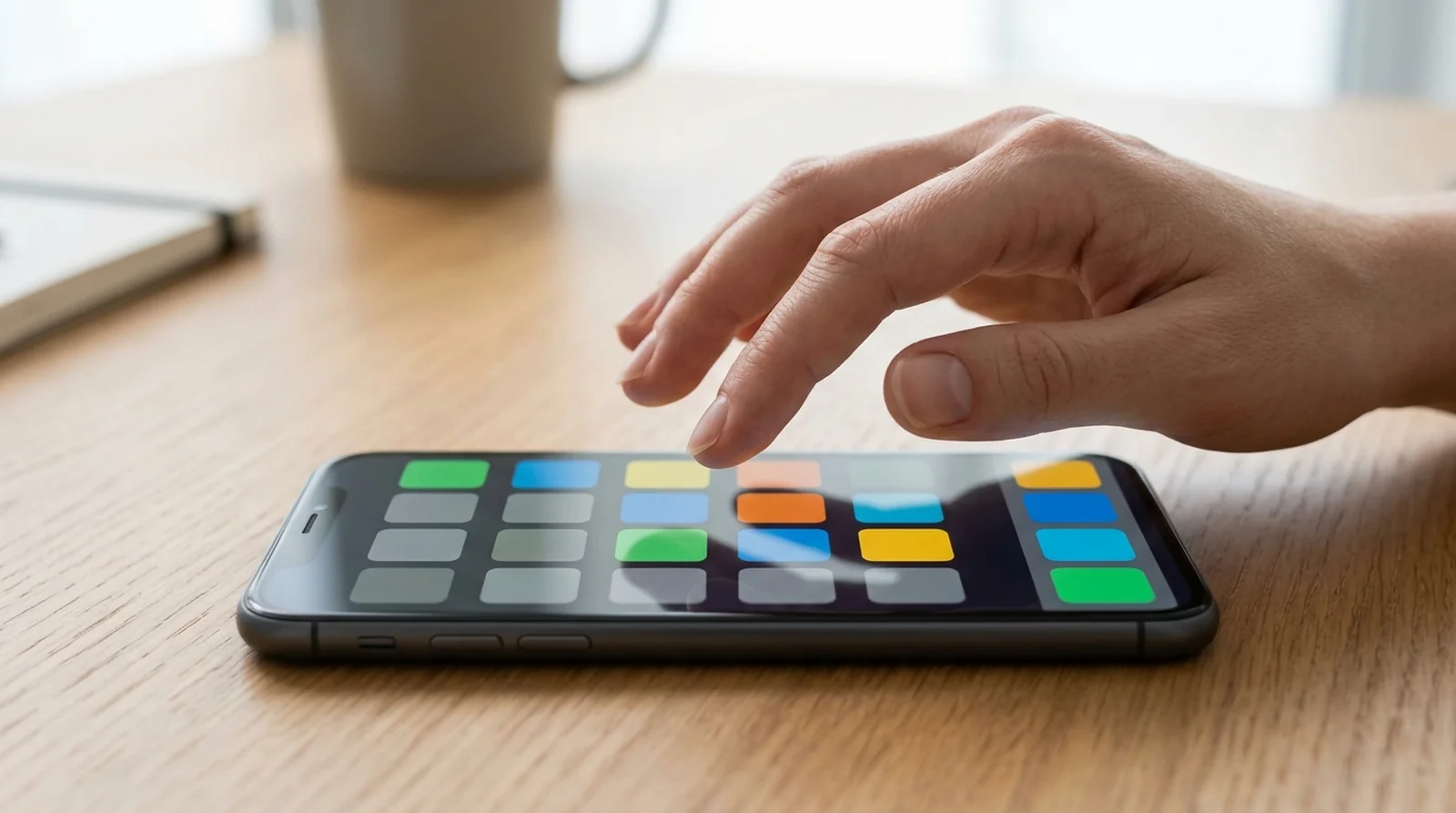
Could an app be making your whole screen seem faulty? On Android, safe mode helps you check that possibility. If your touchscreen behaves normally there, a downloaded app is likely involved.
You can then remove recent apps individually rather than guessing which one caused the trouble. Start with anything installed or updated around the time your screen stopped responding. On your iPhone, removing recent apps or trying Reset All Settings gives you separate options without treating DFU mode as an app test.
How to Fix It
- Samsung Galaxy
- Press the Power or Side button together with Volume down to open your power menu.
- Alternatively, pull down from the top using two fingers and select the power icon.
- Keep your finger on Power off until Safe mode appears.
- Select Safe mode and check your touchscreen.
- Restart your Galaxy to return to normal operation.
- If touch worked in safe mode, uninstall recent or recently updated apps individually, checking after each removal.
- Once you identify the troublesome app, reinstall any others you removed unnecessarily.
- Pixel and other Android phones
- Follow your model’s manufacturer instructions to enter safe mode.
- Check whether your touchscreen responds normally. On Pixel, expect airplane mode to be enabled.
- Restart to leave safe mode.
- If the problem disappeared during the test, remove recently downloaded apps one at a time.
- Check touch response after each removal.
- iPhone
- Remove recently installed apps if you can operate your screen.
- Check whether the problem continues.
- Consider Reset All Settings as a further software troubleshooting option that retains your personal data.
10. Check Touch Response With Diagnostic Tools
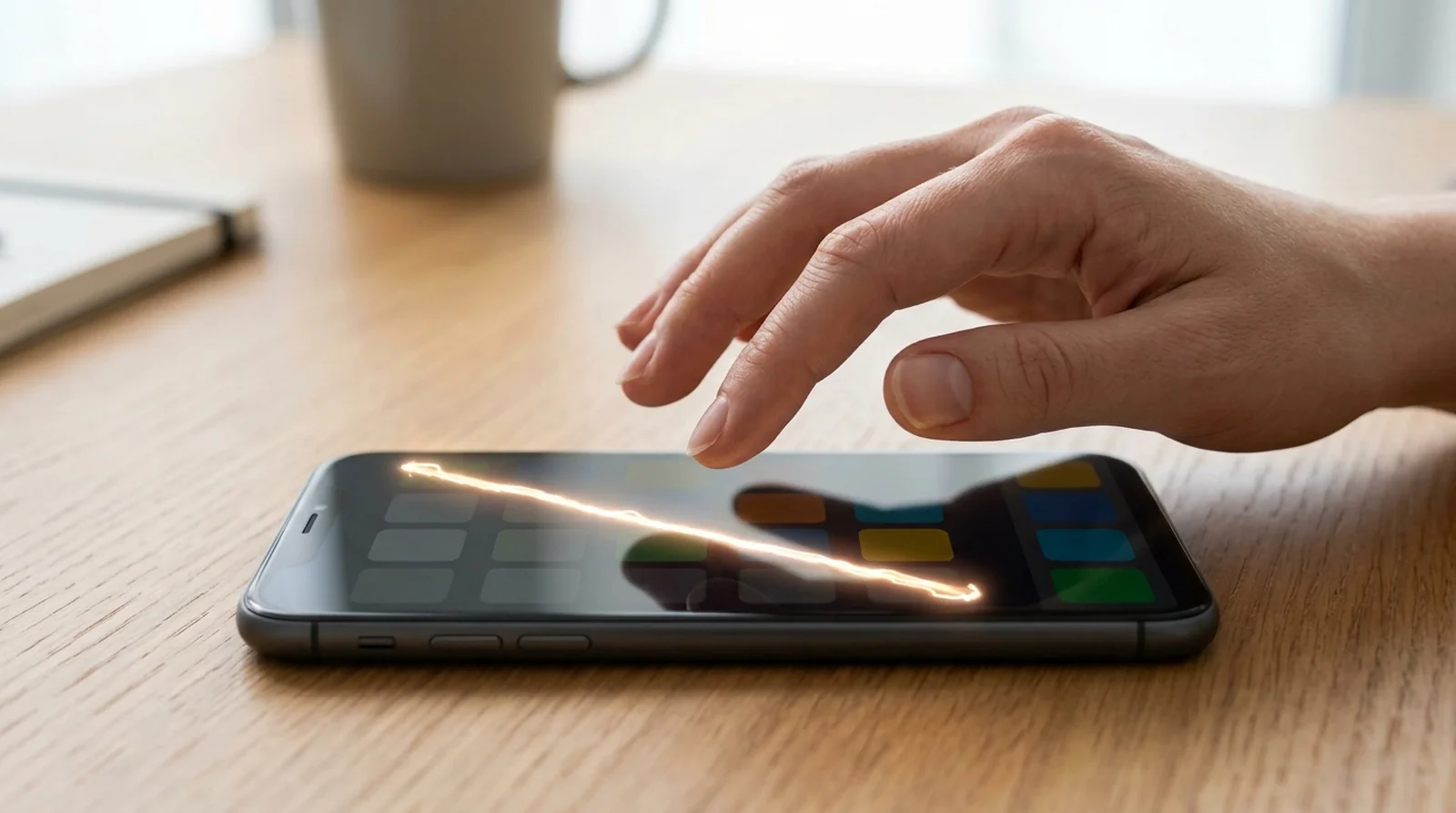
Still unsure whether your phone is missing input in a particular area? Your Galaxy or supported Pixel can provide a touch diagnostic test. These tools give you another check before you move toward a reset or repair.
On Galaxy, you need Samsung Members installed to use its phone diagnostics. On Pixel, the touch diagnostic route below applies to Pixel 9, 9 Pro, and 9 Pro XL. If you have another Android phone, use the corner drag test covered earlier rather than repeating it here.
How to Fix It
- Samsung Galaxy
- Open Samsung Members and choose Support.
- Select Get started to begin the diagnostic scan.
- Stop the full scan if you want to run an individual check.
- Select Touch screen.
- Complete the instructions displayed by the app.
- Pixel 9, 9 Pro, and 9 Pro XL
- Open Settings.
- Select Display & touch.
- Open Touch diagnostics and complete the test.
- Other Android phones
- Return to the corner drag test in the software and hardware section above.
- Note whether your phone repeatedly loses contact at one position.
- Contact your manufacturer if that result persists.
11. Save Your Data Before a Factory Reset
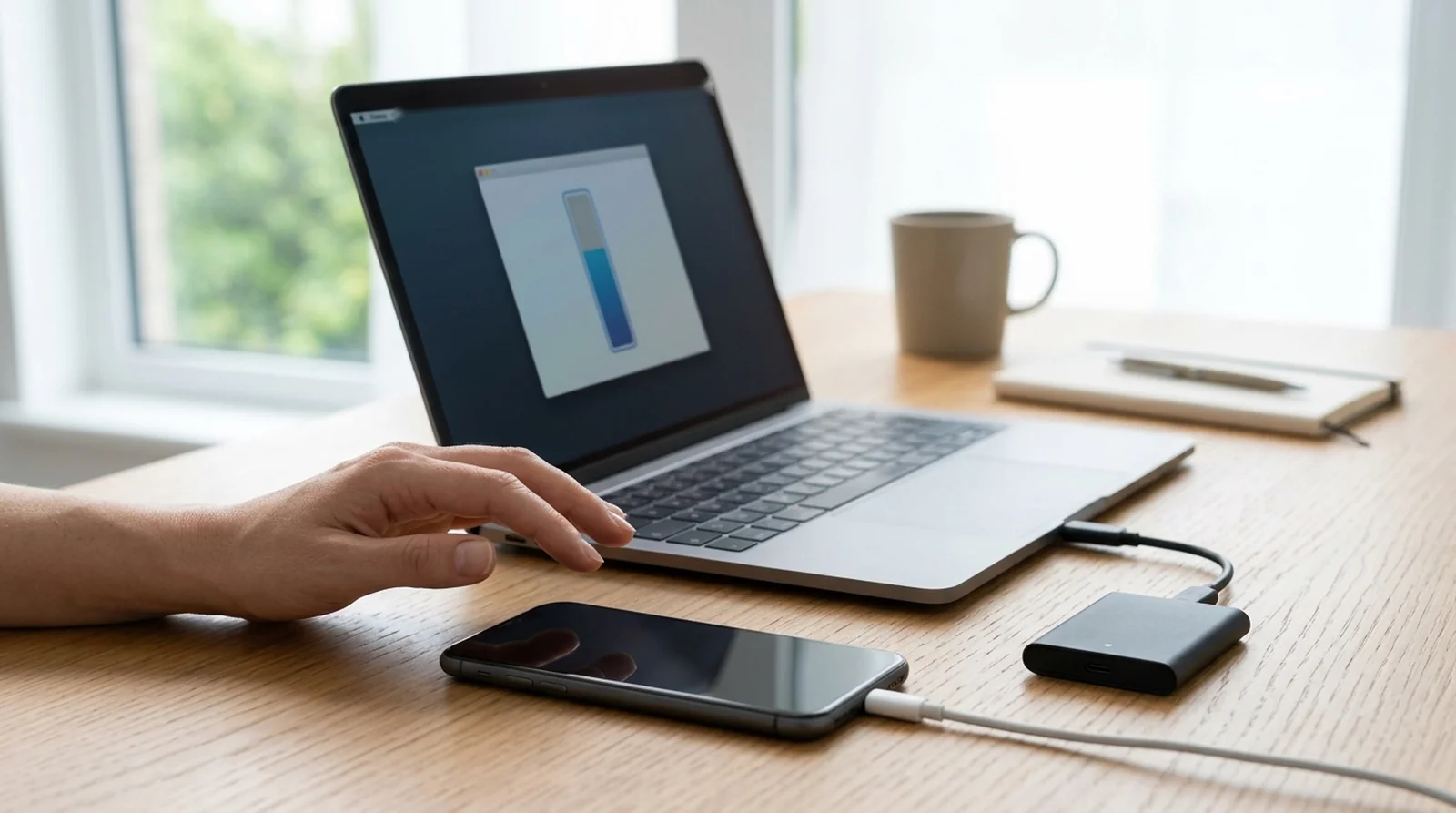
A factory reset belongs at the end of your software troubleshooting. It removes your personal content, installed apps, and their local data, so back up what you need before continuing. It may resolve a persistent software fault, but it cannot repair a damaged digitizer.
Your Android backup can include contacts, call history, app data, device preferences, and SMS/MMS messages. Photos and videos need Google Photos, while RCS backup requires Google Messages. Allow up to 24 hours for a Google One backup to finish.
Here’s the catch. Backing up an iPhone through a computer may require a trust confirmation and your passcode on the phone itself. If your touchscreen cannot complete those requests, connecting a cable alone may not be enough.
How to Fix It
- Android backup
- Open Settings and select Google.
- Choose All services, then Backup and restore.
- Open Backup and select Back up now.
- Allow the backup to finish before resetting, remembering that completion can take up to 24 hours.
- Check your photo and video backup separately in Google Photos.
- iPhone backup through iCloud
- Open Settings and select your name.
- Choose iCloud, then iCloud Backup.
- Select Back Up Now.
- Keep your iPhone connected to Wi-Fi until the backup finishes.
- If you already enabled automatic iCloud Backup, its operating conditions include power, Wi-Fi, and a locked display. Do not assume a backup has completed just because those conditions are met.
- iPhone backup through a Mac
- Connect your iPhone to your Mac with a cable.
- Approve the accessory connection if your Mac asks.
- On macOS Catalina 10.15 or later, open Finder and select your iPhone. Use iTunes on older Macs.
- Complete any trust confirmation and passcode request on your iPhone.
- Choose Encrypt local backup if you need to save Health and Activity data, and set a password.
- Select Back Up Now and wait for completion.
- Samsung Galaxy factory reset
- Finish backing up your personal content.
- Decrypt your microSD card first if you encrypted it.
- Have your Samsung account credentials available and maintain a network connection for signing out.
- Open Settings and select General management.
- Choose Reset, then Factory data reset.
- Select Reset, followed by Delete all.
- Enter your Samsung account credentials when requested.
- Other Android factory reset options
- Complete your backup before proceeding.
- Follow your manufacturer’s reset instructions for your particular model.
- If your display accepts no input or stays blank, use the manufacturer’s hardware button procedure.
- Avoid reinstalling an app you identified as the cause, since doing so can bring the touch problem back.
When Your Phone Taps Itself or Misses Touches in One Area
What if your phone responds when you aren’t touching it, or ignores only one corner? Those patterns deserve a closer look than a general description of a frozen screen. Your charger, protective accessories, software, or display hardware may be involved.
Stop Unwanted Taps and Scrolling
If your phone opens items or scrolls without your finger touching the display, you’re experiencing what is commonly called ghost touch. It is usually a touch fault, though our guide on how to know if your phone is hacked can help you rule out other causes. Start with the cleaning, accessory removal, and restart checks above rather than assuming you need a replacement screen.
You can also review your iPhone’s AssistiveTouch, Touch Accommodations, and Back Tap controls under Settings > Accessibility > Touch. That said, persistent unwanted input can need repair. In one iPhone community report, removing the case and performing a factory reset did not resolve the scrolling, and the reply recommended service.
Check a Dead Strip or Corner
If you can use most of your display but cannot drag across one particular line, note exactly where contact fails. Use Google’s corner drag test described earlier to check whether your phone repeatedly loses your finger at that position. Repeated failure in the same place is a reason to contact your manufacturer.
An intact surface does not rule out a display fault. In a Galaxy A72 community case involving an unresponsive strip without cracks, a Samsung moderator said screen replacement would normally be needed. Treat that as advice about that reported case, rather than a diagnosis of your own phone.
Test Touch Without Your Charger
If your screen misbehaves only while charging, disconnect the charger and check again. On your iPhone, touch returning after you remove an accessory is a reason to try another outlet, cable, or charger. On Galaxy, Samsung recommends replacing damaged charging equipment and avoiding touchscreen use during charging.
Users have also reported charging related touch problems that improved after changing a charger or removing a case. Those are individual experiences, so they do not establish that your phone has the same fault. Use the accessory check to narrow down your problem before paying for display work.
When Touch Fails After a Repair or Update
Your screen worked before a repair or update, and now your taps barely register. That timing matters, but it does not identify the cause by itself. Check the repair details and software behavior separately rather than assuming every replacement display or update causes the same problem.
Recheck a Third Party Screen Repair
If your trouble began immediately after a screen replacement, contact the repair provider. A Samsung community moderator described a faulty or incorrectly installed replacement as a possible cause of ghost touch on a Galaxy A12. Repair discussions also describe damaged connectors or cables as possible reasons a display can show an image while accepting no touch.
On your iPhone, Apple warns that nongenuine displays may miss touches, register them in the wrong place, or accept unintended contact from your palm or the edges. True Tone, brightness, color, and battery behavior can be affected too. Ask what display was installed and have the provider assess the installation rather than assuming a software reset will correct it.
Check Your iPhone’s Repair Record and Repair Assistant
If you see Unknown beside your iPhone’s display record, it does not prove the screen is counterfeit. Apple uses that label for several possibilities, including a nongenuine part, a part that is malfunctioning, or one that has not been verified and linked after repair. Genuine indicates Apple parts and repair processes, while Used can identify a previously installed display on iPhone 15 and later running iOS 18 or later.
You may instead see Finish Repair when the display repair still needs completion through Repair Assistant. For supported display repairs on iPhone 12 and later, Repair Assistant installs calibration data and requires current iOS, Wi-Fi, and battery charge above 20 percent. These display messages do not themselves prevent you from using your iPhone.
- Open Settings and select General.
- Choose About and look for the repair history entry.
- Read the label beside Display.
- If repair completion is required, open Parts & Service History.
- Select Restart & Finish Repair and follow the instructions on your phone.
Investigate Problems After an iOS or Android Update
If your touchscreen became unreliable after an update, note your phone model, software version, and the situations where touch fails. One iPhone 12 Pro owner reported intermittent response after moving from iOS 18.7.2 to iOS 26.1, with the problem continuing on iOS 26.2. A later user reply blamed an alternative display, but that was a user claim, not an Apple finding.
Pixel owners have reported missed edge and corner touches on Android 17, particularly during games and full screen video. Reports named Pixel 7 Pro, Pixel 9, and Pixel 10 Pro, with Pixel 8a mentioned in comments, and some users could still operate gestures and the notification panel. Google has not confirmed a bug behind those reports, and no fix has been announced. Check for available updates and use the safe mode test rather than treating the reports as proof of your own phone’s fault.
How to Use and Back Up a Phone Without Touch
Can you save your files when your screen ignores every tap? Sometimes, but your options depend on what still works and what you enabled beforehand. A backup service, a previously trusted computer, or an external input device may help you operate the phone or preserve its data.
Back Up Your iPhone With iCloud or a Computer
If iCloud Backup was already enabled, your iPhone’s automatic backup conditions include a power connection, Wi-Fi, and a locked screen. Leaving your phone in those conditions may allow an automatic backup, but it does not guarantee that a new backup will complete. If you still have intermittent touch, you can try Back Up Now under Settings > your name > iCloud > iCloud Backup.
A Mac or PC your iPhone already trusts is a better starting point than a computer it has never approved. Here’s the catch. A trust confirmation or passcode request can still require input on your iPhone, so do not assume a computer can copy your data without any phone interaction.
- Connect your iPhone to your Mac with a cable.
- On macOS Catalina 10.15 or later, open Finder and select your phone. Older Macs use iTunes.
- Approve any required connection, trust, or passcode requests.
- Select Encrypt local backup if you need Health and Activity data included, and set a password.
- Choose Back Up Now and wait for completion.
Back Up Your Android or Galaxy Phone
Your Google Account backup can include contacts, app data, call history, phone preferences, and SMS/MMS messages. Your photos and videos need Google Photos, and RCS backup requires Google Messages. Check those separately rather than assuming one backup includes everything.
If you can operate your Galaxy with a mouse, you can use that input method to reach your backup controls. Allow time for completion before resetting, since a Google One backup may take up to 24 hours. If you cannot reach the controls, do not assume that starting a manual backup is possible.
- Open Settings and select Google.
- Choose All services, followed by Backup and restore.
- Open Backup and select Back up now.
- Check your photo and video backup separately in Google Photos.
- Wait for the backup to finish before erasing your phone.
Use a Mouse, Keyboard, or TV
If your Galaxy still displays an image, Samsung describes using an OTG adapter and USB mouse to control it. You can connect a keyboard through the adapter too, including for entering your PIN or password. These instructions describe Galaxy support, so check compatibility before assuming another Android phone offers the same options.
If your Galaxy display is blank, a multiport adapter and HDMI connection may let you view it on a TV. Your phone must already be past its lock screen, and HDMI output is not supported by every model. If both touch and the display have failed, Samsung describes connecting a mouse and TV through the same multiport adapter.
- Connect a compatible OTG or multiport adapter to your Galaxy.
- Attach a USB mouse, and a keyboard if needed.
- If your phone supports HDMI output, connect an HDMI cable between the adapter and your TV.
- Select the matching HDMI input on your TV.
- Exit DeX if it is running, and expect a short delay in response.
- Use the external controls to reach your files or backup options. With the mouse, a right click returns you to the Home screen.
Use Voice Control You Enabled Beforehand
On your iPhone, Voice Control requires iOS 13 or later and an initial setup download through Settings > Accessibility > Voice Control > Set up Voice Control. After setup, you can ask Siri to turn on Voice Control, then use commands such as “Show numbers,” “Show grid,” and “Go back.” The Siri command activates an already configured feature, so it is not a guaranteed first time setup method when touch has completely failed.
On Android, Voice Access also needs initial activation and microphone and notification permissions. For Voice Access 17.0 or later, enable Voice Access shortcut under Settings > Accessibility > Voice Access, while earlier versions use Use Voice Access. If Hey Google detection is enabled, you can then say “Hey Google, start Voice Access.” Without prior setup, you may need intermittent touch or a connected mouse to enable it first.
When to Get Your Phone Screen Repaired
When should you stop troubleshooting? If your screen remains unreliable after the software checks, or you can see signs of physical damage, arrange a professional assessment.
Recognize the Warning Signs
Cracked glass, flickering, unusual lines, dead pixels, or an area that consistently ignores your finger deserve attention. If your phone recently fell or suffered water damage, explain that history when you book the assessment.
Your glass can look intact while the digitizer or another internal part is damaged. A swollen battery can also press against your display, so visible swelling needs professional attention rather than another round of software changes.
Decide Whether to Repair or Replace
Do you need a whole new phone because touch has stopped working? Not necessarily. If the rest of your device is in good condition, replacing the screen may cost less than replacing the phone.
That said, an older phone with several faults may be a better candidate for replacement. For a sense of how high screen bills can climb, see our breakdown of iPhone Duo screen repair costs. Ask for a diagnosis before deciding, since the fault may involve the display, touch sensor, or another internal part.
Choose Your Repair Provider Carefully
You can contact Apple or an Apple Authorized Service Provider for your iPhone, or Samsung Support for your Galaxy. For your Pixel or another Android phone, your manufacturer or carrier can direct you toward support.
If you consider an independent repair provider, ask what display will be fitted and whether the repair will be fully completed. Apple warns that nongenuine iPhone displays can cause missed or misplaced touches, unwanted input, brightness problems, and trouble with True Tone.
| Repair route | What you should consider |
|---|---|
| Manufacturer or authorized service | You can arrange an assessment through your phone’s official support route. Samsung lists walk-in, mail-in, and We Come to You options |
| Independent repair provider | Ask about the replacement display and installation. If touch trouble began immediately after an earlier replacement, return to the technician for a check of the screen and its connections |
If your repaired iPhone shows an Unknown display label, that does not automatically mean the part is counterfeit. The label can also indicate a malfunction or a repair that has not been verified and linked correctly, so ask the provider to explain it.
How to Keep Your Touch Screen Working
Got your taps working again? A few regular habits can help you avoid some of the conditions that interfere with touch, although they cannot prevent every software fault or damaged screen.
- Keep Your Display Clean: Wipe away fingerprints and residue with a soft microfiber cloth. Keep your glass dry, and let your charging port dry completely before connecting power.
- Choose Protection Carefully: Use a durable case and a good quality screen protector that fits properly. Check for cracks or lifting edges rather than leaving a damaged protector in place.
- Leave Some Storage Free: Review unused apps, duplicate photos, and large downloads before your storage fills up. Keeping several gigabytes available can help your phone run more smoothly.
- Keep Software Updated: Install operating system and app updates regularly, since they may fix bugs or compatibility problems. Back up your important files before an operating system update.
- Avoid Extreme Temperatures: Keep your phone away from prolonged direct sunlight and avoid leaving it in a car. Your iPhone is designed for use at ambient temperatures between 32°F and 95°F, while cold can temporarily affect battery life, charging, or power.
- Replace Damaged Charging Equipment: Use an undamaged charger and cable. If touch trouble returns whenever you connect a particular accessory, disconnect it and try another cable, charger, or outlet.
- Maintain Your Backup: Keep your important content backed up while your screen is working. That gives you a copy of your data before you ever need to consider a reset.
Here’s the thing. Prevention doesn’t need to become another complicated task, just a regular check of your screen, accessories, storage, and updates.
FAQs
Sometimes, but you should not count on waiting alone to solve the problem. A temporary software fault may clear after restarting or updating your phone, while a damaged touch sensor generally needs professional repair.
You can often restart your phone using its physical buttons. On an iPhone, briefly press Volume up, then Volume down, before holding the side button until you see Apple’s logo. On Galaxy, keep Side and Volume down pressed together for longer than 7 seconds. For most other Android phones, try keeping Power pressed for roughly 30 seconds, though your model’s procedure may differ.
Yes, your protector can interfere with touch if it is damaged, lifting, or fitted incorrectly. Remove it temporarily and check whether your taps register normally, remembering that you may be unable to reuse it afterward.
Your fingers may become harder for the screen to detect when dry skin carries less electrical charge. Winter air and indoor heating can contribute to that dryness, so hand cream may help. Cold can also affect your iPhone’s battery and charging, but that does not establish a touchscreen fault.
Repair may make more financial sense if your phone is otherwise working well. If you have an older device with several problems, replacement may be the better choice. Get a professional diagnosis before deciding what needs replacing.
Yes, moisture on your display can disrupt touch even when your phone has water resistance. Wipe the glass with a soft cloth and let it dry. Your charging port must be completely dry before you connect power.
Final Word
Your next step doesn’t have to be a new phone. Work through the fixes in order, checking your taps and swipes after each one so you can stop when normal response returns.
If you reach the factory reset, save your important data before proceeding. A reset erases your personal content, so give your backup time to finish.
Still missing taps after those checks? Arrange a hardware assessment and explain what you have already tried, including any failed areas, recent drops, or repair history.
